Protecting devices
Turn on backup for devices, choose volumes, folders and virtual machines, and set folders, bandwidth and a local copy per device.
Any device with the Tenvara agent can be backed up. Protecting it tells the agent to fetch the backup helper and start backing up on the schedule.
What can be backed up
Each device reports the things it can back up, called units:
| Unit | Platforms | How it is backed up |
|---|---|---|
Volume (for example C: or sda) |
Windows, Linux | A full image of the volume. On Windows a VSS shadow copy is taken first, so open files are consistent. Free space on NTFS volumes is never read |
| Virtual machine | Hyper-V hosts, Proxmox VE nodes | Each guest's disks, taken from a checkpoint (Hyper-V) or a snapshot backup (Proxmox) |
| Folder | Windows, Linux, macOS | The files in a folder you choose, one by one. On Windows it reads from a VSS shadow copy. This is the only kind on a Mac |
You can browse inside volume images when you restore (NTFS, ext4 and XFS), so a full image also gives you single-file restores.
What is selected by default
- Windows and Linux: every supported fixed volume.
- Mac: the users' home folders (
/Users). - Virtual machines: none. Guests on a Hyper-V host or Proxmox node are listed but stay unticked until you choose them.
- Removable and unsupported volumes: listed with the reason, and never selected by default.
An empty selection never means "everything": if nothing is ticked, nothing is backed up.
Protecting one device
- Open the device and scroll to its Backup section.
- Press Protect (or turn on the Protected switch).

The agent downloads the helper, the helper reports the device's volumes and guests, and the first backup runs at the next scheduled time. To start straight away, use Back up now on the device.
Protecting many devices at once
Open Backup and choose Devices. The list shows every device with the agent, its backup state, customer, last good backup, next run, size, how many units are backed up (for example 1 of 3) and the helper's state.
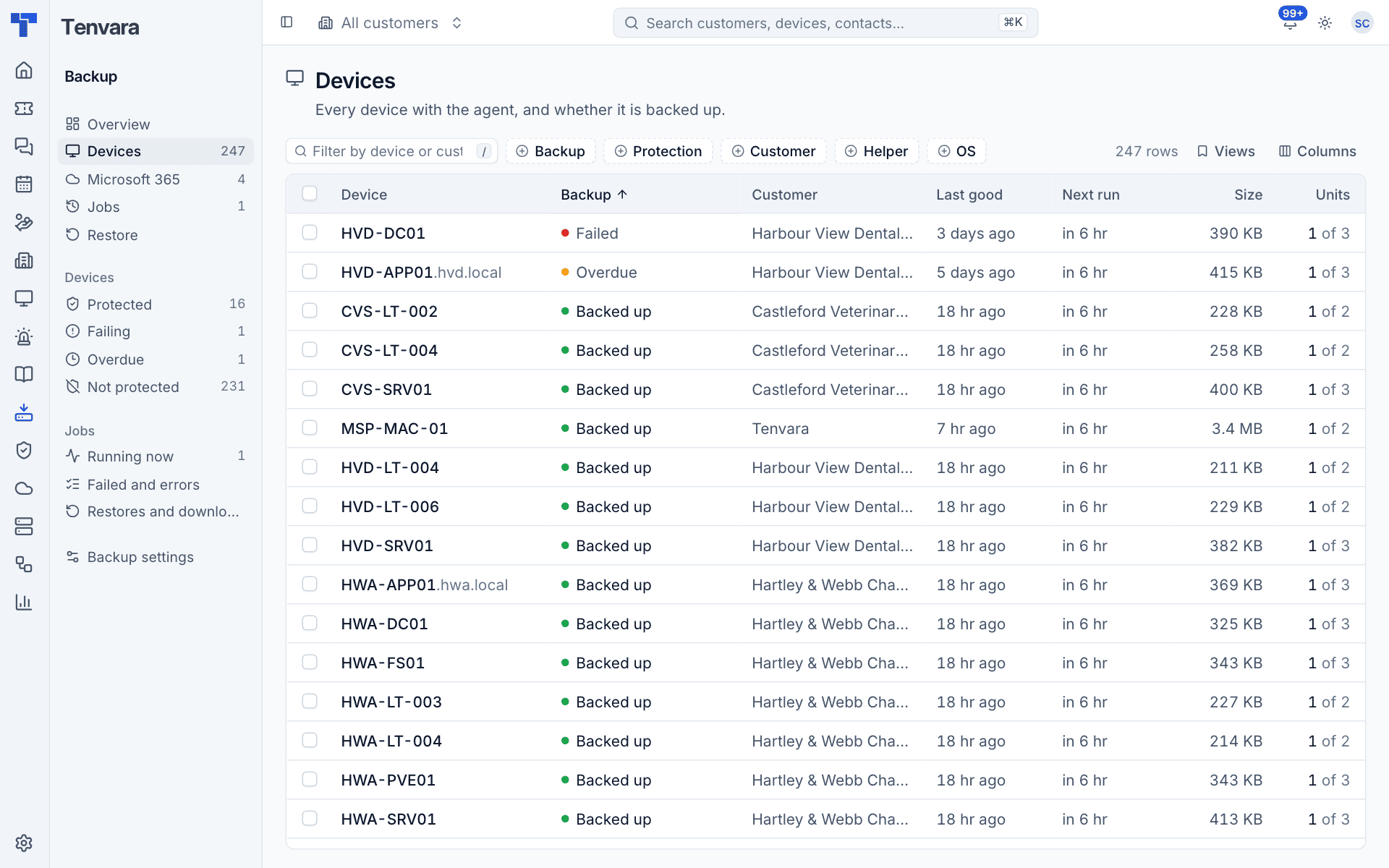
- Tick the devices you want. Use the Not protected view in the sidebar to see only unprotected ones, or filter by Customer or OS.
- Press Protect in the bar that appears. Stop protecting does the opposite.
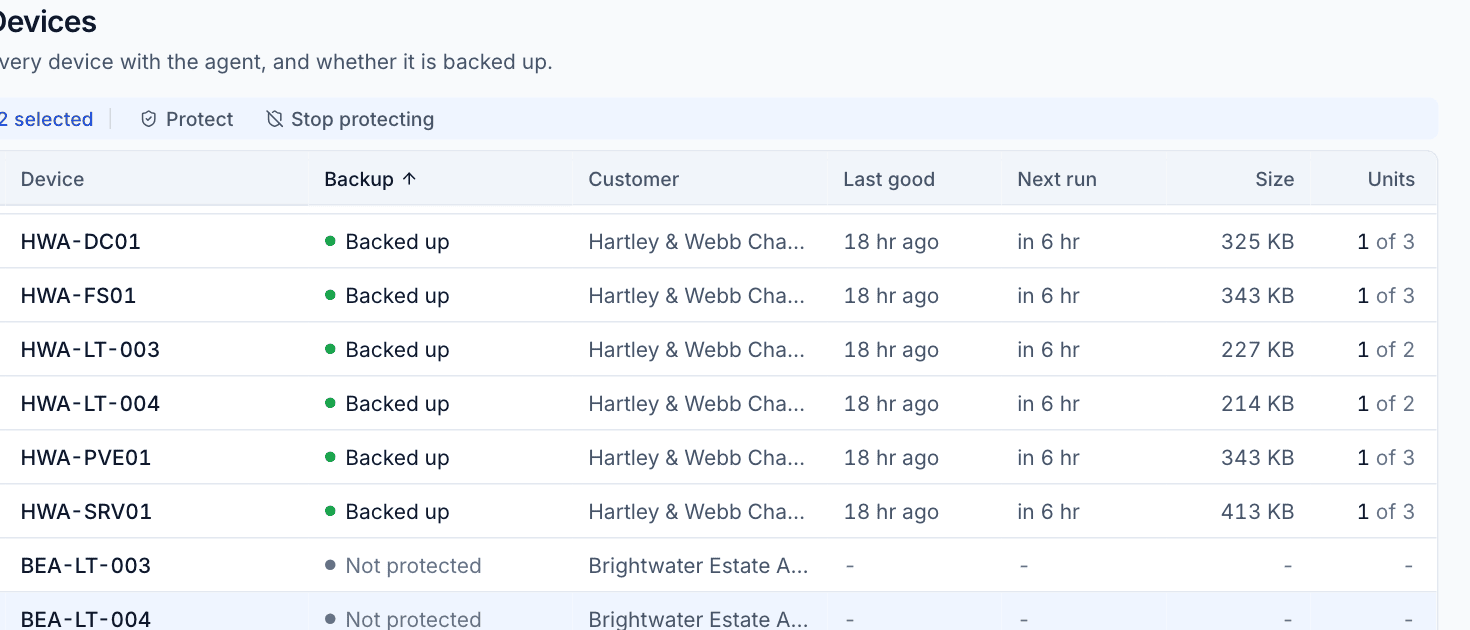
Each row also has a Back up now button, and the same action is in Cmd+K.
The same list, limited to one customer, is on the customer's Backup tab.
The device's Backup section
Once protected, the device page shows what is backed up and how it is going.
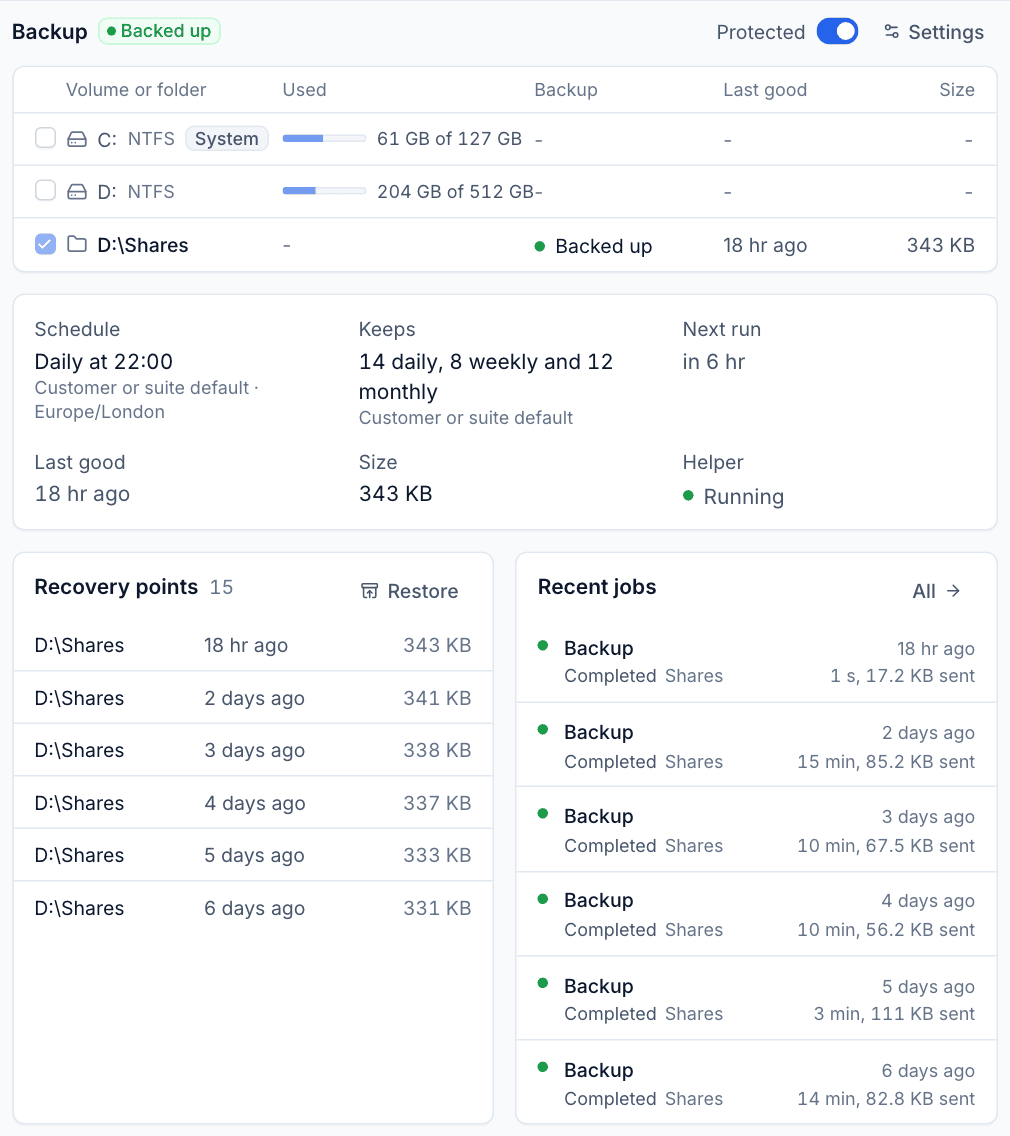
- Units: each volume, folder and guest with how full it is, its backup state, last good backup and size. Tick or untick a unit to choose what is backed up. Each has its own back up button, to back up just that unit now.
- Schedule, Keeps and Next run: when it runs and how long it keeps recovery points. Underneath, it says whether that comes from the device, the customer or the default, and the device's time zone.
- Last good, Size and Helper: the last successful backup, the space it takes and whether the helper is running.
- Recovery points: the newest points with their size. Restore starts a restore from this device.
- Recent jobs: the latest backups with how long they took and how much they sent. All opens the Jobs list for this device.
Device backup settings
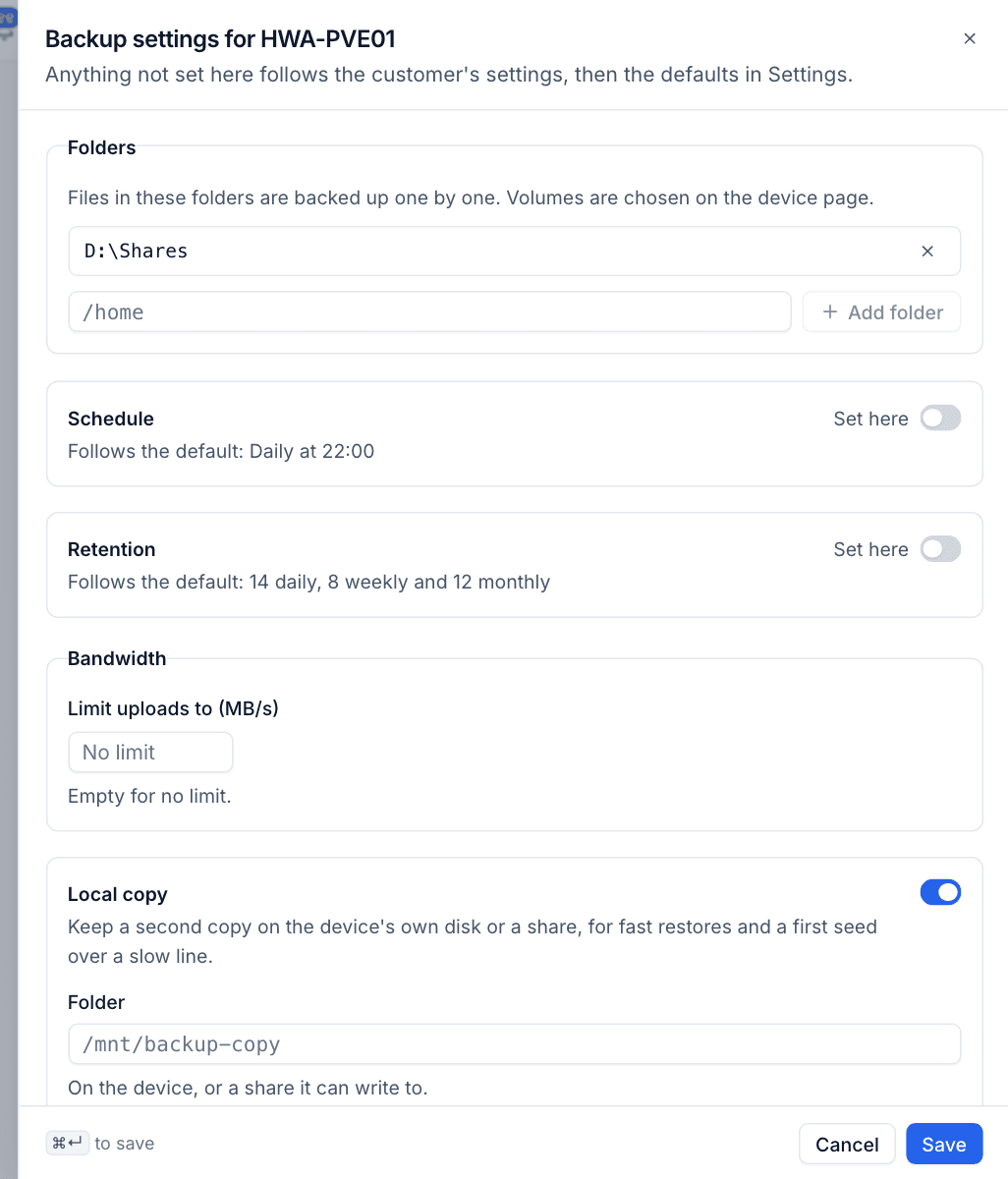
Press Settings in the device's Backup section. Anything not set here follows the customer's settings, then the defaults.
Folders
Files in these folders are backed up one by one. Volumes are chosen on the device page, folders here.
- Type a path in the box, for example
D:\Sharesor/home. - Press Add folder.
- Remove a folder with the cross beside it.
Folder backups only send files that changed. Files that cannot be read (a locked file, or a folder macOS privacy settings hide) are counted and logged rather than failing the whole backup.
Schedule and retention
Turn on Set here under Schedule or Retention to give this device its own. See Schedules and retention.
Bandwidth
Enter Limit uploads to (MB/s) to stop backups filling a slow line. Leave it empty for no limit.
Local copy
Turn on Local copy to keep a second copy on the device's own disk or a share it can write to. Enter the Folder, then choose:
- Mirror: every backup goes to both places at once. Restores from the local copy are fast.
- Seed first: backups are written here first and uploaded afterwards. Use it for a large first backup over a slow connection.
Press Save when you are done.
Virtual machines on Hyper-V and Proxmox
A Hyper-V host or Proxmox VE node that runs the agent lists its guests as units. Tick the guests you want backed up, the same way as volumes.
- Hyper-V: Tenvara takes a checkpoint of the guest and reads its disks from it. It tidies up its own checkpoints and never touches anyone else's.
- Proxmox VE: guests are backed up through Proxmox's own snapshot backup.
When you restore a guest, its disks come back as image files you can attach, and you can pull single files out of them.
Tip: Proxmox's own backup jobs to a Proxmox storage are shown in Infrastructure. Tenvara backup adds an encrypted copy in your backup storage, with the same restore flow as every other device.
Stopping protection
Turn off the Protected switch, or use Stop protecting in the Devices list. The helper stops and no more backups run.
Note: Stopping protection never deletes backups. The recovery points stay where they are and can still be restored.
Was this page helpful?
Thanks for the feedback.