Chats and tickets
Convert a chat to a ticket, add a chat to an existing ticket, make ended chats tickets automatically, and place or dismiss ticket requests.
A chat is often the start of work that needs tracking. Tenvara makes that one step: convert the chat to a new ticket, or add it to one that is already open. Requests left while chat was closed land on their own list so nothing is lost.
Converting and adding need manage rights on tickets as well as Chat Manage.
Converting a chat to a ticket
- Open the chat in the console (going on or already ended).
- Press Convert to ticket at the top of the conversation, or press
t. - Check the Subject. It starts as what the visitor first wrote.
- Check the Customer and Contact. A chat with no known customer asks you to choose one.
- Optionally set the Priority, Assignee, Queue and Type. The default uses your normal ticket defaults, and the assignee starts as you.
- Leave End the chat too ticked to close the chat as the ticket is raised, or untick it to keep talking.
- Press the button at the bottom (Raise ticket and end chat while End the chat too is ticked).
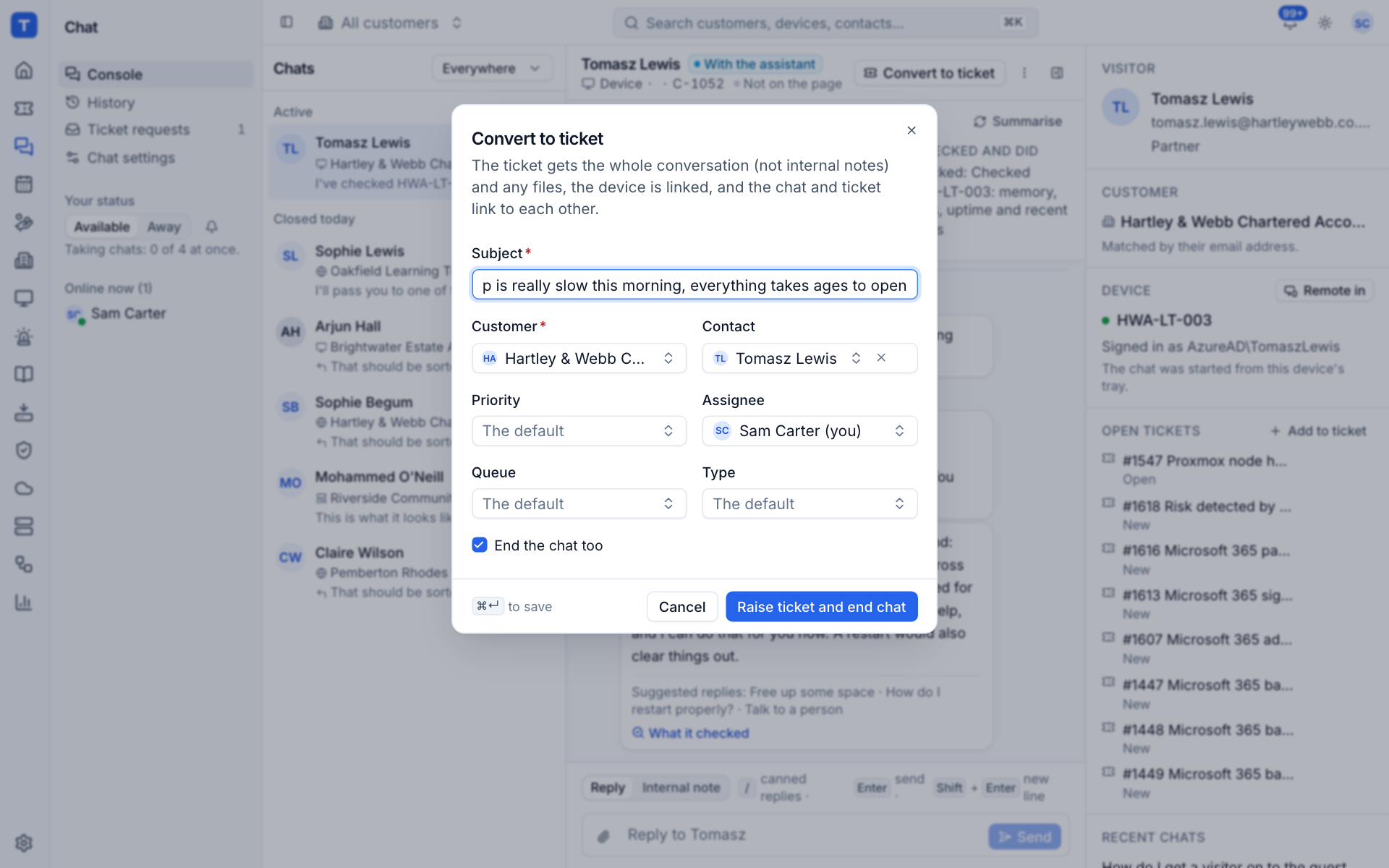
The new ticket:
- has the source Chat;
- starts with the whole conversation and any files as its first message, on the contact's side like a logged phone call (internal notes are left out);
- is linked to the device, for chats from the tray;
- links to the chat, and the chat links to the ticket. The ticket number shows in the chat's header and the ticket's details panel shows the chat.
When the AI assistant is set up, a summary of the chat is also added to the ticket as its first note.
Adding a chat to an existing ticket
When the chat is about something already logged, put it on that ticket instead of raising a new one.
- Choose ... > Add to a ticket, or press Add to ticket in the Open tickets block of the context panel.
- Pick the Ticket. The customer's open tickets are offered.
- Press Add to ticket.
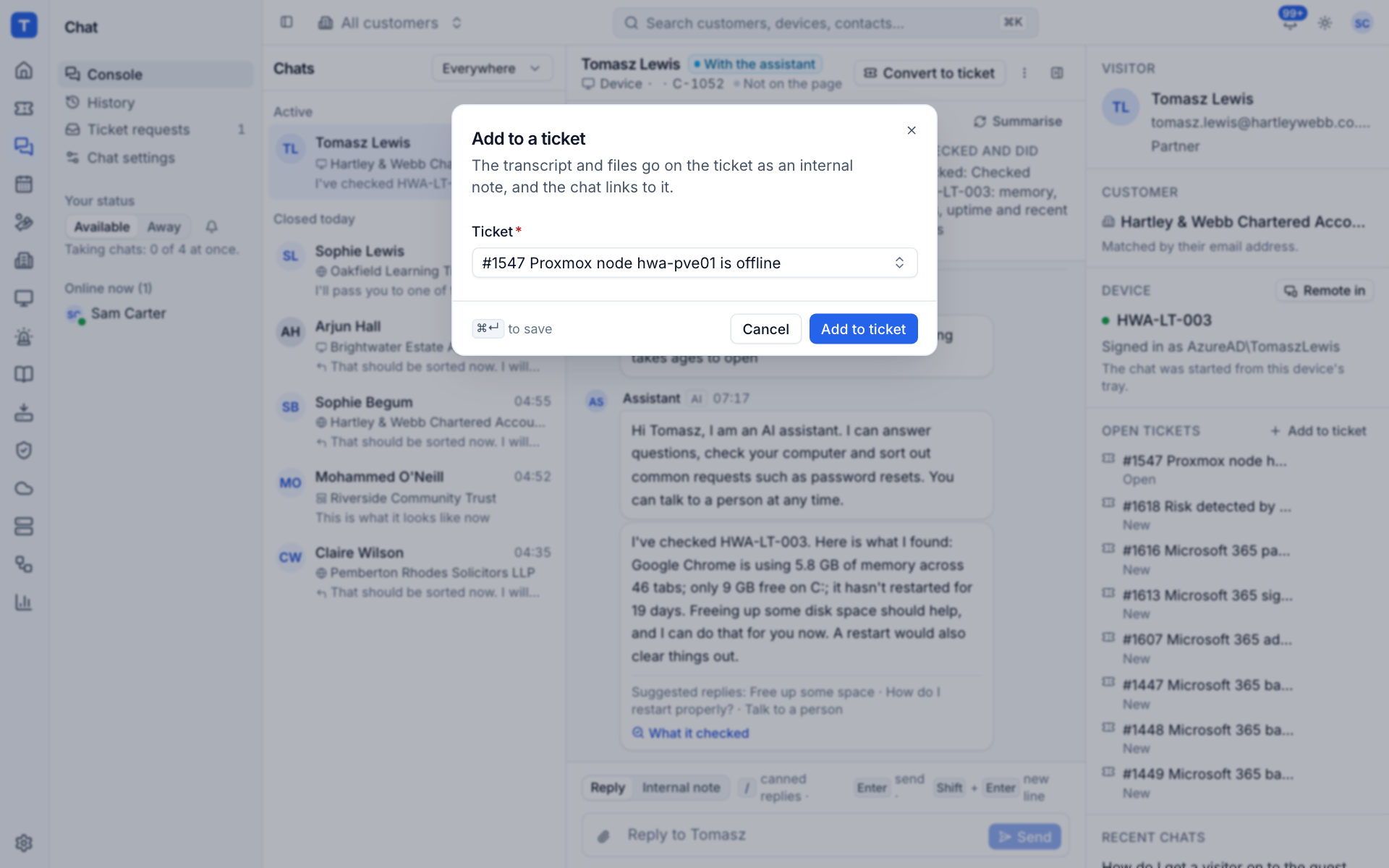
The transcript and files go on the ticket as an internal note, and the chat links to it. For a quicker route, press Add chat beside any ticket in the Open tickets list.
Making ended chats tickets automatically
If every chat should end up on a ticket, turn on Make ended chats tickets in Settings > Chat > Timings. When a chat with a known customer ends, it becomes a ticket unless it already is one.
Customers can have their own choice: in Settings > Chat > Customers, set Ended chats become tickets to Always or Never for one customer, or leave it As usual. See Chat settings.
Ticket requests
When chat is closed, or nobody is free, visitors can leave a request instead of chatting: what is wrong, and their name, email, phone and company when they are on the website. A chat that nobody took in time (Unanswered after, 30 minutes by default) also becomes a request.
- A request from a known contact becomes a ticket straight away. You do not need to do anything.
- A request from anyone else waits on Chat > Ticket requests for someone to choose the customer.
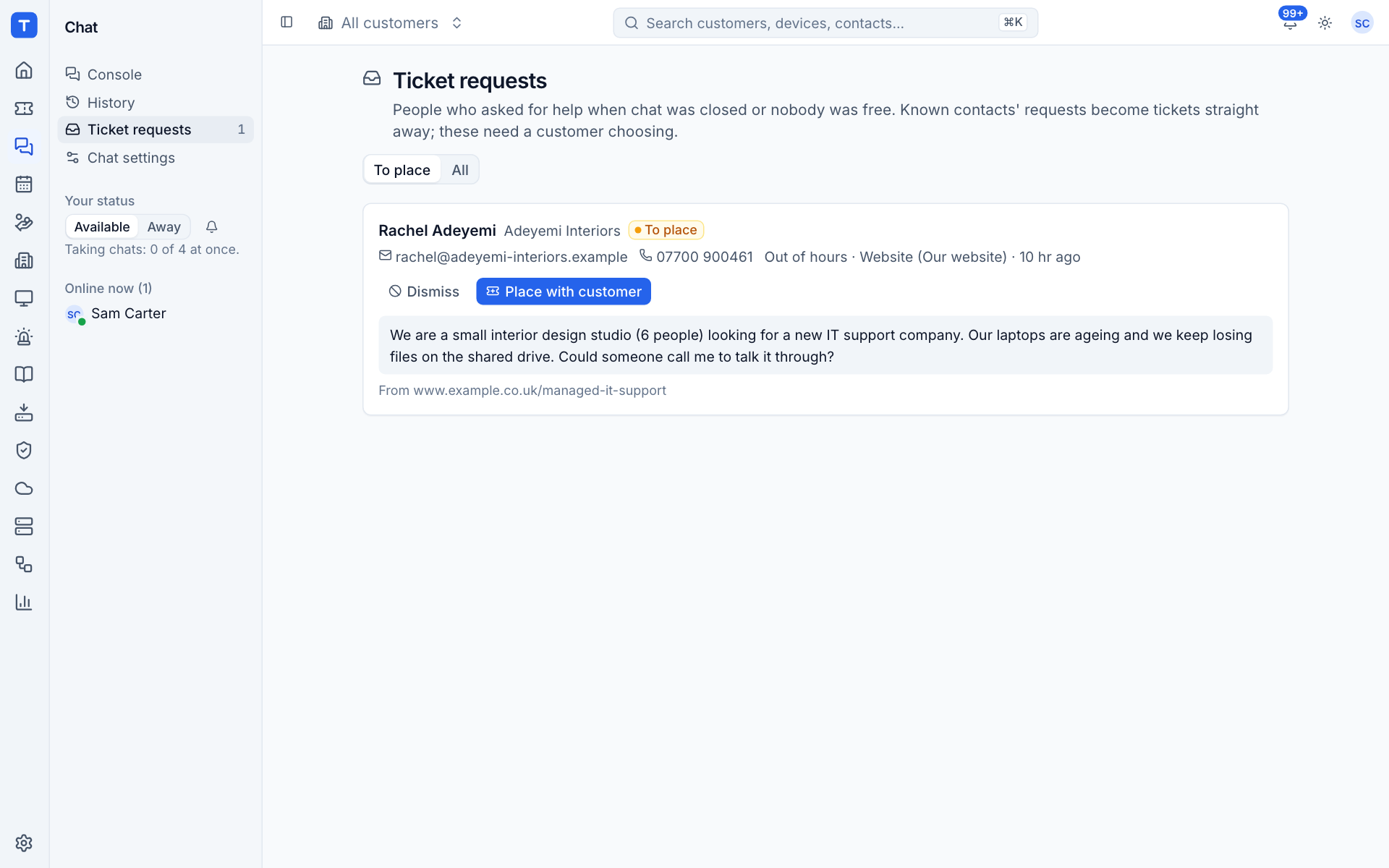
The list has two views: To place (the requests still waiting) and All (including placed and dismissed ones). Each request shows who left it, what company they said they were with, their email and phone, why it was a request (for example Out of hours), which widget it came from, when, and the page they were on.
The Ticket requests item in the sidebar shows how many are waiting, and a notification tells you when one needs placing.
Placing a request
- Press Place with customer on the request.
- Choose the Customer. What they typed as their company is shown underneath to help.
- Optionally choose the Contact. If you leave it empty, the ticket is raised in the visitor's name and email.
- Press Raise ticket.
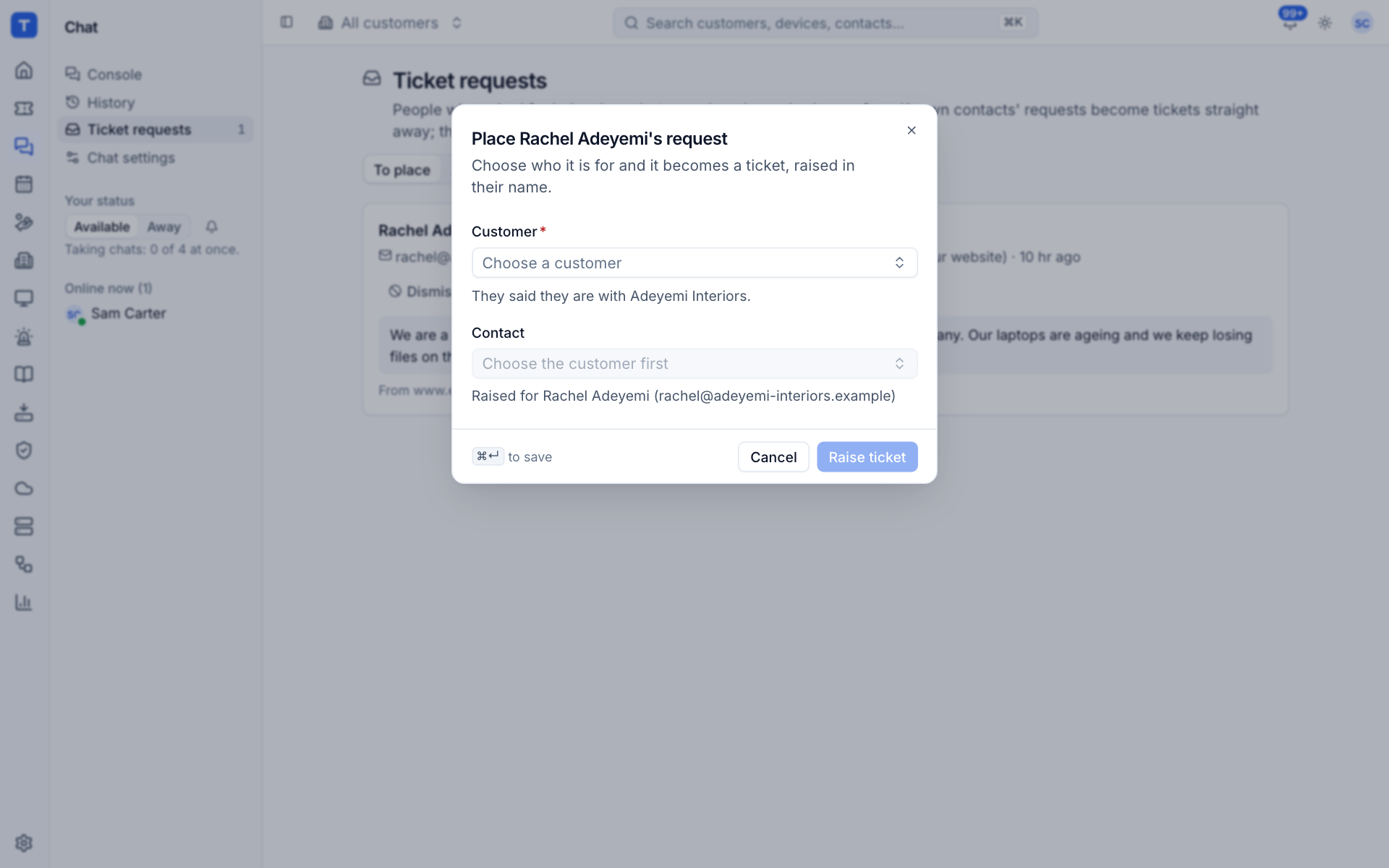
The request becomes a ticket raised in their name and moves out of To place.
Dismissing a request
For spam, a prospect you have already called, or anything that should not be a ticket:
- Press Dismiss on the request.
- Optionally write why, for example "spam" or "already sorted by phone".
- Press Dismiss.
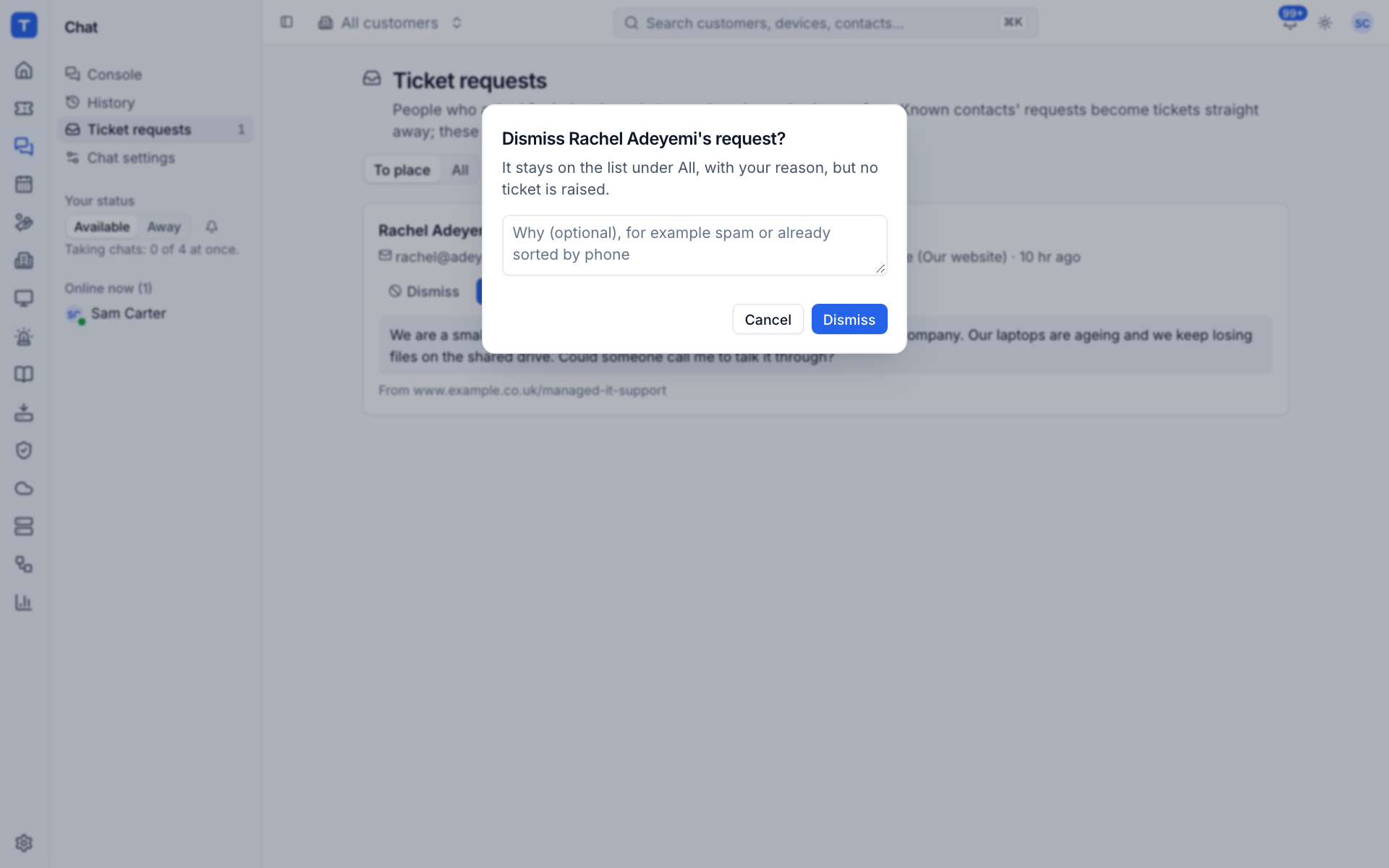
The request stays on the list under All with your reason, but no ticket is raised.
Tip: Requests from people who are not customers yet are often sales enquiries. Place them with a customer only once they sign up; until then, dismiss with a note once you have called them back.
Was this page helpful?
Thanks for the feedback.