Jobs
Follow every backup, restore, download, directory sync and maintenance run, read its log, and cancel it if needed.
Everything backup does is a job: each backup run, each restore and download, each Microsoft 365 directory read and each repository maintenance. The Jobs list is the one place to see all of it, and the customer page, device page and overview all read from it.
The Jobs list
Open Backup and choose Jobs. Running jobs update every few seconds.
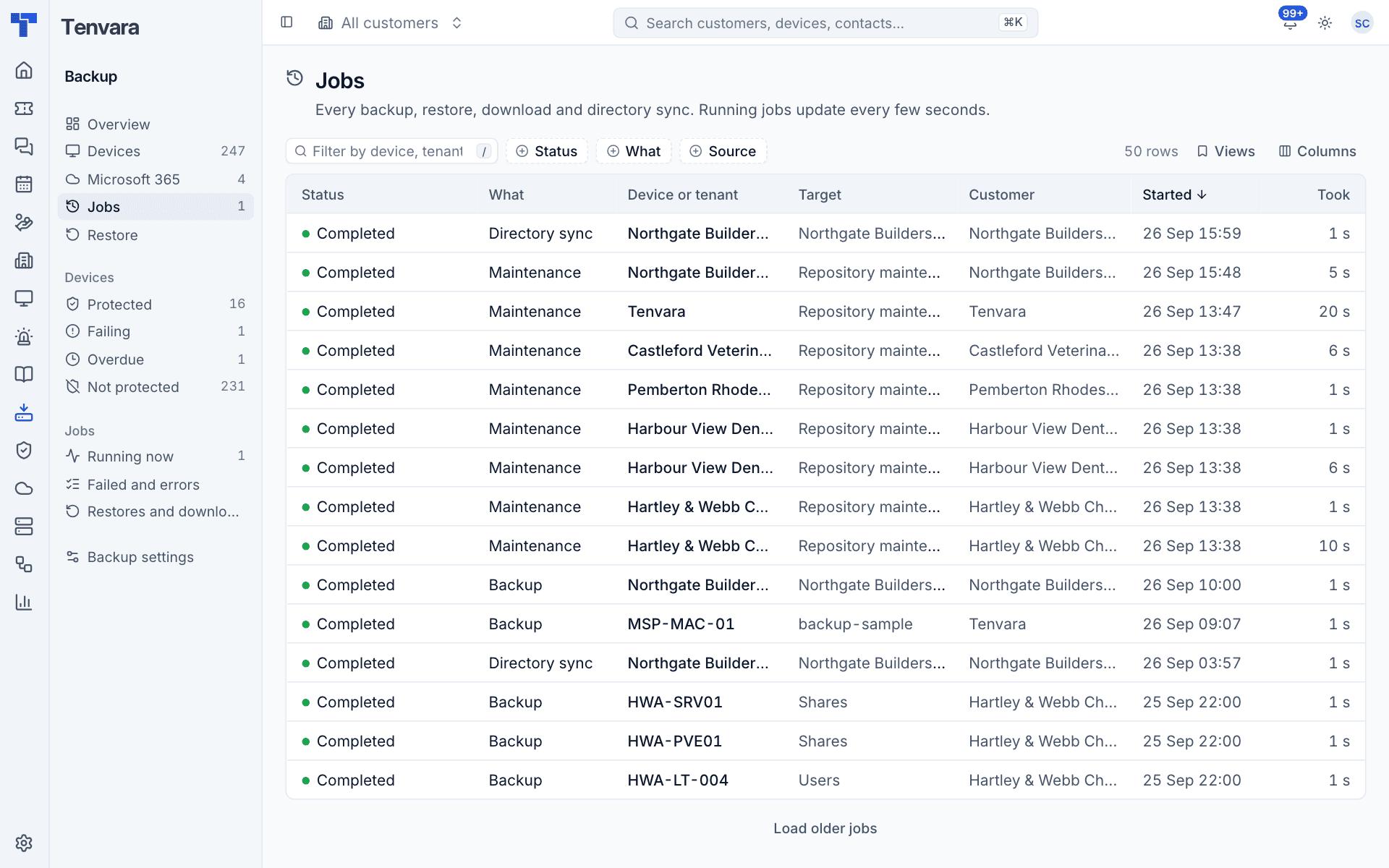
Each row shows:
| Column | What it holds |
|---|---|
| Status | Queued, running, Completed, completed with errors, Failed or cancelled |
| What | Backup, Restore, Download, Directory sync or Maintenance |
| Device or tenant | The device or Microsoft 365 tenant it ran for |
| Target | What it worked on: a volume or folder, a tenant, or the repository for maintenance |
| Customer | Whose it is |
| Started and Took | When it started and how long it ran |
| Sent | How much data went to storage after deduplication |
Filter by Status, What or Source (devices or Microsoft 365), or type a device, tenant or customer in the filter box. Load older jobs at the bottom fetches more.
The sidebar has three ready-made views:
- Running now: jobs in progress.
- Failed and errors: jobs that failed or finished with errors.
- Restores and downloads: everything you or your team restored.
What the statuses mean
| Status | Meaning |
|---|---|
| Queued | Waiting to start, for example for the device to come online or for another job on the same repository to finish |
| Running | In progress, with a percentage |
| Completed | Everything that should have been backed up was |
| Completed with errors | The job finished, but some units failed or some files could not be read. What did back up is a usable recovery point |
| Failed | Every unit that ran failed, or the job could not start |
| Cancelled | Someone cancelled it |
A unit that cannot be backed up at all (for example an unsupported volume, or a Microsoft 365 user with no OneDrive) is skipped. That is not a failure of the run.
Job details
Click a job to open its details in a side panel.
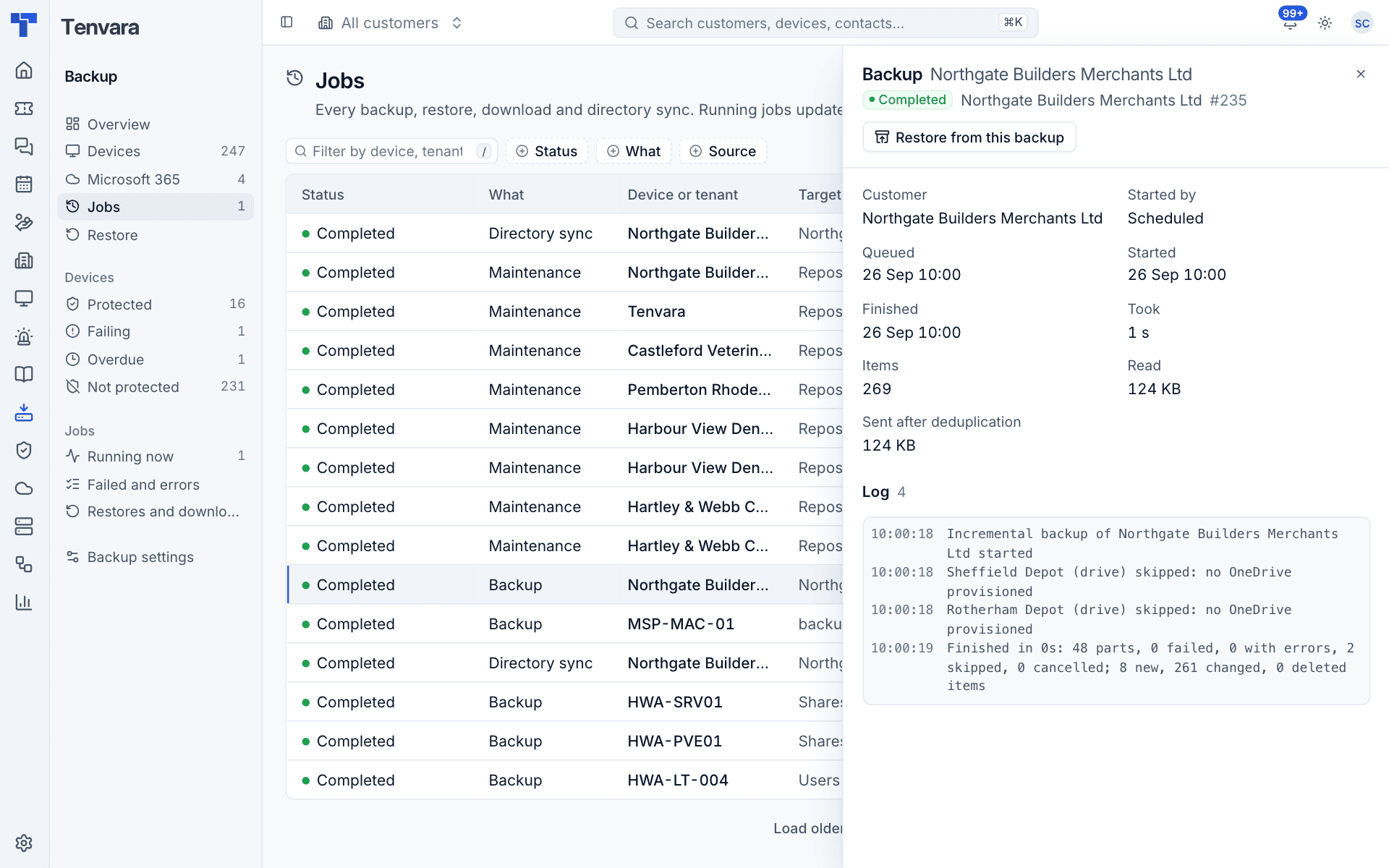
The panel shows:
- The kind, target, status, device or tenant, and job number.
- Customer and Started by: a person, or Scheduled.
- Queued, Started, Finished and Took.
- Items, Read and Sent after deduplication: how many files or items it went through, how much it read, and how much was new enough to send.
- For a running job, its progress and each unit's state.
- Log: every step with its time. For Microsoft 365 the last line sums up the run: parts backed up, failed, with errors, skipped and cancelled, and how many items were new, changed or deleted.
Restore from this backup opens the restore flow at the recovery point this job made.
Downloads
A Download job prepares a file to save, for example a zip of files or a PST of mail. When it completes, the panel has the file to save. Downloads are kept for seven days.
Cancelling a job
Open a queued or running job and cancel it.
- A queued job is cancelled at once.
- A running device job is told to stop and stops shortly after.
- A running Microsoft 365 job stops at the next item.
Whatever finished before the cancel is kept. A cancelled Microsoft 365 backup tries again after five minutes.
Jobs that stop reporting
If a device's backup stops reporting for 15 minutes (the device was switched off mid-backup, for example), the job is marked failed so it does not look as if it is still running. Large image backups save checkpoints as they go, so the next run picks up from the data already uploaded rather than starting again.
Maintenance jobs
Each repository gets quick maintenance daily and full maintenance weekly, which is also when retention removes old recovery points. Maintenance never runs while a backup of that repository is running. These jobs show as Maintenance with the target Repository maintenance (quick) or (full). See Schedules and retention.
Jobs elsewhere
- The device page lists its recent jobs in the Backup section, with All to open the Jobs list filtered to that device.
- The customer's Backup tab lists that customer's recent jobs, with All to filter the list to them.
- The Backup overview shows Recent jobs, and failed jobs in Needs attention with See the log.
Was this page helpful?
Thanks for the feedback.