Roles and permissions
The three roles, the None, View and Manage levels for every area, and how to change what a role or one person can do.
Everyone in Tenvara has one of three roles. Each role has a level in every area of the app: None, View or Manage. Settings > Roles and permissions sets those levels for the whole team, and exceptions for one person live on their user.
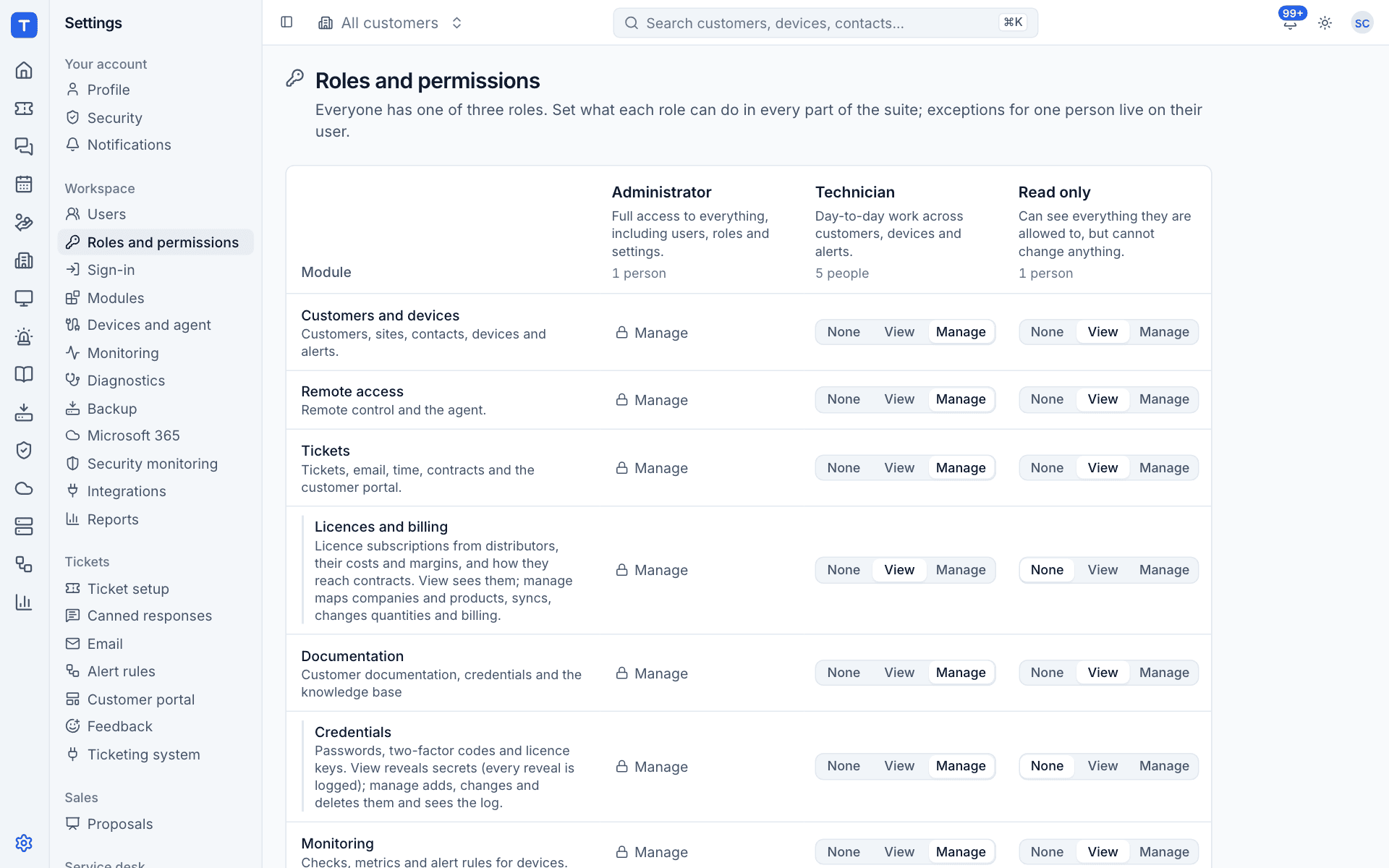
The three roles
| Role | Meant for | Can change |
|---|---|---|
| Administrator | The people who run Tenvara | Everything, including users, roles and settings. Always Manage in every area |
| Technician | Day-to-day work across customers, devices and alerts | Whatever their levels allow |
| Read only | People who need to look, not touch: account managers, auditors, new starters | Nothing, whatever the levels say |
The column header shows how many people have each role. Users, roles, sign-in and modules are always for administrators only, whatever the levels.
The levels
| Level | What it allows |
|---|---|
| None | The area is hidden: it disappears from the rail, from customer and device pages, from search and from the command palette |
| View | See the area's screens |
| Manage | See them and change things there too |
Each area's own guide says exactly what View and Manage allow there. A few areas have extra rules on top: for example, some risky Infrastructure actions need the Administrator role even with Manage.
The areas
| Area | Covers |
|---|---|
| Customers and devices | Customers, sites, contacts, devices and alerts |
| Remote access | Remote control and the agent |
| Tickets | Tickets, email, time, contracts and the customer portal |
| Licences and billing | Licence subscriptions from distributors, their costs and margins, and how they reach contracts. View sees them; manage maps companies and products, syncs, changes quantities and billing |
| Documentation | Customer documentation, credentials and the knowledge base |
| Credentials | Passwords, two-factor codes and licence keys. View reveals secrets (every reveal is logged); manage adds, changes and deletes them and sees the log |
| Monitoring | Checks, metrics and alert rules for devices |
| Backup | Microsoft 365 and endpoint backup |
| Microsoft 365 | Tenant audit, configuration and email security |
| Patch management | Windows and macOS updates through the agent |
| Software | The software catalogue, deployments and third-party app updates |
| Scripts | The script library, run on devices now or on a schedule |
| Printers | Printer deployment to devices |
| Infrastructure | Proxmox hosts and guests, and web hosting servers |
| Chat | Live chat from the website widget, the portal and the agent tray |
| Scheduling | The technician calendar, visits, the dispatch board and customer confirmations |
| Automation | Rules across tickets, alerts and devices |
| AI assist | Ticket triage, summaries, draft replies and device investigations |
| Security | Security events, detection rules, detections, security integrations and Cyber Essentials readiness |
| Reports | Monthly customer reports, internal dashboards and the report builder |
| Financial reports | Revenue, costs, margins, profitability per customer, recurring revenue and staff utilisation. View sees them; manage also sets staff cost rates and schedules financial reports |
Licences and billing sits under Tickets, Credentials under Documentation and Financial reports under Reports, because they are the more sensitive part of that area. Giving someone Documentation does not give them Credentials: you can let a technician read and write documentation without letting them reveal passwords.
Areas whose module is switched off in Modules are hidden for everyone, whatever the level.
The defaults
A new install starts with sensible levels:
- Technician: Manage almost everywhere, View on Licences and billing, and no access to Financial reports.
- Read only: View almost everywhere, and no access to Licences and billing, Credentials or Financial reports.
Check the page on your own install, then change what suits the way you work.
Change what a role can do
- Go to Settings > Roles and permissions.
- Find the area's row.
- In the Technician or Read only column, pick None, View or Manage.
The Administrator column is locked at Manage. The change is saved as you pick it, and applies the next time each person's session refreshes, within a few minutes.
Tip: Keep Credentials as tight as you can. Every reveal is logged, but a secret that has been seen cannot be unseen.
Exceptions for one person
When one person needs something different from their role, for example a Read only account manager who should be able to reply to tickets:
- Go to Settings > Users and open the person.
- Under Module access, pick a level for that area instead of Role.
- Press Save changes.
Their row in the list then shows the role with +1. See Users.
What a person sees
- With None in an area, the area is gone for them: no rail icon, no tab on customer and device pages, no search results.
- With View, buttons that change things are hidden or turned off.
- Anything they reach by a link they are not allowed to open says so, rather than showing an empty page.
The rules are enforced by the server, not just the screen: an action someone is not allowed to take is refused whichever way they try it.
Was this page helpful?
Thanks for the feedback.