Answering a chat
Take a chat, reply with messages, files and canned replies, add internal notes, bring in or hand over to a colleague, place unknown visitors and end the chat.
This page walks through a chat from the moment it rings to the moment it ends. You need Chat Manage to take part; with View only, you can open and watch chats and the message box explains why you cannot reply.
Taking a chat
- Open Chat > Console. Waiting chats are at the top of the queue, oldest first.
- Choose the chat to read what the visitor wrote.
- Press Accept (or
a), or just type a reply and send it. Replying accepts the chat.
The visitor sees that you have joined (for example "Priya has joined the chat."), and the chat moves to Mine.
Note: You cannot take more chats than the Chats at once limit (4 by default). The limit also applies to replying and to transfers. If a colleague took the chat a moment before you, Tenvara tells you who has it.
Replying
The message box is at the bottom of the conversation.
- Enter sends. Shift + Enter starts a new line.
- To send a file, press the paper clip, paste a picture, or drag files onto the chat. The allowed file types and largest size come from Settings > Chat > Visitors, and programs are always refused.
- Your unsent text is kept as a draft for each chat, so you can switch between chats without losing it.
- Links in messages become clickable. Messages are plain text.
When you send, the visitor's typing indicator for you clears straight away, and Seen appears under your message once they have read it.
Canned replies
Type / at the start of the message box to search your canned replies. Keep typing to narrow the list, then choose one to put it in the box.
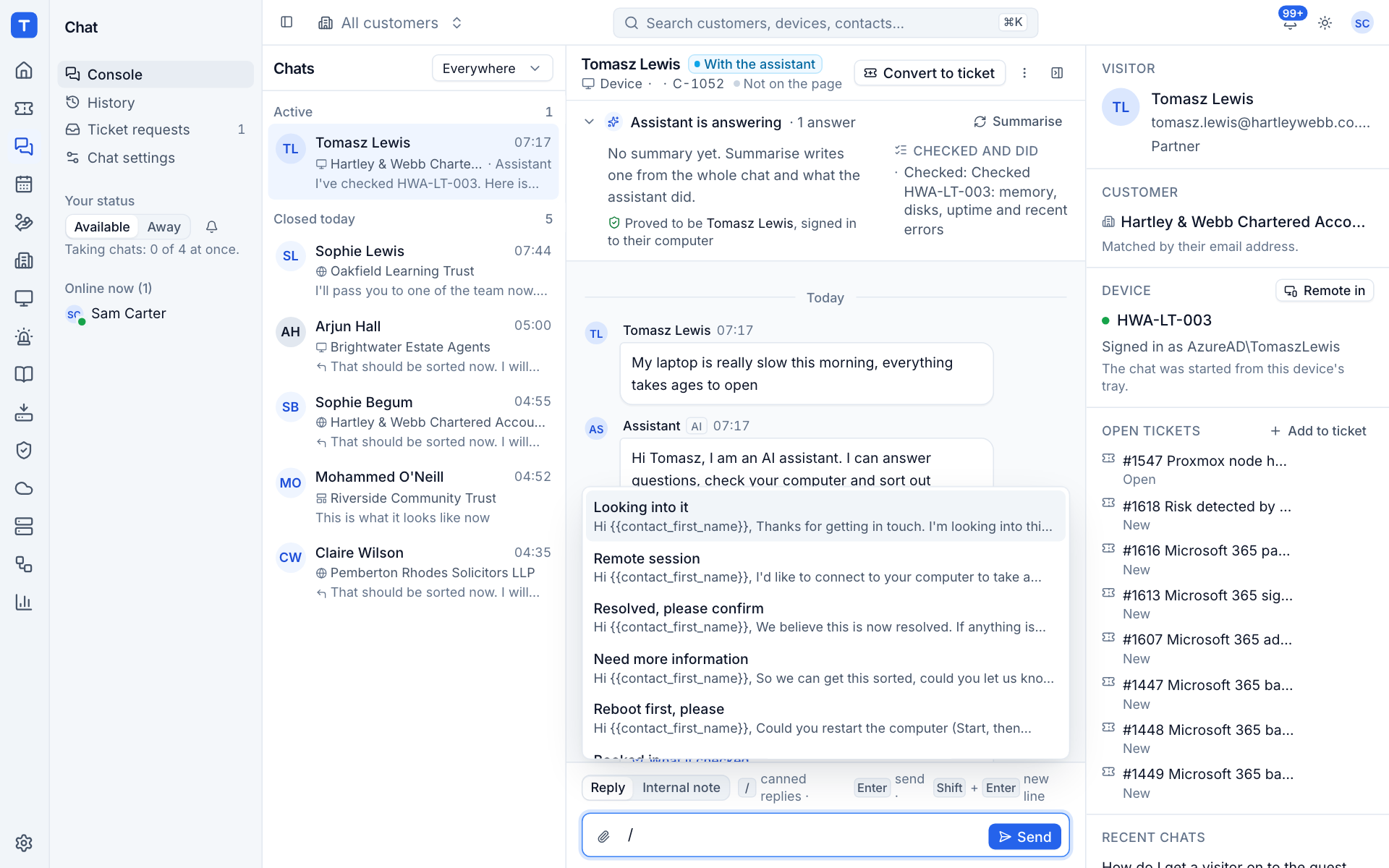
Canned replies are the same ones your service desk uses for tickets, managed in Settings > Canned responses. Placeholders are filled in for you, including {first_name} (the visitor), {company} and {agent} (you), as well as the ticket placeholders. Formatting is flattened to plain text in chat.
Internal notes
Switch the message box from Reply to Internal note to write something only staff can see: what you have tried, a warning for a colleague, a reminder for later.
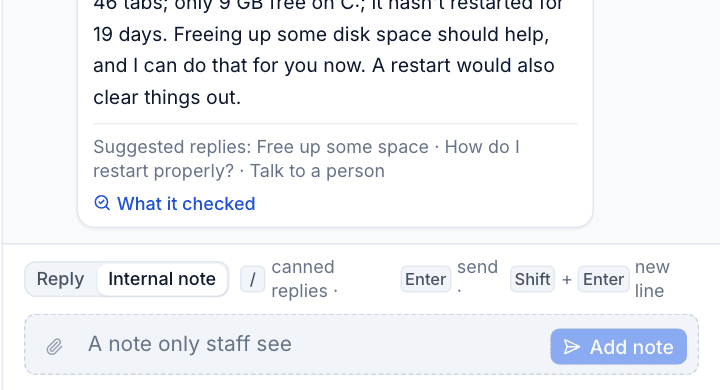
Notes show dashed and marked Staff only in the console. They are never sent to the visitor, never included in the emailed transcript and never copied onto a ticket as part of the customer conversation. Anyone who may reply can add a note, even to a colleague's chat.
Working with colleagues
Open the ... menu at the top of the conversation for Transfer, Invite a colleague, Add to a ticket and End chat.
Transferring a chat
- Choose ... > Transfer.
- Pick the colleague. Each shows whether they are online.
- Optionally write a Note for them. It is added to the chat as an internal note.
- Press Transfer.
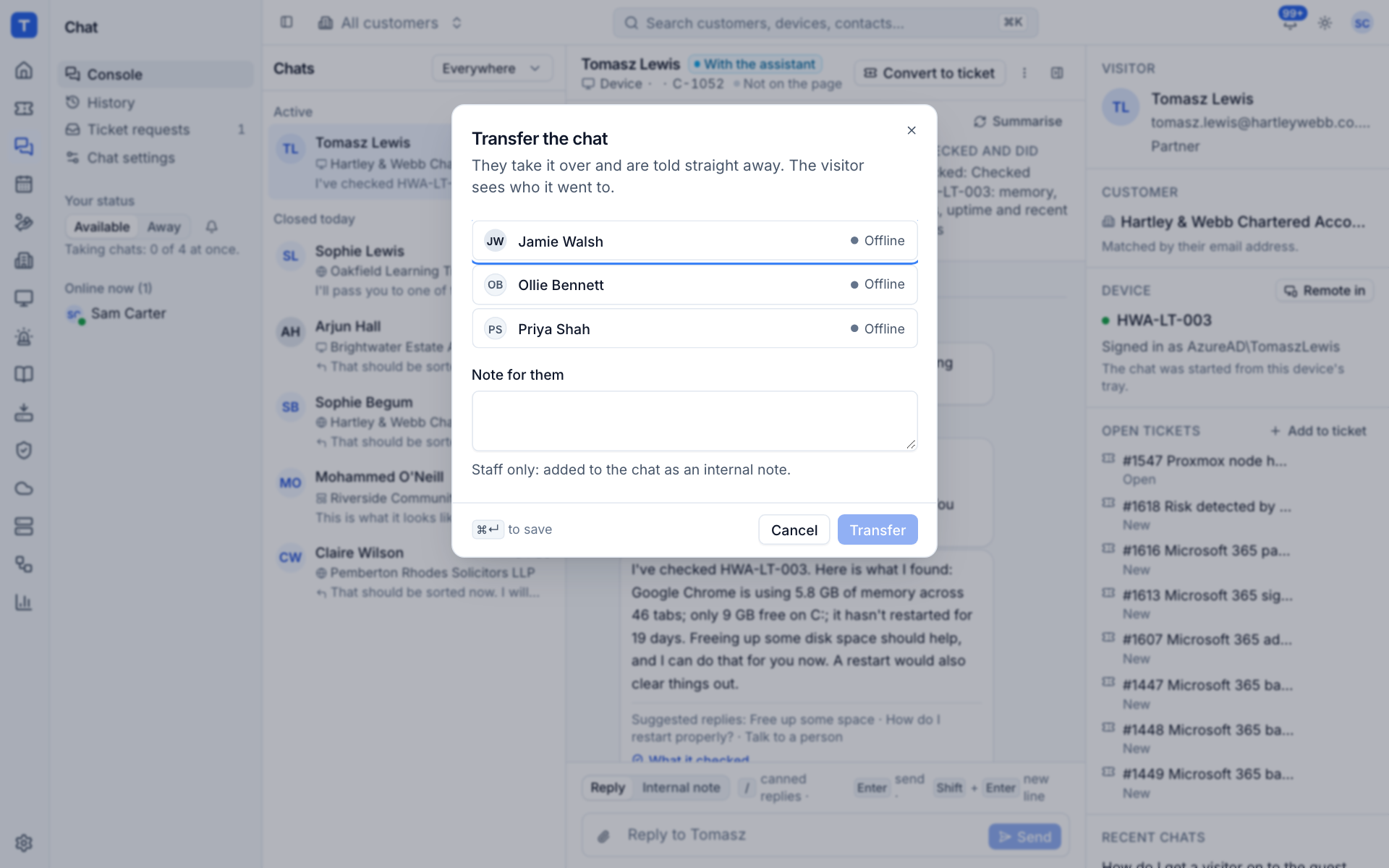
They take the chat over and are told straight away. The visitor sees who it went to.
Inviting a colleague
- Choose ... > Invite a colleague.
- Pick the colleague and press Invite.
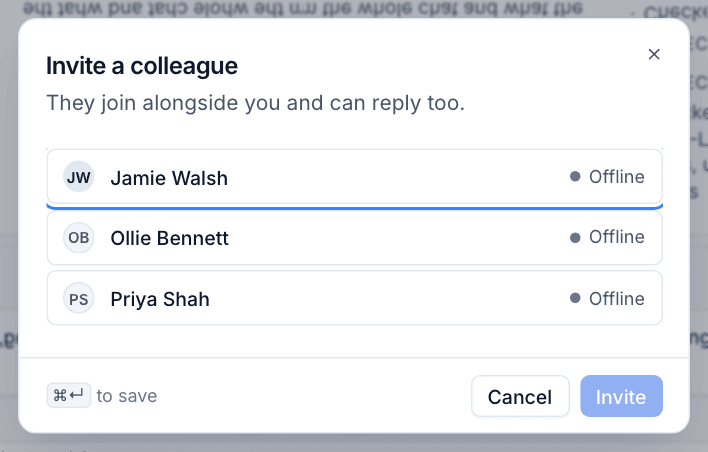
They join alongside you and can reply too. When they are done they choose Leave from the same menu. You stay the owner of the chat.
Visitors who are not known contacts
When a website visitor's email does not match a contact, the context panel shows Not a known contact and what company they said they were with. A visitor on a customer's own widget is taken to be that customer's, but is still not a known contact.
- Choose the customer: while the chat is going on, the ... menu lets you pick the customer (and the contact, if there is one) the chat belongs to.
- Add as contact: creates a contact from the visitor's details at the chosen customer. Their other chats are linked to the new contact too. This needs manage rights on customers and contacts.
Placing a visitor with a customer matters before converting to a ticket: a chat with no customer asks for one first.
Tray chats and remote sessions
When a chat comes from the tray on a managed computer, the Device block in the context panel shows the computer, whether it is online and who is signed in. Press Remote in to start a remote session without leaving the chat.
Ending a chat
- Choose ... > End chat (or press
e).
The visitor sees the ended wording and can rate the chat and ask for the transcript by email. Chats also end on their own:
- Quiet chats: when nobody writes for Close quiet chats after (20 minutes by default), the visitor is asked if they are still there, Warn before closing minutes before (5 by default), and then the chat closes.
- Unanswered chats: a chat nobody takes within Unanswered after (30 minutes by default) closes and becomes a ticket request, or a ticket straight away for a known contact.
If the visitor writes again within Reopen if they write within (30 minutes by default), the chat opens again, back with you if you are free, otherwise waiting in the queue.
If Make ended chats tickets is on (for everyone, or for this customer), ending a chat with a known customer converts it to a ticket unless it already is one. See Chats and tickets.
Was this page helpful?
Thanks for the feedback.