Saved and scheduled reports
Save a report, share it with the team, email it on a schedule and check what was sent.
Any report you build can be saved, shared with colleagues and emailed on a schedule as a PDF, a CSV or both. Saving needs Reports manage.
Saving a report
- Build the report in the report builder.
- Click Save report, give it a name and, if you like, a description (for example "For the Monday service review").
- Choose who sees it: just you, or Shared with everyone who can run its data.
Saved reports appear under Saved reports in the Reports sidebar and on the builder page. While you have changes that are not saved, the report says Unsaved changes. Press Save (or Cmd+S) to keep them.
The ... menu on a saved report has:
- Send now: email it straight away.
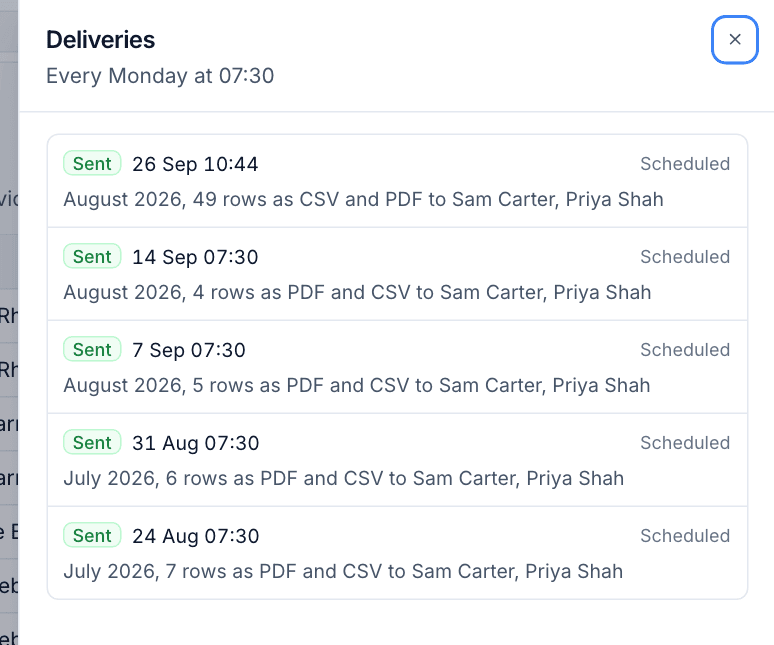
- Deliveries: every time it was sent.
- Save as a new report: keep your changes as a copy.
- Delete.
Only the owner or an administrator can change, schedule, send or delete a saved report. Anyone it is shared with can open and run it, and save their own copy.
Scheduling a report
- Open the saved report and click Schedule (once scheduled, the button shows when it goes, such as Every Monday at 07:30).
- Under How often, choose Every day, Every week or Every month.
- For weekly, pick the day in On. For monthly, pick a day from 1 to 28.
- Set the time in At.
- Under Send as, tick PDF (chart and table), CSV (every row) or both.
- Under Send to, add the people who should get it. Recipients must be active staff who can see Reports.
- Click Save schedule.
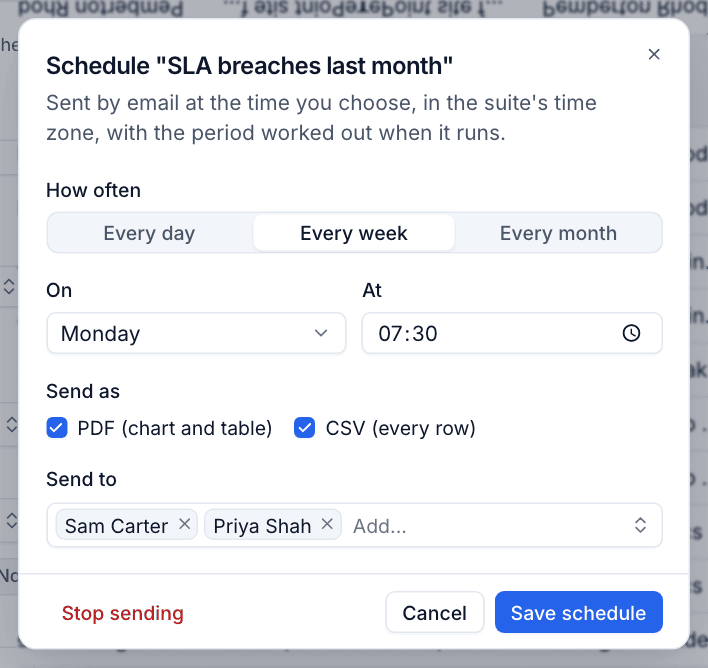
The period is worked out when the report runs, so a "last month" report scheduled for the 1st always covers the month just ended. Stop sending removes the schedule.
Note: Scheduling or sending a report with money or people figures (profitability, utilisation, recurring revenue, or a cost column) needs Finance manage.
What recipients get
Each recipient gets an email with the report's headline rows and total, a link to open it in Tenvara, and the files attached.
The report is run as each recipient, so nobody receives figures they could not open themselves. If a recipient is not allowed to see the data, they are left out and the delivery is marked as partly sent.
When a schedule stops
Before each run, Tenvara checks that the owner is still active and can still run the report. If not, the schedule stops, the delivery is logged as stopped with the reason, and the owner and whoever set up the schedule get a notification. Saving the schedule again restarts it.
A schedule also stops if the report's module is switched off.
Sending a report now
Choose Send now from the ... menu. It goes to the schedule's recipients, the people you pick, or just you. It is logged as a manual delivery.
Checking deliveries
Choose Deliveries from the ... menu to see the last hundred sends. Each shows whether it was sent, when, the period it covered, the rows, the formats, the recipients, anyone left out and why, and any error.
Every schedule in one place
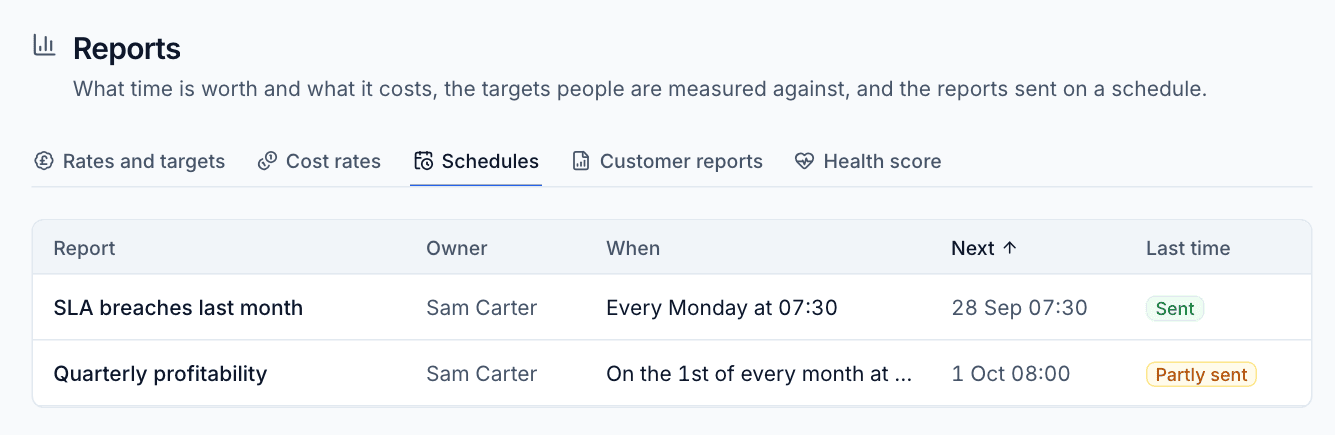
Administrators can see every scheduled report under Settings > Reports > Schedules: the report, its owner, when it runs, the next run and how the last one went (Sent, Partly sent or stopped).
Was this page helpful?
Thanks for the feedback.