Running and scheduling scripts
Run a script on devices, a group, a customer or everywhere, follow the output live, and schedule scripts daily, weekly or monthly.
Run a script
You can start a run from the library (Run a script), from a script's page (Run, or press R), from Script runs, or from a device (Run script in its ... menu or its Scripts section).
- Choose the Script. Its description, language, who it runs as, time limit and version appear beneath it.
- Fill in any parameters it asks for.
- Choose where it runs:
- Devices: pick one or more devices.
- Device group: every device in a group.
- Customer: every device at a customer.
- Everywhere: every device.
- Choose when: Now, or At a time and pick the time (your local time).
- Click Run.
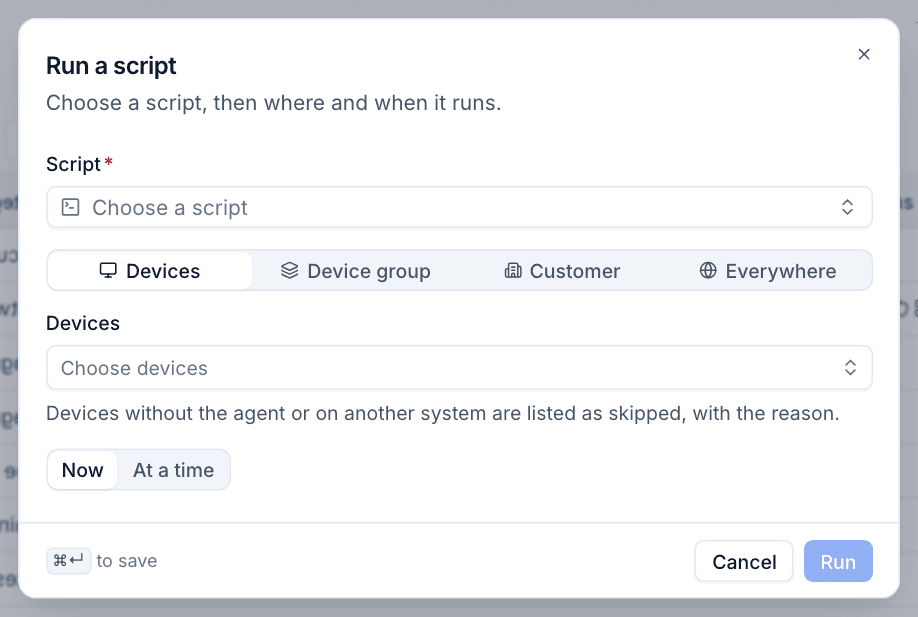
Devices without the agent, or on an operating system the script does not support, are listed as skipped, with the reason. For a run at a time, devices that are offline then run it when they are next online, within a day.
Follow a run
Devices > Scripts > Runs lists every run, newest first, with its status, the script and version, where it ran, how many devices succeeded and failed, and who or which schedule started it.
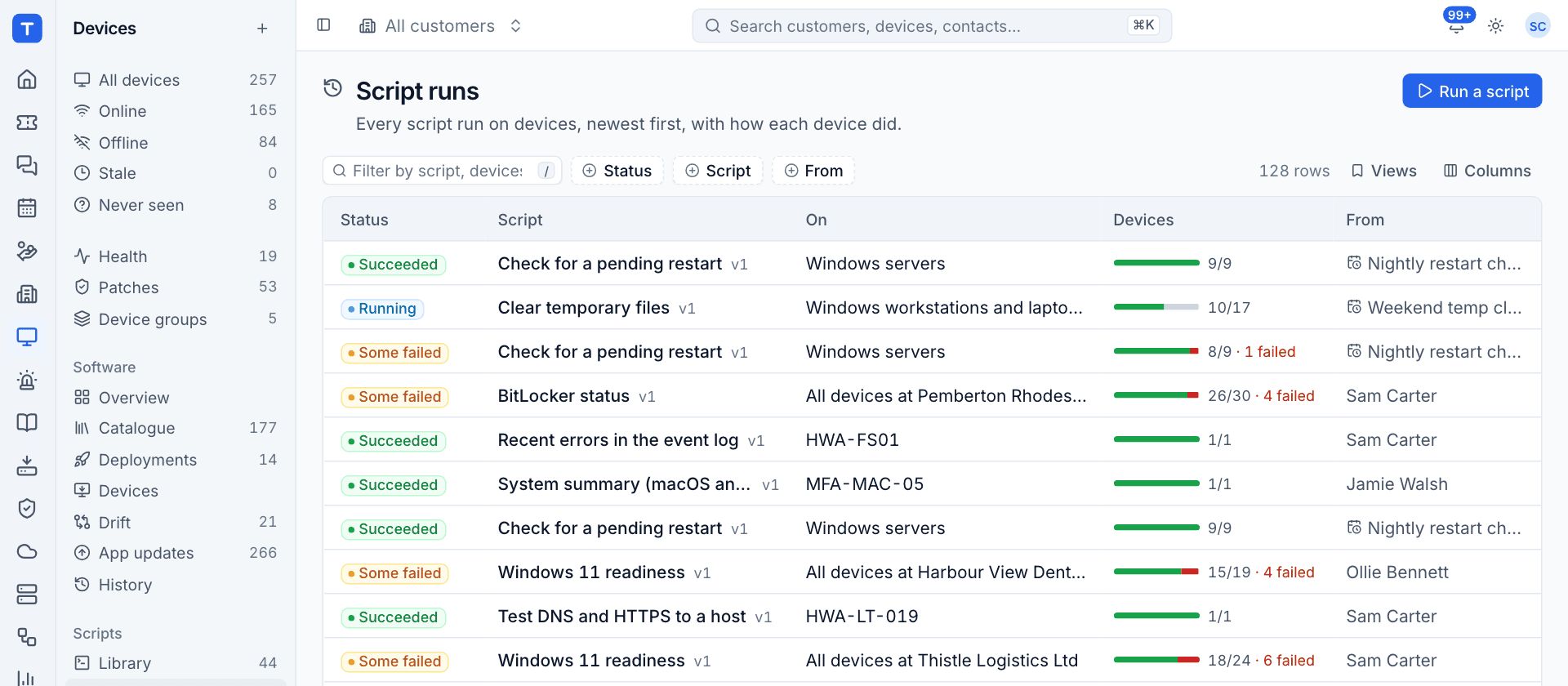
Click a run to open it.
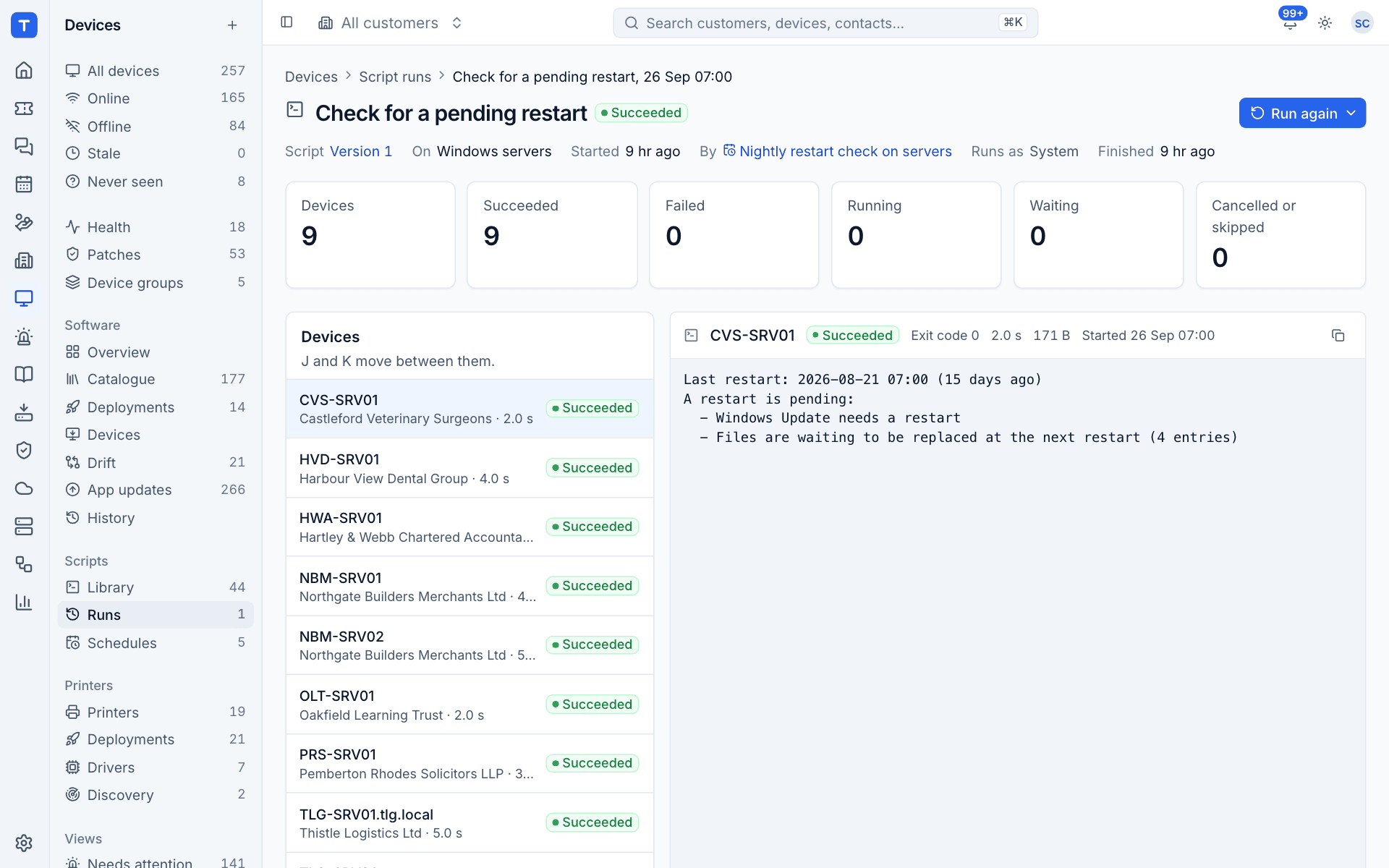
- The counters show Devices, Succeeded, Failed, Running, Waiting and Cancelled or skipped.
- The Devices list shows each device with its customer, how long it took and its result. Press
JandKto move between devices. - The right-hand pane shows the chosen device's output, its exit code, how long it took, the size of the output and when it started. Use the copy button to copy the output.
- What ran records the script, version, language, time limit, where the run came from and the SHA-256 of the exact code.
- Values shows the parameters it was given (secrets are never shown).
Output streams in live while a script runs. A running script can be cancelled, which stops it and everything it started on the device.
Run again repeats the run with the same script and values.
Note: Each device runs at most four scripts at once; a fifth waits its turn. If the agent restarts while a script is running, that run is reported as failed with the reason.
Schedule a script
Schedules run a script on their own, once or every day, week or month, at a local time.
- Go to Devices > Scripts > Schedules and click New schedule, or choose Schedule it on a script.
- Choose the Script and, optionally, a Name (leave it empty to use the script's name).
- Choose where it runs: Devices, Device group, Customer or Everywhere.
- Choose Once, Daily, Weekly (tick the days) or Monthly, then the Time and Time zone.
- Click Schedule it.
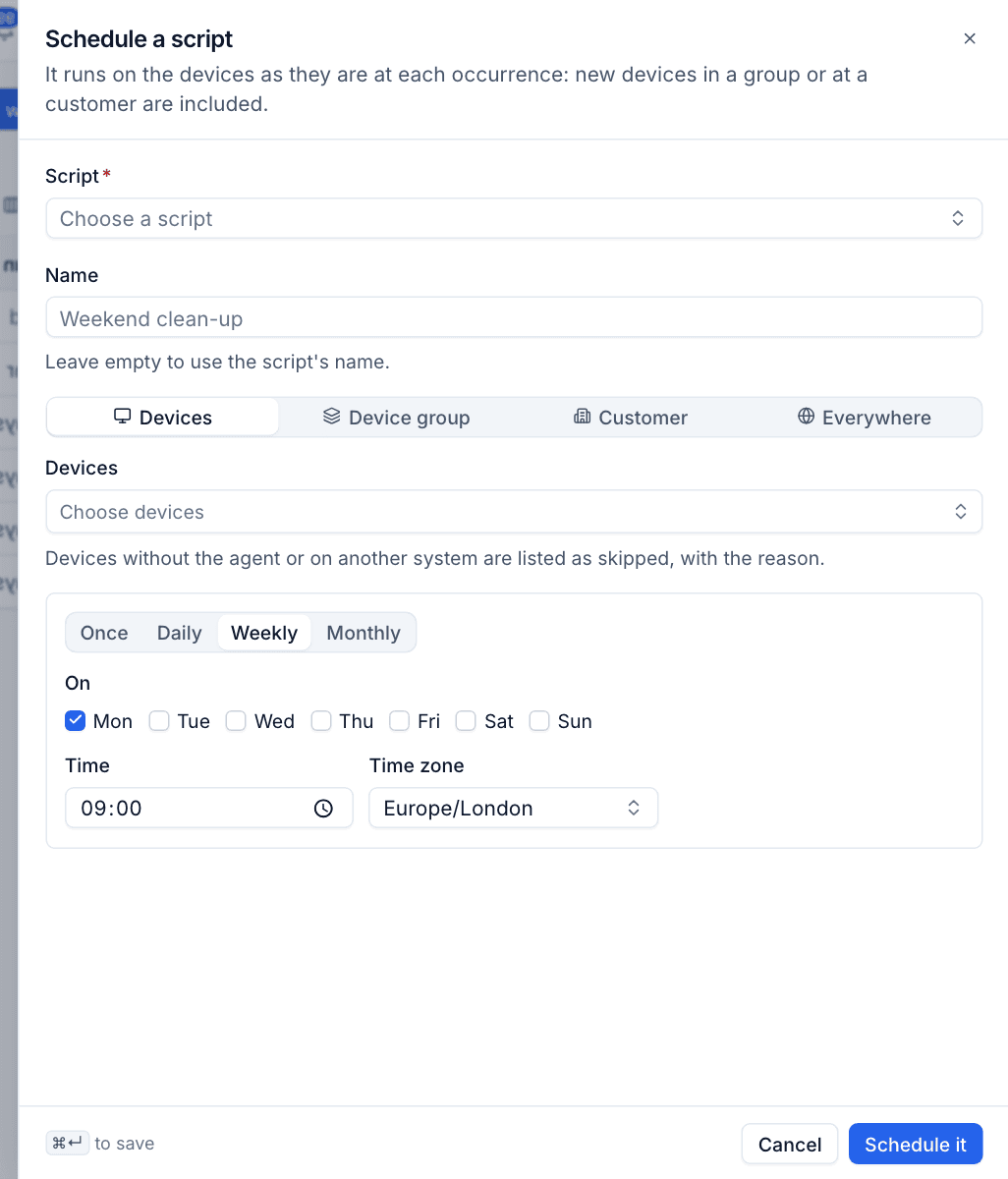
A schedule runs on the devices as they are at each occurrence, so new devices that join a group or a customer are included automatically.
Manage schedules
Devices > Scripts > Schedules lists each schedule with the script, where it runs, when, the next run and how the last run went.
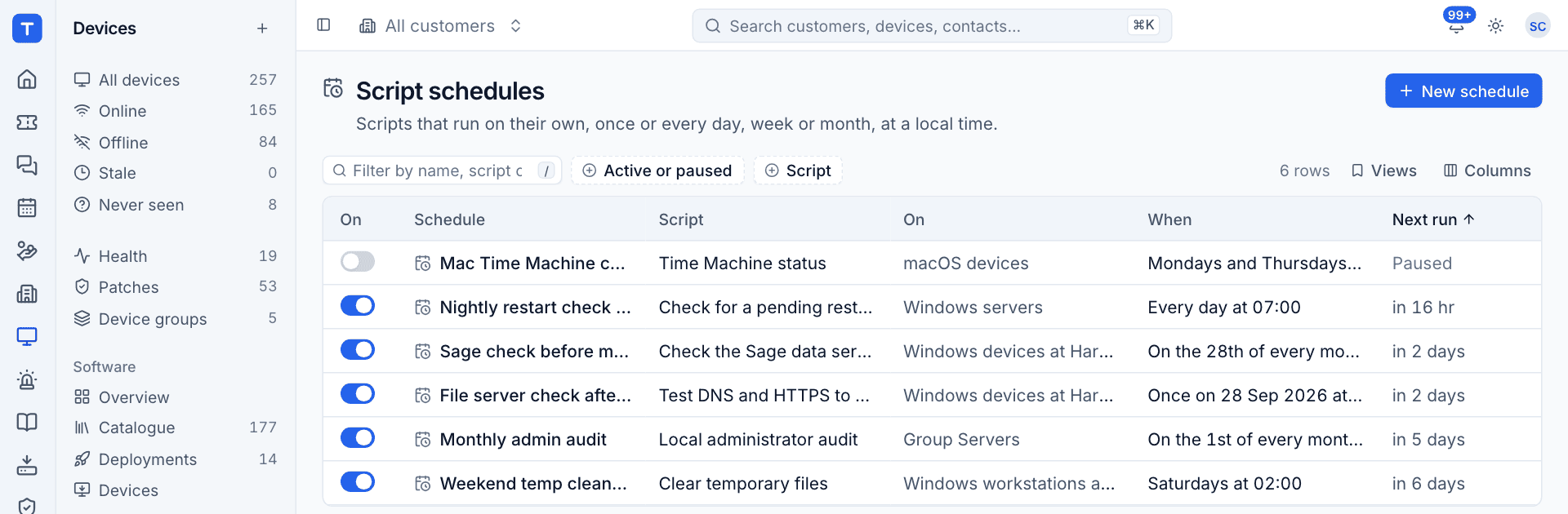
- Use the switch in the On column to pause a schedule or resume it.
- Click a schedule to change it.
- Each run a schedule starts appears under Runs with the schedule's name in the From column.
Was this page helpful?
Thanks for the feedback.