Sign-ins, apps and policies
Review risky and failed sign-ins, the enterprise apps a tenant has granted access to, and its Conditional Access policies and templates.
Three tabs on a tenant's page cover who is signing in, which apps hold access to the tenant's data, and which Conditional Access policies protect it.
Sign-ins
The Sign-ins tab has three views across the top: Sign-ins, Risk and Directory activity.
Sign-ins worth a look
Tenvara keeps the last 30 days of sign-ins worth a look: Failed, Legacy (old protocols such as IMAP and POP, which cannot do MFA) and Risky. Use the buttons (All kept, Failed, Legacy, Risky) to narrow the list, and filter by user, app, client, result and risk.
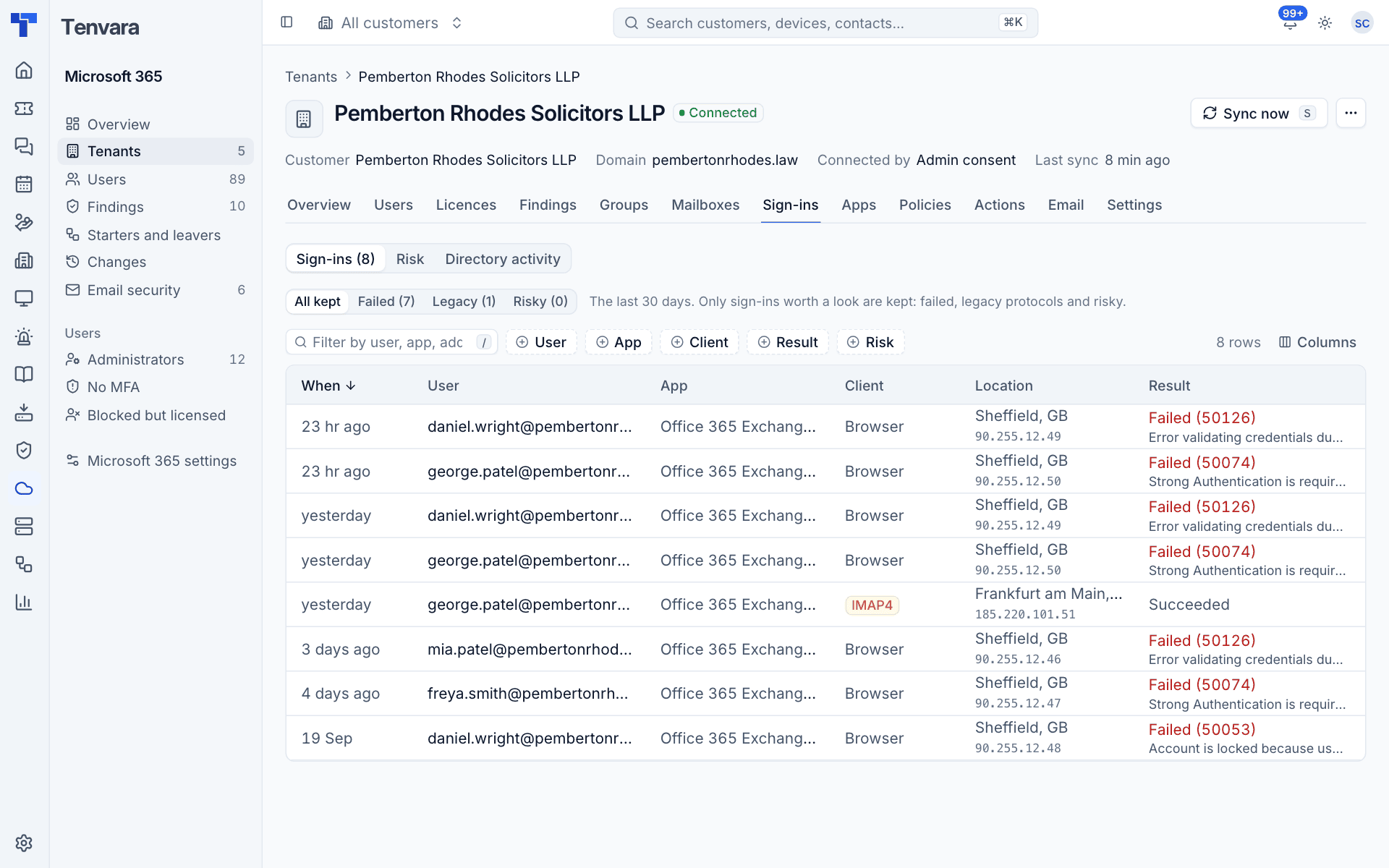
Each row shows When, User, App, Client, Location (city, country and IP address), Result with Microsoft's error code and reason (for example "Failed (50126) Error validating credentials due to invalid username or password.") and Risk.
Look out for successful sign-ins from unexpected countries, legacy clients that succeed, and many failures against one account.
Note: Sign-in logs need Entra ID P1 and risk needs Entra ID P2. Without them, the tab says the data is not known and why, rather than showing an empty list. The full sign-in stream (every sign-in, not only the ones kept here) goes into Security events: see Security events.
Risk and directory activity
Risk lists Entra ID Protection risk detections and risky users (P2). Directory activity lists the tenant's directory audit events: role changes, accounts created and deleted, MFA methods, app consent, Conditional Access changes and so on.
Some of these raise alerts that a person acknowledges: a new high-risk sign-in, a user newly at high risk, leaked credentials, impossible travel, password spray, someone added to an administrator role (critical for Global Administrator), a Conditional Access policy deleted or switched to off or report-only, app consent, strong authentication switched off, security info deleted, a new cross-tenant partner, and the audit log being switched off.
Apps
The Apps tab lists the tenant's enterprise apps with the permissions they were actually granted, not what they ask for. Views: Third-party, Microsoft and All; filter by privilege and state.
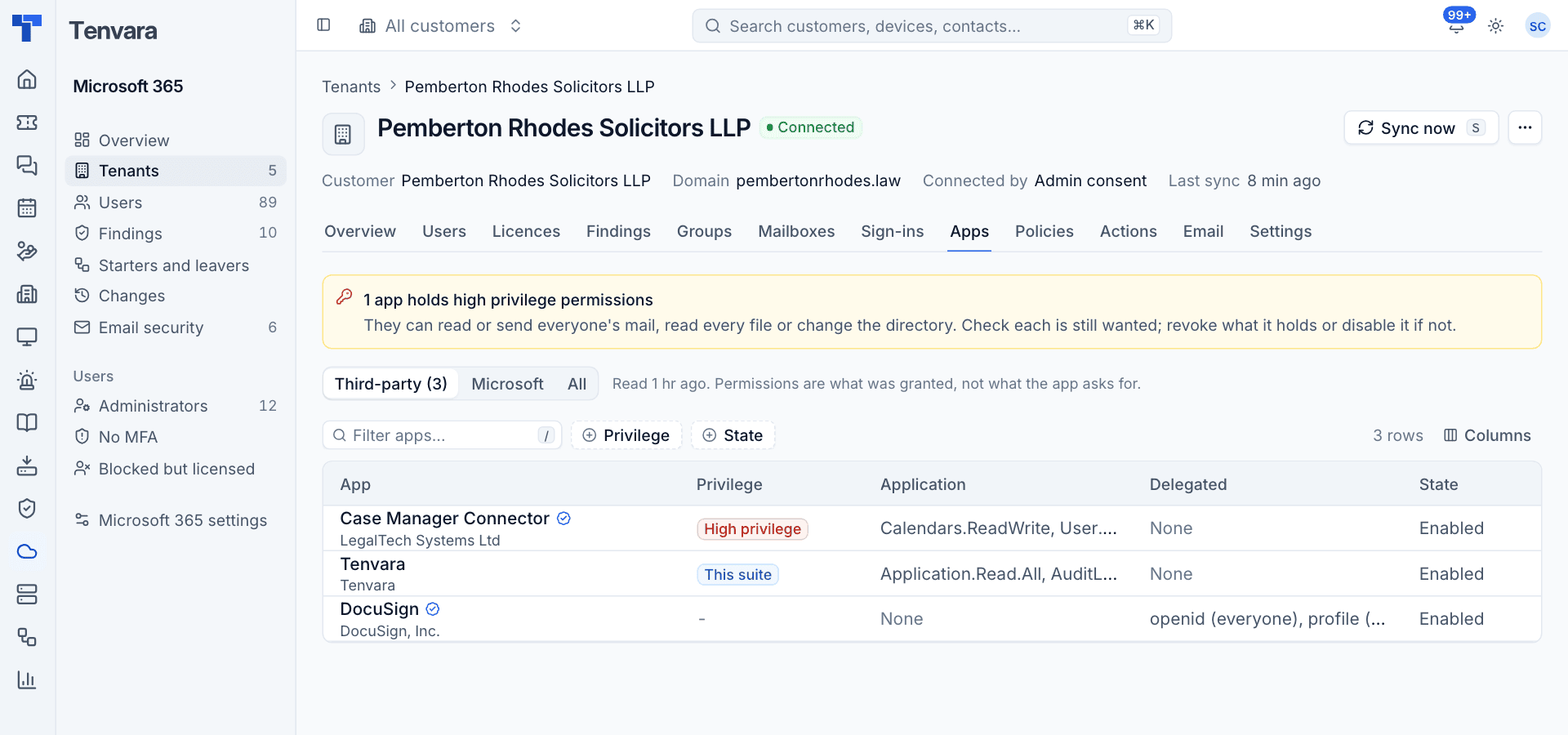
Each app shows its publisher, Privilege, Application permissions, Delegated permissions (with "everyone" when consented for all users) and State. Tenvara's own app is labelled as such. Microsoft's own apps are listed but never judged.
An app is High privilege when it holds permissions that can read or send everyone's mail, read every file, or change the directory (for example Mail.ReadWrite, Files.Read.All, Directory.ReadWrite.All). A banner at the top counts them.
Click an app to open its panel with its publisher (and whether it is verified), app id, and every application and delegated permission explained. For an app that is no longer wanted:
- Disable it (and enable it again later), or
- Revoke permissions: every delegated grant and application permission is removed. This is destructive; what it held is kept in the change log so you can see what it had.
Policies
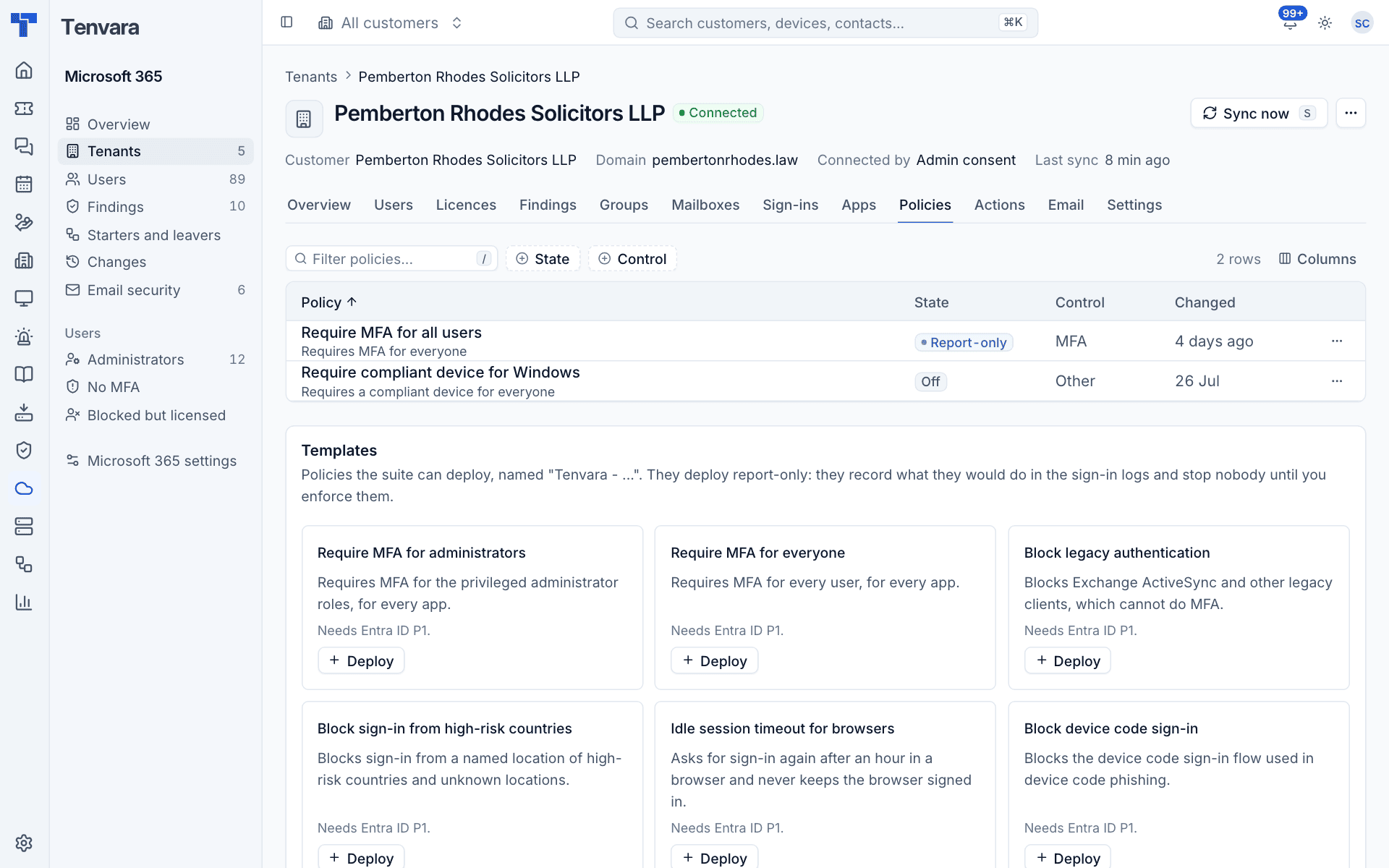
The Policies tab lists the tenant's Conditional Access policies with their State (on, off or Report-only), Control (for example MFA) and when they were Changed. Each has an actions menu.
Templates
Below the policies, Templates are policies Tenvara can deploy for you:
| Template | What it does | Needs |
|---|---|---|
| Require MFA for administrators | MFA for the privileged administrator roles, for every app | Entra ID P1 |
| Require MFA for everyone | MFA for every user, for every app | Entra ID P1 |
| Block legacy authentication | Blocks Exchange ActiveSync and other legacy clients | Entra ID P1 |
| Block sign-in from high-risk countries | Blocks a named location of high-risk countries and unknown locations | Entra ID P1 |
| Idle session timeout for browsers | Asks for sign-in again after an hour in a browser and never keeps it signed in | Entra ID P1 |
| Block device code sign-in | Blocks the flow used in device code phishing | Entra ID P1 |
| Require a compliant device | Allows Microsoft 365 only from Intune-compliant or domain-joined devices | Entra ID P1 and Intune |
To deploy one:
- Press Deploy on the template.
- Under Leave out these accounts, choose your emergency access (break-glass) accounts, so a mistake cannot lock every administrator out. And these groups optionally leaves out a group. The directory sync account is always left out.
- Leave Enforce straight away unticked, then press Preview and confirm. The policy is created report-only and named "Tenvara - " followed by its purpose.
- Watch the sign-in logs for a while to see who it would have affected.
- When it looks right, choose Enforce from the policy's actions menu. Enforcing is high risk, so it needs an administrator or their approval.
The actions menu on each policy has Enforce, Turn off and Delete. If a template was already deployed report-only, the matching finding offers to switch it on rather than deploying a second copy. Deleting a policy is destructive; the named location a template made is deleted with it.
Warning: Enforce straight away skips report-only: anyone the policy applies to who cannot meet it is stopped from signing in at once. It is high risk and needs an administrator.
Named locations
Named locations lists the places Conditional Access can allow or block: IP ranges (with whether they are trusted) and countries. The high-risk countries template creates its own named location.
Was this page helpful?
Thanks for the feedback.