Investigations, Ask AI and fixes
Let AI investigate a device with read-only checks, ask it questions, and run the fixes it suggests.
When a customer says their laptop is slow, the first twenty minutes usually go on looking: memory, disk, what changed, whether it has restarted. The investigator does that looking for you with read-only checks and writes up what it found as an internal note, with the evidence, charts and one-click fixes.
Starting an investigation
On a ticket:
- Open the ticket's ... menu and choose Investigate with AI, or click Investigate in the AI suggestions panel.
- If more than one device could be the one the customer means, pick it. Tenvara looks at the devices linked to the ticket first, then the contact's devices (by who signs in to them), then the customer's workstations.
- Watch the progress as each check runs. Most investigations take under a minute.
On a device, open the ... menu and choose Investigate with AI. The result goes into the device's activity.
With Investigate after triage on in Settings > AI, an investigation also starts on its own when triage recognises a symptom with confidence. The note is then written as System.
What it checks
The investigator follows the playbook for the ticket's symptom, using only read-only checks:
- The device: agent status, operating system and build, uptime, signed-in user, pending restart, CPU, memory and disks now, and open alerts.
- Live diagnostics from the device: processes, memory, disks, startup items, services, network, events and crashes, security and battery, as the playbook asks.
- Monitoring history: CPU, memory and disk over the period, against the same period before.
- Recent alerts on the device and at the customer.
- Changes: apps installed, updated or removed, and updates installed or failed, around when it started.
- Backup jobs on the device.
- Microsoft 365 sign-in problems for the contact.
- Similar tickets at the customer and matching knowledge base articles.
- The fixes on offer for this device.
Reading the note
The note is posted as an internal note (never to the customer) by the technician who asked.
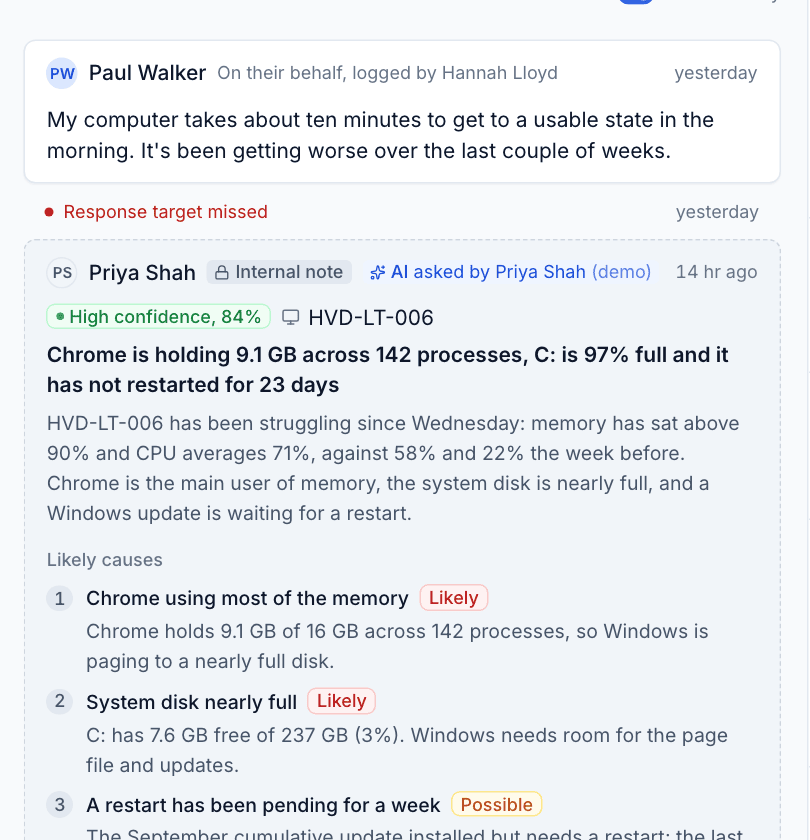
It shows:
- Confidence and the device it looked at.
- A headline and a short explanation.
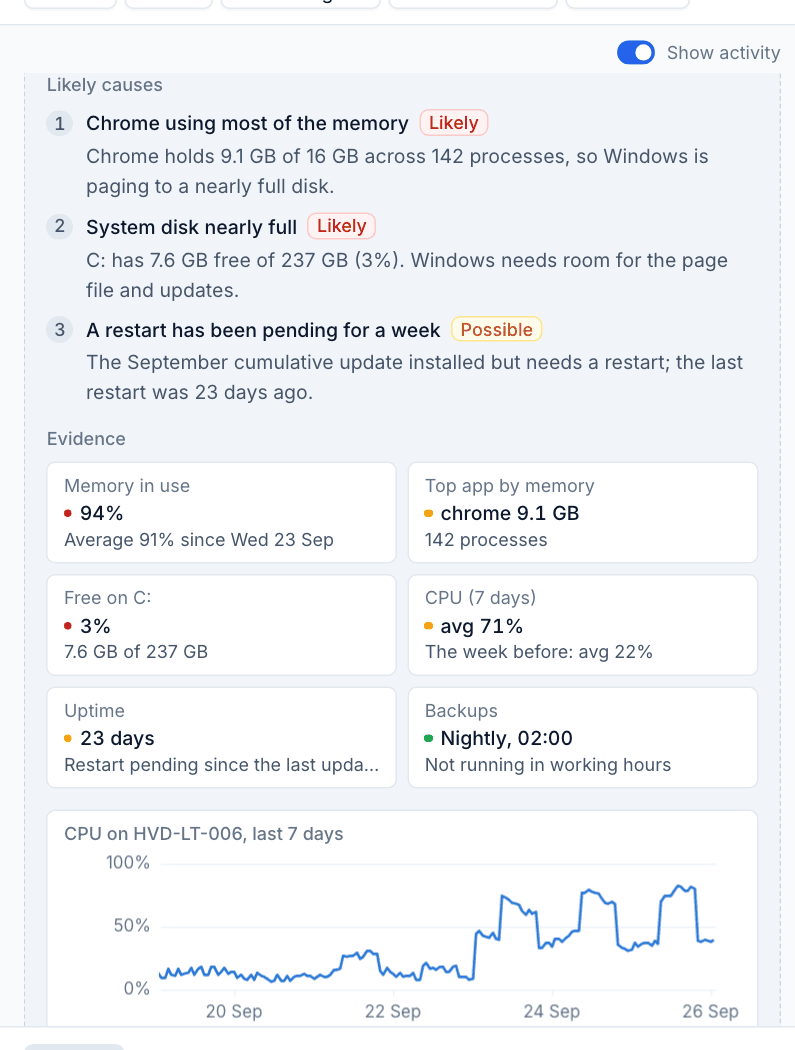
- Likely causes, numbered, each marked Likely or Possible with its evidence.
- Evidence: the numbers behind it, with charts from monitoring.
- Suggested fixes, each with its risk and a Run button.
- Next steps for the technician.
- Who asked, the model, the cost, and tool calls, which opens every check it ran with what it sent and what came back.
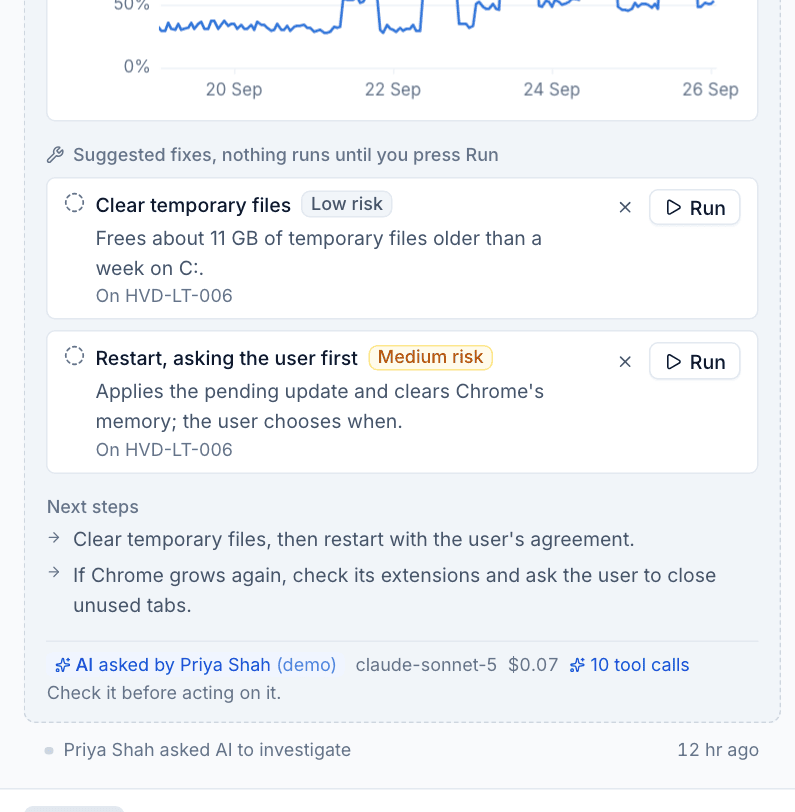
Running a fix
- Read the fix and its risk.
- Click Run. Confirm, checking any script parameters (they are filled in for you).
- The fix runs through the normal module (Scripts, Software or Patching) with your permissions, and the result links to the script run or job.
Click the x beside a fix to dismiss it. A fix can only be started once, so a double click or two people pressing Run starts it once.
Ask AI
Ask AI answers a specific question using the same read-only checks (but without suggesting fixes).
- On a ticket or a device, open the ... menu and choose Ask AI....
- Type your question, or pick a suggestion such as Why is this slow?, What changed on the device this week? or Is this the same as an earlier ticket?.
- Click Ask.
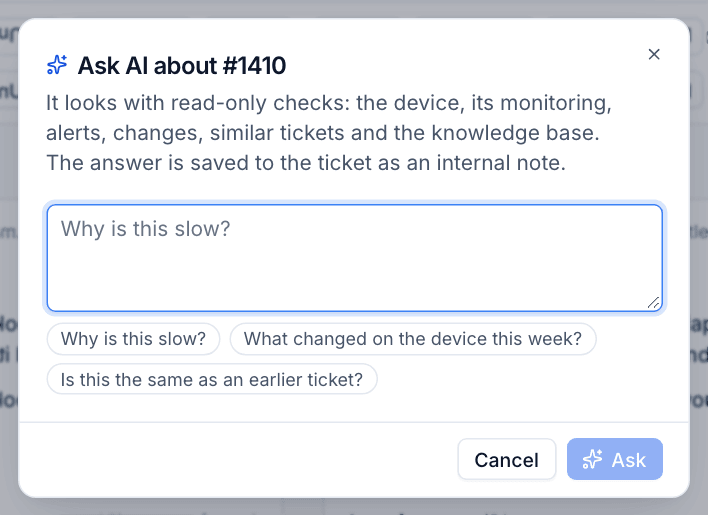
On a ticket the answer is saved as an internal note, with the question and answer. On a device it goes into the device's activity and AI panel. Either way you can open the checks it ran.
Playbooks
Go to Settings > AI > Prompts and fixes > Investigation playbooks to change what the investigator does for each symptom: Slow, Won't boot or crashing, No internet, Printer, Disk full, Email or Outlook, VPN, Can't log in, App won't open, Battery and Other.
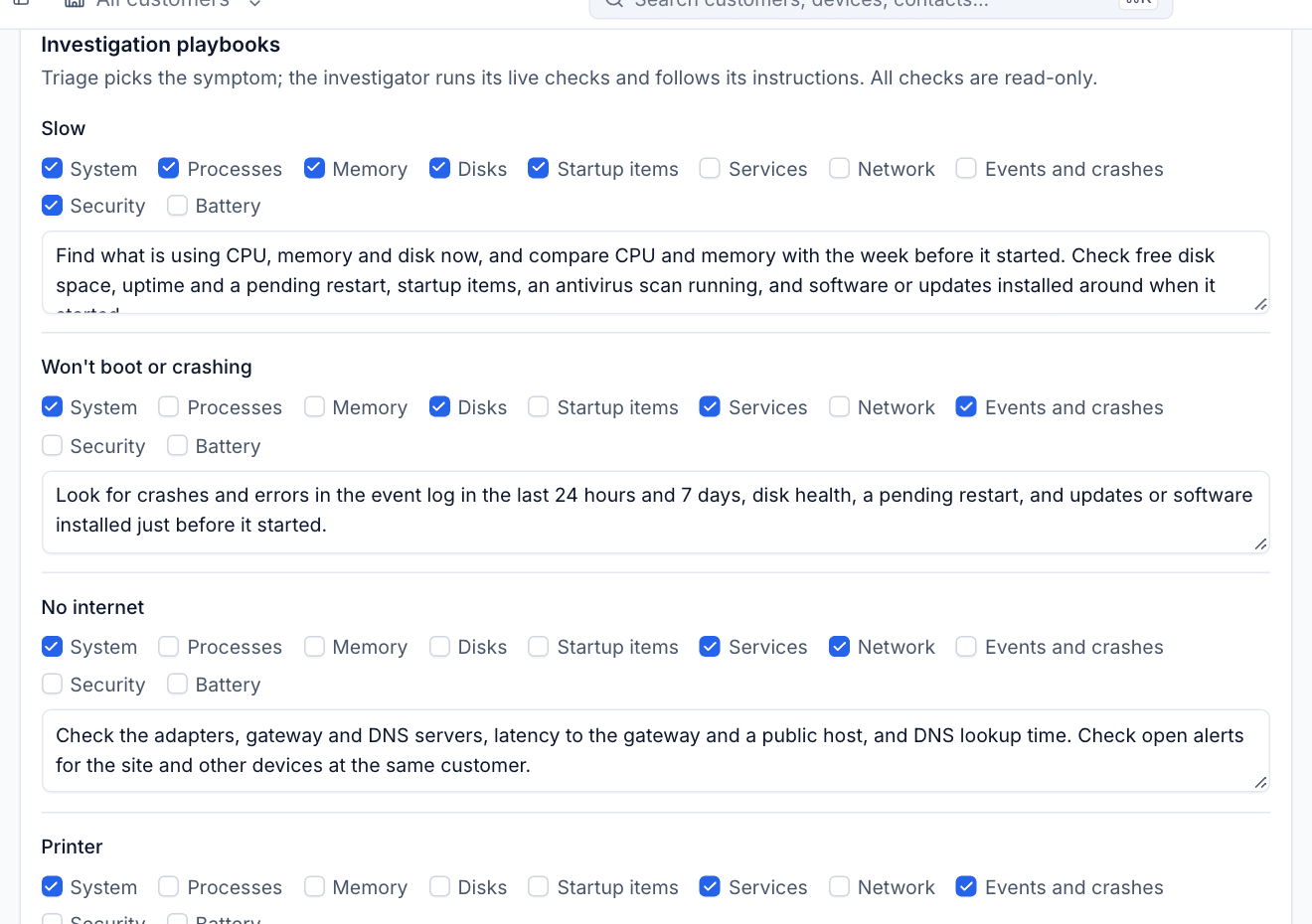
For each, tick the live checks to run on the device and edit the instructions. All checks are read-only whatever you tick.
Fixes it may suggest
Under Fixes the investigator may suggest on the same tab, choose what can be offered. Fixes are built only from what Tenvara already does:
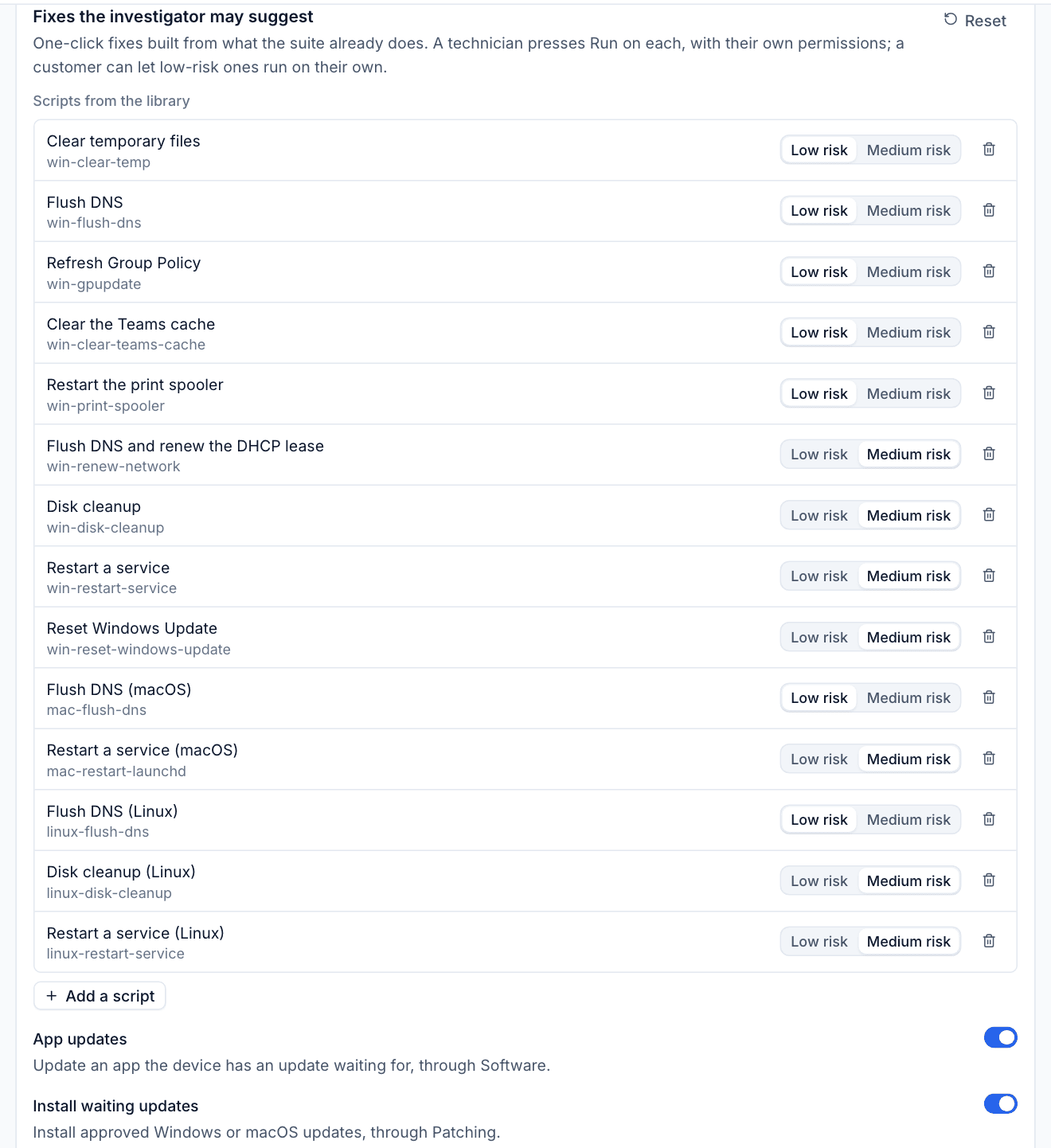
- Scripts from the library, such as Clear temporary files, Flush DNS, Refresh Group Policy, Clear the Teams cache, Restart the print spooler, Disk cleanup and Restart a service, for Windows, macOS and Linux. Mark each Low risk or Medium risk, remove ones you do not want, or Add a script from the published library. Only the shipped library can be offered, because what a custom script does is unknown.
- App updates: update an app with an update waiting, through Software.
- Install waiting updates: install approved updates, through Patching.
- Restart with a prompt: ask the signed-in user to restart, with snoozes up to the patch policy's deadline.
Fixes that run on their own
A customer can allow named low-risk fixes to run without a technician pressing Run, on their card on the customer's overview or under Settings > AI > Customers. Those run as automation and are logged on the ticket and the device. An automatic run always uses the script's default parameters, never values AI chose; a fix that needs a value with no default waits for a technician. A restart never runs on its own. See Privacy and customer controls.
Was this page helpful?
Thanks for the feedback.