Chat history
Search every past chat, filter by customer, channel, technician, status and rating, read transcripts, and see a customer's chat figures.
Every chat is kept, with its full transcript, whether it came from the website, the portal or a device. Use Chat > History to find one, and the Chats tab on a customer to see how chat is going for them.
The history list
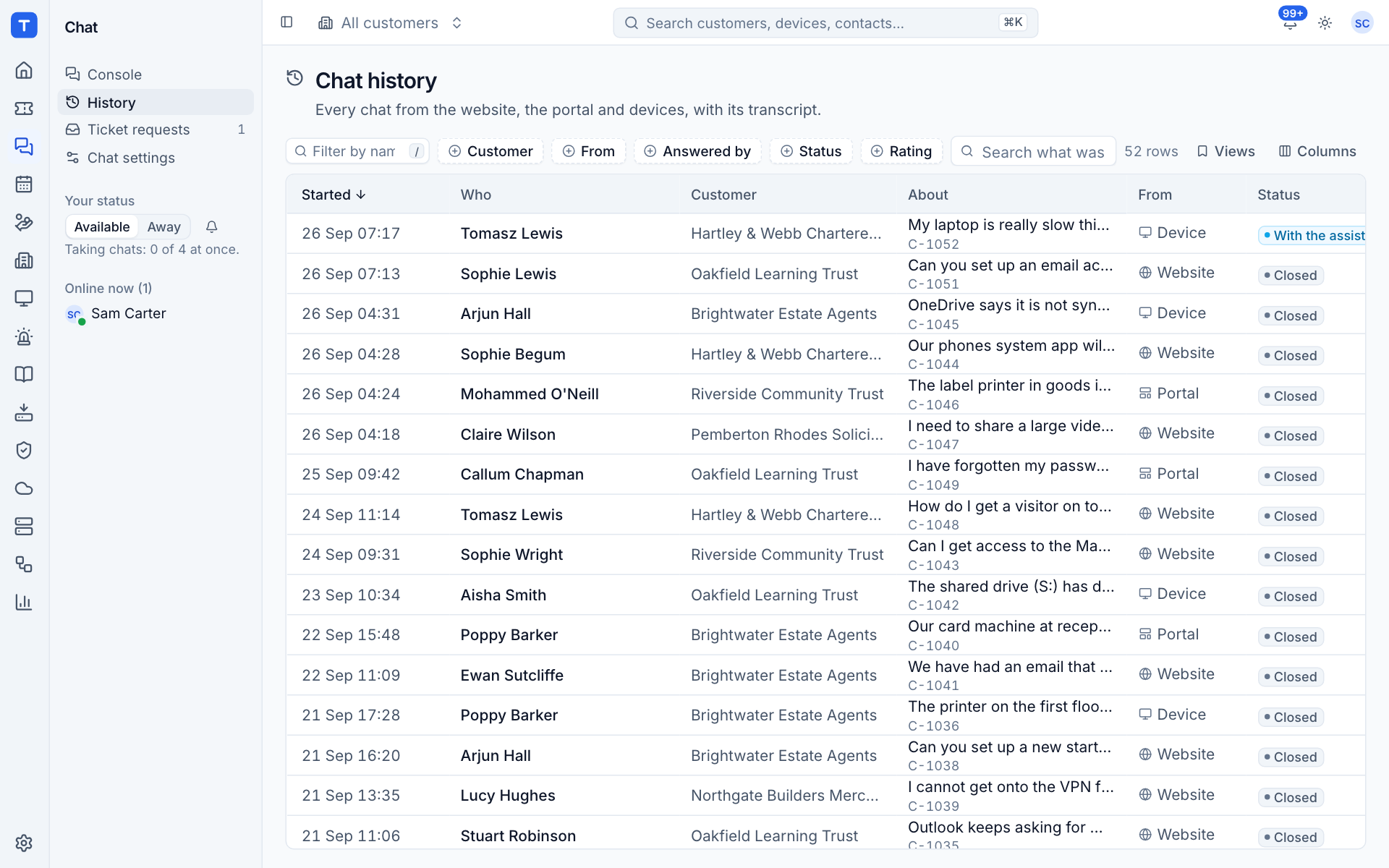
Open Chat > History. The list shows every chat, newest first, with:
| Column | What it shows |
|---|---|
| Started | When the chat began |
| Who | The visitor |
| Customer | The customer the chat belongs to |
| About | What the visitor first wrote, with the chat's reference (such as C-1052) |
| From | Website, Portal or Device |
| Status | Waiting, Active, With the assistant or Closed |
Answered by, Rating and Ticket are also available. On a narrow screen some are hidden to fit; choose which to show with Columns.
Finding a chat
- Filter by name, subject or reference: type in the box on the left (or press
/). - Customer, From, Answered by, Status and Rating: add a filter for any of these. For example, Rating finds chats rated 1 or 2 that need a follow-up, and Answered by shows one technician's chats.
- Search what was said...: searches the text of the messages themselves, so you can find the chat where someone mentioned a printer or an error code.
- The customer switcher at the top of the page narrows the list to one customer.
Save a set of filters as a view with Views, so you can come back to it later (for example "Low ratings this month").
You can also find chats from anywhere with Search (Cmd+K): type a reference such as C-1042, a visitor's name or words from the chat.
Reading a transcript
Choose a chat to open it in a side panel.
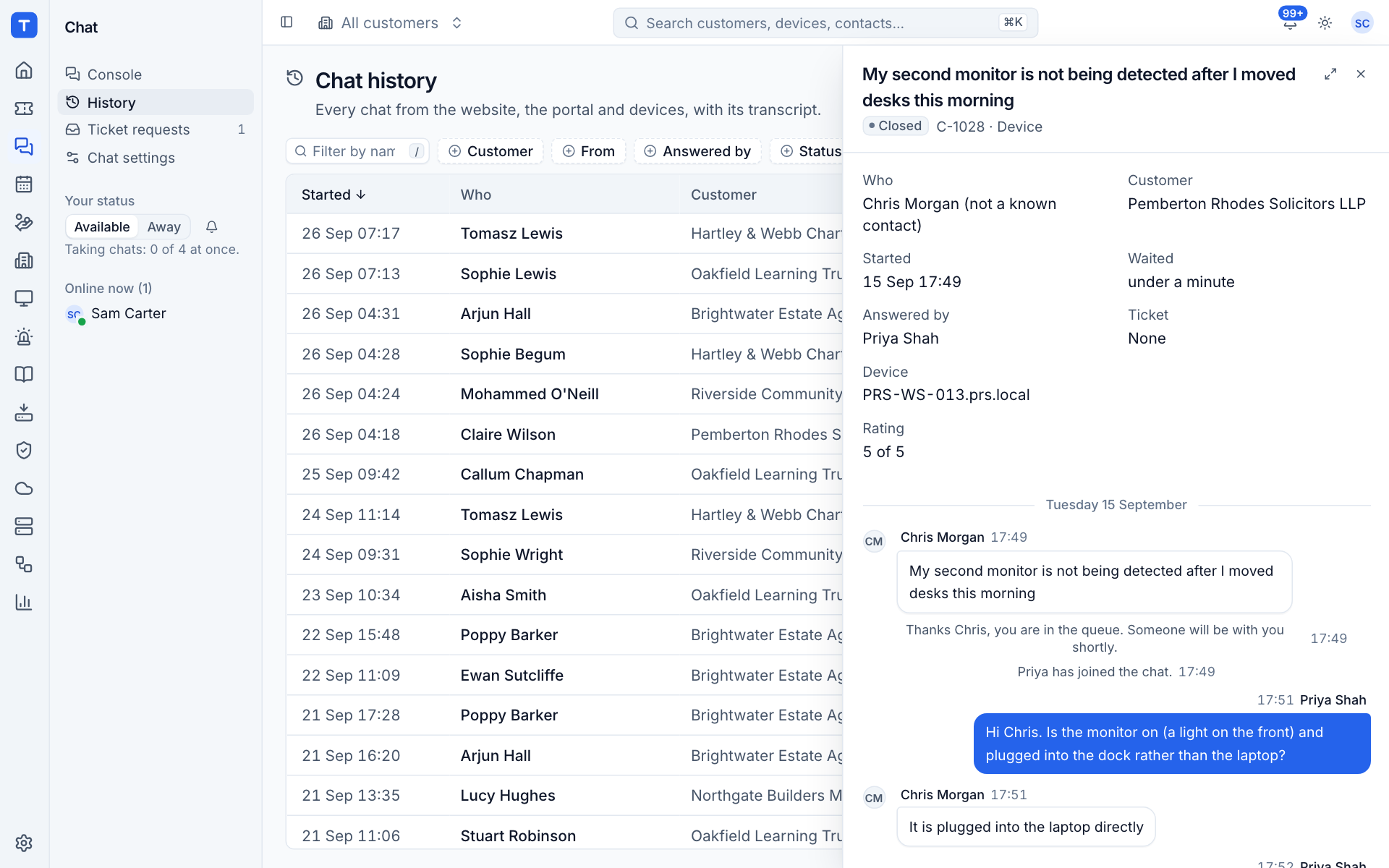
The panel shows:
- Who the visitor was (marked "not a known contact" when they were not matched);
- the Customer;
- when it Started and how long the visitor Waited;
- who it was Answered by;
- the Ticket it became, if any;
- the Device, for tray chats;
- the Rating the visitor gave;
- the whole conversation, with system lines and internal notes.
To convert an older chat to a ticket or add it to one, open it in the console: search for its reference with Cmd+K.
A customer's chats
Every customer page has a Chats tab.
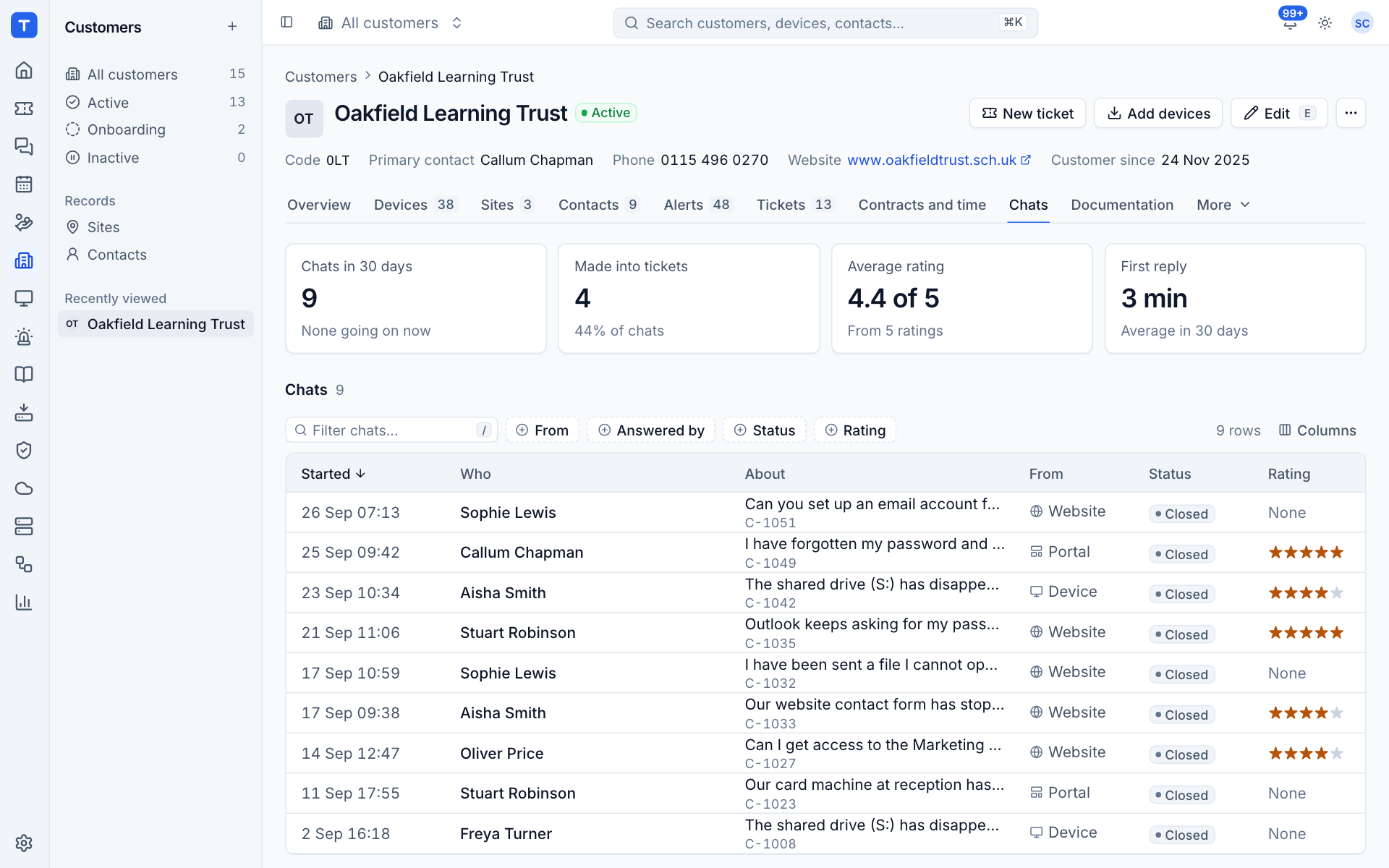
At the top are four figures for the last 30 days:
- Chats in 30 days, and whether any are going on now;
- Made into tickets, with the share of chats;
- Average rating, from how many ratings;
- First reply: the average time to the first reply from your team.
Below is the customer's own chat list, with the same filters as history (From, Answered by, Status, Rating) and the rating as stars.
When the AI assistant is in use, the Chats tab also holds that customer's assistant settings, their approvers and the recent actions it took for them. See The chat bot.
Chats on contacts, devices and tickets
- A contact page lists that person's chats.
- A device page shows Chats from this device when anyone has started a chat from its tray.
- A ticket that came from a chat shows the chat in its details panel.
What visitors keep
Visitors can see their own chats too:
- In the customer portal, Chat lists Past chats, newest first, each opening a read-only transcript with who answered and the rating, and a link to continue on the ticket when the chat became one.
- On the website widget and the tray, visitors can ask for the transcript by email once the chat has ended (when transcripts are switched on in Settings > Chat > Visitors).
Internal notes are never shown to visitors or included in a transcript they receive.
Was this page helpful?
Thanks for the feedback.