Customer confirmations and reminders
What customers are emailed about visits, how they confirm or ask for another time, and how to change the wording and turn emails off for one customer.
When you book a customer visit, the contact gets an email with the time, who is coming, the address, a calendar invitation and a link. From the link they confirm the visit or ask for another time, with no sign-in. Their answer lands on the booking live, the technicians and the dispatcher are told, and the ticket records it.
Who gets the email
The confirmation goes to the booking's contact. If the booking has none, it goes to the ticket's contact, and failing that to the person who raised the ticket. The booking dialog shows which address will be emailed before you save.
The customer sees technicians by first name only.
What the customer receives
Each email carries:
- the date and time, who is coming, the type of visit and the address;
- a button to open the visit;
- a calendar invitation (
.ics). When the visit moves, the new email updates the same calendar entry rather than adding a second one; a cancellation removes it.
Opening the link shows the visit with two choices: confirm it, or ask for another time with a note, such as "Could we do Thursday morning instead?".
- A confirmation marks the booking Confirmed with a Customer confirmed badge.
- A request for another time adds a Wants another time badge, puts the visit at the top of the dispatch board and adds the note to the ticket as an internal note.
Either way the technicians, whoever booked it and anyone named under Also tell are notified, and the ticket's activity records it. Answering twice (a double click, a retry) changes nothing.
The link closes once the visit is over or cancelled, and the customer sees a helpful message instead. Each new email replaces the link in the previous one, so only the latest works. If you move a visit without emailing the customer, their existing link stays open until the visit is over at its new time.
When customers are emailed
Set this in Settings > Scheduling > Emails.
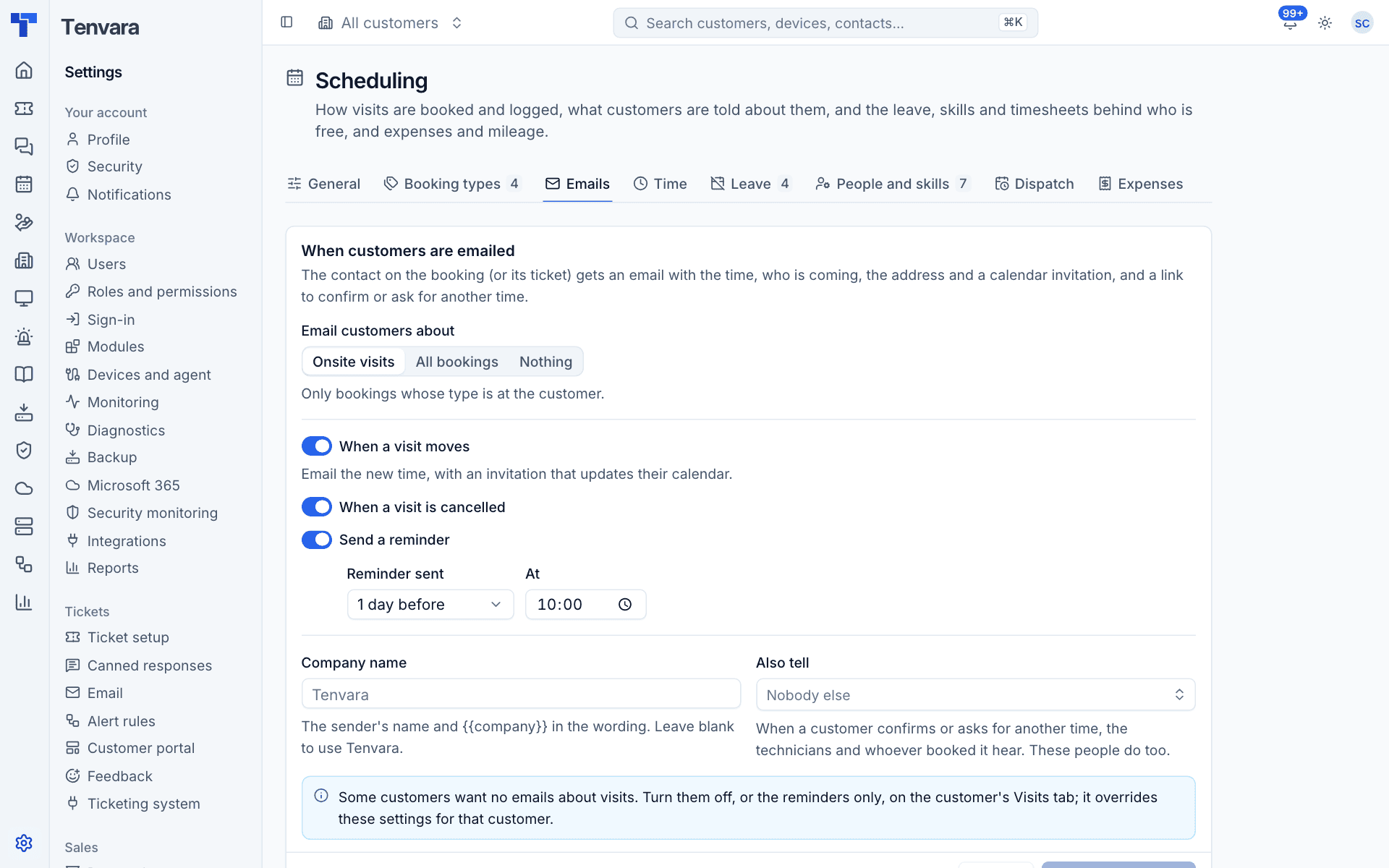
- Under Email customers about, choose Onsite visits (only bookings whose type is at the customer), All bookings or Nothing.
- Turn When a visit moves on to email the new time with an invitation that updates their calendar.
- Turn When a visit is cancelled on to email cancellations.
- Turn Send a reminder on and choose when: Reminder sent (for example 1 day before) At a time of day.
- Set the Company name used as the sender's name and in the wording. Leave it blank to use your Tenvara name.
- In Also tell, add anyone else who should hear when a customer confirms or asks for another time, such as your dispatcher.
- Press Save email settings.
A reminder is not sent to a customer who was already emailed about the visit that day (a visit booked or moved at short notice): that email is the reminder. A customer who asked for another time is not sent a reminder for the old time.
You can also send the confirmation again from a booking with ... > Email the customer again. It goes straight away, with a fresh link.
Change the wording
The Wording section on the same tab holds the four emails: Booked, Moved, Cancelled and Reminder. Each is plain text with placeholders; a blank line starts a new paragraph. The button, the details box and the calendar invitation are added for you.
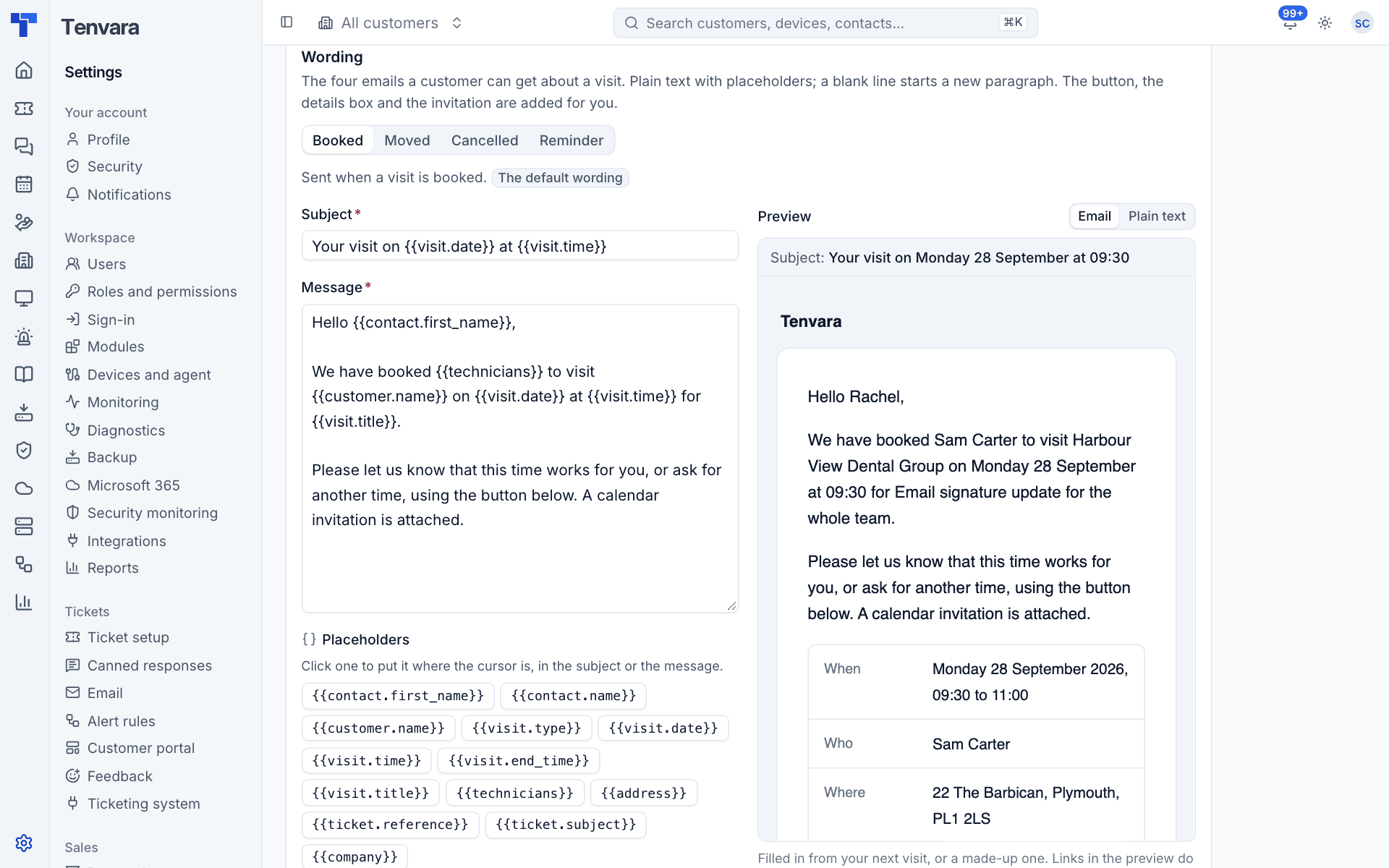
- Pick the email.
- Edit the Subject and Message. Click a placeholder to put it where the cursor is.
- Check the Preview on the right, as an Email or in Plain text. It is filled in from your next visit, or a made-up one.
- Press Save for that email, or Reset to the default to go back to the standard wording.
| Placeholder | Filled with |
|---|---|
{{contact.first_name}}, {{contact.name}} |
The contact being emailed |
{{customer.name}} |
The customer |
{{visit.type}}, {{visit.title}} |
The booking type and title |
{{visit.date}}, {{visit.time}}, {{visit.end_time}} |
When the visit is |
{{technicians}} |
Who is coming, by first name |
{{address}} |
The site's address |
{{ticket.reference}}, {{ticket.subject}} |
The ticket |
{{company}} |
Your company name from the setting above |
Turn emails off for one customer
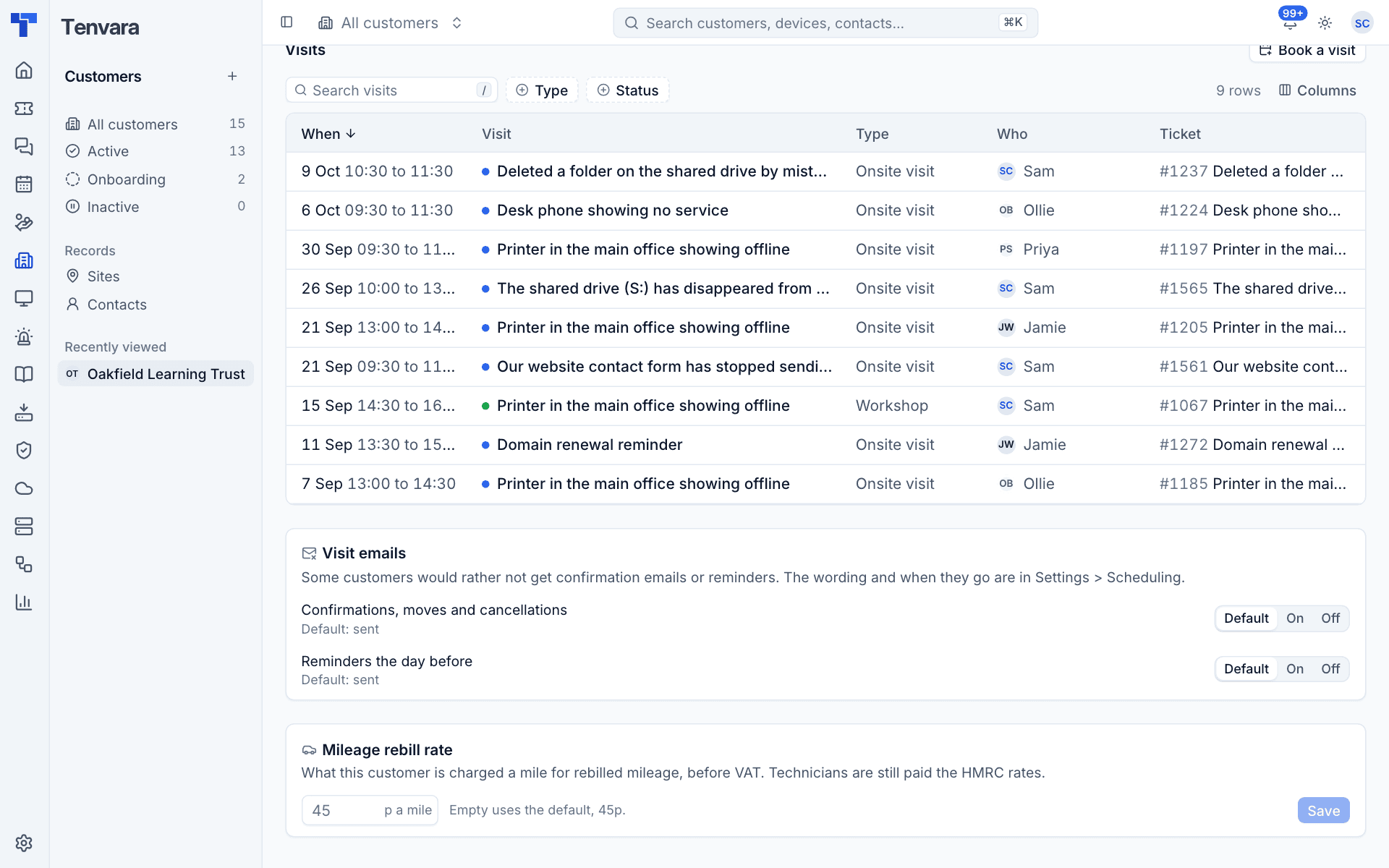
Some customers would rather not get confirmation emails or reminders. On the customer's Visits tab, the Visit emails card overrides the settings for that customer:
- Confirmations, moves and cancellations: Default, On or Off.
- Reminders the day before: Default, On or Off.
The same tab lists every visit for the customer with the counts of visits Coming up, confirmations Waiting for them, Visits, last 30 days and Time from visits. The Mileage rebill rate card below sets what this customer is charged a mile; see Expenses and mileage.
Site details for visits
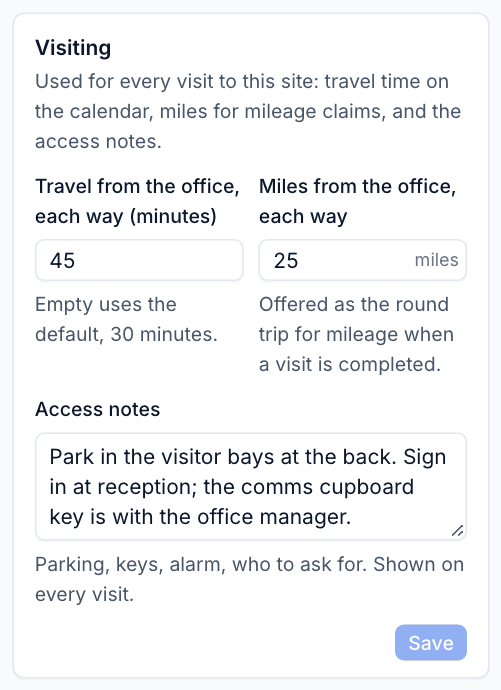
Each site has a Visiting card on its page with the details every visit to it uses:
- Travel from the office, each way (minutes): the travel added before and after onsite visits. Empty uses the default.
- Miles from the office, each way: offered as the round trip for mileage when a visit is completed.
- Access notes: parking, keys, alarm, who to ask for. Shown on every visit to the site.
Tip: Good access notes save a wasted trip. They appear in the booking panel right under the address, where the technician looks before they set off.
Was this page helpful?
Thanks for the feedback.