Drivers and model mapping
Upload Windows driver packages, use the drivers built into each operating system, and map printer models to drivers so the right one is picked automatically.
Every printer needs a driver on the device it is installed on. Tenvara keeps a list of drivers in Devices > Printers > Drivers: packages you upload from the manufacturer, and drivers that come with the operating system. The model mapping then decides which driver a printer gets when you leave its Windows driver on Automatic.
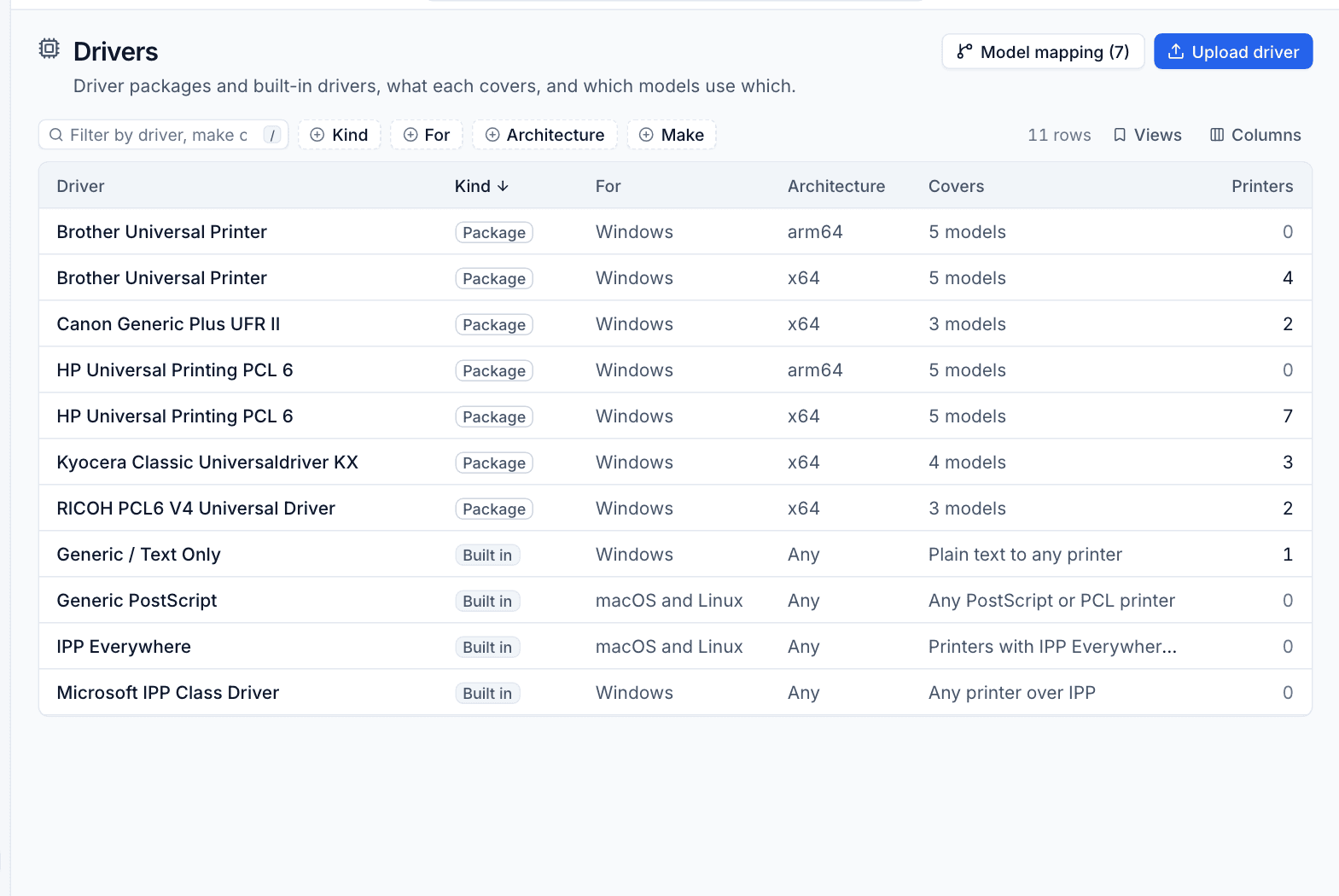
The driver list
Each row shows the Driver name, its Kind (Package for an upload, Built in for one that comes with the operating system), what it is For (Windows, or macOS and Linux), the Architecture, the Version, what it Covers and how many Printers use it. Filter by Kind, For, Architecture and Make.
The built-in drivers are always there:
| Driver | For | Use it for |
|---|---|---|
| Microsoft IPP Class Driver | Windows | Any printer over IPP, with no download at all. Also the last resort when nothing else matches |
| Generic / Text Only | Windows | Plain text to any printer, such as some label and receipt printers |
| IPP Everywhere | macOS and Linux | Printers with IPP Everywhere or AirPrint, driverless |
| Generic PostScript | macOS and Linux | Any PostScript or PCL printer, through the operating system's generic PPD |
Click a driver to open its panel. For an uploaded package it shows the kind and architecture, version, make, INF file, provider, Signed by (the certificate that signed the package), size, SHA-256, when it was uploaded, the Printers on it, the Mapping lines that point to it, the Models it covers, the Driver names in the INF (the one that gets installed is marked Installed) and the Hardware IDs.
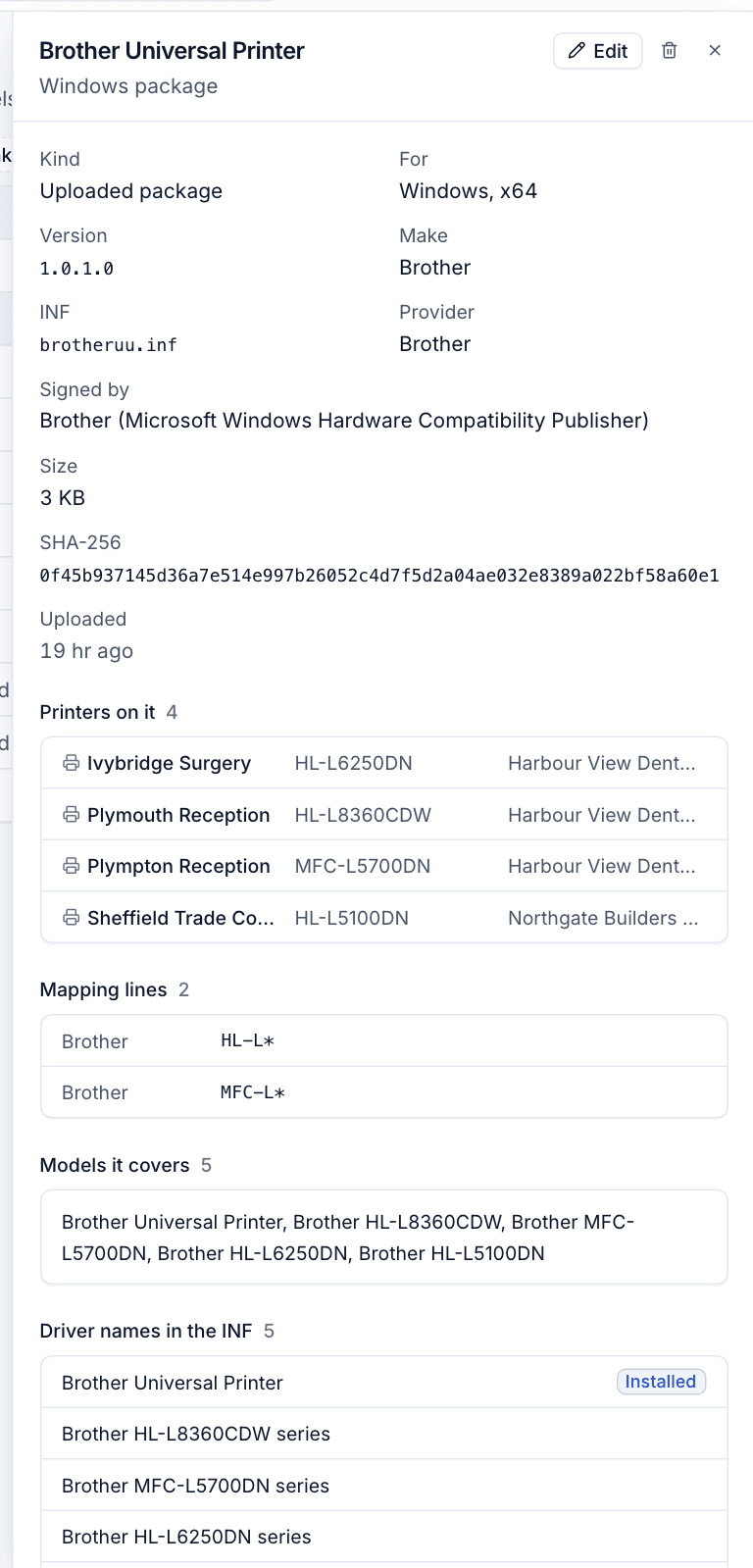
Uploading a driver package
Use a package when the operating system's own drivers are not good enough, which for most office multifunction printers on Windows means the manufacturer's universal driver.
- Download the manufacturer's driver and unpack it. You want the folder that contains the INF file, not a setup program.
- Zip that folder. The zip can be up to 500 MB and must contain at least one printer INF.
- In Drivers, click Upload driver.
- Choose the zip under Package.
- Choose the Architecture: x64 or arm64. Devices get the package for their own architecture, so upload one of each when the manufacturer offers both.
- Driver name is optional: enter one of the names the INF declares if you want a particular one. Left empty, Tenvara picks a "Universal" name, or the first.
- Name in the suite is optional too. Empty uses the driver name.
- Add Notes if they would help, then click Upload.
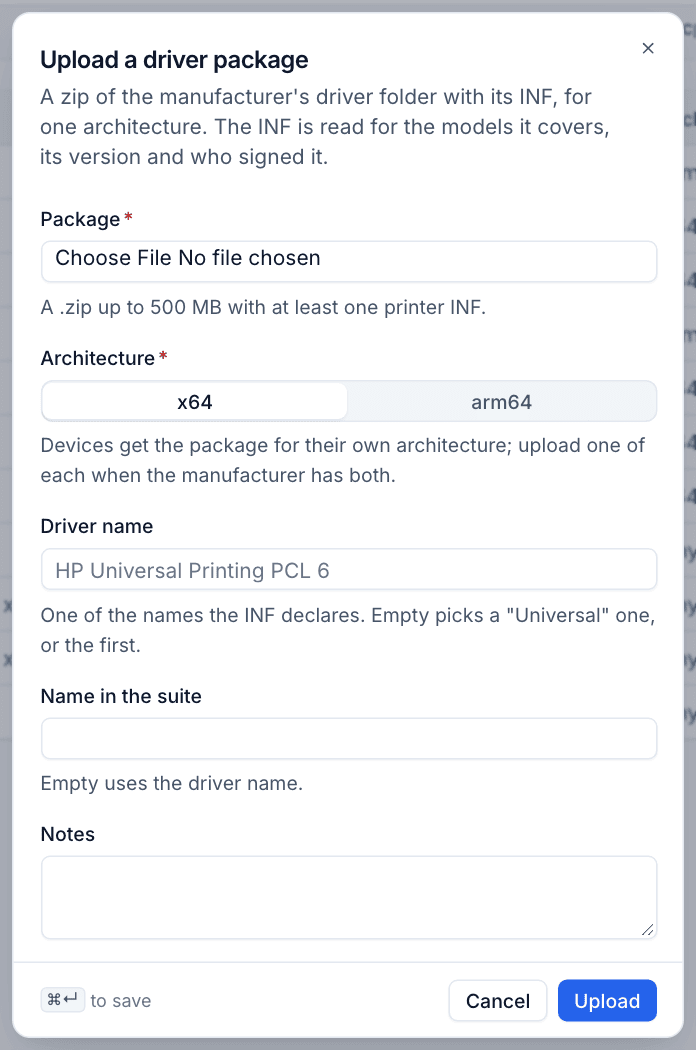
Tenvara reads the INF on upload: the version, the models it covers, the driver names, the hardware IDs and who signed it. When the zip holds several INFs, it uses the one for the chosen architecture that covers the most models.
To change which driver name is installed, open the driver and click Edit. Installs the driver lists the names from the INF. You can also change the Name shown in Tenvara, the Make and the Notes.
Note: A driver used by a printer or by a mapping line cannot be deleted. Change those first.
How a package reaches a device
The agent downloads the package from Tenvara when a printer on that device needs it, checks its SHA-256, adds it to the Windows driver store and installs the driver by name. It confirms the driver really is installed afterwards rather than trusting exit codes. When the last printer Tenvara added that uses a driver is removed, the agent removes that driver too, unless something else on the machine still uses it.
The list of printers a device should have, including which packages to use, is signed by Tenvara. The agent refuses a list that is not, because printer drivers run inside the print spooler with full system rights.
Model mapping
The model mapping is an ordered list of lines, each saying "printers of this make whose model matches this pattern get this driver". Click Model mapping on the Drivers page to see and change it.
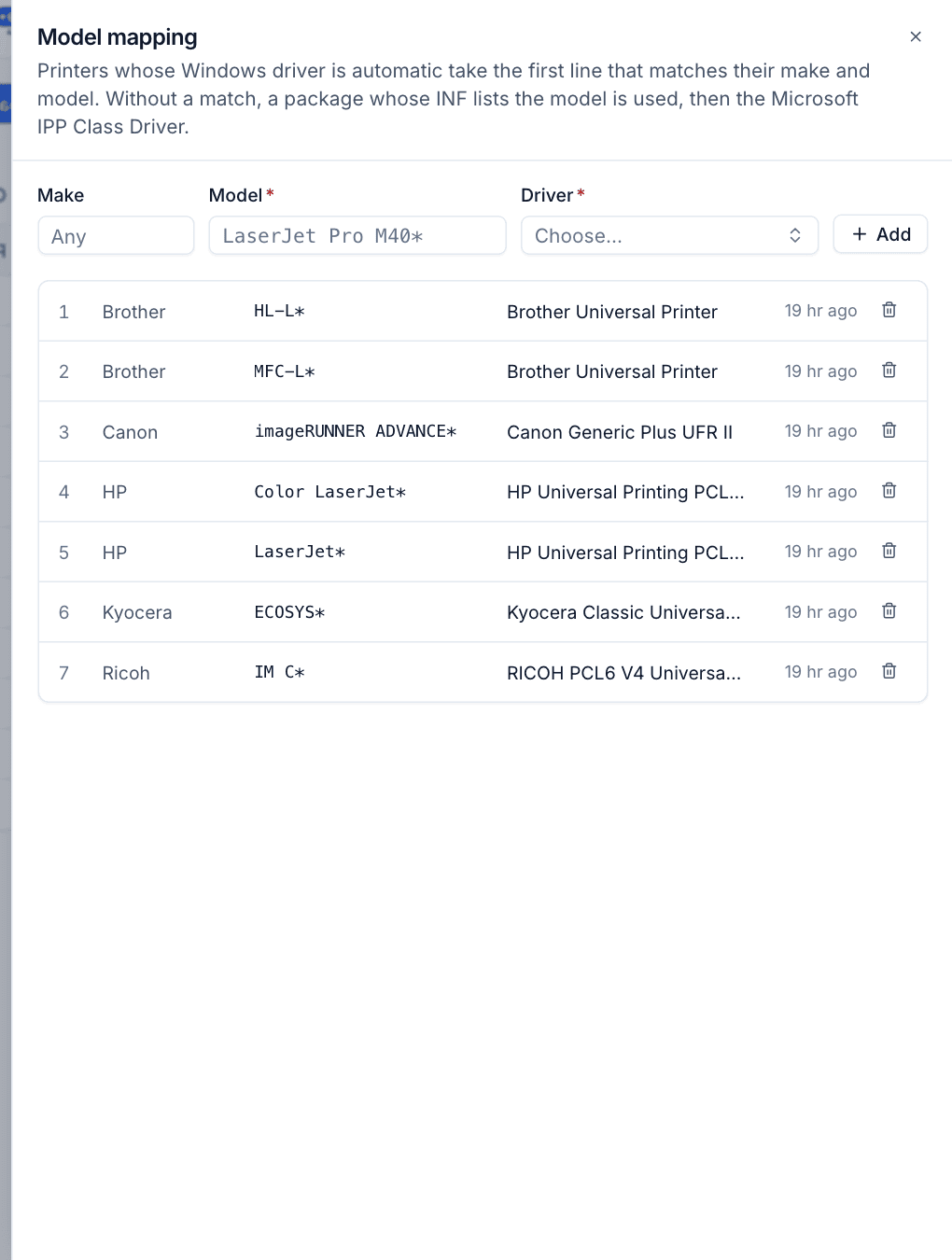
To add a line:
- Enter the Make, or leave it as Any.
- Enter the Model pattern. Use
*as a wildcard:LaserJet*matches every model starting "LaserJet",IM C*every Ricoh IM C model. - Choose the Driver.
- Click Add.
Lines are tried top to bottom and the first match wins, so put specific patterns above general ones. Remove a line with its delete button.
How the Windows driver is chosen
For each printer on Windows, Tenvara uses the first of these that applies:
- The driver chosen on the printer itself, if Windows driver is not Automatic.
- The first mapping line that matches the printer's make and model.
- An uploaded package whose INF lists the model.
- The Microsoft IPP Class Driver.
The printer page shows the result under Windows driver, with where it came from, for example "From the model mapping".
On macOS and Linux the printer's macOS and Linux driver setting decides: IPP Everywhere when the printer answers IPP, otherwise the generic PPD. Each device reports which it actually used.
Was this page helpful?
Thanks for the feedback.