Managing virtual machines and containers
Find guests across every Proxmox host, start and stop them, take and roll back snapshots, back them up on demand and watch the ones that must stay running.
A guest is a Proxmox virtual machine (QEMU) or container (LXC). Tenvara lists every guest on every host you manage, and lets you run the everyday actions without signing in to each Proxmox web interface.
The guest list
Infrastructure > Guests shows every guest with its Status, VMID, Type, Cluster, Node, Customer, CPU, memory and last backup. Filter by status, type, cluster, node, customer and last backup, and save the views you use. Templates are listed with a Template badge.
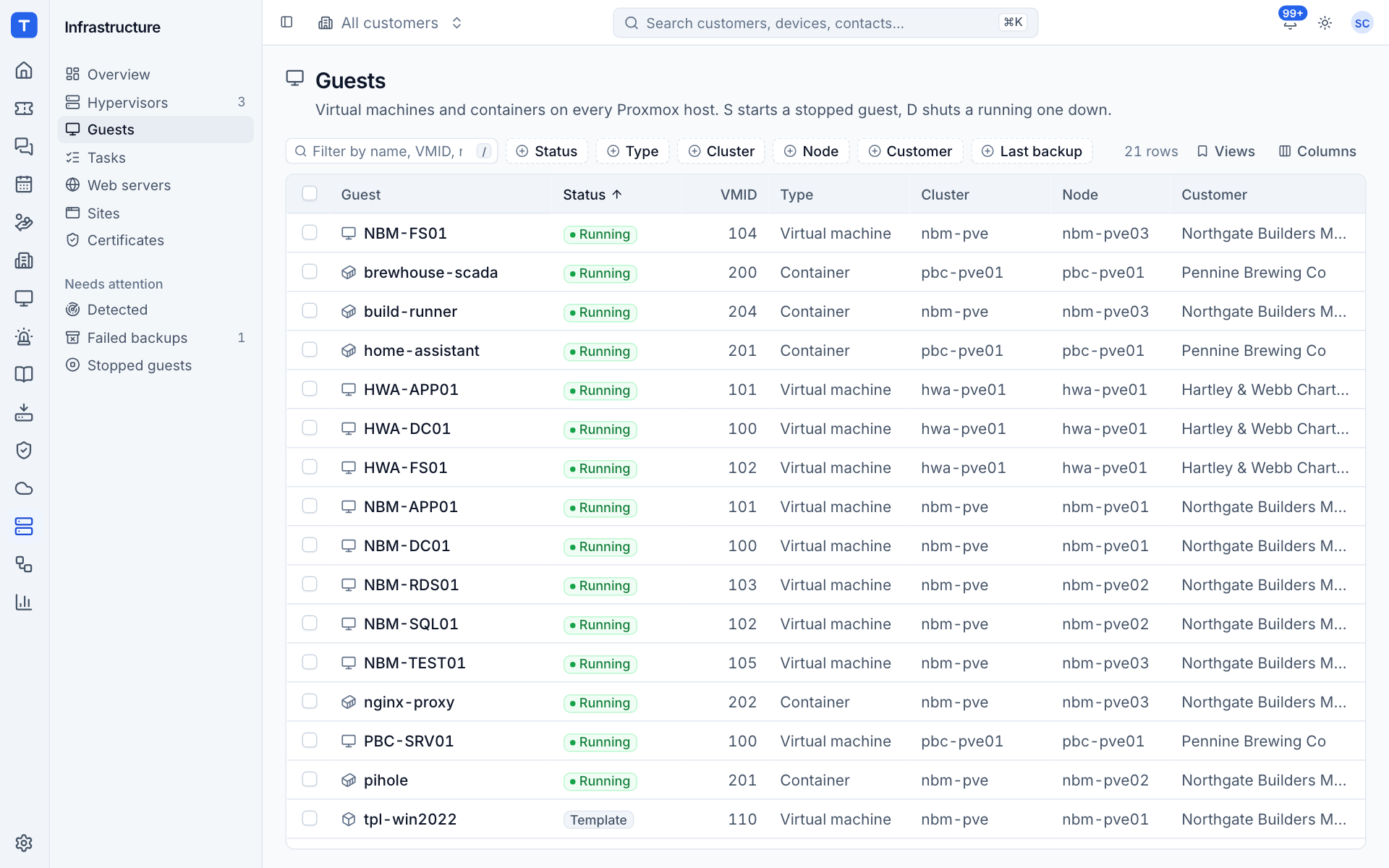
Keyboard shortcuts on the list:
| Key | Action |
|---|---|
s |
Start the selected stopped guest |
d |
Shut the selected running guest down |
Select several rows to Start or Shut down them in bulk.
The guest page
Open a guest to see its state and everything about it:
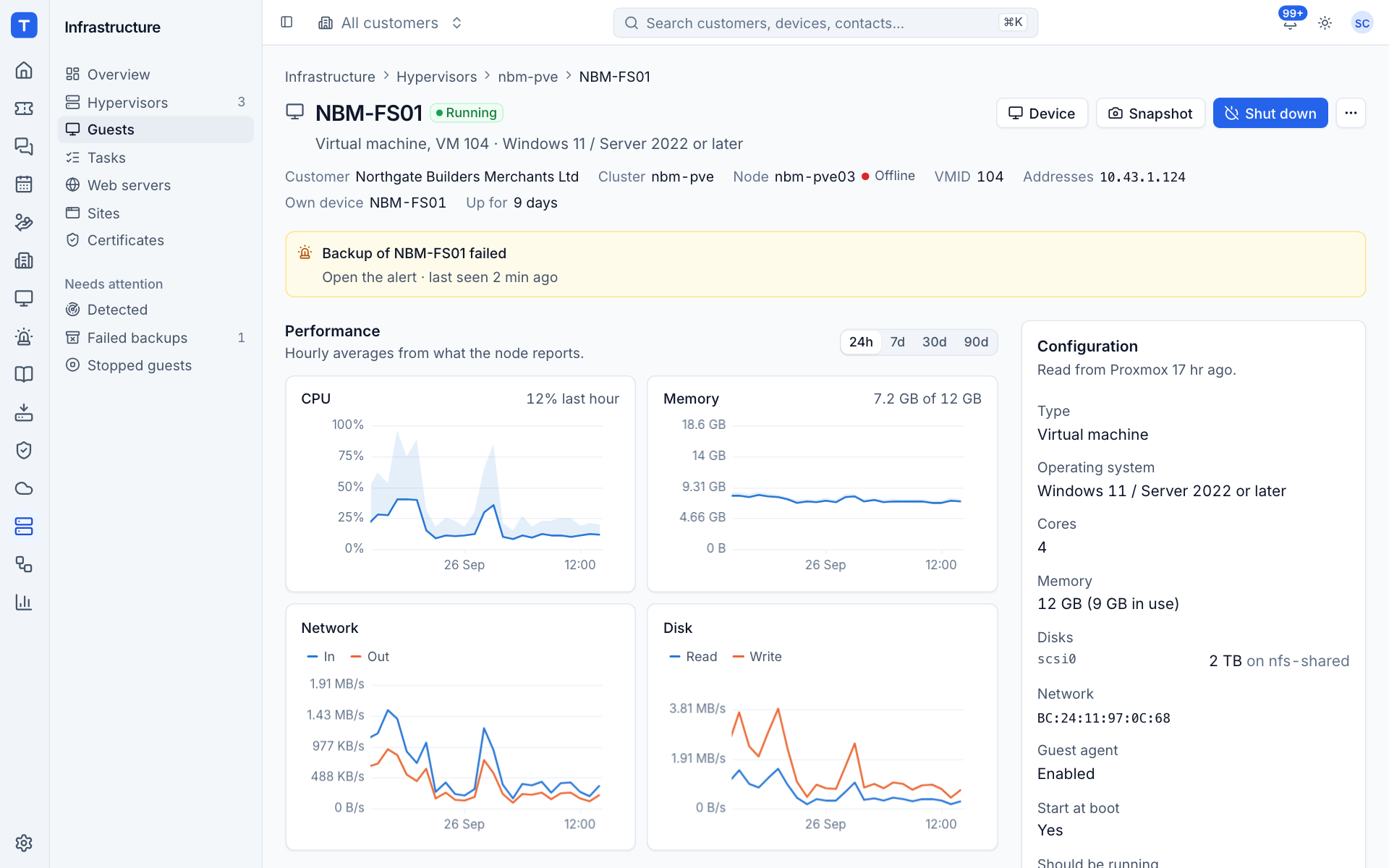
- The header shows its status, type and VMID, and operating system type, with Device (when it runs the agent), the power action that fits its state, Snapshot and a More actions menu.
- Customer, Cluster, Node (with the node's status), VMID, Addresses (from the guest agent), Own device and Up for.
- Any open alerts for the guest, with a link to each.
- Performance: hourly CPU, memory, network in and out, and disk read and write, over 24 hours to 90 days.
- Configuration: operating system, cores, memory, disks and networks, Guest agent, Start at boot and Should be running.
- Snapshots, Backups and Tasks (everything Proxmox did to this guest, and who asked).
Power actions
The main button offers the action that fits the guest's state (for example Shut down for a running guest, Start for a stopped one). The rest are in More actions:
| Action | What happens |
|---|---|
| Start | Starts the guest |
| Shut down | A clean shutdown through ACPI or the guest agent, forced off after the timeout |
| Stop | Pulls the power. Asks you to confirm |
| Reboot | A clean restart |
| Suspend and Resume | Virtual machines only |
| Reset | Virtual machines only. A hard reset. Asks you to confirm |
The action runs through the agent on the guest's own node when that node is online. If it is not, another connected node of the cluster runs it on its behalf. If no node of the cluster is connected, the action is refused with "No node of this cluster is connected". Progress follows live on the page and the finished task appears under Tasks.
Only one action runs on a guest at a time; the buttons say "Wait for the current action to finish" until it is done.
Tip: Shutting down cleanly needs the guest agent (QEMU guest agent) in a virtual machine. When it is off, the configuration shows "Off (no addresses or clean shutdowns)".
Snapshots
A snapshot keeps the guest's disks as they are, so you can go back to that point later. Take one before a risky change and delete it afterwards: snapshots slow disks down and use storage the longer they are kept.
Take a snapshot
- Press Snapshot (or Take snapshot in the Snapshots section).
- Enter a Name: 2 to 40 letters, digits, hyphens or underscores, starting with a letter.
- Add a Description if you like, such as "Before the September updates".
- For a running virtual machine, tick Include the memory if you want rolling back to return the machine running, exactly where it was. It takes longer and uses as much storage as the guest's memory.
- Confirm. The snapshot appears in the list once Proxmox has made it.
Roll back
- In Snapshots, open the snapshot's menu and choose to roll back.
- Read the confirmation: everything written to the guest since the snapshot is lost. If the memory was saved too, the guest comes back running; otherwise you can choose to start it again afterwards.
- Press Roll back.
Delete a snapshot
Choose delete on the snapshot and confirm with Delete snapshot. You can no longer roll back to it. The guest keeps running and its disks are merged back in the background.
Back up now
Scheduled backups stay in Proxmox (Datacenter > Backup). Back up now runs a one-off vzdump backup, the same as the scheduled ones:
- Press Back up now in the Backups section.
- Choose the Storage. Only storage on the node that accepts backups is offered.
- Choose the Mode:
- Snapshot: the guest keeps running (live backup). The usual choice.
- Suspend: pauses the guest while its disks are read. Short downtime.
- Stop: shuts the guest down for the backup and starts it again. The most consistent, with downtime.
- Add Notes if you want to find the backup again in Proxmox, for example "Before the line of business upgrade".
- Confirm. Large guests take a while; the task follows on the page.
The Backups section lists each backup of the guest Tenvara has seen: result, when it started, how long it took, size, storage and the archive name or the error. It also says which scheduled backup job the guest is in. A guest in no job says "This guest is not backed up" with a prompt to add it to a job in Proxmox or back it up now.
Should be running
Some guests must never be down: a domain controller, a line of business server. Mark them so Tenvara alerts you when they stop.
- On the guest page, open More actions.
- Turn on Should be running. The configuration then shows "Yes, alert when it is not".
A marked guest that is not running in two reports in a row raises a warning alert. It clears when the guest runs again or you remove the mark. Guests are "Not watched" by default.
Permissions
Viewing guests needs Infrastructure View. Every action (power, snapshots, backups, the should-be-running mark) needs Infrastructure Manage and an adopted host.
Was this page helpful?
Thanks for the feedback.