Building a quote
Start a quote, add sections and lines from the catalogue or by hand, set optional items and discounts, and read the totals and margin as you go.
The quote builder is a spreadsheet-like page where you lay out what you are offering: sections of lines, each with its billing, quantity and price. Totals, VAT and margin update as you type, and the builder saves by itself.
Start a quote
You can start a quote from:
- Sales > Quotes with New quote;
- a customer's Quotes tab, or New quote on the customer's menu;
- a lead's page, with New quote;
- a ticket's menu, to quote for the work the ticket describes;
- search (Cmd+K), with "New quote".
- Enter a Title: what the customer is buying, for example "Laptop refresh" or "Managed IT".
- Under For, choose A customer or A lead, then pick the Customer (or lead).
- Choose the Contact. They are who the quote is sent to and who signs it.
- Choose the Template, which sets the branding and starting wording.
- Check Valid until. It starts from the number of days in Settings.
- Press Start quote. The builder opens.
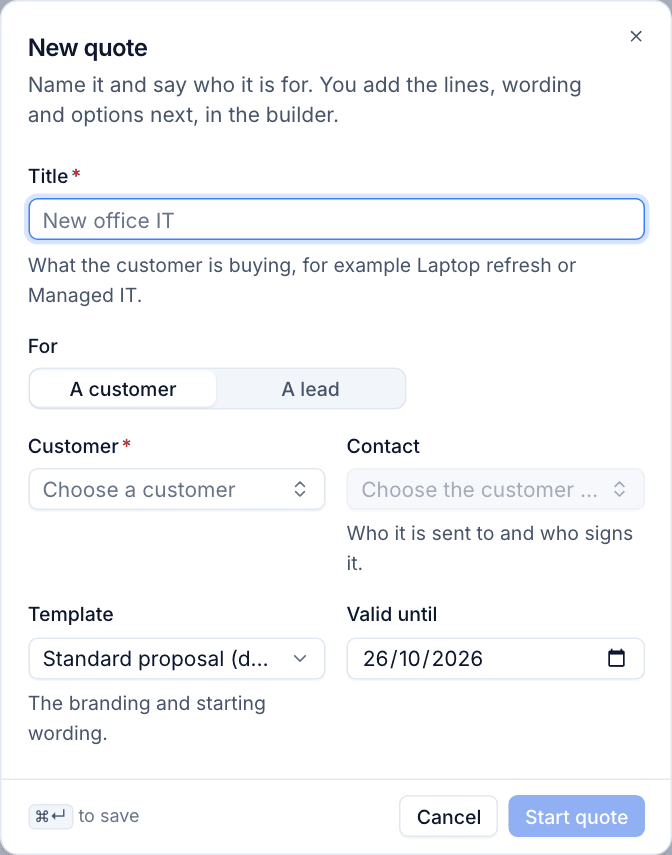
To change these later, open the ... menu and choose Edit details (or press e). You can also change the Owner there, who hears when the customer views, accepts or declines.
The builder
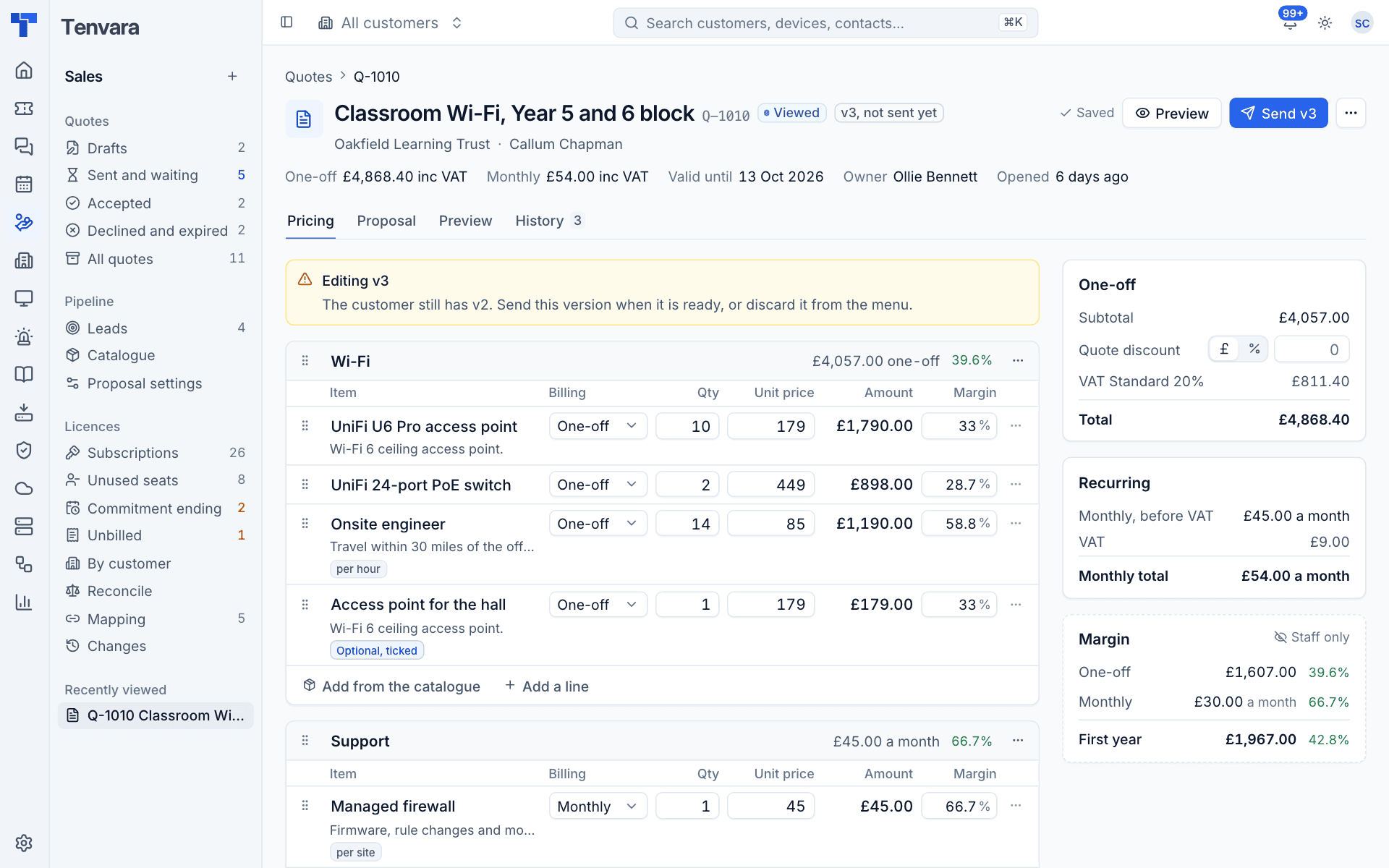
The header shows the quote number, status and version, who it is for, the one-off and monthly totals including VAT, the valid until date and the owner. Saved confirms your last change was kept; the builder saves on its own a moment after you stop typing. The tabs are Pricing, Proposal, Preview and History.
The Pricing tab has sections of lines on the left and the totals on the right.
Sections
A section groups lines under a heading, such as "Wi-Fi" or "Monthly services". Each shows its own subtotal and margin.
- Press Add a section (
Shift+S) and type its title. - Drag the handle to reorder sections, or use the section's ... menu to move it up or down, add lines to it or Clear this section.
Add lines
- Add from the catalogue (
a): search by name, SKU or category and pick an item or bundle. The line is copied from the catalogue, so later catalogue changes do not touch it. - Add a line (
n): a blank line to type in yourself, for something you do not sell often.
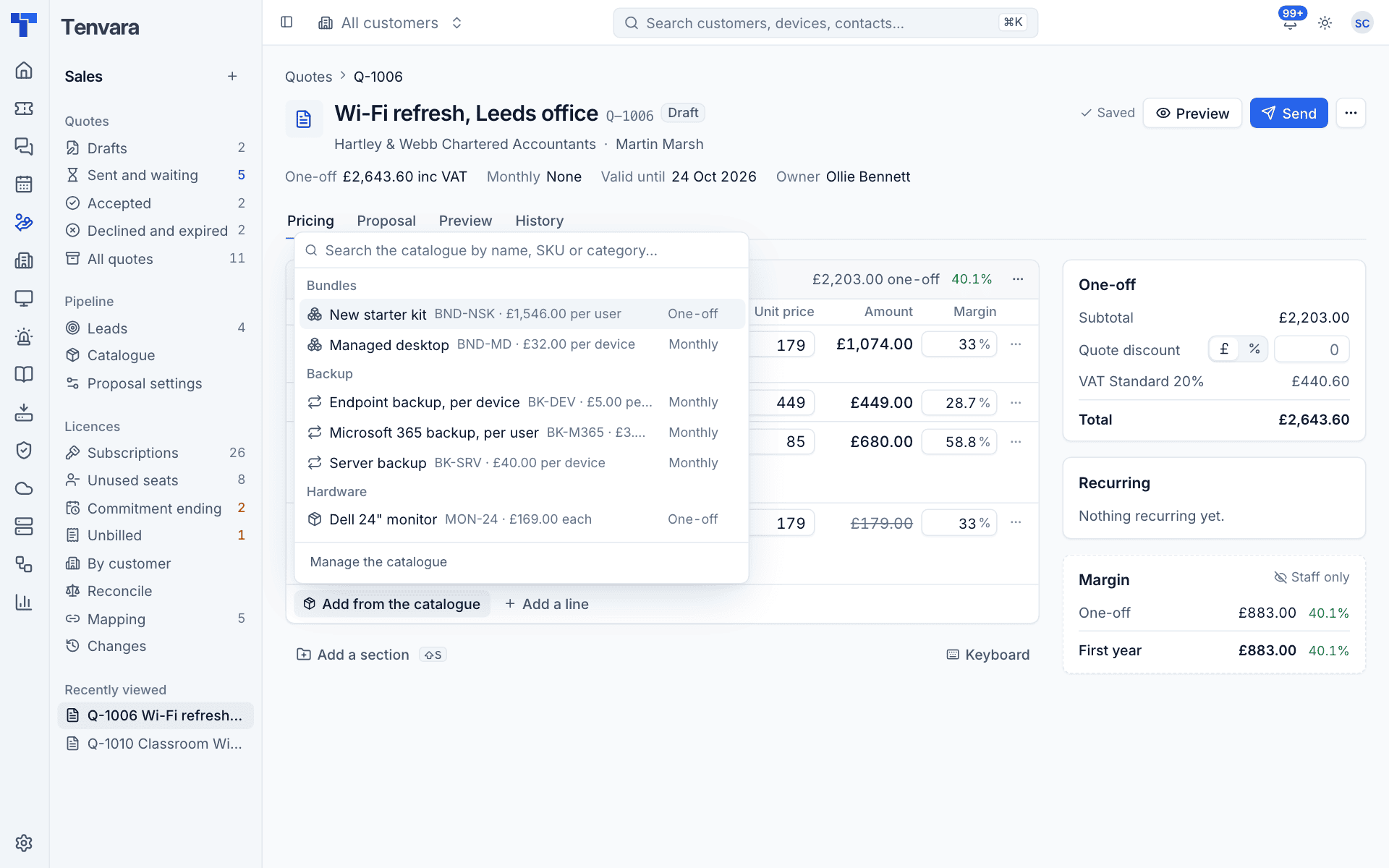
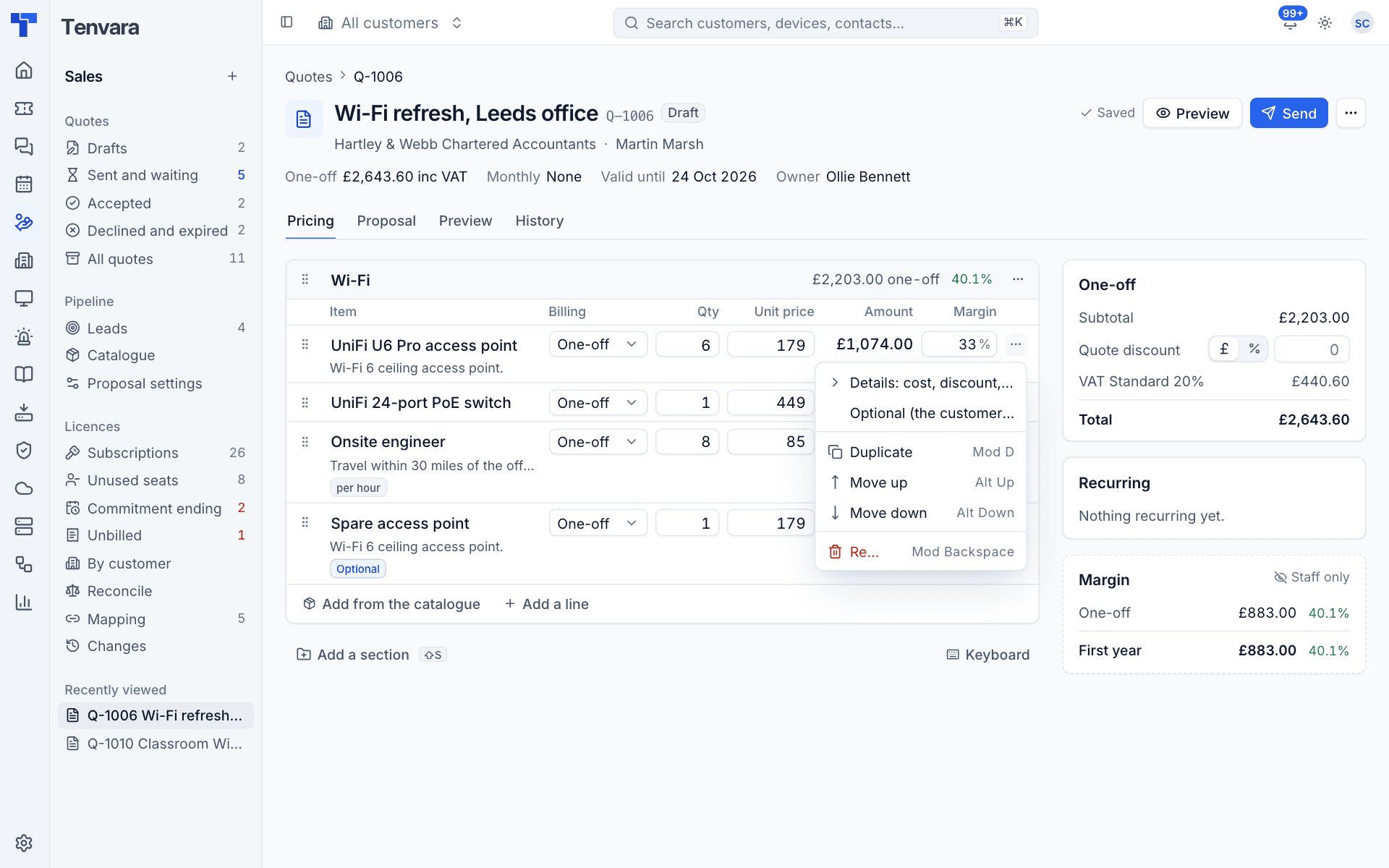
Each line has the Item name and description, the Billing (one-off, monthly, quarterly or annually), the Qty, the Unit price before VAT, the Amount, and the Margin percentage. Typing a margin sets the price from the cost.
Quantities, prices, costs and discounts take two decimal places at most. The builder marks a field with more, so the total on screen is always the total saved and signed.
Line details
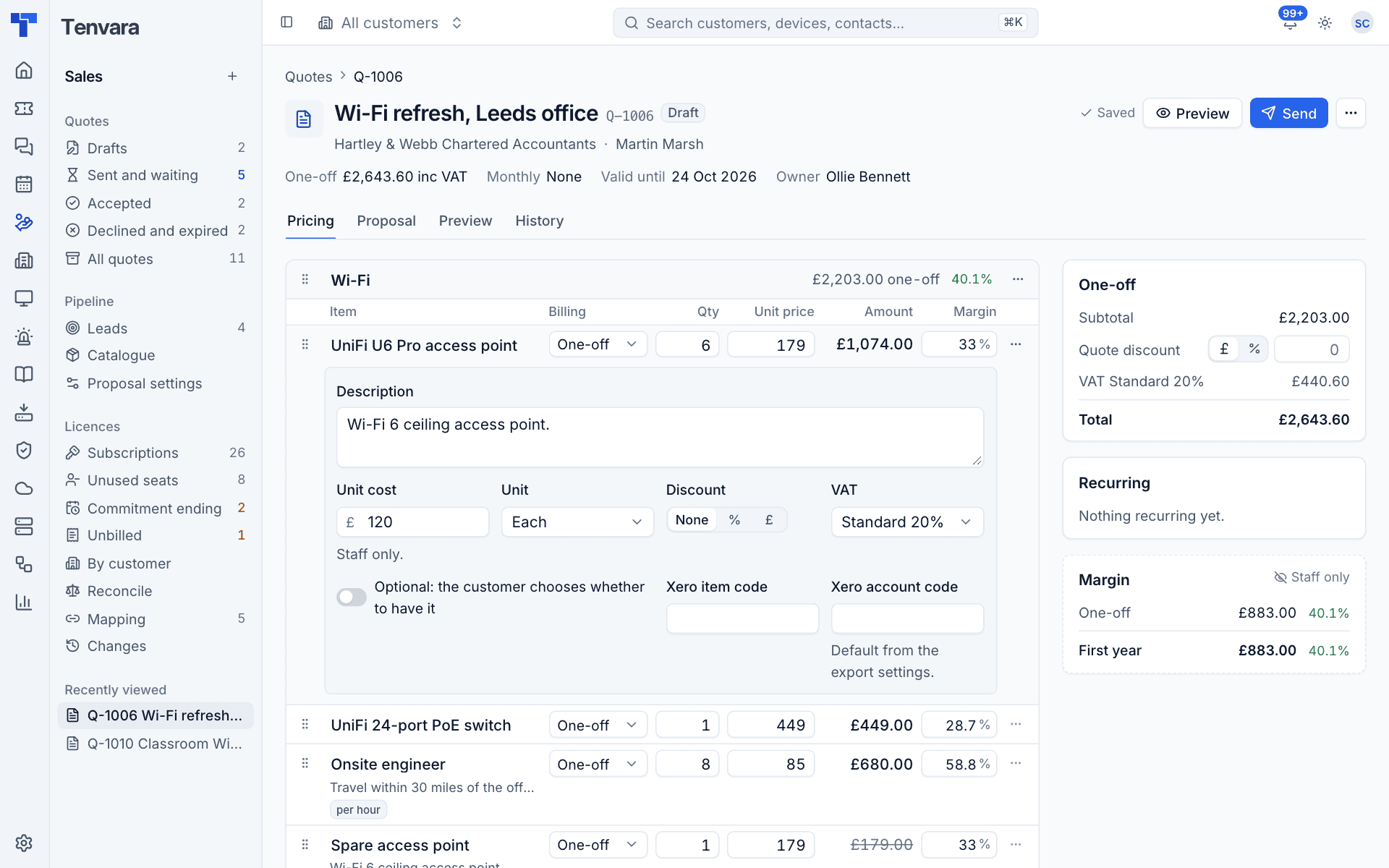
Open a line's ... menu and choose Details: cost, discount, VAT (or click its description) to see more:
- Description: shown under the item on the proposal.
- Unit cost: staff only, for the margin.
- Unit: each, per user, per device, per hour or per site.
- Discount: None, a percentage or an amount off the line.
- VAT: the rate for this line.
- Optional: the customer chooses whether to have it.
- Xero item code and Xero account code for the export.
The same menu can Duplicate (Cmd+D), Move up and Move down (Alt+Up, Alt+Down) or Remove line (Cmd+Backspace). You can also drag lines by their handle.
Optional items
Mark a line optional to offer it as an extra, such as a spare access point or security awareness training. It shows an Optional badge; the customer ticks the ones they want when they accept, and the totals follow. An optional line the customer has ticked shows Optional, ticked.
The quote discount
Under the one-off totals, Quote discount takes an amount (£) or a percentage (%) off the one-off total. It is shared across the one-off lines so the VAT on each rate stays exact.
Note: The quote discount never touches recurring lines, because a monthly discount would carry on for the life of the contract. To discount a recurring item, give that line its own discount; it then shows on the contract line too.
Reading the totals
The right-hand side shows:
- One-off: Subtotal, Quote discount, Net, VAT for each rate, and the Total.
- Recurring: for each billing frequency, the amount before VAT, the VAT and the total, for example "£54.00 a month".
- Margin (staff only): the margin on the one-off total, the monthly total and the First year, in money and as a percentage.
All the maths is done in whole pence and rounded the same way everywhere, so the builder, the proposal, the PDF and the invoice always agree to the penny.
Keyboard
Press Keyboard at the bottom of the builder for the full list.
| Keys | Does |
|---|---|
a |
Add from the catalogue |
n |
Add a blank line |
Shift+S |
Add a section |
Enter |
The same field on the next line (a new line after the last) |
Cmd+Enter |
Add a line below |
Alt+Up / Alt+Down |
Move the line |
Cmd+D |
Duplicate the line |
Cmd+Backspace |
Remove the line |
e |
Edit the quote's details |
On Windows, use Ctrl in place of Cmd.
Other quote actions
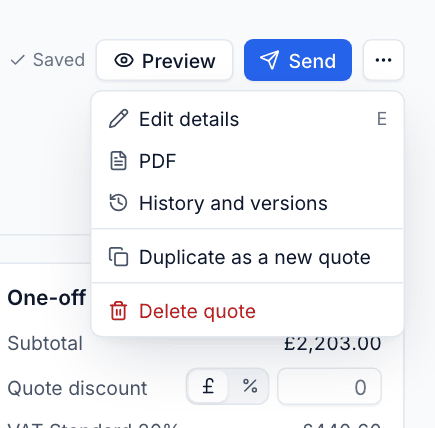
The ... menu at the top of the quote also has PDF (the staff copy), History and versions, Duplicate as a new quote and Delete quote.
Tip: If someone else changes the same quote in another tab, the builder tells you and offers to reload rather than overwrite their work.
Was this page helpful?
Thanks for the feedback.