Remote control
See and control a device's screen from the browser, choose how users are asked for consent, and review every remote session.
Remote control opens a device's screen in your browser. The picture, keyboard, mouse and clipboard go directly between your browser and the device, peer to peer, and fall back to a relay only when a direct route is not possible. Your Tenvara server carries only the set-up messages and never sees the screen.
You need the remote access permission, and the device needs an online agent with the Remote control module on.
Start a session
- Open the device.
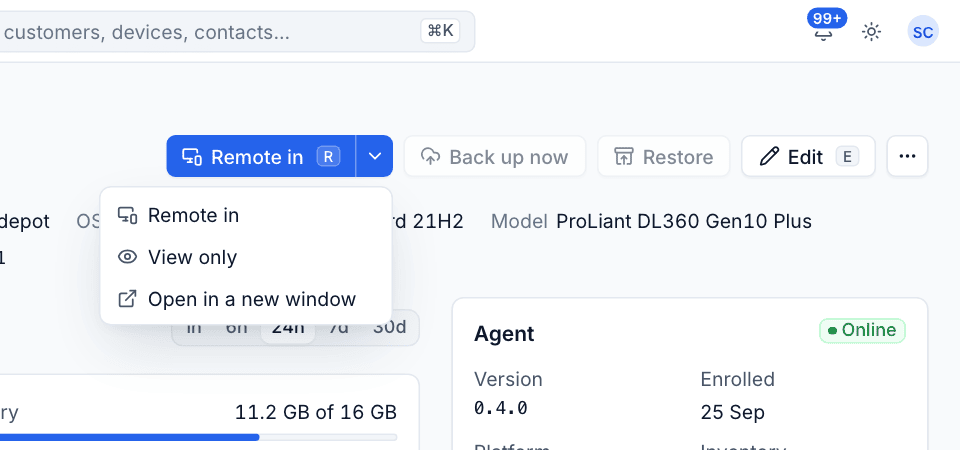
- Click Remote in, or press
R. - For other options, click the arrow beside the button:
- Remote in: full control.
- View only: watch the screen without sending any input.
- Open in a new window: the viewer in its own browser window, handy on a second monitor.
The viewer shows where it has got to: Checking you can remote in, Contacting the agent, Waiting for approval (when the user must approve), Connecting to the screen, then Live.
In the viewer
The toolbar gives you:
- Control or view: switch between controlling the device and watching only. A view-only session cannot be stepped up to control; start a new session instead.
- Displays: pick which screen to show on a device with more than one.
- Send keys, including Send Ctrl+Alt+Del, for key combinations your own computer would catch.
- Clipboard: Send to the device pastes your clipboard there, and text copied on the device comes back to you (Copied from the device). If your browser blocks clipboard access, allow it for your Tenvara site and try again.
- Scale to fit or Actual size, and Full screen.
- Connection details: round trip, frame rate, bitrate, resolution, the encoder, jitter and whether the route is Direct, peer to peer or Through the relay.
- End session, and Back to device once it has ended.
A device can have two live sessions at once; a third is refused as busy. A session lasts at most 12 hours.
What the user sees: consent
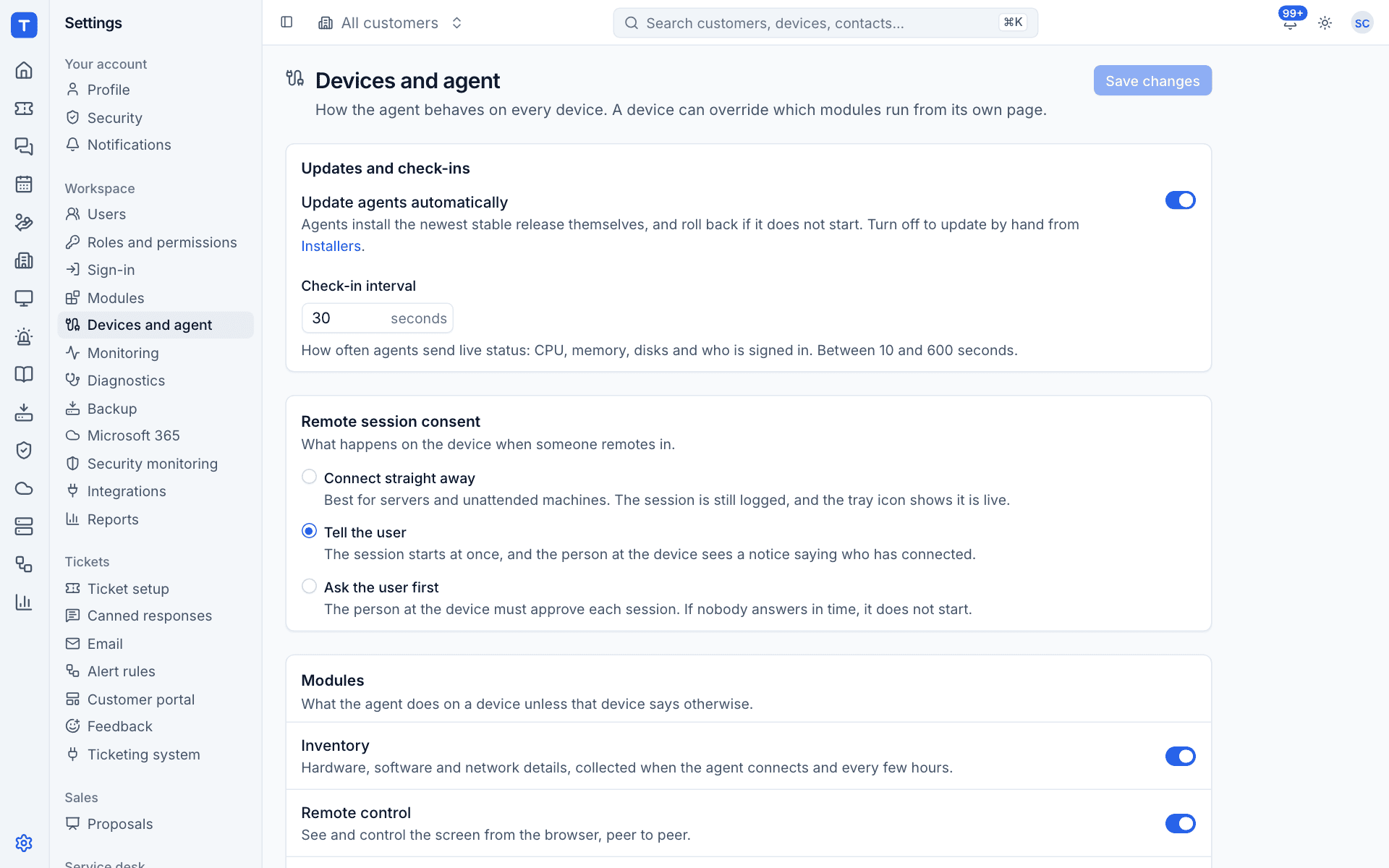
How the person at the device is involved is set for the whole workspace under Settings > Devices and agent > Remote session consent:
| Option | What happens |
|---|---|
| Connect straight away | Best for servers and unattended machines. The session is still logged, and the tray icon shows it is live. |
| Tell the user | The session starts at once, and the person at the device sees a notice saying who has connected. This is the default. |
| Ask the user first | The person at the device must approve each session. If nobody answers within about 30 seconds, it does not start and is logged as declined. |
macOS permissions
macOS only lets an app see and control the screen once it has been approved. After installing the agent on a Mac, open System Settings > Privacy & Security and allow the agent under Screen Recording and Accessibility. Without Screen Recording the session fails with a message saying so.
When a session will not start
The viewer says why and offers Try again or Reconnect. Common reasons:
- the device is offline, or its Remote control module is off;
- the user declined, or did not answer, under Ask the user first;
- two sessions are already live on the device;
- nobody is signed in to the device, or macOS has not granted Screen Recording.
Remote sessions
Devices > Remote sessions lists every session, newest first: who connected, to which device and customer, the mode (Control or View only), the status (Ended, Failed or Declined), when it started, how long it lasted and the route (Direct or Relayed).
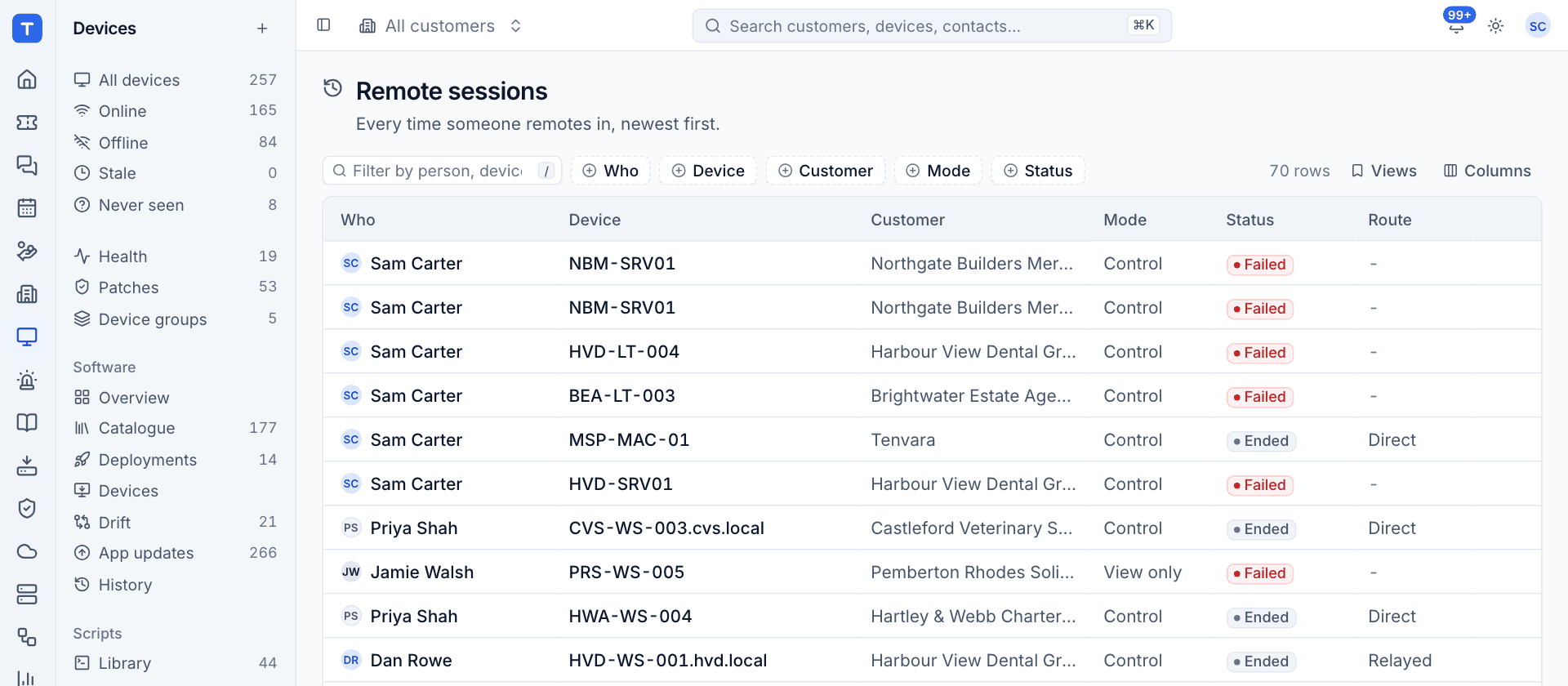
Filter by Who, Device, Customer, Mode or Status, and click a session to see its details. Each device's page also shows its latest sessions in the side column, with a History link, and every start and end is written to the device's activity timeline.
Was this page helpful?
Thanks for the feedback.