Chat overview
Where chats come from, how a chat runs from start to finish, and where chats show up across Tenvara.
Chat lets your customers talk to your service desk live. Visitors start a chat from one of three places, and your technicians answer every one of them from the same Console. A chat belongs to a customer, a contact and (when it came from a managed computer) a device, and it becomes a ticket in one action.
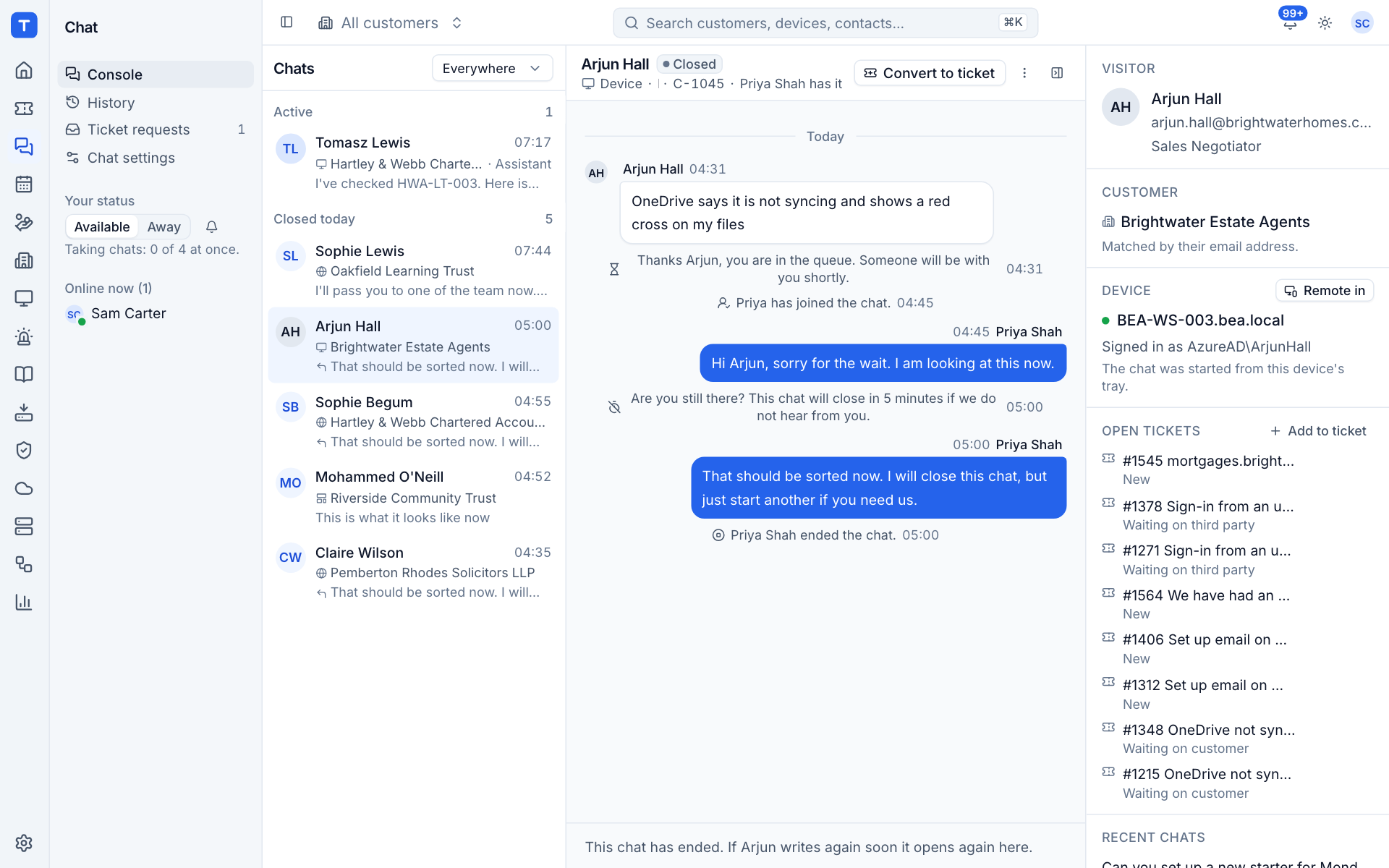
Where chats come from
| Channel | Shown in the console as | Who the visitor is |
|---|---|---|
| Website widget | Website | Someone on your website or a customer's website. They type their name and email, and Tenvara matches the email to a contact. |
| Customer portal | Portal | A contact signed in to the portal. No details to type: Tenvara already knows who they are. |
| Agent tray | Device | Someone on a managed computer who chose Chat with support from the tray. The chat is tied to that device and, where Tenvara recognises the signed-in account, to the contact. |
Visitors who are not known contacts can still chat. The console marks them Not a known contact so you can place them with the right customer. See Answering a chat.
How a chat runs
- Start. The visitor describes the problem. A bare "hello" is turned back with a friendly nudge, so the first minute is not spent asking what is wrong. The chat starts Waiting, rings every console and shows on the rail and on Home.
- Take it. A technician presses Accept or simply replies: replying accepts the chat. Each technician can take a limited number of chats at once (4 by default).
- Work together. Transfer the chat to a colleague, or invite one to join alongside you. System lines in the conversation record each step.
- Talk. Messages go both ways, with internal notes that only staff see, files and pictures, read receipts and typing indicators.
- End. Either side ends the chat. A quiet chat gets a "still there?" warning and then closes. A chat nobody takes in time closes and becomes a ticket request, so it is never lost.
- Ticket. Convert the chat to a ticket, or add it to an existing ticket, at any point. You can also have every ended chat with a known customer become a ticket on its own.
- Rating. After it ends the visitor can rate the chat from 1 to 5 with a comment, and ask for the transcript by email.
A visitor who writes again soon after a chat ends (within 30 minutes by default) opens the same chat again, back with the same technician when they are free.
Note: When the AI assistant is switched on, new chats can go to it first. It answers from your knowledge base, checks the visitor's computer and can carry out actions they confirm, then hands over to your team when it cannot help. See The chat bot.
The Chat sidebar
Open Chat from the rail. The sidebar has:
- Console: the live queue and conversations, with the number of chats waiting.
- History: every chat, with search and transcripts. See Chat history.
- Ticket requests: people who asked for help while chat was closed or nobody was free. See Chats and tickets.
- Chat settings: opens Settings > Chat.
- Your status: Available or Away, the sound switch, and how many chats you are taking out of your limit.
- Online now: the technicians who are online.
When chat is open
Chat is open to visitors when all of these are true:
- chat is not switched off for the visitor's customer;
- today is not one of your closed days;
- it is within the opening hours (your business hours by default);
- at least one technician is online and set to Available, if Closed when nobody is online is on (it is by default).
A technician counts as online while any Tenvara window is open, not only the console, so chat does not close while someone is working in tickets. Setting yourself to Away stops the ring and counts as not available.
While chat is closed, visitors see the closed message with the next opening time and can leave a ticket request instead, or the chat button is hidden, depending on your settings. See Chat settings.
Where chats show up elsewhere
- Home: chats waiting.
- Customer page: a Chats tab with figures for the last 30 days and every chat for that customer.
- Contact page: that contact's chats.
- Device page: Chats from this device, for chats started from the tray (shown only when there are some).
- Ticket: the chat a ticket came from, in the ticket's details panel.
- Search (Cmd+K): open the console, jump to chats going on now, history, requests and settings, or find a chat by its reference (such as
C-1042), the visitor's name or what was said. - Notifications: a chat waiting too long, a chat transferred or reopened to you, an invitation to join a chat, and ticket requests to place.
Switching chat on and permissions
Chat is a module. Switch it on or off in Modules. While it is off, the widget, the portal's Chat page and the tray option all disappear.

Chat has its own permission area in Roles and permissions:
| Level | What it allows |
|---|---|
| View | See the console, history and requests, and watch chats. The message box says why you cannot reply. |
| Manage | Accept, reply, transfer, invite, end chats, place and dismiss ticket requests |
| Administrator | Change Settings > Chat, widgets and per-customer settings |
Converting a chat to a ticket or adding it to a ticket also needs manage rights on tickets. Adding an unknown visitor as a contact needs manage rights on customers and contacts.
Was this page helpful?
Thanks for the feedback.