Software deployment
Keep a catalogue of apps, deploy them to customers, groups or devices, let Tenvara put drift right, and update apps across the fleet.
Tenvara installs, updates and removes software through the agent, using winget, MSI and EXE installers on Windows, Homebrew and macOS packages on Macs, and apt or dnf on Linux. You keep a catalogue of apps, then deploy them. Deployments are ongoing: required software is kept installed, removals are kept removed, and devices that join later get them too.
Open Devices > Software.
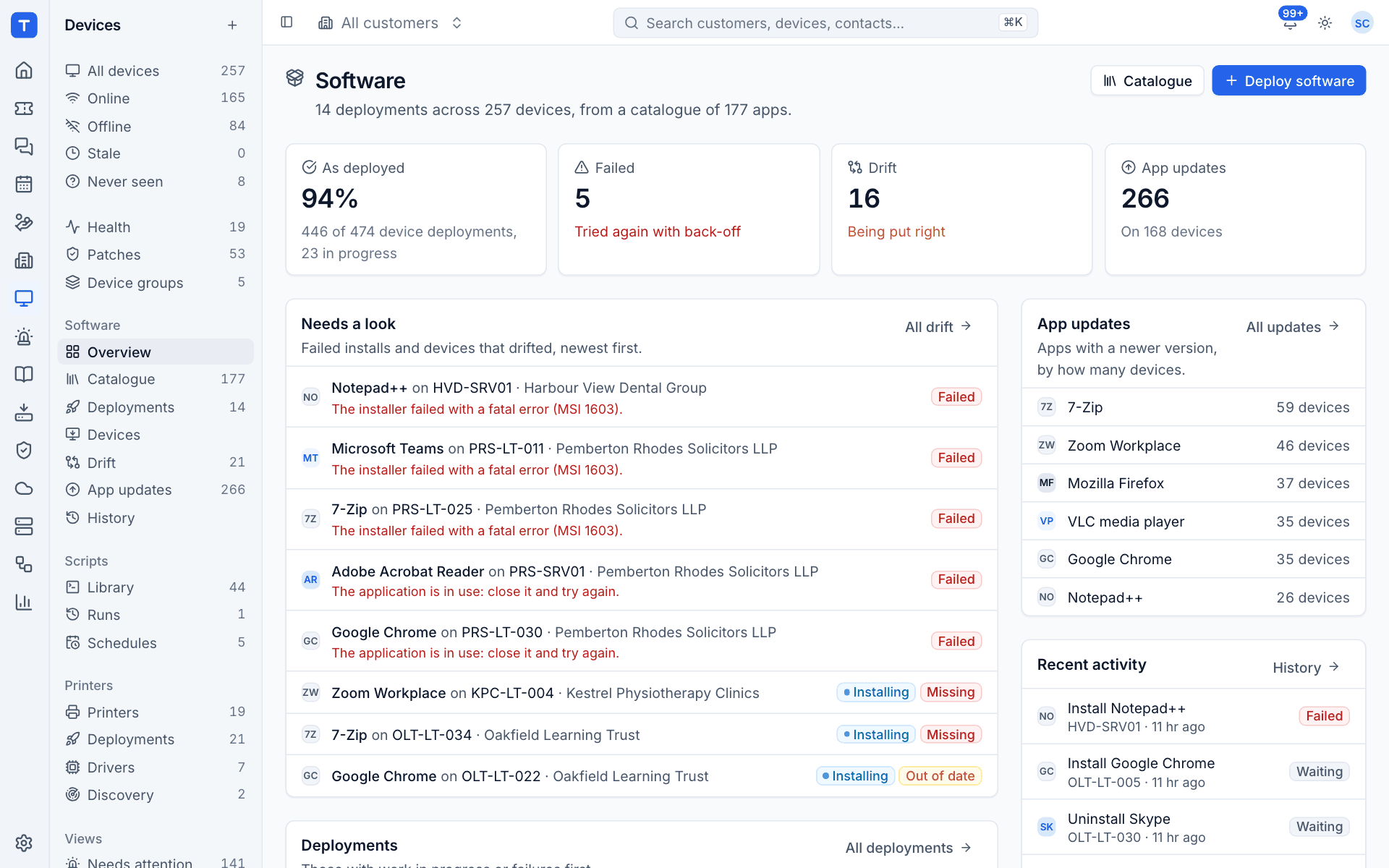
The overview shows how much is As deployed, installs that Failed (tried again with back-off), Drift being put right and App updates available, then Needs a look, the deployments with work in progress or failures, the apps with the most updates waiting and recent activity.
The catalogue
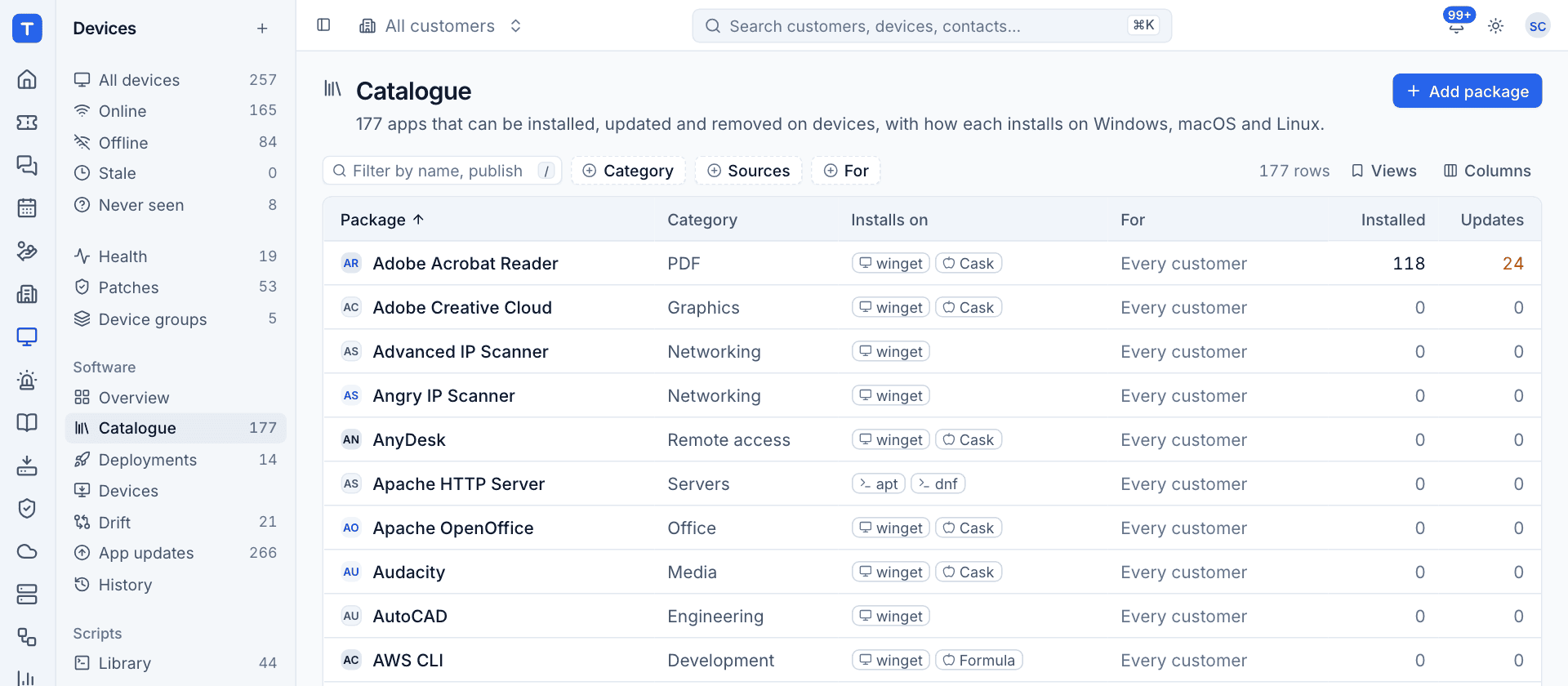
Software > Catalogue lists the apps that can be installed, with their category, how each installs on Windows, macOS and Linux, who they are For, and how many devices have them, have updates and have deployments. The catalogue comes with well over a hundred common apps ready to use.
Add a package
- Click Add package.
- Enter the Name, Publisher, Category and a one-line Description.
- Under For, leave Every customer or limit it to one customer (useful for line-of-business apps).
- Optionally add a Homepage, an Icon (an https link to a square picture) and Tags, then click Add package.
- On the package's page, click Add under Installs with to add each way it installs:
- winget (Windows): the package id exactly as
winget searchshows it, installed for The whole machine or The signed-in user. - MSI or EXE (Windows): an installer you upload, with its install arguments.
- Homebrew cask or Homebrew formula (macOS).
- macOS package (a
.pkg). - apt or dnf (Linux).
- winget (Windows): the package id exactly as
The agent uses the first source for the device's operating system whose package manager is available, so a Windows server without winget falls back to an MSI source.
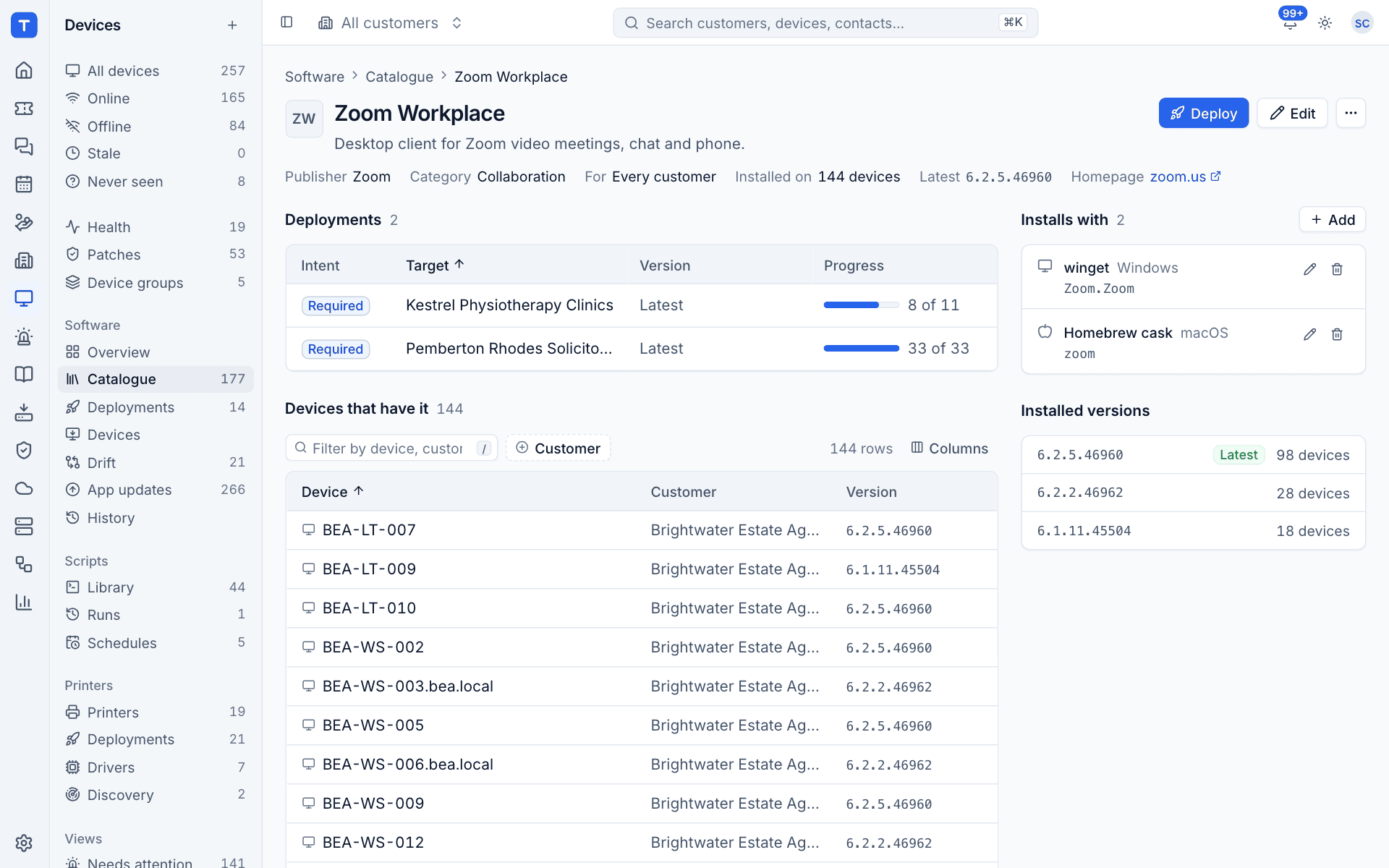
A package's page shows its deployments, Installs with, the Installed versions across your devices, every device that has it (with the update available, if any) and its history.
Deploy software
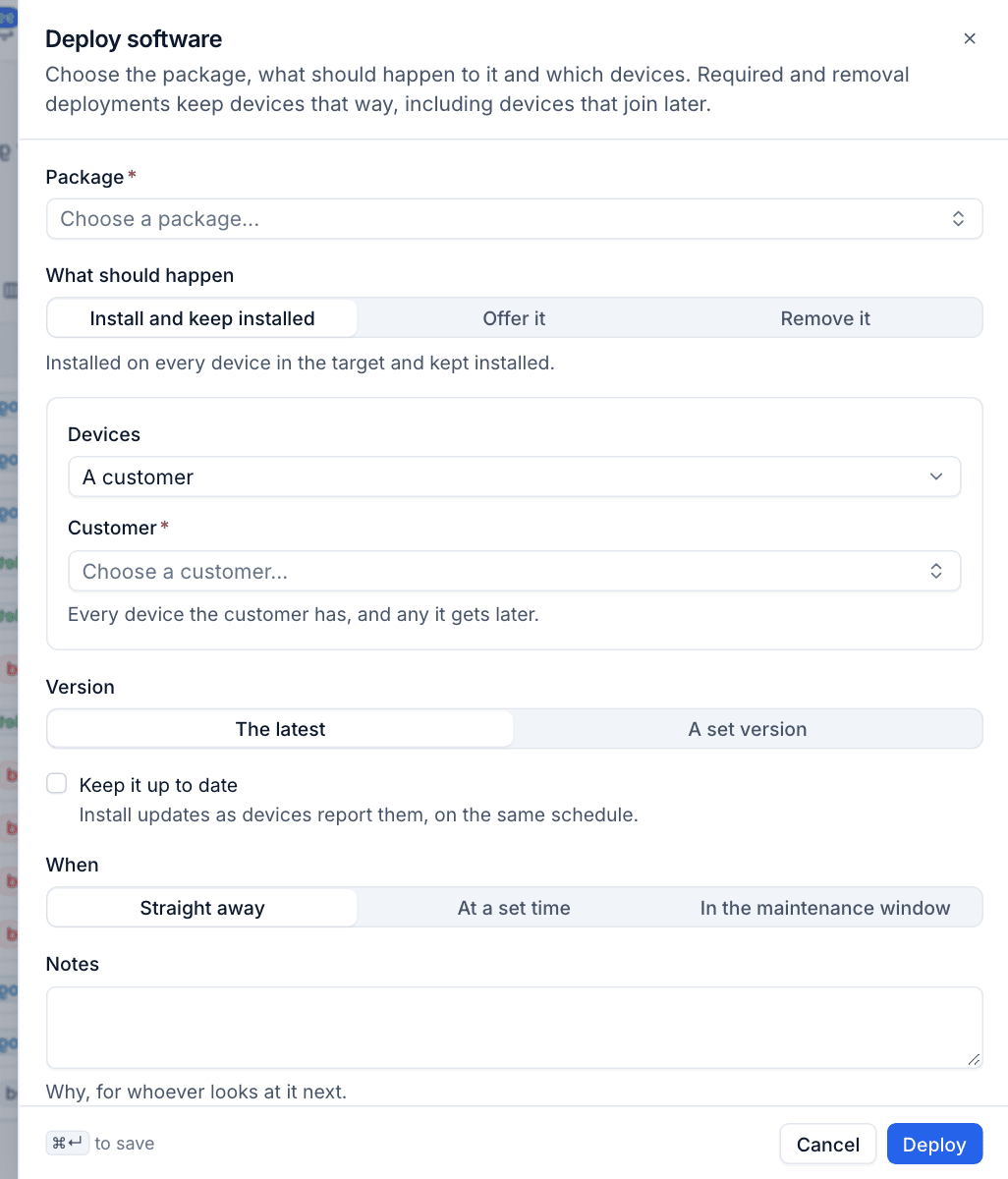
- Click Deploy software (or Deploy on a package).
- Choose the Package.
- Choose What should happen:
- Install and keep installed: installed on every device in the target and kept installed.
- Offer it: made available without being forced.
- Remove it: removed, and kept removed.
- Choose the Devices: A customer, A device group, Chosen devices or Every device. A customer or group includes devices it gets later.
- Choose the Version: The latest or A set version. Tick Keep it up to date to install updates as devices report them.
- Choose When: Straight away, At a set time or In the maintenance window (the device's patch policy window).
- Add Notes for whoever looks at it next, and click Deploy.
Follow a deployment
Software > Deployments lists every deployment with its intent, target, version, progress and state. Click one to open it.
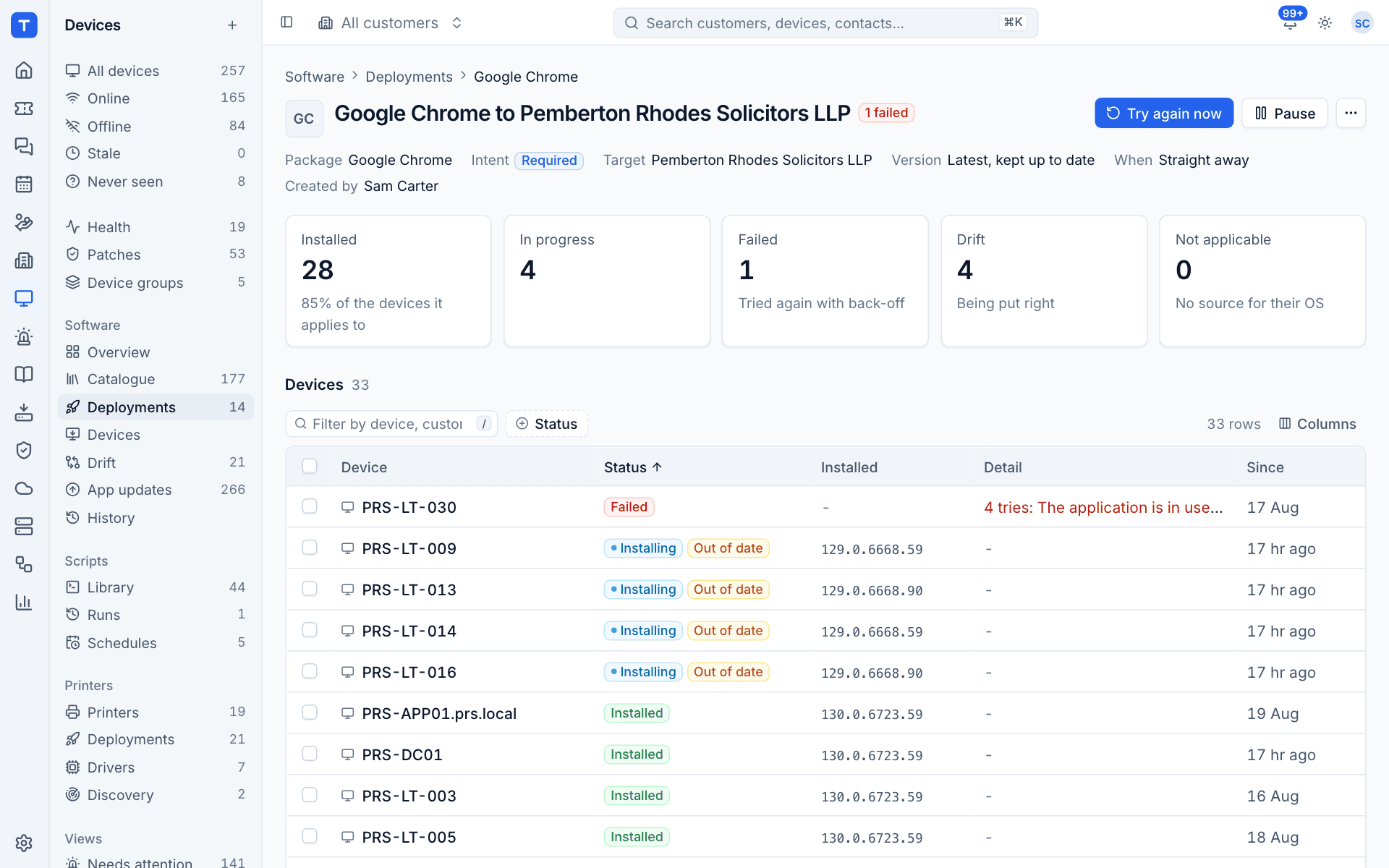
- The counters show Installed, In progress, Failed (tried again with back-off), Drift (being put right) and Not applicable (no source for their operating system).
- Devices lists each device with its status, installed version, detail (such as The application is in use: close it and try again) and since when.
- History lists every action the deployment took.
- Try again now retries failed devices straight away, and Pause stops the deployment acting until you resume it.
Drift
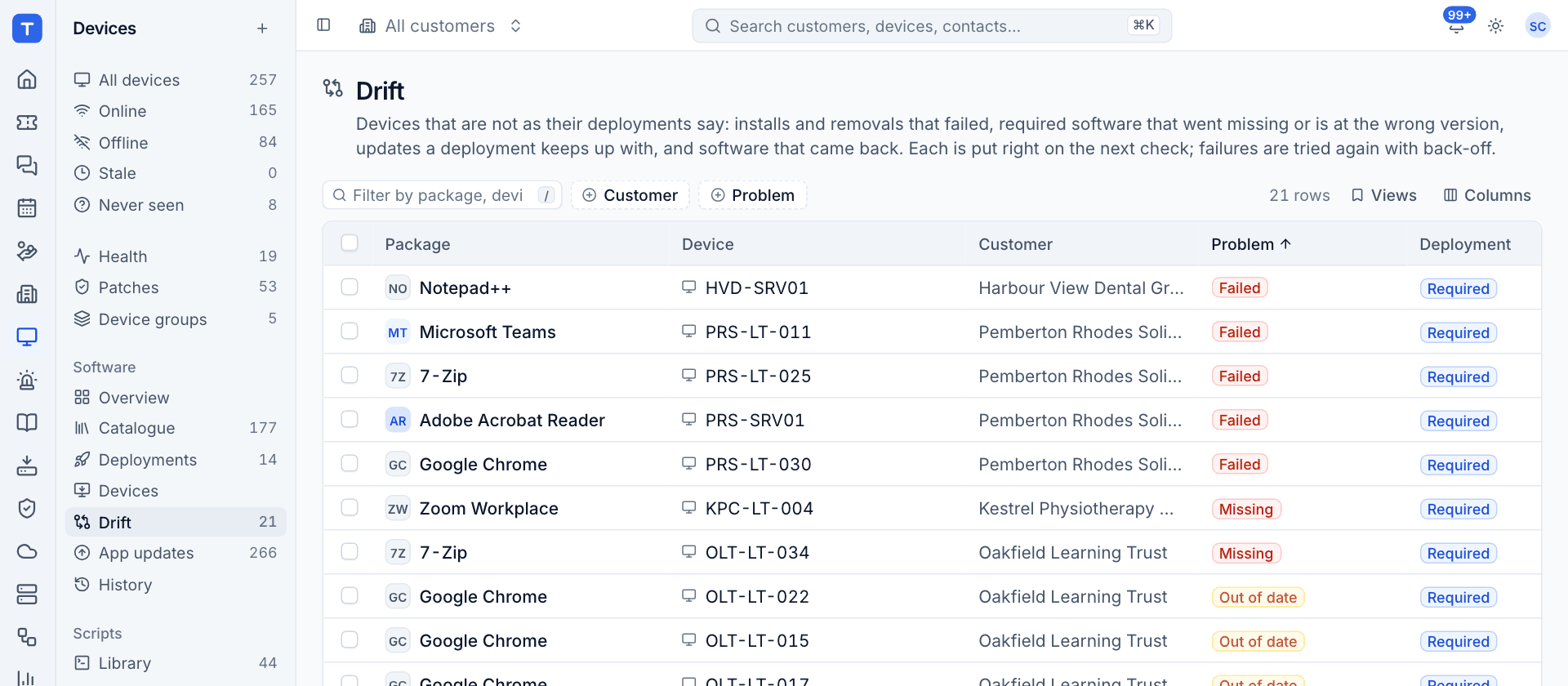
Software > Drift lists devices that are not as their deployments say: installs and removals that failed, required software that went Missing or is Out of date, and removed software that came back. Each is put right on the next check, and failures are tried again with back-off.
App updates
Software > App updates lists catalogue apps with a newer version, as each device's agent reports it from winget, Homebrew, apt and dnf. Switch between By device and By app, select rows and use Update now to update straight away. Patch policies can also install app updates in the maintenance window (see Third-party apps in Patching).
One device
- The Software section on a device page shows its deployments, what is installed, updates and history, and which package manager it installs with.
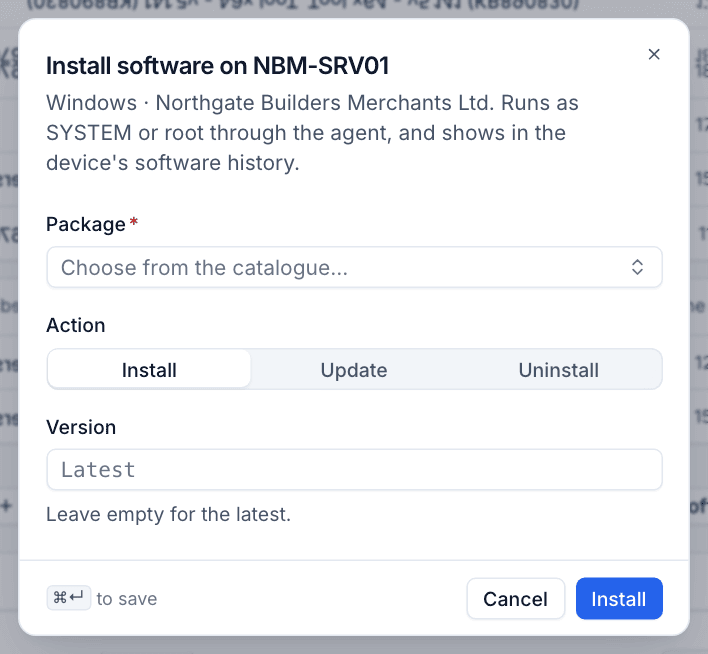
- Install software (in the section or the device's ... menu) installs, updates or uninstalls one catalogue package on that device now. Leave Version empty for the latest.
Software > Devices lists every device with its deployments, failures, drift and updates, and Software > History lists every install, update and removal on every device, whether it came from a deployment, a technician or an app update.
Tip: Every install is checked afterwards. An installer that exits cleanly but leaves the app undetected is reported as failed, so As deployed means the software is really there.
Was this page helpful?
Thanks for the feedback.