Making changes safely
How previews, typed confirmation, approvals and undo work for every change Tenvara makes in a tenant, and where to find the change log.
Every change Tenvara makes in a customer's tenant, whether from a user, group or mailbox, a starter or leaver, or a fix to a finding, goes the same way: a preview, a confirmation that matches the risk, a record of what was there before, and a way to undo it.
The change dialog
When you choose an action, the dialog shows:
- The action and its risk level, for example Destructive.
- The target and tenant, such as "hannah.walker@pembertonrhodes.law in Pemberton Rhodes Solicitors LLP".
- What will happen: plain lines built from what Tenvara last read, without calling Microsoft. For example, which MFA methods will be removed, how many free seats are left, or a warning that an address is outside the organisation.
- Whether the change can be undone.
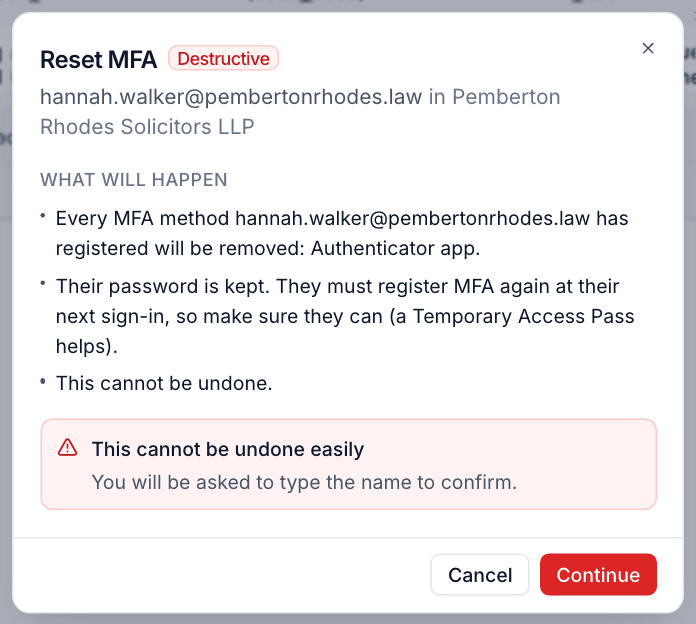
Press Continue to go ahead or Cancel to leave it.
Risk levels
| Level | Examples | What you need |
|---|---|---|
| Routine | Sign out everywhere | View permission |
| Write | Block sign-in, assign licences, set forwarding, convert to shared | Manage permission |
| Destructive | Reset MFA, remove licences, remove from all groups, delete a user, revoke an app's permissions | Manage, and you type the target's name to confirm |
| High | Grant an admin role, enforce a Conditional Access policy, change guest or consent settings | An administrator, or an administrator's approval |
A change also becomes high risk when it affects more than 25 objects or more than one tenant, when it resets the password, MFA or Temporary Access Pass of someone who holds an administrator role, or when it changes membership or ownership of a group that can hold administrator roles.
Asking for approval
When a technician starts a high-risk change:
- The dialog asks for a reason.
- The request goes to Microsoft 365 > Changes > Approvals, where it waits for up to 72 hours.
- An administrator approves or turns it down. On approval the change runs as the person who asked, and one approval covers every target of a bulk change.
Administrators' own high-risk changes run straight away.
Credentials are shown once
New passwords and Temporary Access Passes appear once, in the result of the change. They are never saved in the change log, activity or tickets.
The one exception is a new starter: the password and pass are held encrypted for the person who started the starter, on the run's page, until they dismiss them or 24 hours pass. See Starters and leavers.
The change log
Microsoft 365 > Changes lists every change made to your customers' tenants through Tenvara, newest first. Each row shows When, the Change, what it was On, the Tenant, By whom, How (from a technician, a starter or leaver, a fix, an approval or an undo) and the Result. Filter by change, tenant, person, how and result.
A tenant's Actions tab shows the same log for one tenant.
Open a change to see what it was before and after, Microsoft's response, and the message. A failed change keeps Microsoft's own words so you can see why.
Undo
Most changes record how to put things back:
| Change | Undo |
|---|---|
| Block sign-in | Unblock |
| Assign or remove licences | Remove or assign the same licences |
| Add to or remove from a group, remove from all groups | The reverse, for exactly those groups |
| Set forwarding, automatic reply, manager | Put back what was there before, read from Microsoft when the change was made |
| Convert to shared, hide from address book | The reverse |
| Disable inbox rules | Enable exactly those rules again |
| Delete a user | Restore the user (within Microsoft's 30 days) |
| Tenant settings changed by a fix | Put the recorded value back |
To undo:
- Open Microsoft 365 > Changes (or the tenant's Actions tab).
- Open the change and choose undo. The undo is itself a logged change.
- For a whole run, such as a leaver, undo the run: every reversible step is put back, newest first.
Undoing a destructive or high-risk change needs an administrator.
Warning: Some changes cannot be undone: a new password, removed MFA methods, signing someone out, removed mobile devices, and deleting a distribution list. The dialog says so before you continue.
After a change
The changed user, group or mailbox is read from Microsoft again straight away, so the screen is right without waiting for the next sync. After a change to a tenant setting, the security settings are read again 30 seconds later so the findings see Microsoft's answer. Every successful change also appears on the customer's timeline.
Was this page helpful?
Thanks for the feedback.