Timesheets
Each person's week of logged time against the hours they work, the time nobody logged, submitting the week and approving it.
A timesheet is a person's week: every time entry they logged, against the hours they were expected to work. Tenvara builds it for you from time entries on tickets and completed visits, marks the days that fall short, and lists visits and remote sessions that have no time logged against them. At the end of the week the person submits it and an approver approves it or sends it back.
Open Schedule > Timesheets.
Your week
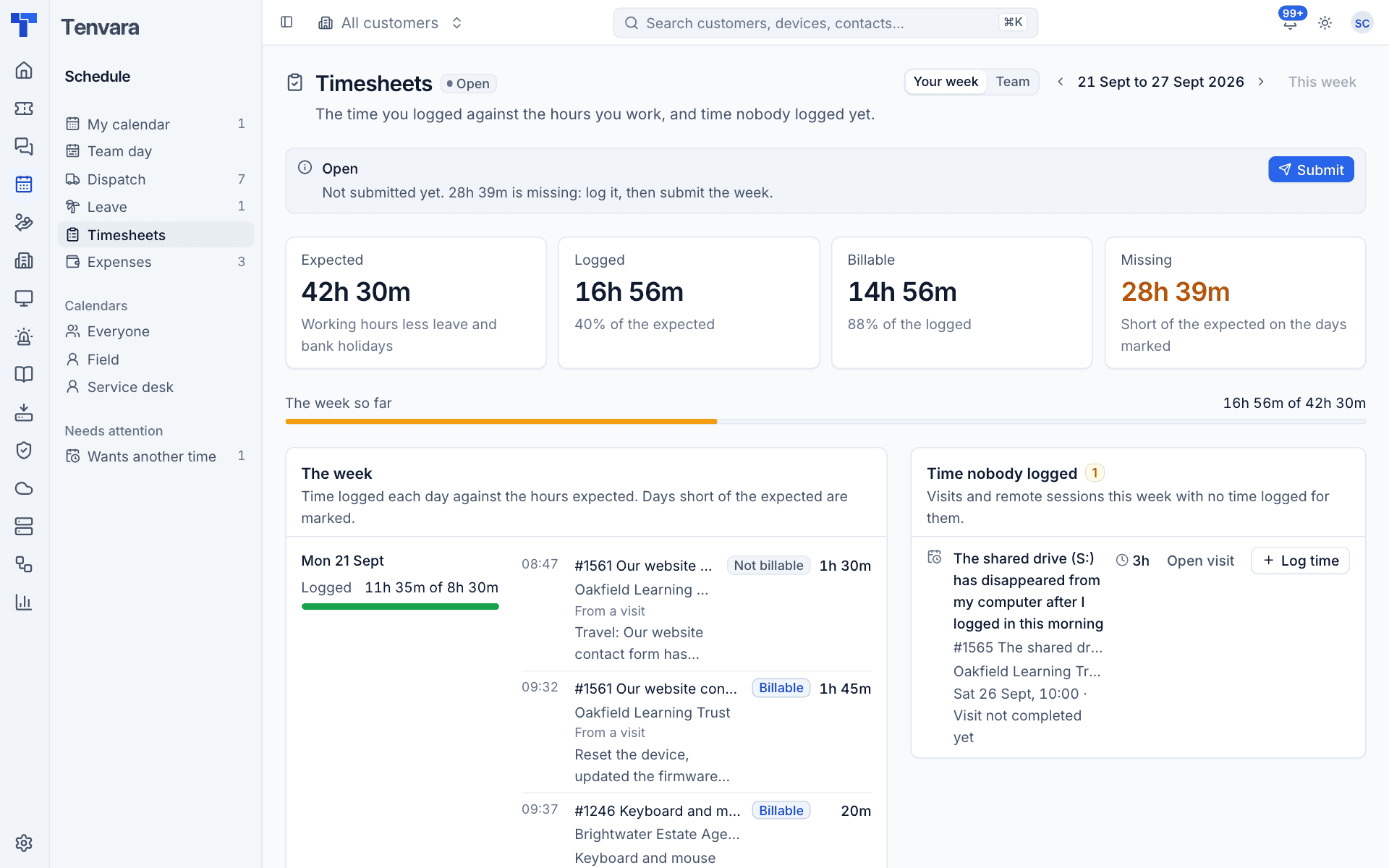
The top of the page shows the week's status and four figures:
| Figure | What it is |
|---|---|
| Expected | Your working hours for the week, less leave and bank holidays |
| Logged | All the time you logged, and what share of the expected it is |
| Billable | The billable part of what you logged |
| Missing | How far short of the expected you are, on the days marked |
The week so far bar shows logged time against expected. Use the arrows to move between weeks and This week to come back.
The week lists each day with the time logged against the hours expected, and every entry under it: when, the ticket and customer, the note, whether it is billable, how long, and "From a visit" for time logged by completing a visit. Days short of the expected are marked.
Time nobody logged
The Time nobody logged card lists work that happened this week with no time against it:
- visits that were not completed, or completed without time;
- remote sessions with no time logged for that customer around then.
Each has Open visit (or the session) and Log time, so you can fill the gap in a couple of clicks.
Submit the week
- When your week is complete, press Submit.
- The dialog sums up what you logged, what was expected and what is missing. Add a Note if a day is short for a reason, for example a dentist appointment.
- Press Submit. Your approver is told.
The week then waits for approval. If it is returned, the approver's note says why: fix the entries and submit again.
Approve the team's weeks
Approvers see a Team switch at the top of the page.
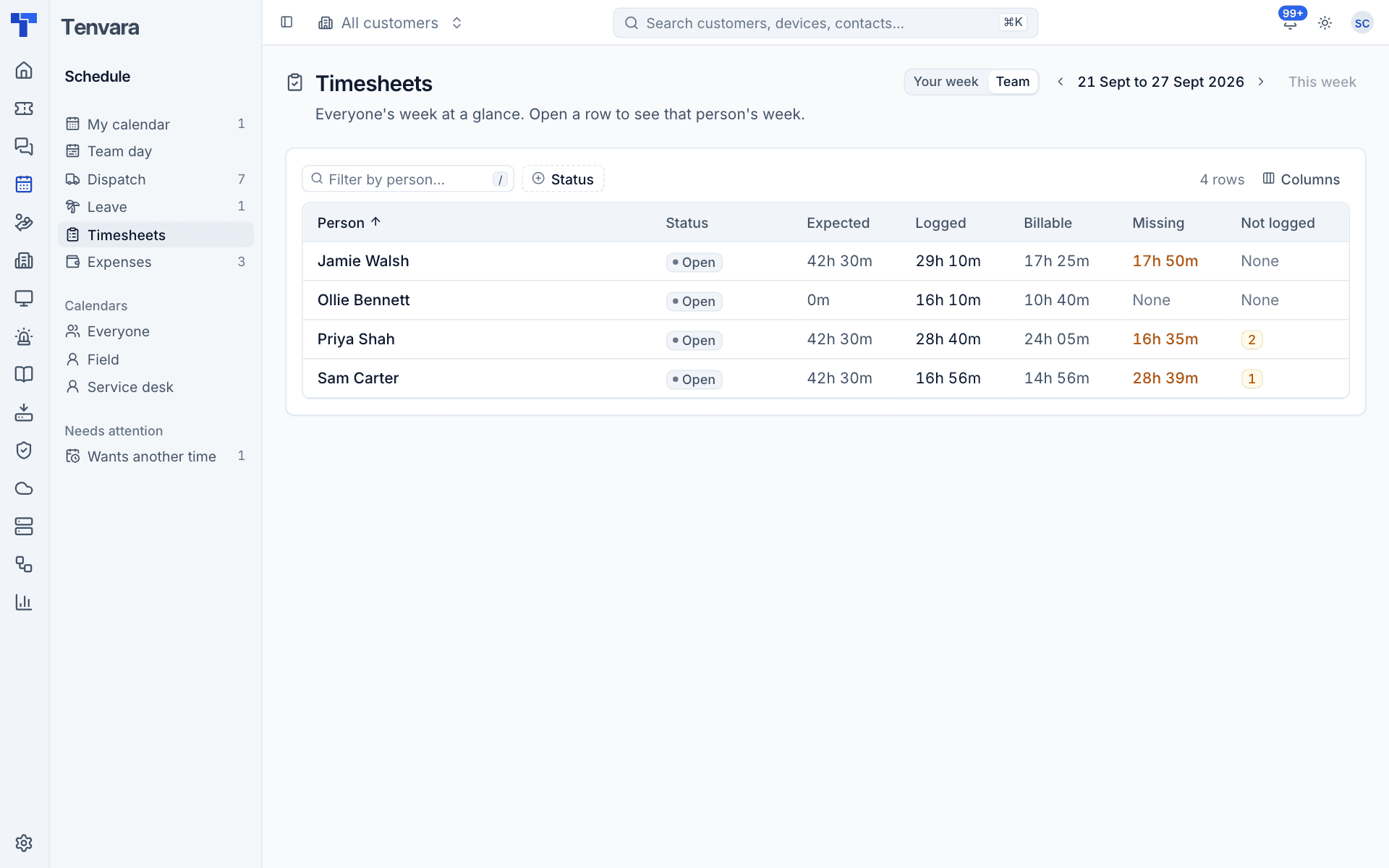
The team view lists each person with their Status, Expected, Logged, Billable, Missing and Not logged (how many visits or sessions have no time). Filter by person or status.
- Click a row to open that person's week. It looks exactly like their own view.
- Check the days marked short and the time nobody logged.
- Approve the week, or return it with a note saying what needs fixing. The person is told either way.
Note: Nobody approves their own week unless Approvers can approve their own week is on, or there is nobody else who could.
Timesheet settings
The timesheet settings are on Settings > Scheduling > Dispatch, under Timesheets:
| Setting | What it does |
|---|---|
| Use timesheets | People submit their week, and an approver approves it or sends it back |
| Approvers besides administrators | Who else can approve weeks. Administrators always can |
| Approvers can approve their own week | Off by default: someone else approves an approver's week, unless nobody else can |
| Nudges about missing time | An in-app notification to anyone whose logged time falls short: At the end of each day, At the end of each week (and which day) |
| Missing time counts from | A tolerance, for example 30 minutes, so nobody is nudged for being a little short in a day |
Expected hours come from each person's working hours; see Working hours, leave and skills.
Was this page helpful?
Thanks for the feedback.