Tenants and the tenant page
The tenant list, everything on a tenant's page, licences and groups, and how sync keeps it up to date.
Every connected tenant has its own page with the users, licences, security findings, groups, mailboxes, sign-ins, apps and policies Tenvara read from it.
The tenant list
Microsoft 365 > Tenants lists every tenant with its Customer, Connection status, Users, MFA (the share with an MFA method registered, or Not known without Entra ID P1), Licences (assigned out of bought) and Last sync. Filter by customer and connection, choose columns, and save views.
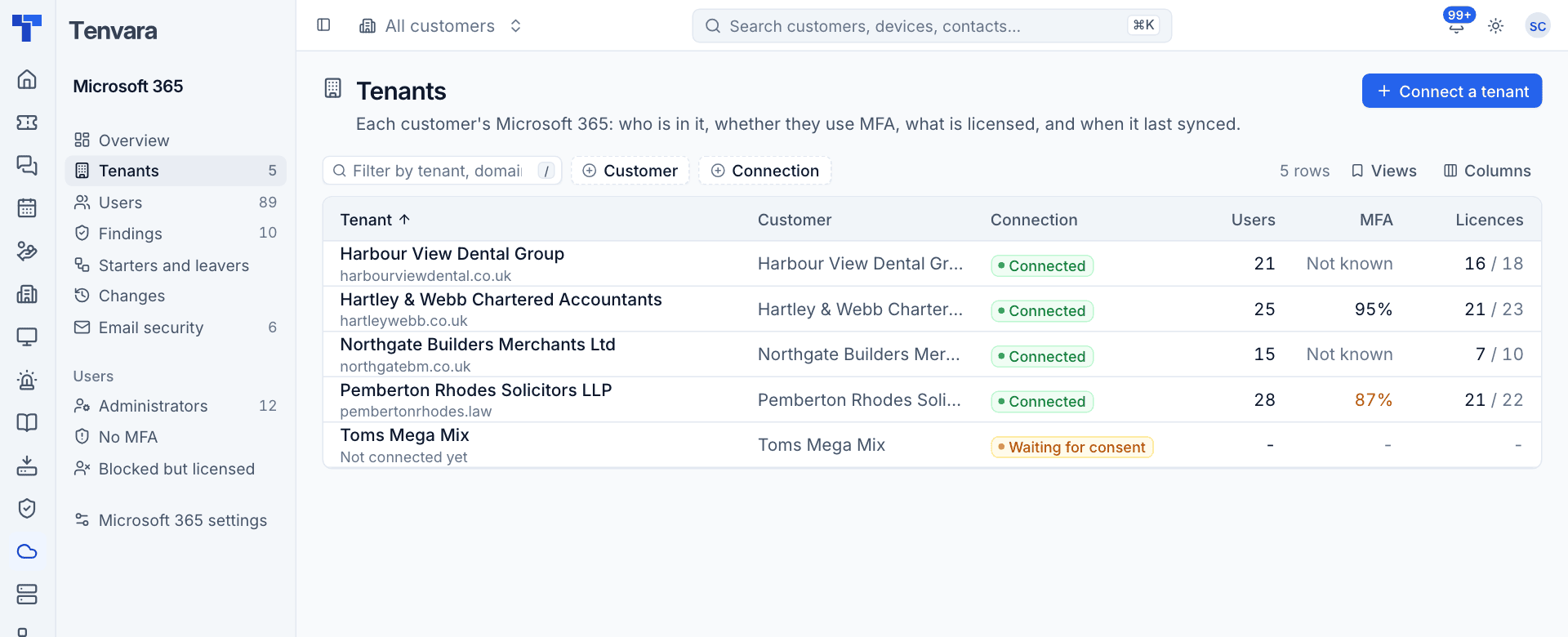
Click a tenant to open its page.
The tenant page
The header shows the tenant name, its status, the Customer, main Domain, how it was connected (Admin consent or GDAP) and Last sync. On the right:
- Sync now reads every area from Microsoft straight away (queued). Keyboard shortcut
S. - More actions: Copy a new consent link, Copy Microsoft tenant id, Exclude from automation and Remove tenant.
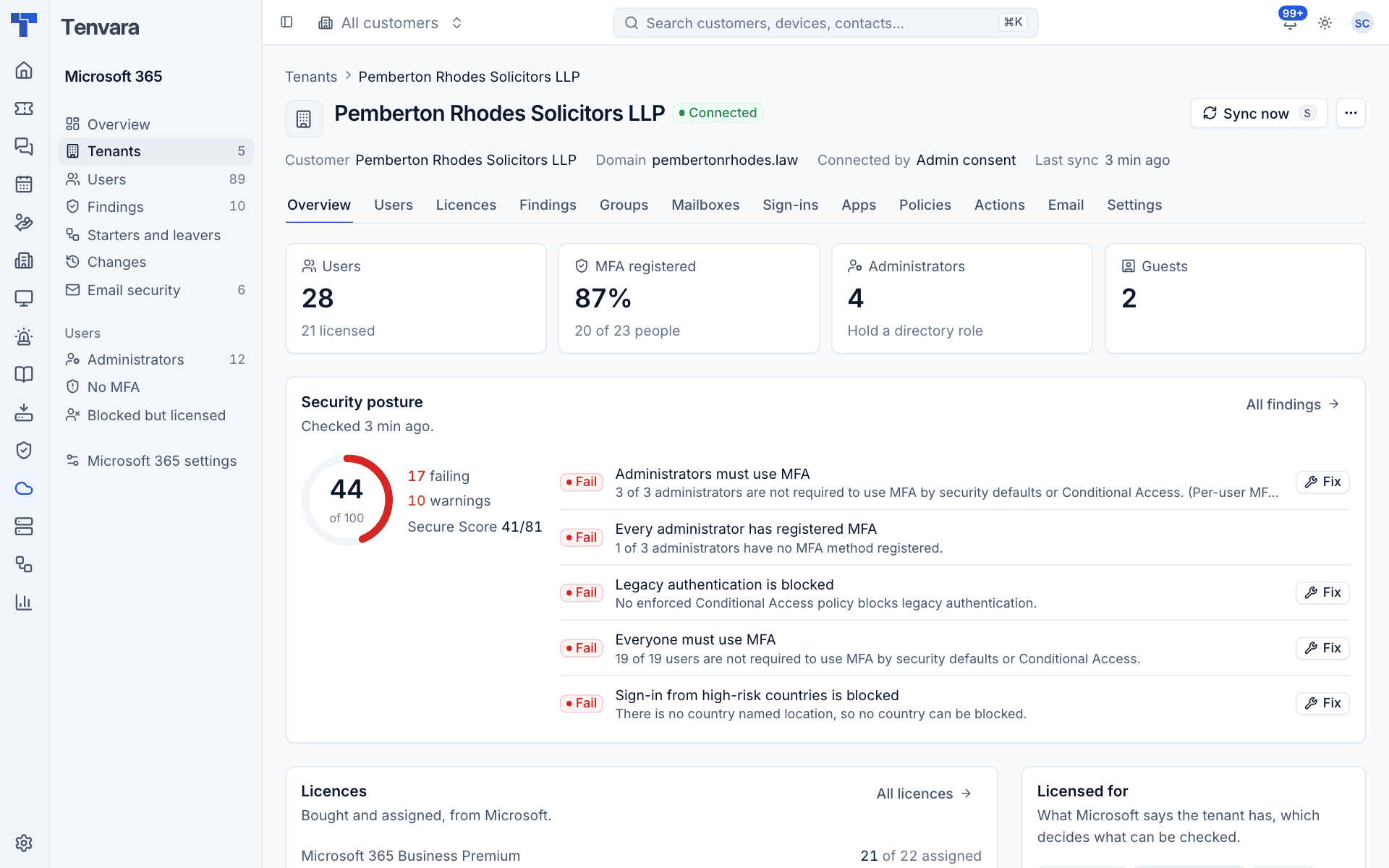
The tabs are:
| Tab | What it shows |
|---|---|
| Overview | Users, MFA registered, administrators and guests; the posture score with the worst failing checks; licences; what the tenant is licensed for; recent changes |
| Users | The tenant's users, as in Users, groups and mailboxes |
| Licences | Every subscription, bought and assigned |
| Findings | The security checks and frameworks, see Security findings |
| Groups | Security, Microsoft 365, dynamic, distribution and mail-enabled security groups |
| Mailboxes | Mailboxes, forwarding and inbox rules |
| Sign-ins | Sign-ins worth a look, risk and directory activity, see Sign-ins, apps and policies |
| Apps | Enterprise apps and the permissions they were granted |
| Policies | Conditional Access policies, templates and named locations |
| Actions | Every change made to this tenant through Tenvara, with undo |
| The tenant's mail domains, see Email security | |
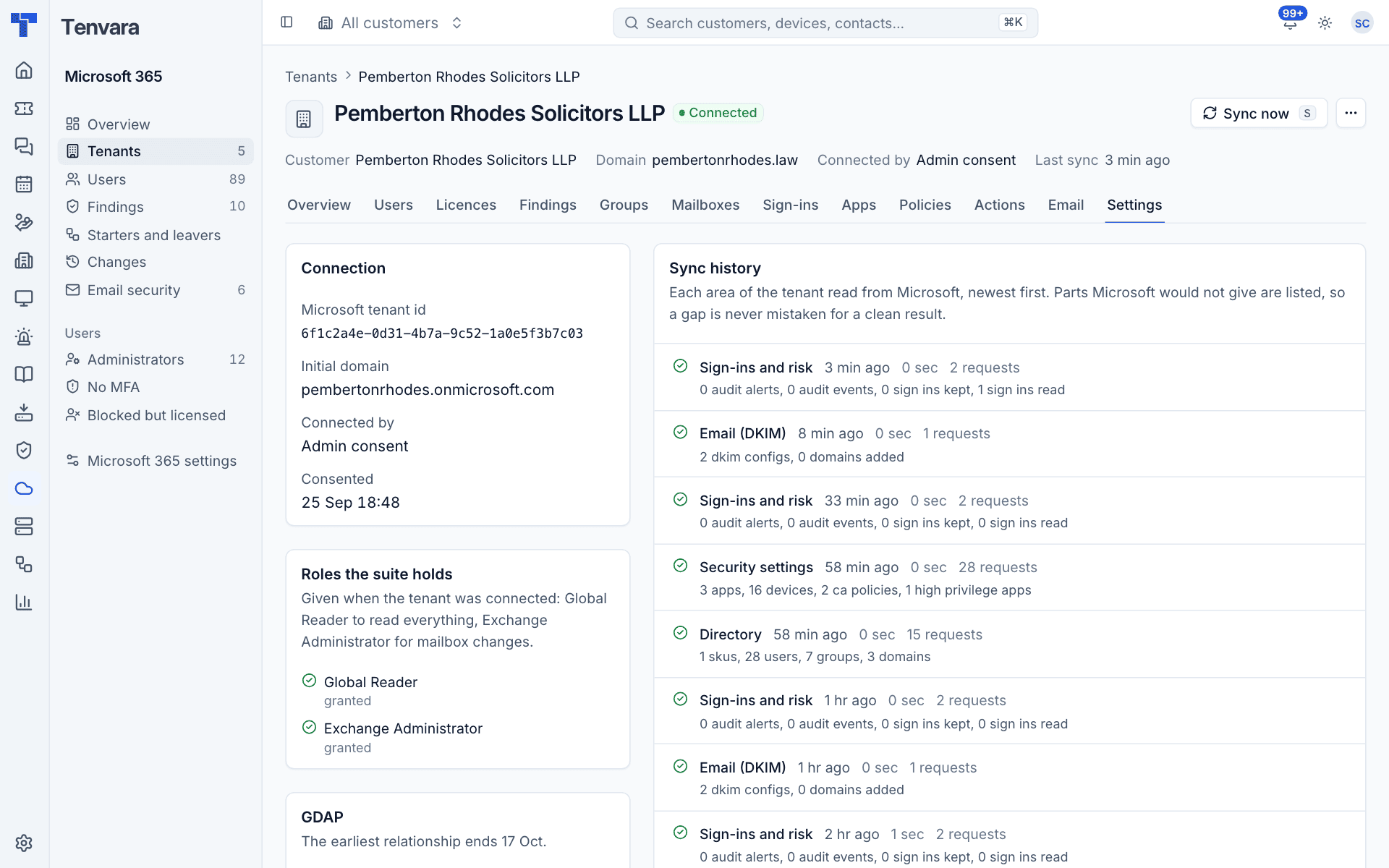
| Settings | Connection details, the roles Tenvara holds and the sync history |
Licensed for
The Licensed for block on the overview lists what Microsoft says the tenant has: Entra ID P1, Entra ID P2, Intune, Exchange Online, Defender for Office 365 and the Audit log. This decides what can be checked. For example, sign-in logs and Conditional Access need Entra ID P1, and risky users need P2. A check that needs something the tenant does not have is shown as not applicable rather than failing.
Licences
The Licences tab lists every subscribed licence with Bought, Assigned, Unused and Status, using friendly names (for example Microsoft 365 Business Premium rather than SPB). Free and self-service offers that Microsoft lists with huge seat counts are shown apart and left out of every total.
When the customer's licences are billed through a licence source, a second table compares them: Supplied, what the tenant has, Assigned, Unused, Orphaned (supplied but not in the tenant), Over, Reclaimable and the Waste a month in money. See Reconciling against Microsoft 365.
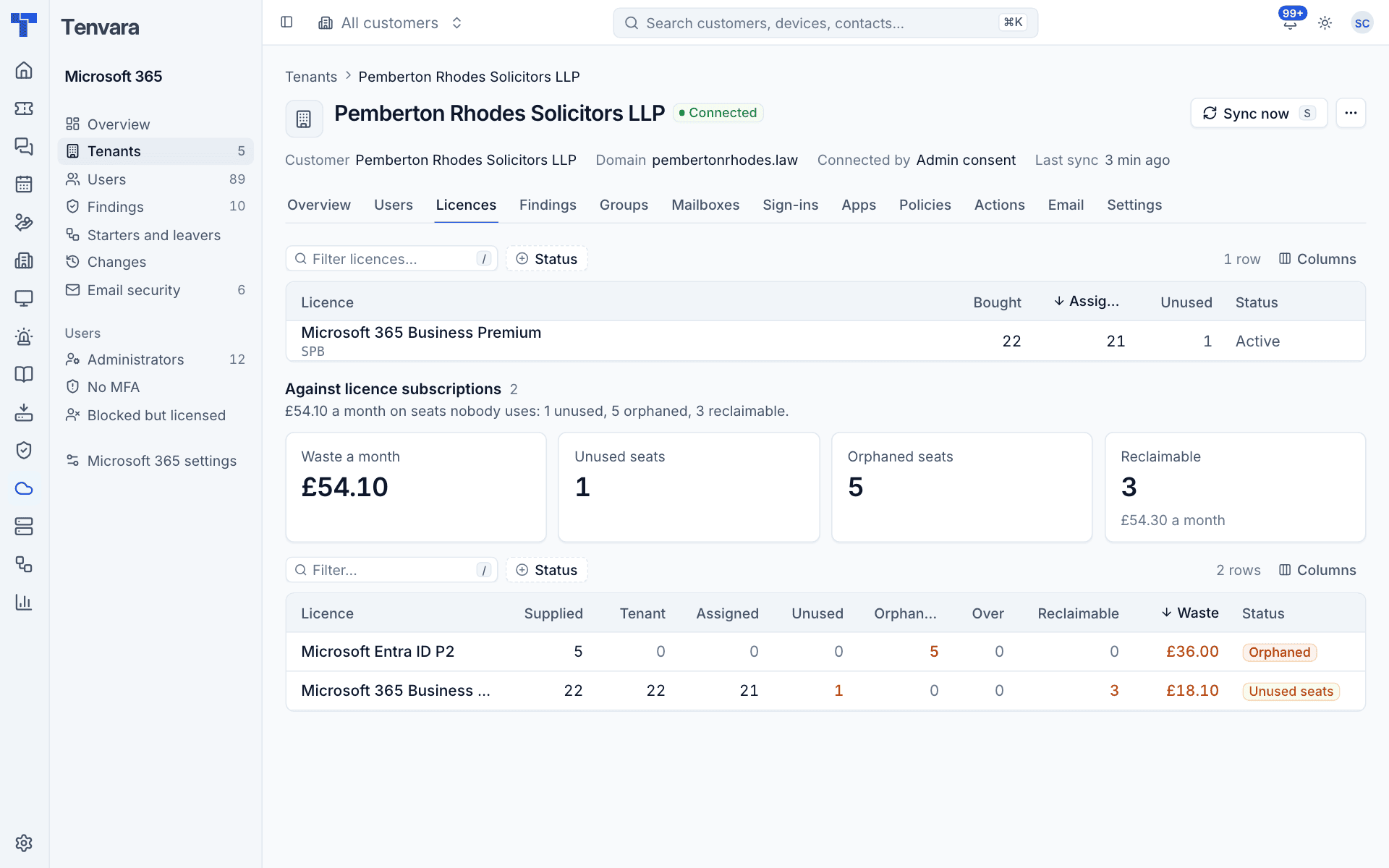
Tenvara raises an alert when a tenant has more of a licence assigned than it bought, and clears it when it is back within.
Groups
The Groups tab lists every group with its Kind (Security, Microsoft 365, Dynamic, Distribution list, Mail-enabled security), Members and Owners. Filter by kind.
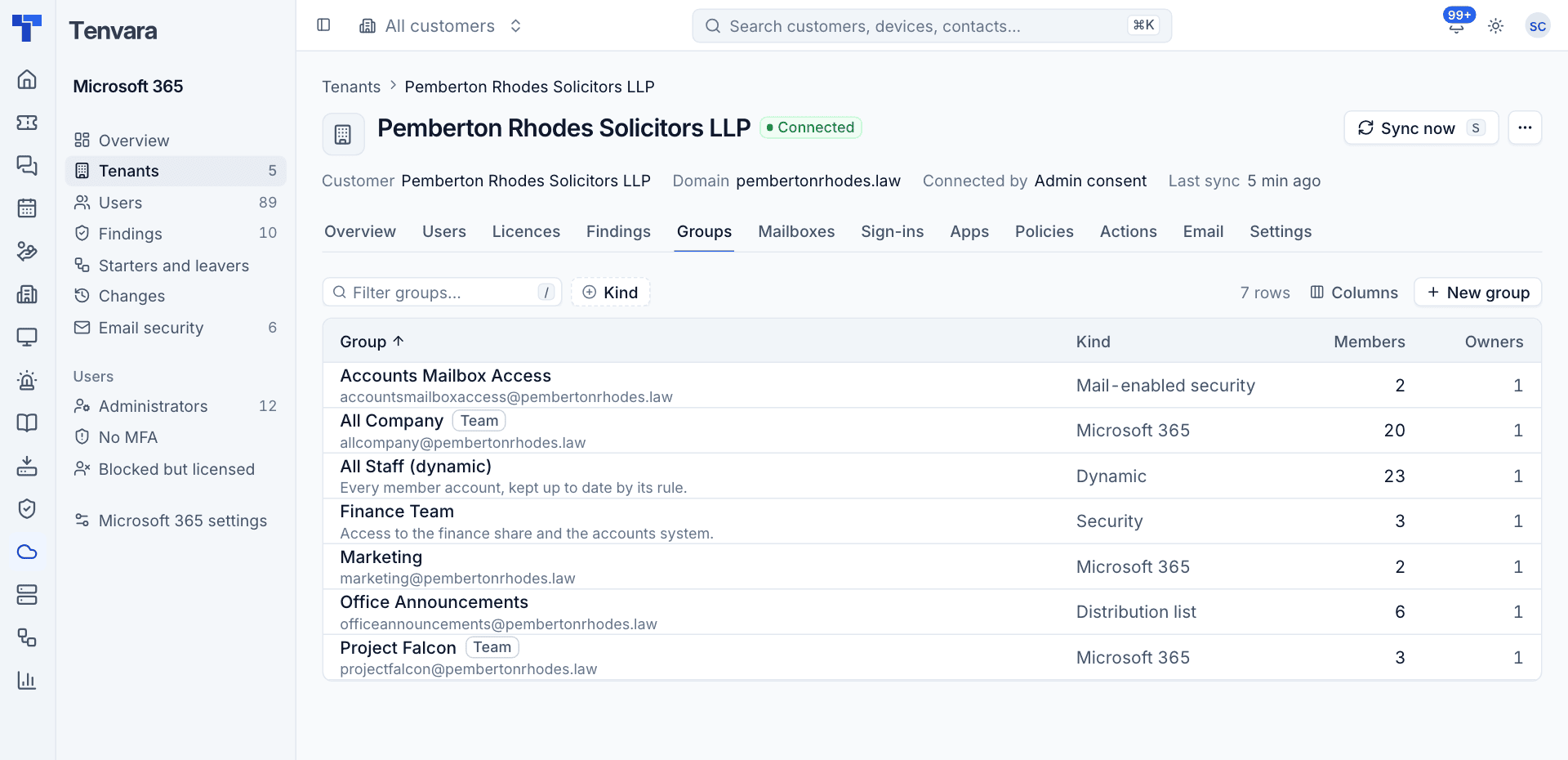
- Press New group to create a security, Microsoft 365, dynamic (with a membership rule, needs Entra ID P1), distribution or mail-enabled security group.
- Open a group to see its members and owners, add and remove them, edit its name, description and visibility, or delete it.
- Distribution lists and mail-enabled security groups are changed through Exchange. Dynamic groups keep their own membership, so people cannot be added or removed by hand.
- A deleted Microsoft 365 or security group can be restored with undo; a deleted distribution list cannot.
Sync
Tenvara reads each tenant in areas, each on its own schedule:
| Area | How often | What it reads |
|---|---|---|
| Directory | Regularly | Organisation, domains, licences, administrator roles, users, MFA registration, groups and members |
| Security settings | Every 4 hours | Security defaults, Conditional Access, authentication methods, consent and guest settings, SharePoint and Teams settings, Secure Score, risky users, Intune devices, enterprise apps, Exchange security settings |
| Exchange | Every 12 hours | Mailboxes, sizes, automatic replies, forwarding, inbox rules and permissions |
| Sign-ins and risk | Every 30 minutes | Failed, legacy and risky sign-ins, risk detections and directory audit events |
| Email (DKIM) | Every hour | DKIM signing for the tenant's domains |
After every sync the security checks run again. Sync now runs every area at once.
The Settings tab shows the Sync history, newest first: each area, when it ran, how long it took, how many requests it made and what it read. Parts Microsoft would not give are listed, so a gap is never mistaken for a clean result.
Note: A user who disappears from Microsoft is kept as deleted, never removed, and nothing is removed after a failed or empty read. Intune devices are matched to your Tenvara devices by serial number within the customer; nothing new is created in Devices.
Was this page helpful?
Thanks for the feedback.