Working hours, leave and skills
Set who takes bookings and when they work, book and approve leave, keep bank holidays and office closures, and record skills for dispatch.
Every clash warning and suggested time depends on knowing when people work and what they know. This page covers the roster behind the calendar: working hours, teams, skills, leave, bank holidays and office closures.
Working hours for the whole team
Settings > Scheduling > General holds the defaults for everyone.
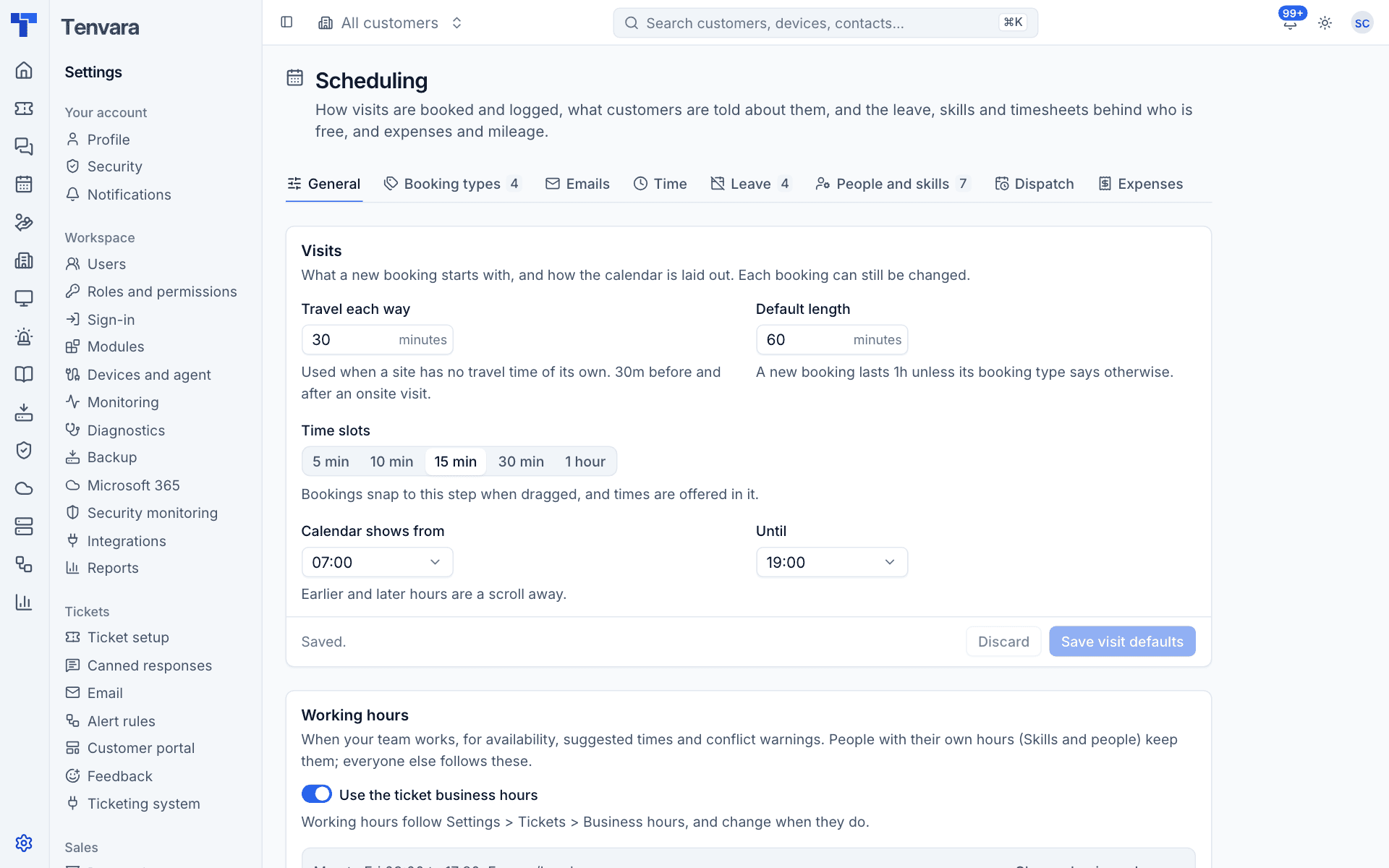
Under Visits:
- Travel each way: used when a site has no travel time of its own.
- Default length: how long a new booking lasts unless its type says otherwise.
- Time slots: the step bookings snap to when dragged, and times are offered in (5, 10, 15 or 30 minutes, or 1 hour).
- Calendar shows from and Until: the hours the calendar shows without scrolling.
Under Working hours, Use the ticket business hours makes the team's hours follow Settings > Tickets > Business hours and change when they do. Turn it off to set scheduling hours of their own. Press Change business hours to edit the ticket hours.
People and teams
Settings > Scheduling > People and skills lists everyone with their team, whether they take bookings, their working hours and their skills.
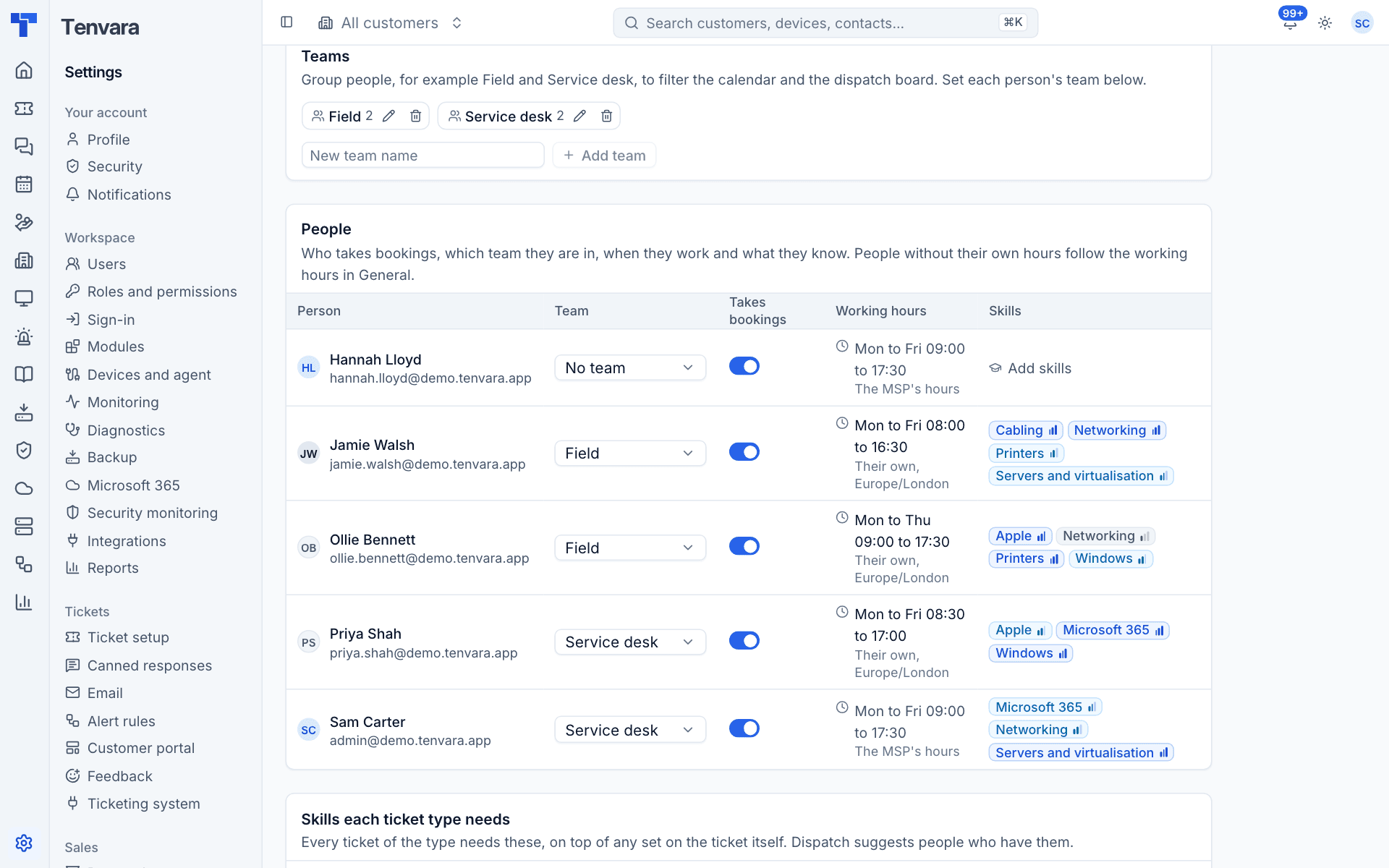
Teams
Teams group people, for example Field and Service desk, so you can filter the calendar and the dispatch board by team. Type a name in New team name and press Add team. Use the pencil to rename a team and the bin to remove it. Then set each person's Team in the People table.
Who takes bookings
Turn Takes bookings off for anyone who should never be booked on visits, such as an office manager. They drop out of suggestions and booking them raises a clash warning.
Someone's own working hours
People without their own hours follow the MSP's hours from General. To give someone their own pattern:
- Click their working hours in the People table.
- Turn off Use the MSP's working hours.
- Choose their Time zone. The hours are in that zone.
- Switch each day on or off and set its start and end. Copy to weekdays copies Monday to the other weekdays.
- Press Save working hours.
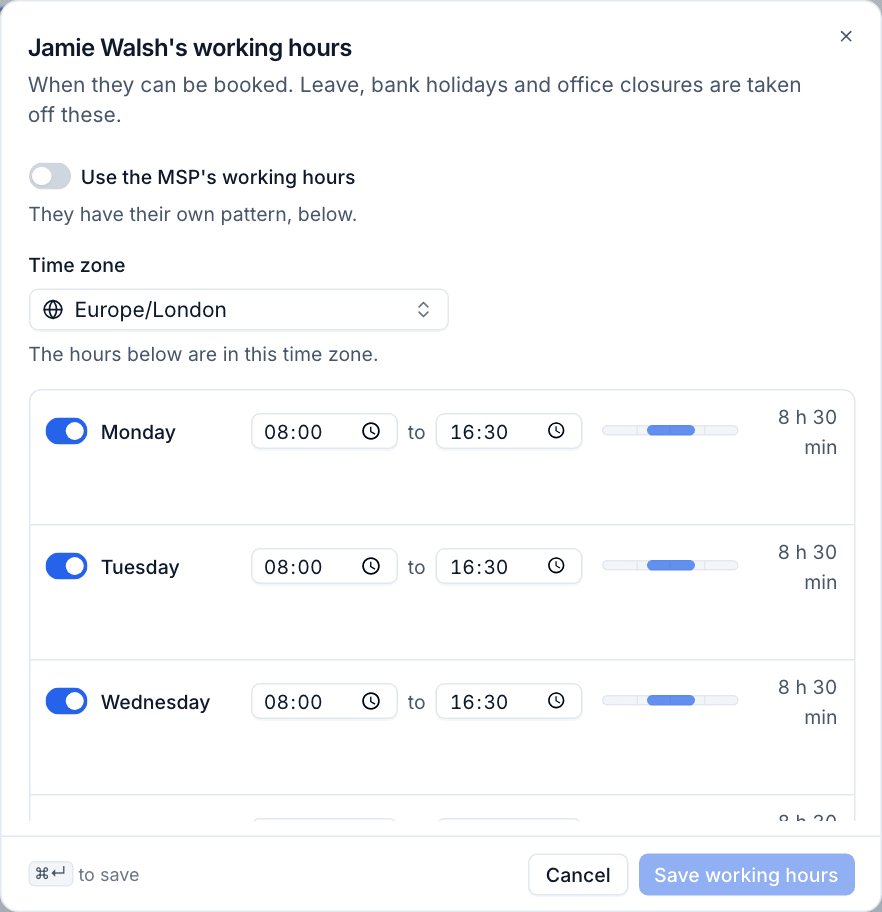
Leave, bank holidays and office closures are taken off these hours automatically.
Skills
Skills are what your people know, such as Microsoft 365, networking or printers. Dispatch uses them to suggest the right person for a ticket.
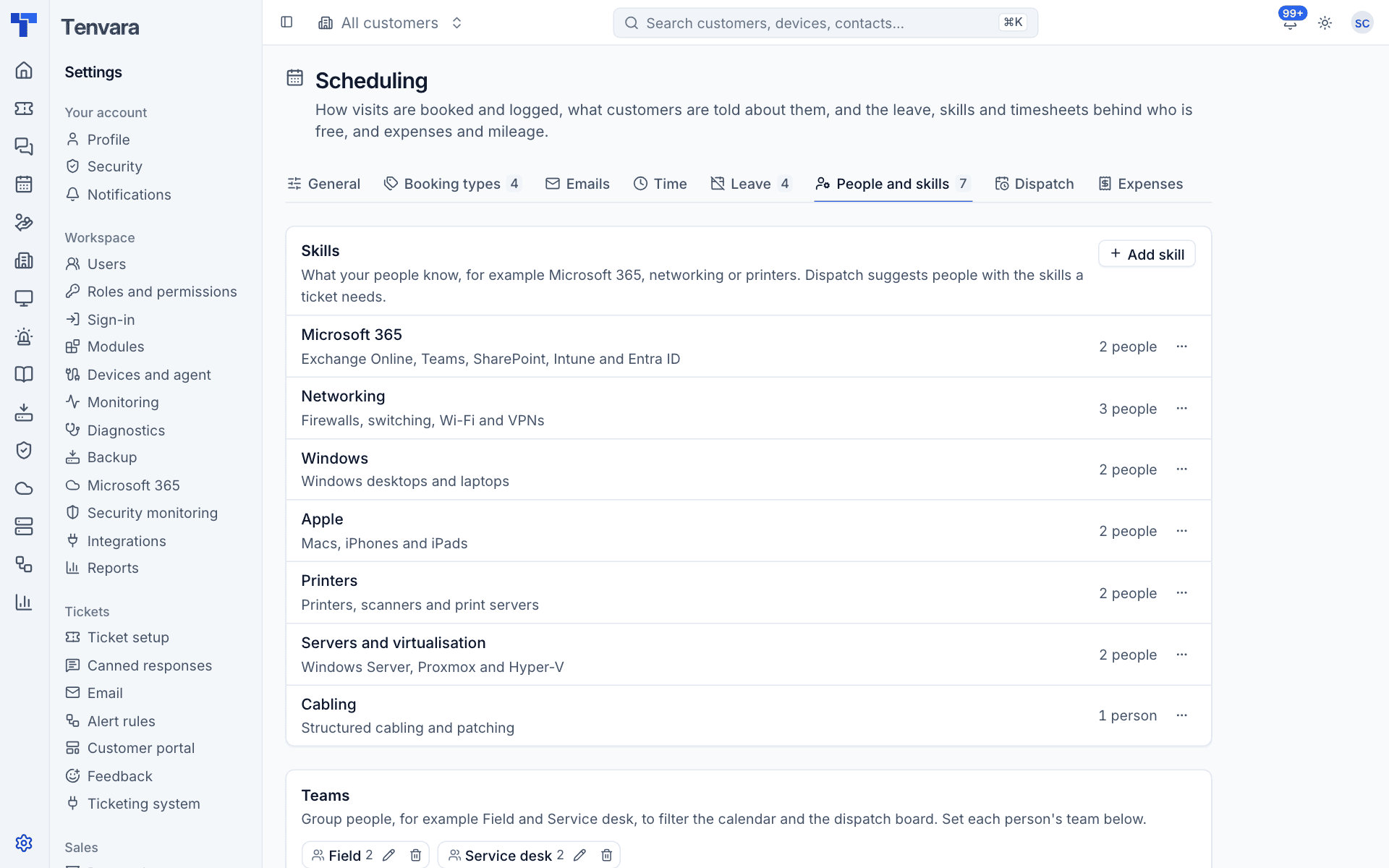
- In the Skills section, press Add skill, give it a name and a short description of what it covers, and save. Use ... on a skill to change or remove it.
- In the People table, click someone's skills (or Add skills).
- For each skill choose None, Working knowledge (can do the everyday jobs), Confident (can do most things alone) or Expert (the person others ask).
- Press Save skills.
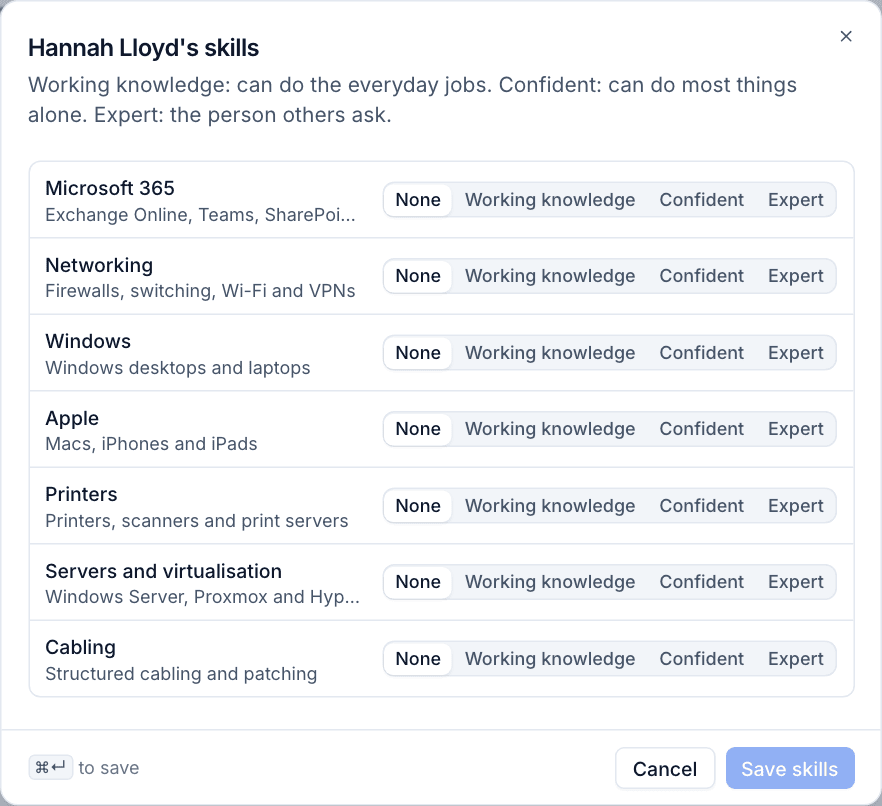
Under Skills each ticket type needs, set the skills that every ticket of a type needs, for example networking for a "Site survey" type. These add to any skills set on the ticket itself when it is flagged as needing a visit.
Leave
Schedule > Leave is where people ask for time off, approvers answer, and everyone sees who is away.
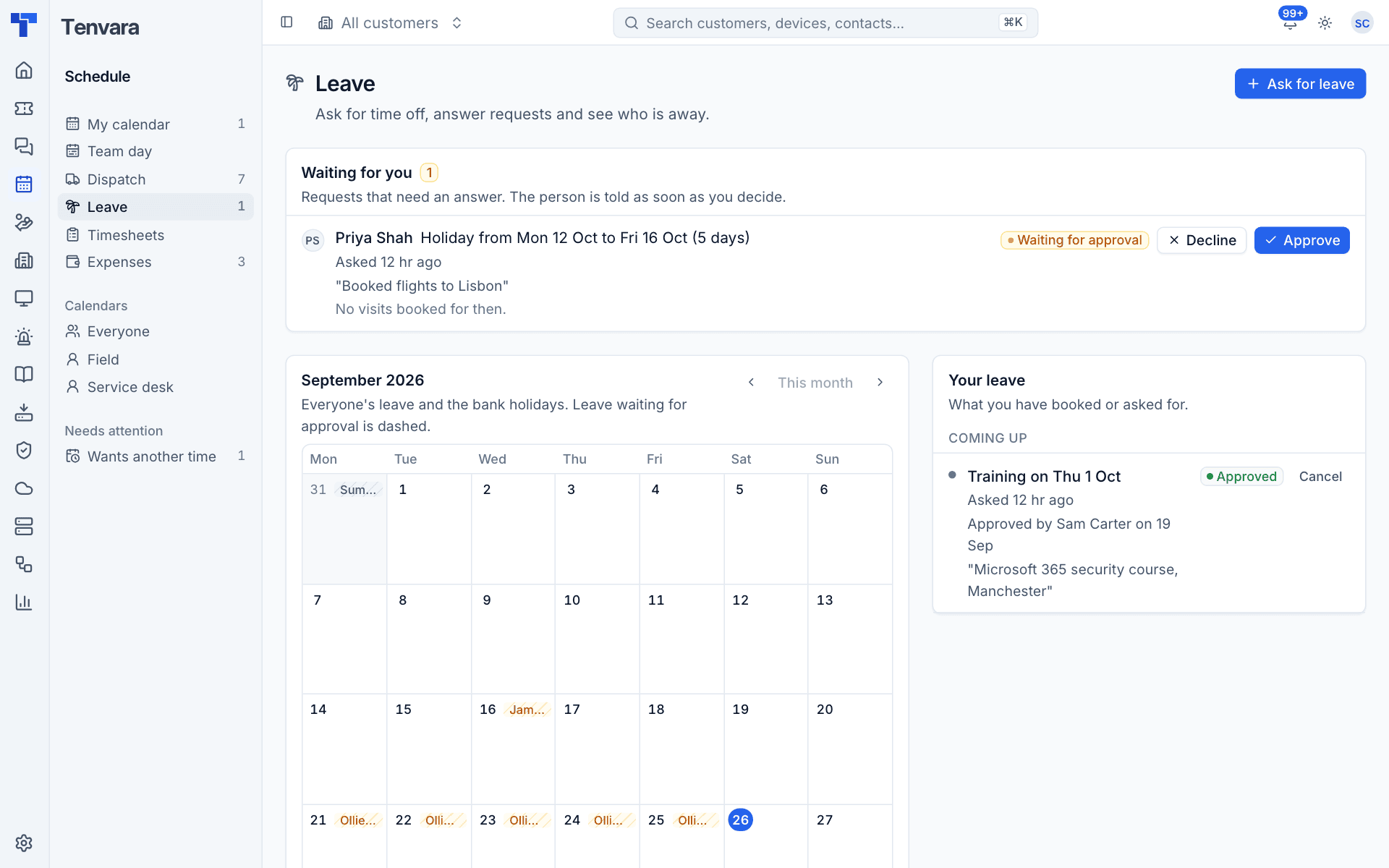
- Waiting for you lists requests you can answer, each with the dates, the note, and any visits already booked for then. Press Approve or Decline; the person is told straight away.
- The calendar shows everyone's leave and the bank holidays for the month. Leave waiting for approval is dashed.
- Your leave lists what you have booked or asked for, with Cancel.
Ask for leave
- Press Ask for leave.
- Who is you, unless you approve leave, in which case you can book it for someone else.
- Choose the Kind of leave. The note underneath says whether it needs approval or is booked straight away.
- Choose All day or Part of a day, and the First day and Last day (or the times).
- Add a Note if you like. Only you, whoever booked it and the approvers see it.
- Press Book leave.
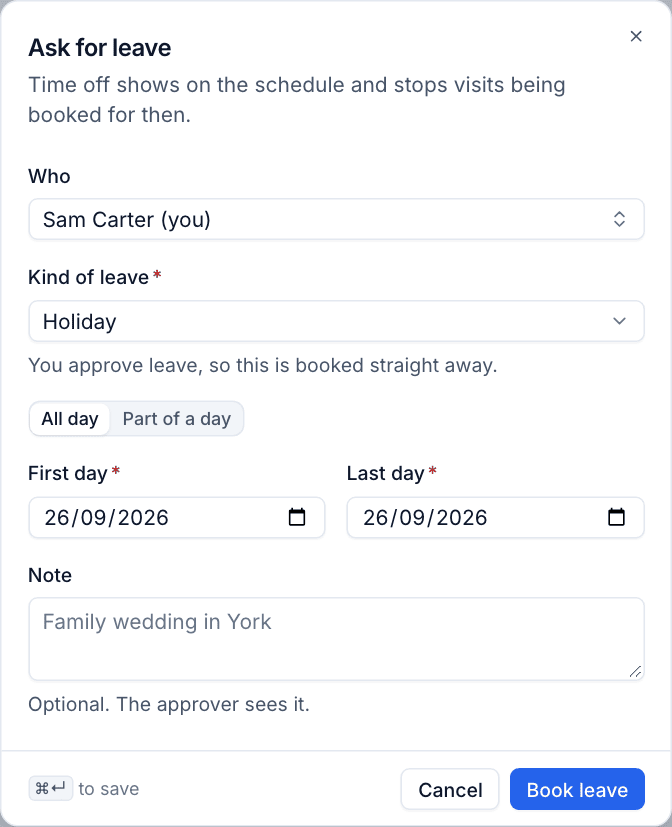
Leave shows on the schedule and stops visits being booked for then. Leave waiting for approval raises a clash warning too, so nobody books over it by accident.
Leave settings
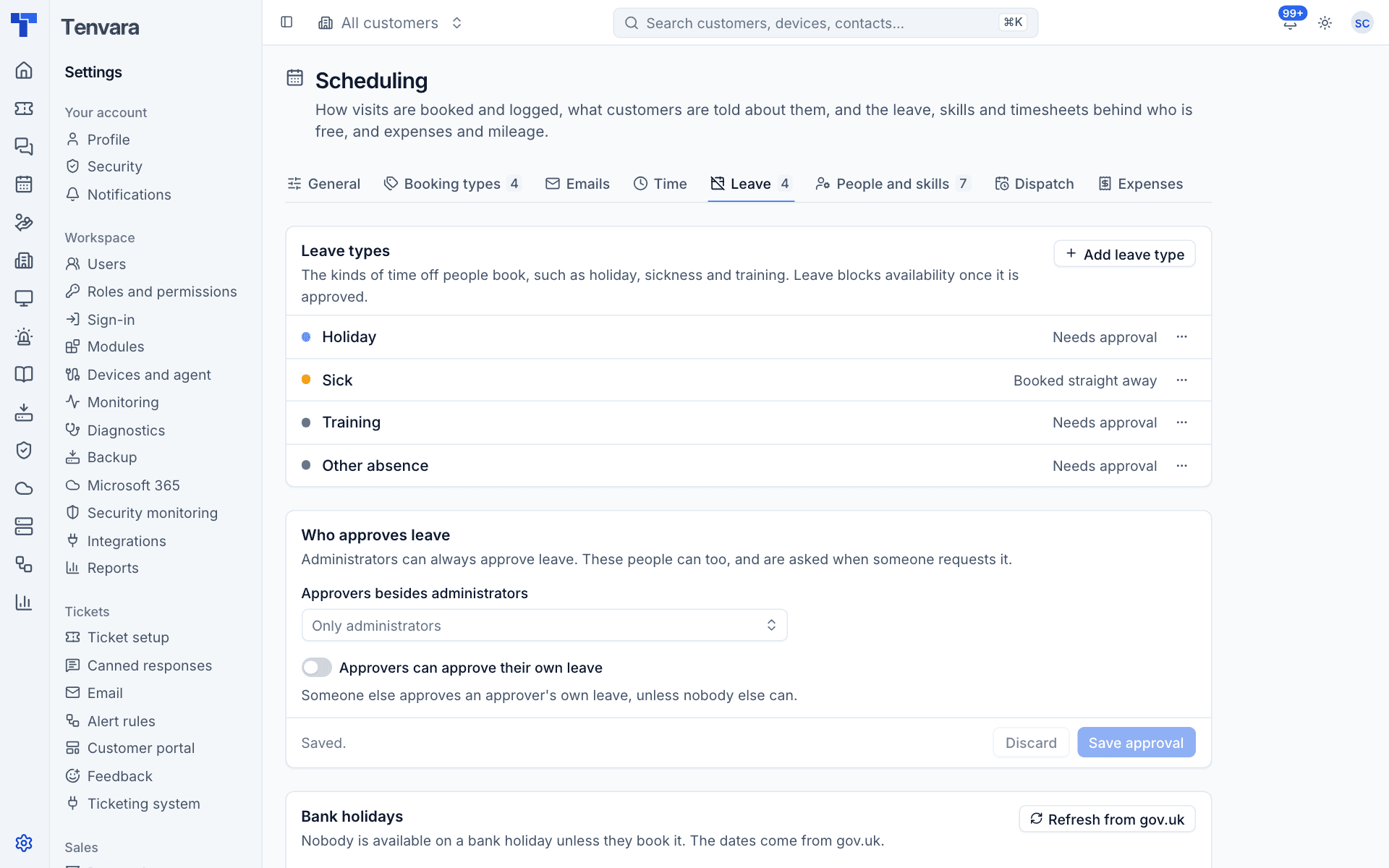
Settings > Scheduling > Leave holds:
- Leave types: Holiday, Sick, Training and Other absence to start with. Each has a colour and either Needs approval or is Booked straight away. Press Add leave type for more.
- Who approves leave: administrators always can. Add others in Approvers besides administrators; they are asked when someone requests leave. Approvers can approve their own leave is off by default, so someone else approves an approver's leave unless nobody else can.
- Bank holidays: choose the Region (England and Wales, Scotland or Northern Ireland). The dates come from gov.uk; a copy ships with Tenvara and refreshes weekly, or press Refresh from gov.uk. Nobody is available on a bank holiday unless they book it.
- Office closures: days the whole office is shut besides bank holidays, for example between Christmas and New Year. Add a Date and Name and press Add closure.
Was this page helpful?
Thanks for the feedback.