Printer status, toner and alerts
How Tenvara watches printers over SNMP, what the printer page shows, how to print a test page, and the alerts printers raise.
Once a printer has a site, Tenvara keeps an eye on it: whether it is answering, what it says about paper, toner and jams, how full each cartridge is and how many pages it has printed. That feeds the printer page, the Printers list, the customer page and alerts.
How printers are checked
Tenvara gives each site's printers to one agent at that site, called its watcher: an online server if the site has one, otherwise the device seen most recently. So a printer is asked by one machine, not by every PC in the office. The watcher checks its printers every five minutes and after any change. If the watcher goes offline, another device at the site takes over.
Each check uses SNMP (v2c, falling back to v1) with the printer's SNMP community to read:
- its status and any alerts (paper low or out, toner low or out, door open, jam, service requested)
- each toner or ink level
- the page count, make, model, serial number and MAC address
If SNMP does not answer, the watcher tries the printer's print port. A printer that answers on its port but not on SNMP is treated as working, shown as OK with the note "SNMP is off; enable SNMP v1/v2c for toner and alerts". A printer that answers neither is Offline.
Tip: Most printers ship with SNMP on and the community set to
public. If a printer's toner never shows, check SNMP in its web page and that its community matches the one on the printer in Tenvara.
The printer page
Click a printer in the list to open its page.
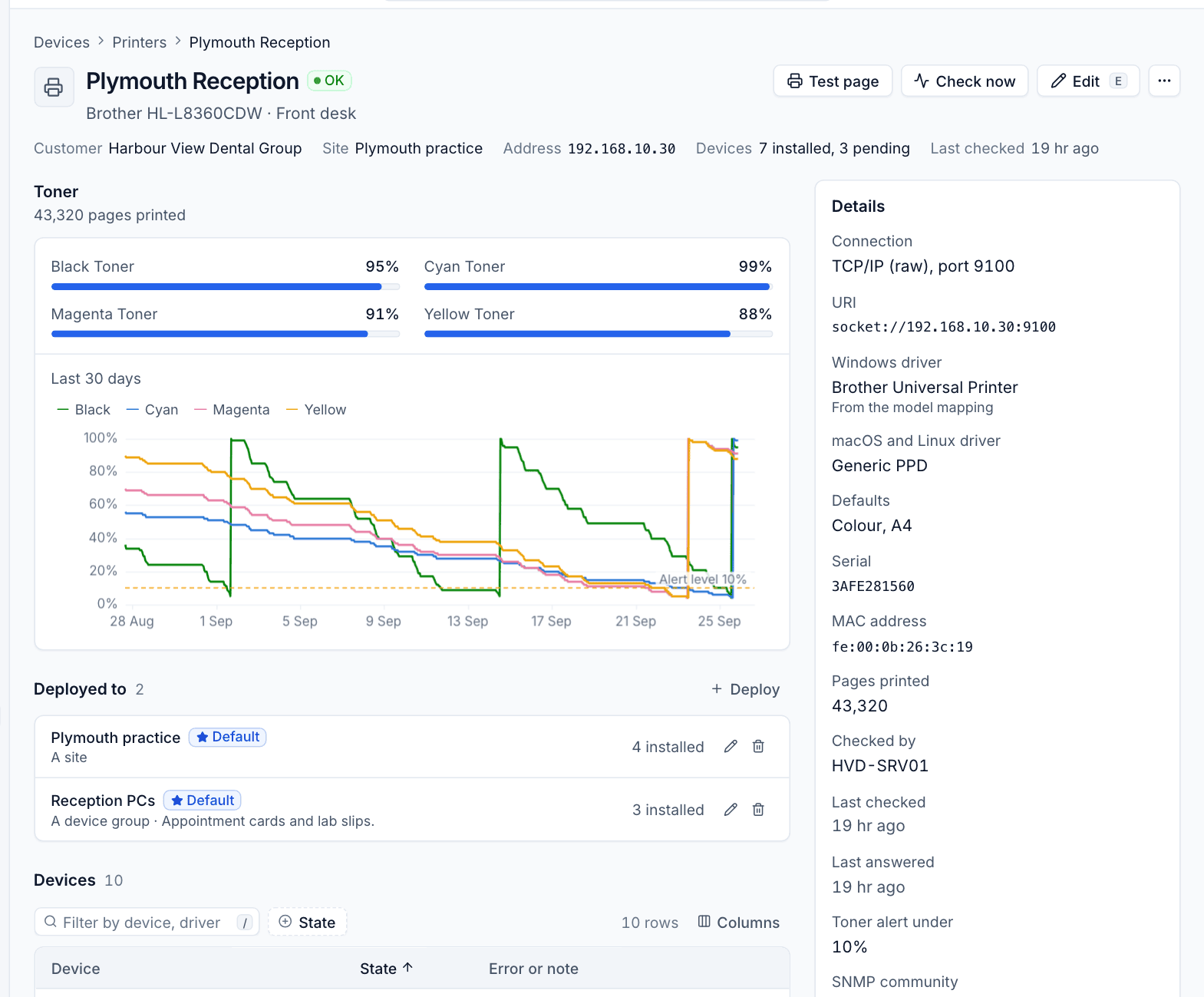
The header shows the name, status, make and model, and location, then the Customer, Site, Address, how many Devices have it installed, pending or failed, and when it was Last checked.
- Toner shows each cartridge's level with the total pages printed, and Last 30 days charts every colour over time with a dotted line at the alert level. Cartridge changes show as jumps back to 100%, which makes it easy to see how long a cartridge lasts at that customer.
- Deployed to lists the deployments that put the printer on devices, whether each makes it the default and how many devices it reaches. See Deploying printers to devices.
- Devices lists every device that should have the printer, with its state, driver and any error.
- Recent commands lists test pages and status checks sent to devices for this printer.
- Details gives the connection and URI, the Windows driver (and where it came from), the macOS and Linux driver, the Defaults, serial number, MAC address, pages printed, which device Checked by, when it was Last checked and Last answered, the Toner alert under level and the SNMP community.
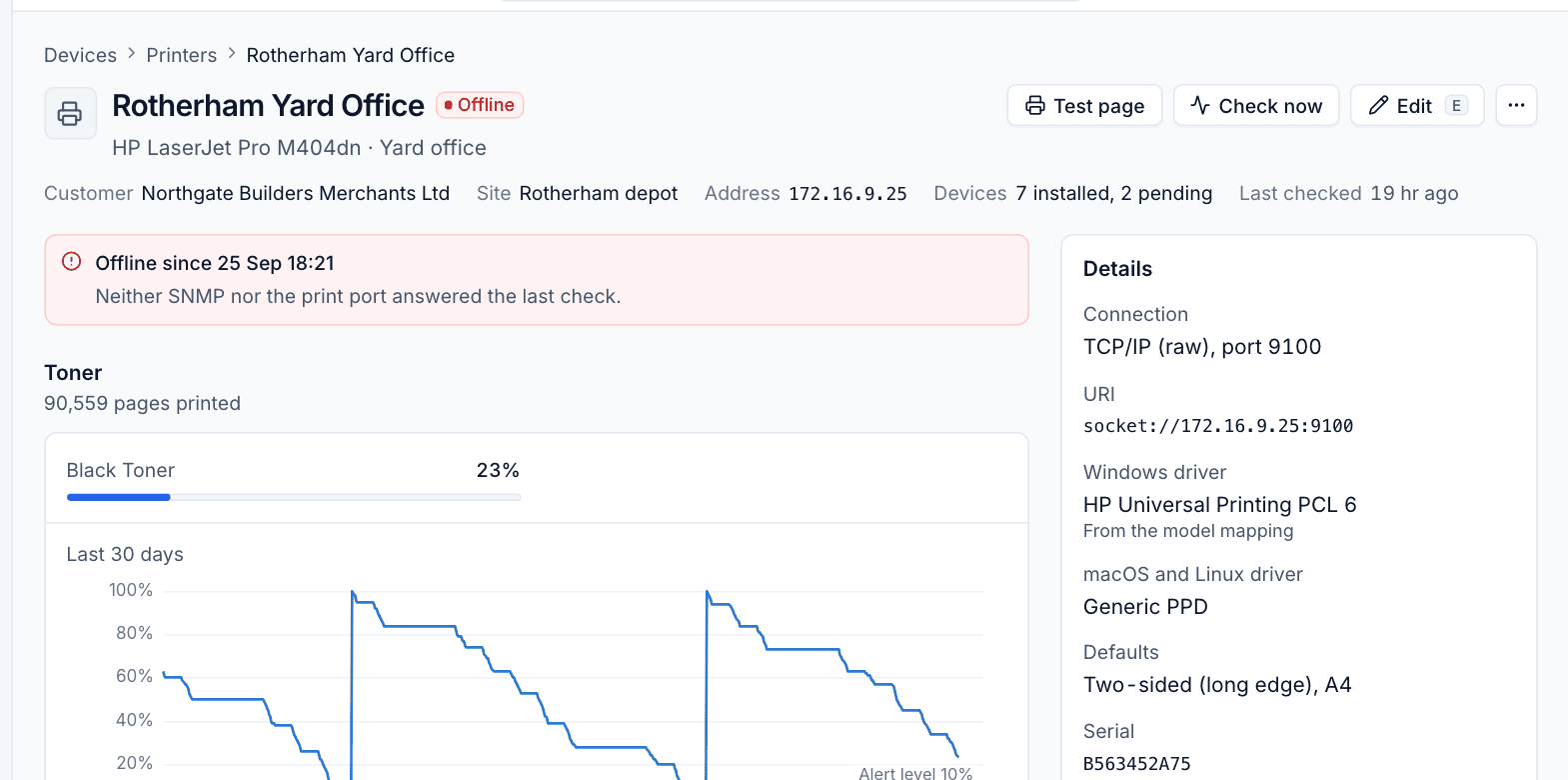
When a printer is offline, a banner says since when and why, for example "Neither SNMP nor the print port answered the last check".
Checking a printer now
Click Check now to have the watcher check the printer straight away instead of waiting for the next round. Use it after someone has fixed a jam or changed a cartridge.
Printing a test page
- On the printer's page, click Test page.
- Under From, choose a device the printer is installed on.
- Click Print test page.
The device prints the operating system's own test page, through the printer exactly as Tenvara installed it on that device. That makes it a good test of the whole chain: driver, port, network and printer. It fails if the printer is not installed on the chosen device. The result appears under Recent commands.
Printer alerts
Printers raise alerts in Alerts like any other source, and your alert rules can turn them into tickets or send them on. Each clears on its own.
| Alert | Raised when | Clears when |
|---|---|---|
| Printer failed to install | The printer failed to install on a device | It installs, or the device no longer needs it |
| Printer offline | The printer has been offline for an hour | It answers again |
| Toner low | Any toner is under the printer's Toner alert under level (default 10%) | Every toner is at or above the level again, or the printer is deleted |
To change the toner level for one printer, open it, click Edit and change Toner alert under. A mono printer at a busy site might want 15% to give time to order; a rarely used one might be fine at 5%.
Tip: An automation rule on "An alert is raised" with a condition on the alert title can do more with toner alerts, for example open a ticket in your procurement queue. See Building a rule.
History
Tenvara keeps a status sample for each printer at most once an hour, plus one whenever the status changes, for 90 days. That history drives the toner chart and lets you see when a printer went offline and came back.
Was this page helpful?
Thanks for the feedback.