Deploying printers to devices
Put a printer on a site, a whole customer, a device group or chosen devices, set default printers, and follow each device's install.
A deployment says which devices should have a printer and whether it should be their default. Devices pick it up at their agent's next reconcile, and devices that join the target later get it too. Take a deployment away and Tenvara removes the printer again from devices that no longer need it.
Deployment targets
| Put it on | Who gets it |
|---|---|
| A site | The site's workstations and laptops, as they come and go |
| The whole customer | Every workstation and laptop the customer has |
| A device group | Every device in the group, whatever its type |
| Chosen devices | The devices you pick, whatever their type |
Site and customer deployments deliberately skip servers, hypervisors and virtual machines, so they do not collect every office printer. If a server does need a printer, choose it as a device or put it in a group. A device whose type changes gains or loses its site's printers at the next rebuild.
Note: A protected device is never given printers by a deployment. It can still check printer status and run discoveries.
Deploying a printer
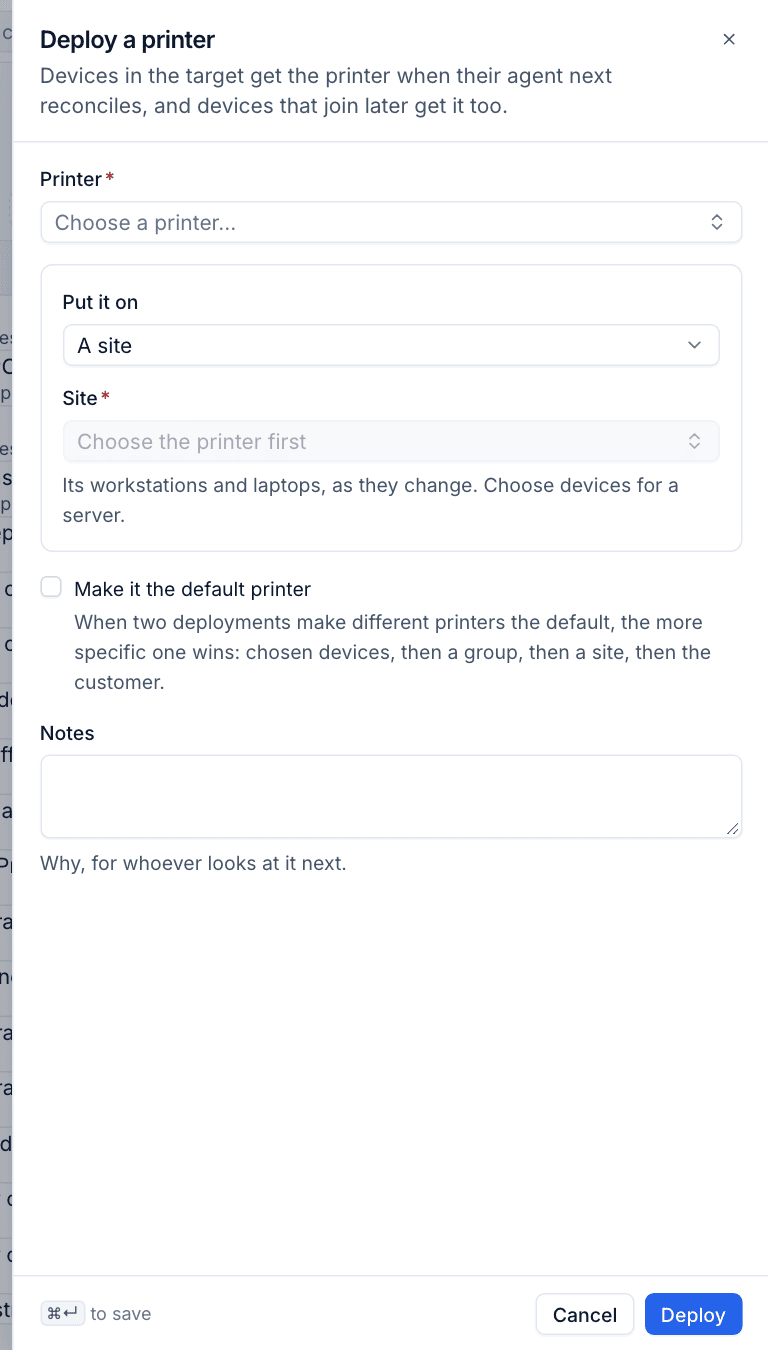
- Go to Devices > Printers > Deployments and click Deploy a printer. You can also start from a printer's page (Deploy next to Deployed to, or ... > Deploy to devices) or a device's Printers block (Deploy), which open the same form.
- Choose the Printer.
- Under Put it on, choose A site, The whole customer, A device group or Chosen devices, then pick the site, group or devices. The choices are limited to the printer's customer.
- Tick Make it the default printer if it should become the default for the people using those devices.
- Add Notes saying why, for whoever looks at it next.
- Click Deploy.
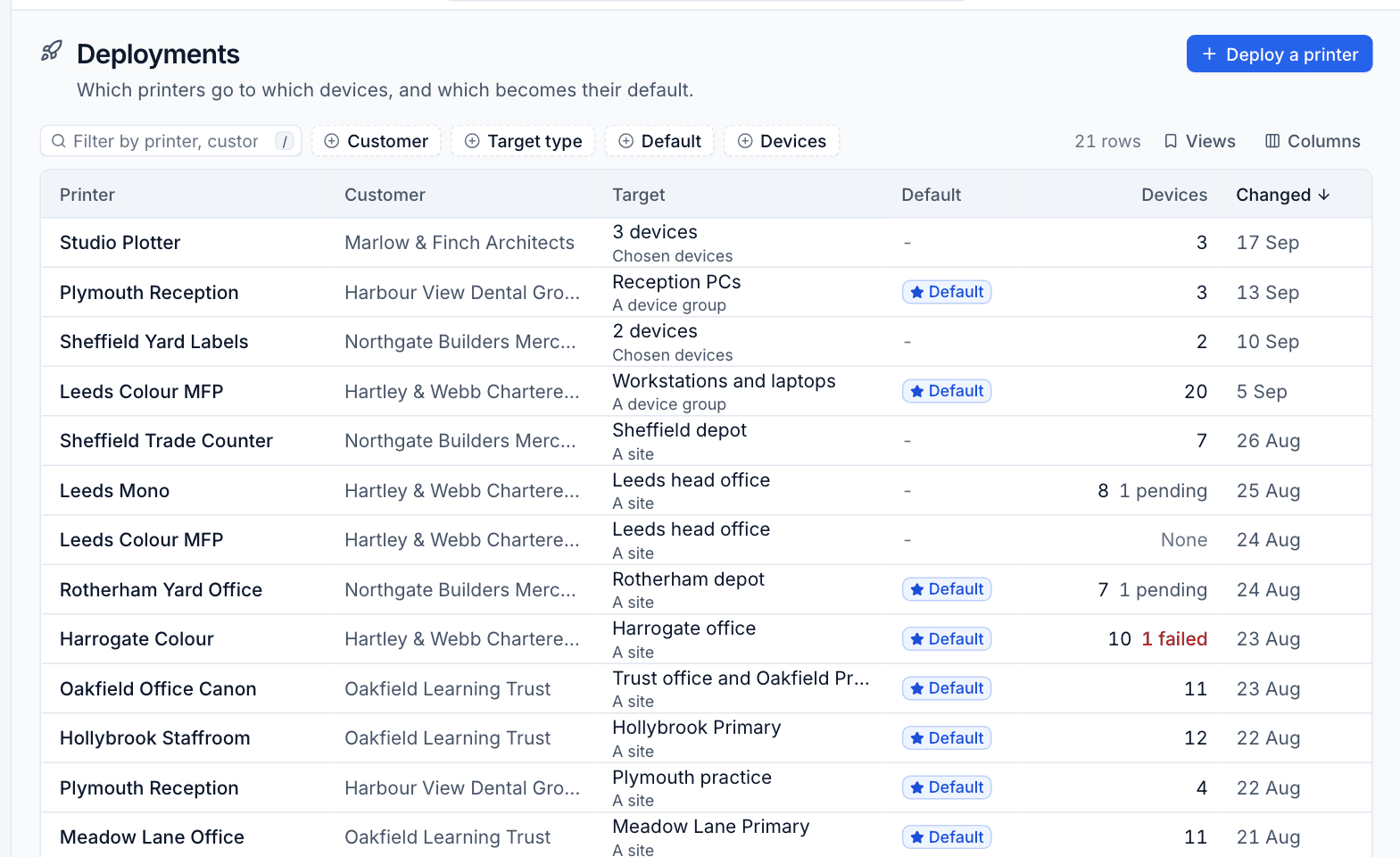
The Deployments list shows every deployment with its Printer, Customer, Target, whether it sets the Default, how many Devices it reaches (with pending or failed installs) and when it last Changed. Filter by Customer, Target type, Default and Devices.
To change or remove a deployment, open the printer and use the edit or delete button on the deployment under Deployed to.
Default printers
Only one printer can be the default on a device. When two deployments make different printers the default, the more specific one wins: chosen devices, then a device group, then a site, then the customer. So you can make the office colour printer the default for a site and still give reception a different default through a group.
On Windows the default printer belongs to each user, not the machine. The agent asks every signed-in user's session to make the printer their default, and switches off Windows' "Let Windows manage my default printer" so it stays put. It does this once per user and printer, so a user who later picks another default keeps their choice. The device page lists the result under Default for users.
What the agent does
When a device's list changes (a printer is added or edited, a deployment changes, the device moves site or group) the device is told straight away, and every device is checked every five minutes anyway. The agent then:
- installs printers it should have and does not
- updates printers whose name, address, driver or defaults changed, and retries any that failed
- removes printers it added that are no longer wanted, and their ports and drivers when nothing else uses them
It only ever changes printers it added itself, which it keeps a record of and marks on the system. A printer of the same name that someone else created is left alone, and Tenvara's install fails with a message saying so. One printer failing never stops the others.
Following the install
On the printer page
The Devices table on a printer's page lists every device that should have it, its State, the Driver it got (and whether it came from an uploaded package, the operating system or a fallback) and any Error or note.
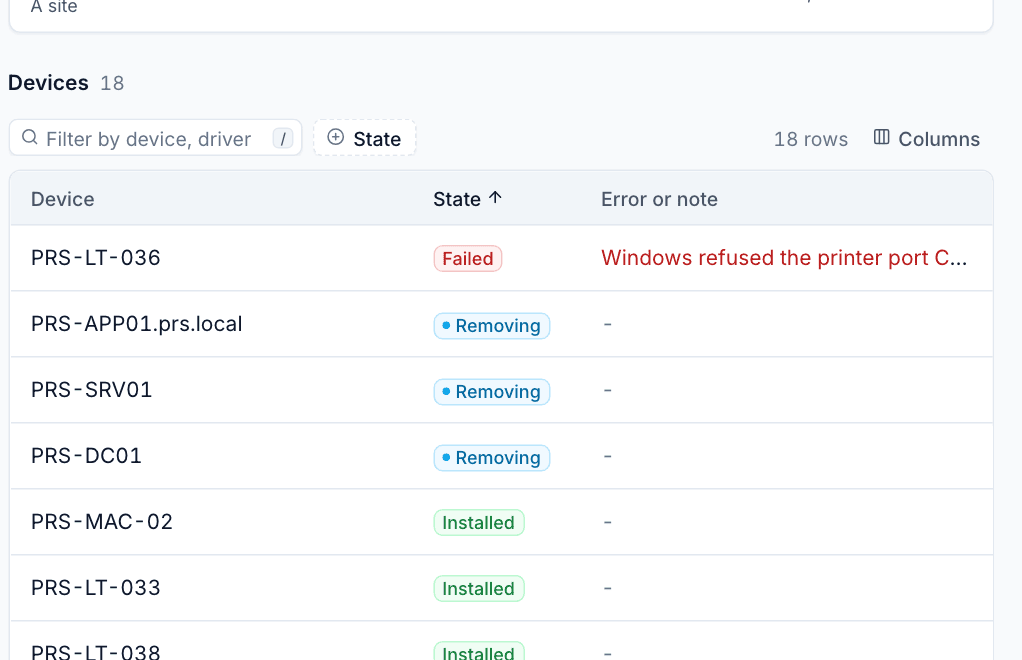
| State | Meaning |
|---|---|
| Pending | The device has not reported it yet, usually because it is offline or has not reconciled |
| Installed | The printer is on the device |
| Failed | The agent tried and could not, with the reason under Error or note |
| Removing | The device no longer needs it and the agent is taking it off |
Default next to a device means this printer is its default.
On the device page
A device's Printers block shows whether the device is In sync, when it last reported, how many printers on it were not added by Tenvara, each printer Tenvara put there with its state and driver, the deployment it came through, and Default for users.
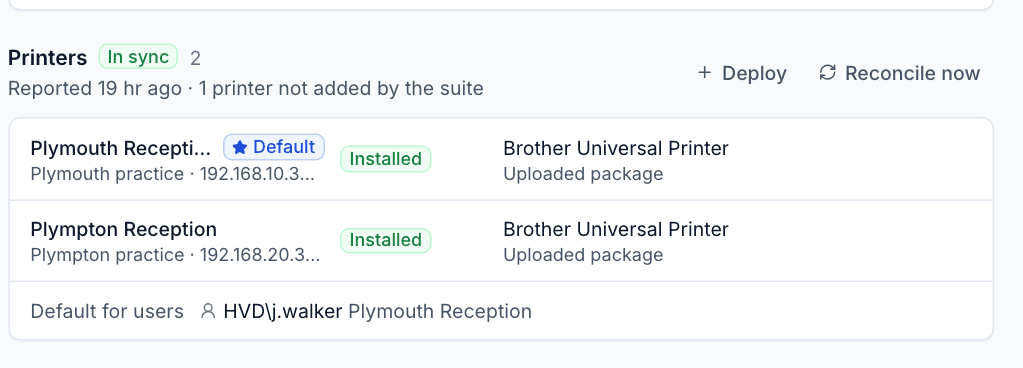
Click Reconcile now to make the agent check its printers straight away rather than waiting, for example after fixing a problem on the machine. Deploy starts a deployment to this device.
Was this page helpful?
Thanks for the feedback.