The script library
Browse the built-in scripts, write your own in PowerShell, Bash, Zsh, Python and more, add parameters, and keep every version.
The script library holds tested scripts you can run on devices now, at a set time or on a schedule. Tenvara comes with a starter library of built-in scripts for Windows, macOS and Linux (flushing DNS, restarting a service, checking for a pending restart, BitLocker and FileVault status, disk clean-up, local administrator audits and more), and you add your own alongside them.
Every script is signed by your server when it is published, and the agent refuses anything that does not match the signature, so only what is in your library can run.
Open Devices > Scripts > Library.
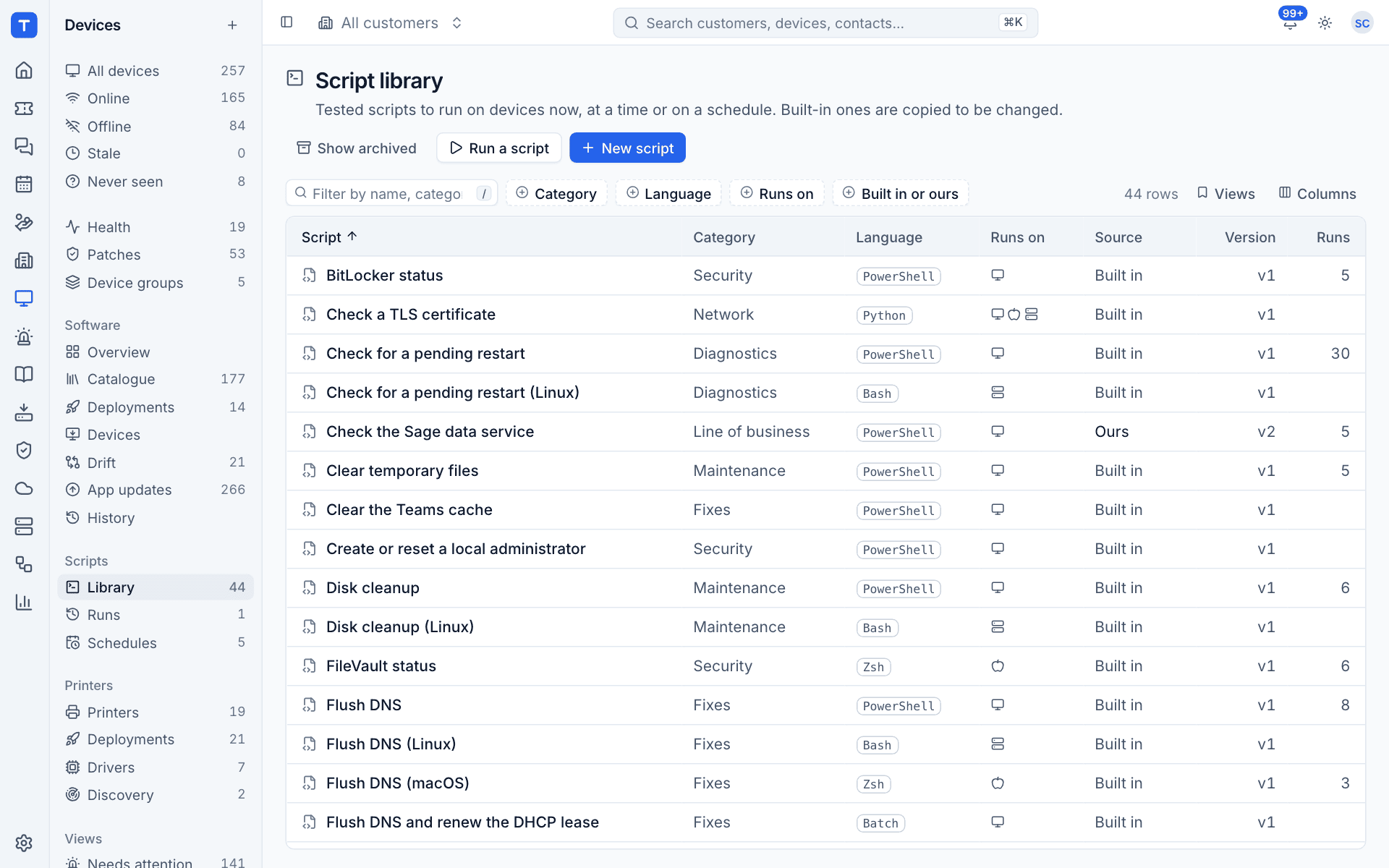
Each row shows the script's Category, Language, the platforms it Runs on, whether it is Built in or Ours, its version, when it last ran and how that went, and how many runs it has had. Filter by Category, Language, Runs on or Built in or ours, and use Show archived to see scripts you have archived.
Looking at a script
Click a script to open it.
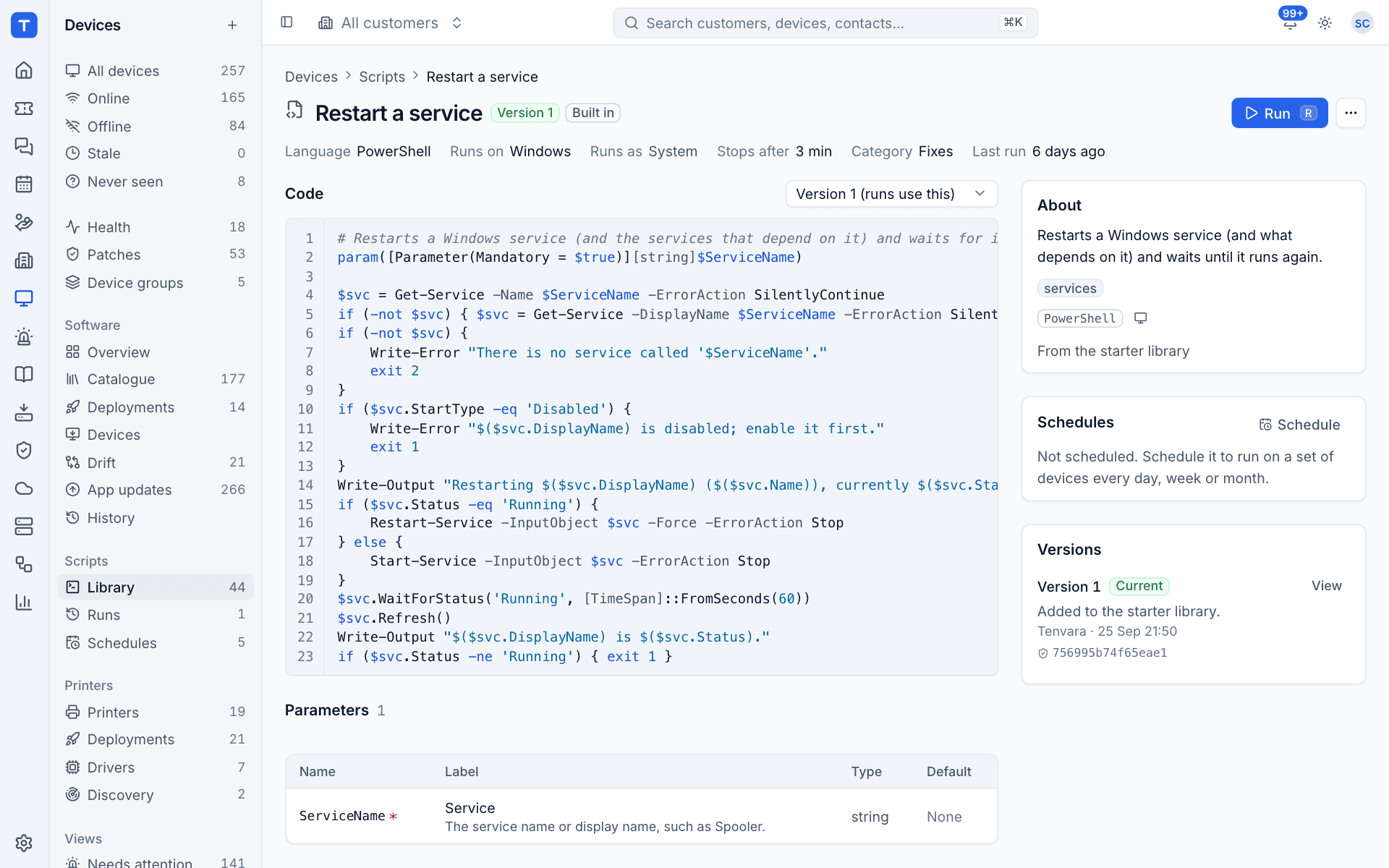
- The header shows the Language, what it Runs on, whether it Runs as System or the signed-in user, when it Stops after, its Category and when it last ran.
- Code shows the version runs use. Pick an older version from the menu to read it.
- Parameters lists the values a technician gives when running it.
- Runs shows its latest runs, with All runs.
- Schedules shows where it runs on its own, with Schedule.
- Versions lists every published version, who published it and its fingerprint.
The ... menu holds Schedule it, Make a copy to change and Archive.
Note: Built-in scripts cannot be edited. Use Make a copy to change to create your own version, which then shows as Ours.
Write a new script
- Click New script.
- Write the script in the editor.
Tabindents,Shift+Taboutdents andCmd+Ssaves a draft. - Under About, give it a Name, say What it does (shown in the library and the run dialog), and add a Category and Tags.
- Under How it runs, choose:
- Language: PowerShell (Windows PowerShell 5.1), PowerShell 7, Batch, Bash, Shell, Zsh or Python.
- Runs on: Windows, macOS and Linux as the language allows.
- Runs as: System (SYSTEM on Windows, root on macOS and Linux) or Signed-in user.
- Stop after (seconds): when the time is up, the script is stopped with everything it started.
- Add any Parameters (below).
- Click Create.
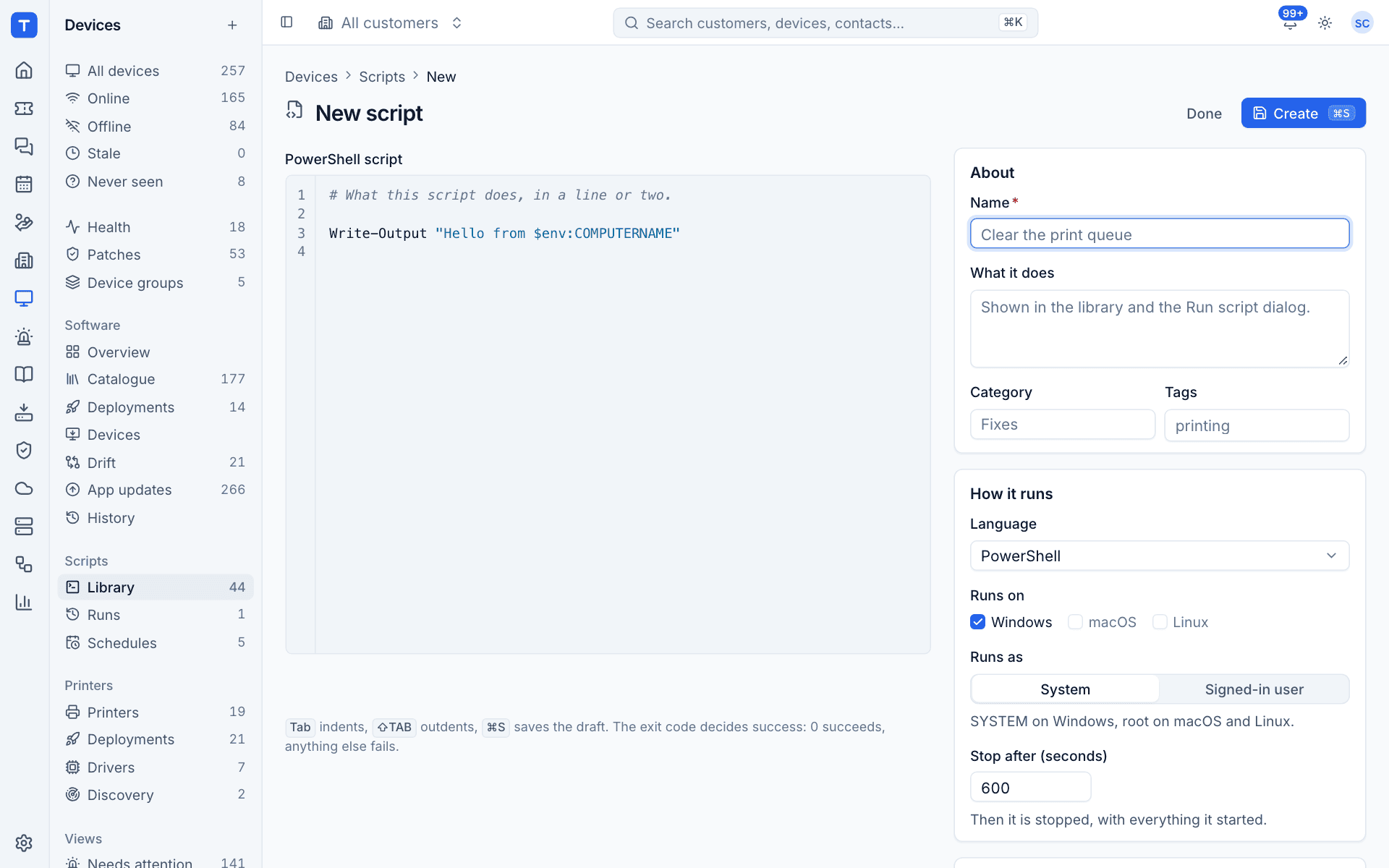
The exit code decides success: 0 succeeds, anything else fails. Everything the script writes to its output and error streams is shown live on the run page.
Parameters
Parameters are values a technician fills in each time the script runs, such as a service name or a folder.
- Click Add a parameter.
- Enter the Name the script uses, a Label for the run dialog, and some Help.
- Pick the Type: Text, Number, Yes or no, Choice or Secret.
- Set a Default and tick Required if the script cannot run without it.
In PowerShell each parameter arrives as a named parameter, so a param() block picks it up. In every language it is also set as an environment variable; the editor shows the exact variable name under the code.
Tip: Use Secret for passwords and keys. The value reaches the script but is removed from the stored run afterwards, so it never shows in the run history.
Versions and drafts
Saving changes to a published script creates a new version. Runs and schedules always use the current version, and each run records the version and fingerprint it ran, so you can tell exactly what ran on a device weeks later. Changes you are still working on show as Draft in the library; runs keep using the current version until the new one is published.
Archiving
Choose Archive from the ... menu to hide a script you no longer use. Its runs stay in the history. Turn on Show archived in the library to find it again.
Was this page helpful?
Thanks for the feedback.