Building a rule
Use the rule builder to choose a trigger and the customers a rule covers, then save it and switch it on.
The rule builder reads like a sentence: When something happens, For these customers, If these conditions hold, Then do this, in order. The panel on the right holds the rule's switches and owner, the rule written out In words, its recent runs and its history.
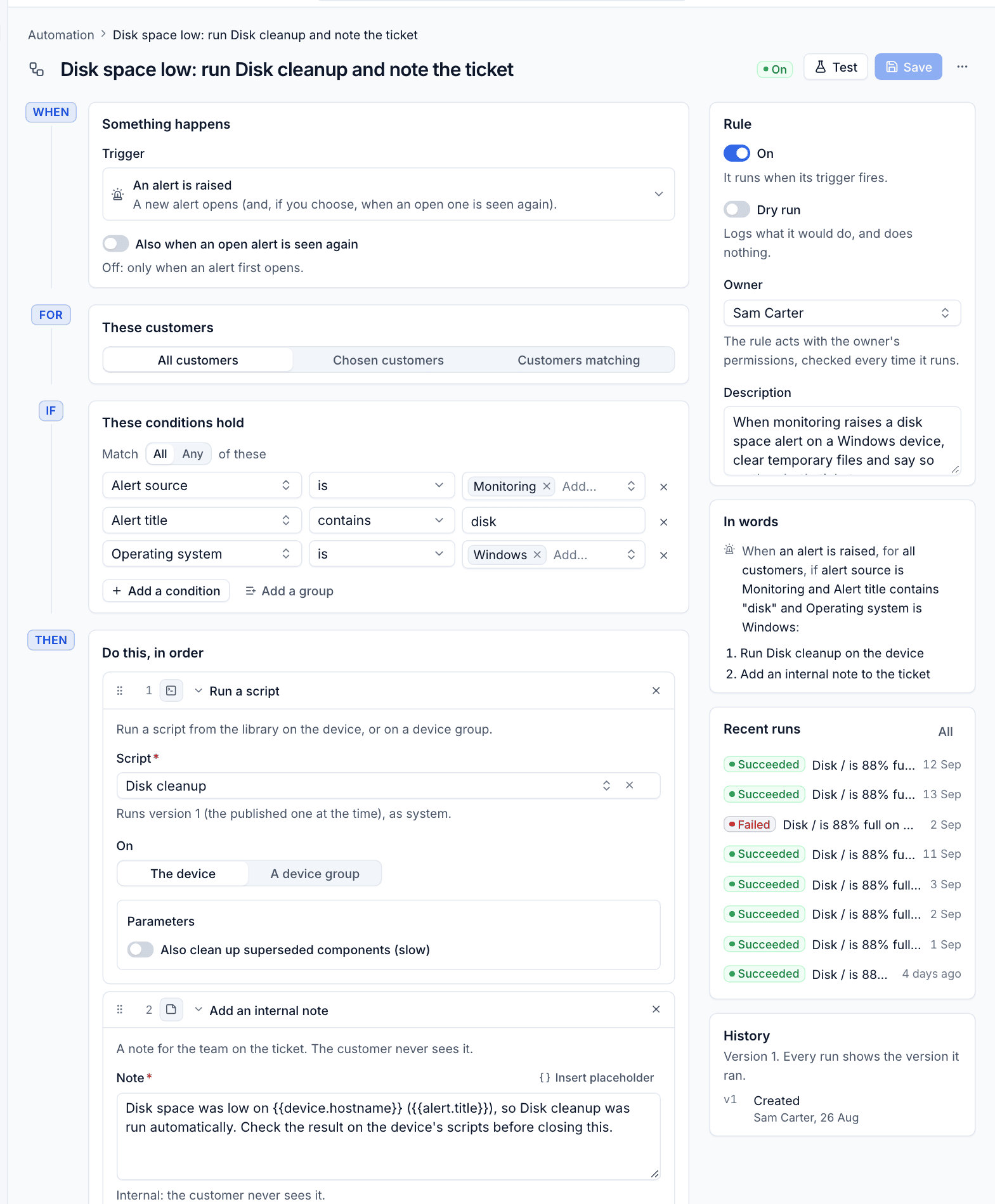
Making a rule
- Go to Automation and click New rule, then choose From scratch or a template.
- Under When, choose the Trigger and fill in its settings (below).
- Under For, choose which customers the rule covers.
- Under If, add any conditions. See Conditions and placeholders.
- Under Then, add the actions in the order they should happen. See Actions.
- In the right-hand panel, give the rule a Description, check the Owner, and decide whether it starts On and whether it is a Dry run.
- Click Test to try it against a recent real event. See Testing, dry run and versions.
- Click Save.
Mistakes are shown next to the field as you go, and the rule cannot be saved until they are fixed: for example a condition on a field the trigger cannot supply, or a placeholder the trigger does not offer.
Triggers
Click the trigger to open the picker. Triggers are grouped by what they watch.
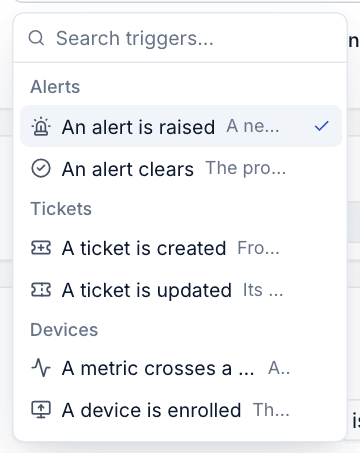
| Trigger | Settings |
|---|---|
| An alert is raised | Also when an open alert is seen again. Off, it fires only when an alert first opens |
| An alert clears | Whether it counts when the source cleared it, someone resolved it, or either |
| A ticket is created | Where from: email, the portal, a phone call, the app, an alert, a quote or automation. Empty means every ticket |
| A ticket is updated | Which changes: status, priority, assignee, queue or type changes, a customer reply, an internal note, an SLA warning or an SLA breach. Empty means any of them |
| A metric crosses a value | The Metric, a comparison and value, and For at least a number of minutes (0 fires on the first value past it) |
| A device is enrolled | None. Fires when the agent is installed on a new device |
| A device goes offline | Offline for a number of minutes, counting from when nothing was heard from the agent or monitoring |
| On a schedule | How often (every few minutes, hourly, daily, weekly or monthly), the time, the days, the Time zone and Run once for each customer |
| A chat starts, A chat ends | Shown when chat is in use |
| A visit is booked, A visit is completed | Shown when scheduling is in use |
A few details worth knowing:
- Metric triggers use the same logic as monitoring: they fire once when a device stays past the value for the time you set, and are ready again once it recovers. The metrics include CPU, load, memory, swap, disk used and free, disk reads and writes, network in and out, errors, processes, uptime and temperature.
- Offline only counts spells that begin after the rule was made, and fires once each time a device goes offline.
- Enrolment only counts devices enrolled after the rule exists, so switching the rule on does not replay every device you already have.
- SLA warning fires a set number of minutes before a response or resolution target is missed (30 by default, set in Settings > Automation), once per ticket and target.
Scheduled rules
A scheduled rule runs at the times you choose. With Monthly, day 31 means the last day of the month. The panel shows the Next run.
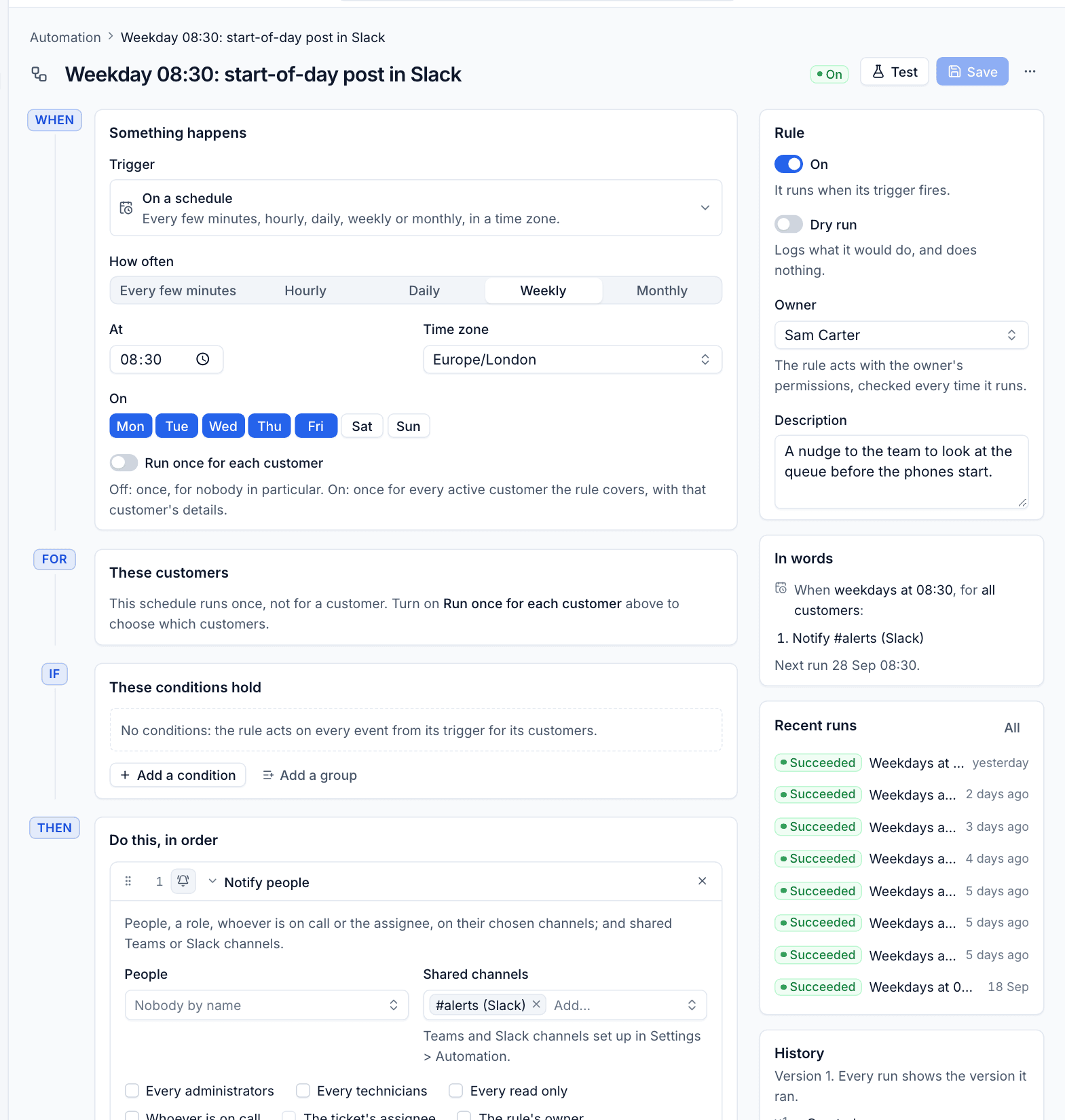
By default a scheduled rule runs once, for nobody in particular, which suits a daily post to a Slack channel. Turn on Run once for each customer to run it once for every active customer the rule covers, with that customer's details available to its actions, for example to open a monthly check ticket for each customer.
Choosing customers
Under For, choose:
- All customers: every customer, including new ones.
- Chosen customers: only the customers you add.
- Customers matching: customers with a given Customer status (for example Active) and Contract (Either, With a contract or Without). New customers join automatically when they match.
A scheduled rule without Run once for each customer has no customer, so this step is not used.
The rule panel
- On: the rule runs when its trigger fires. Off, it does nothing and records nothing.
- Dry run: the rule logs what it would do, filled in with real values, and does nothing. See Testing, dry run and versions.
- Owner: whose permissions the rule uses, checked every time it runs. Replies to customers go out in the owner's name.
- Description: what the rule is for, for the next person.
- In words: the whole rule written out as a sentence, which is the quickest way to check it says what you meant.
- Recent runs: the latest runs, with All opening the rule's run log.
- History: every version of the rule.
The ... menu next to Save has Its run log, Duplicate and Delete.
Tip: Duplicate a rule that works and change the copy, rather than editing a busy rule in place. Leave the copy in dry run until you are happy.
Was this page helpful?
Thanks for the feedback.