Schedules and retention
Set when device and Microsoft 365 backups run and how long recovery points are kept, as defaults and per customer, device or tenant.
Every backup follows a schedule (when it runs) and a retention policy (which recovery points are kept). You set sensible defaults once, and override them only where a customer, device or tenant needs something different.
How settings are layered
Tenvara looks for a setting in this order and uses the first it finds:
- The device or tenant itself.
- The customer.
- The defaults in backup settings.
Each place says where its value comes from, for example "Follows the default: Daily at 22:00", so you can always tell whether something has been overridden.
The defaults
Open Settings, choose Backup, then the Defaults tab.
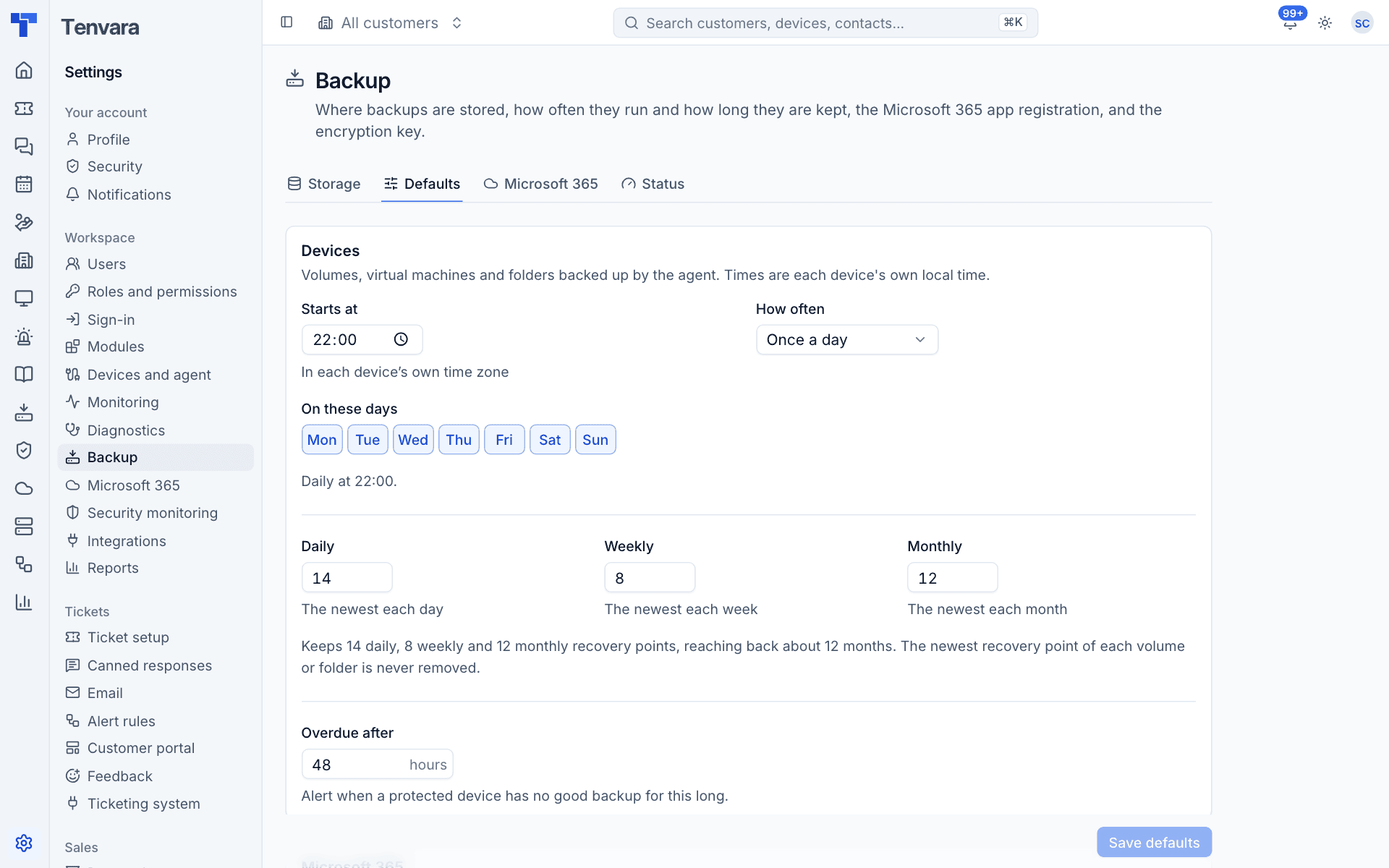
Devices
Schedule:
- Set Starts at, for example 22:00. This is in each device's own time zone, so a laptop in another country still backs up at night locally.
- Choose How often: Once a day, or every 12, 8, 6, 4 or 2 hours, or every hour.
- Choose On these days. Untick weekend days for machines that are switched off.
The line underneath sums it up, for example "Daily at 22:00."
Retention keeps the newest recovery point for each period:
- Daily: the newest each day, for this many days (default 14).
- Weekly: the newest each week, for this many weeks (default 8).
- Monthly: the newest each month, for this many months (default 12).
The sentence below works out how far back that reaches. The newest recovery point of each volume or folder is never removed, however old it is.
Overdue after: how many hours without a good backup before a protected device is overdue and raises an alert (default 48).
Microsoft 365
Back up: how often each tenant runs, from every hour to once a day (default every 12 hours). Only changes since the last run are fetched, so frequent runs stay small. Tenants are spread evenly across the interval so they do not all start at once.
Retention, choose one:
- Keep every recovery point: every run can be restored, up to the age limit. This is the usual choice for Microsoft 365.
- Thin out older ones: keep fewer as they age: hourly, then daily, then weekly, then yearly.
Nothing older than (years) sets the age limit (default 7). Leave it empty to keep recovery points for ever.
Overdue after: how many hours without a good backup before a protected user, site or team is overdue (default 24).
Press Save defaults when you are done.
Per customer
On a customer, open the Backup tab. Schedule and retention at the bottom shows what the customer's devices and Microsoft 365 use, and whether each is the default.
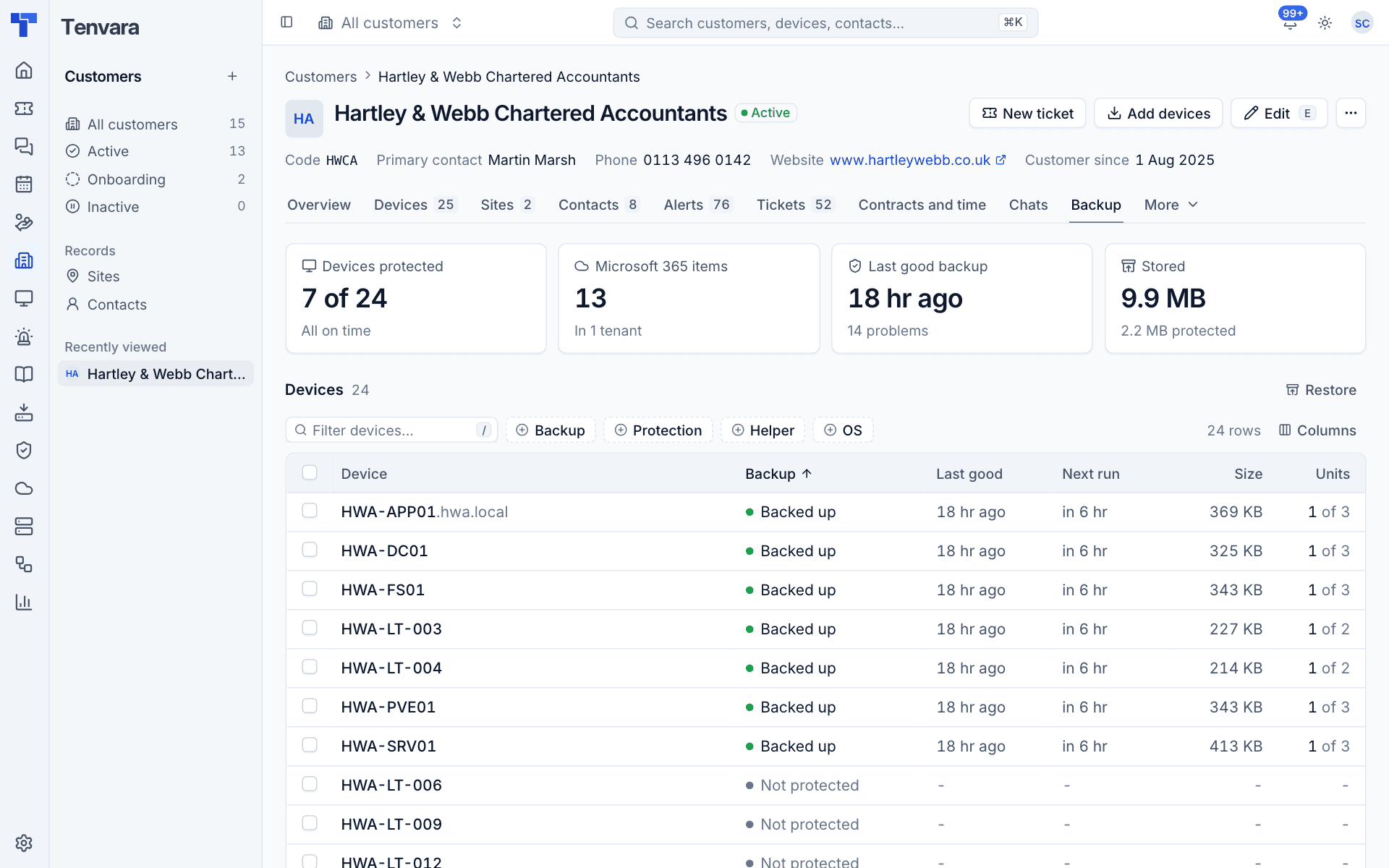
To change them:
- Press Change.
- Under Devices or Microsoft 365, turn on Set here beside Schedule or Retention.
- Set the values. They work the same as the defaults.
- Press Save.
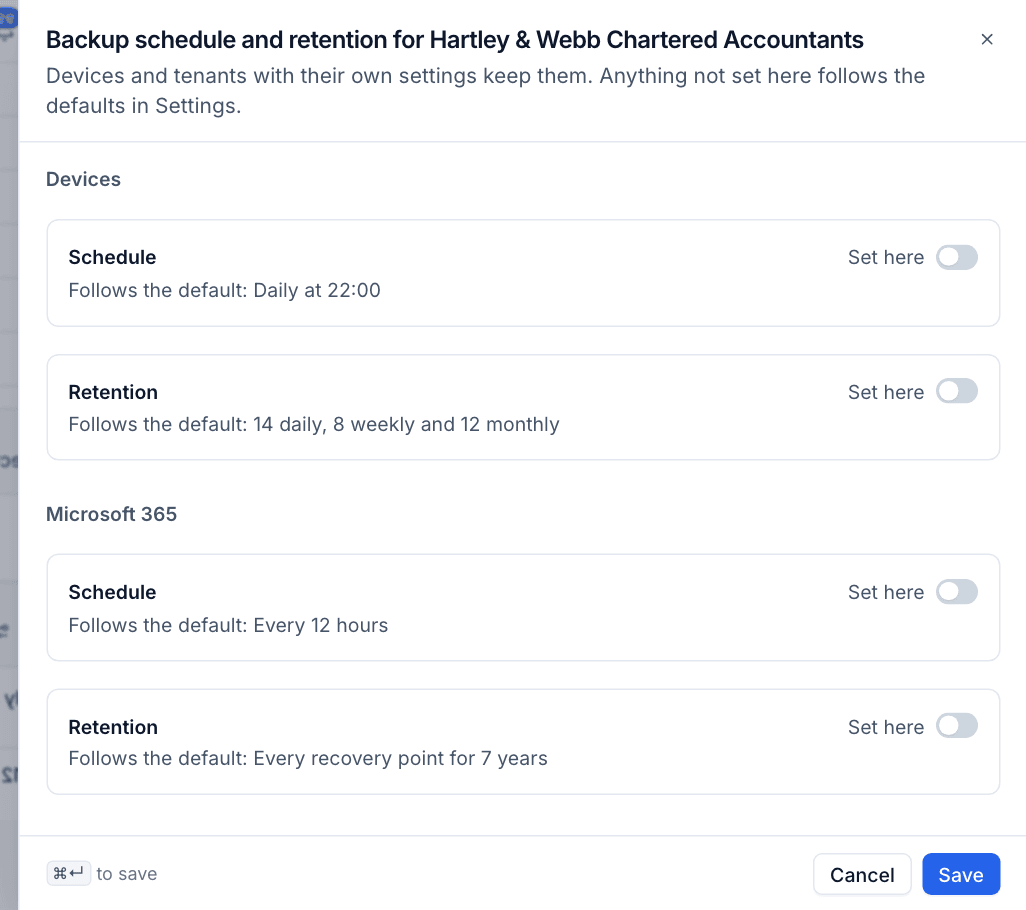
Devices and tenants with their own settings keep them. Anything not set here follows the defaults.
Per device
On the device, press Settings in its Backup section and turn on Set here under Schedule or Retention. The device's schedule runs in its own time zone, which is shown with the setting. See Protecting devices.
Per tenant
On a Microsoft 365 tenant, open ... and choose Schedule, retention and sign-in. Turn on Set here for the schedule or retention. See Microsoft 365 backup.
How retention is applied
Retention runs on the backup server as part of repository maintenance, never while a backup of that repository is running:
- Quick maintenance runs daily and full maintenance weekly for each repository. A new repository waits a day before its first.
- Retention removes the recovery points the policy no longer keeps, then frees the space they used.
- Maintenance shows in the Jobs list as Maintenance, so you can see when it ran and how long it took.
Note: Deduplication means removing one recovery point rarely frees much space on its own: most of its data is shared with the points either side. Space comes back gradually as older data is no longer referenced by any point.
Choosing sensible values
- Servers: daily is usually right, with a local copy for large file servers. Add a midday run (every 12 hours) where losing half a day's work would hurt.
- Laptops: daily at a time they are likely to be on, such as lunchtime, because a laptop that is shut at 22:00 cannot back up then.
- Microsoft 365: the default of every 12 hours and every point for 7 years suits most customers. Customers with regulatory requirements may need longer: leave Nothing older than empty to keep everything.
Was this page helpful?
Thanks for the feedback.