On-call rotas and paging
Set up on-call rotas, cover and escalation policies, choose what pages on-call, and acknowledge pages.
On-call makes sure urgent things reach a person, out of hours included. A rota says who is on call when. An escalation policy says who a page goes to, in what order, and how long each level has to acknowledge before the next is paged. Pages come from critical alerts and urgent tickets by default, and from any rule with a Page whoever is on call action.
Nothing is paged until on-call is set up (at least one policy or an enabled rota), so an MSP without rotas is never surprised by a page.
The On-call page
Automation > On-call shows a card for each rota with who is on call now, until when, and who is next. Below that is every page: its Status, the Page title, Customer, who was Paged, who Acknowledged it and When.
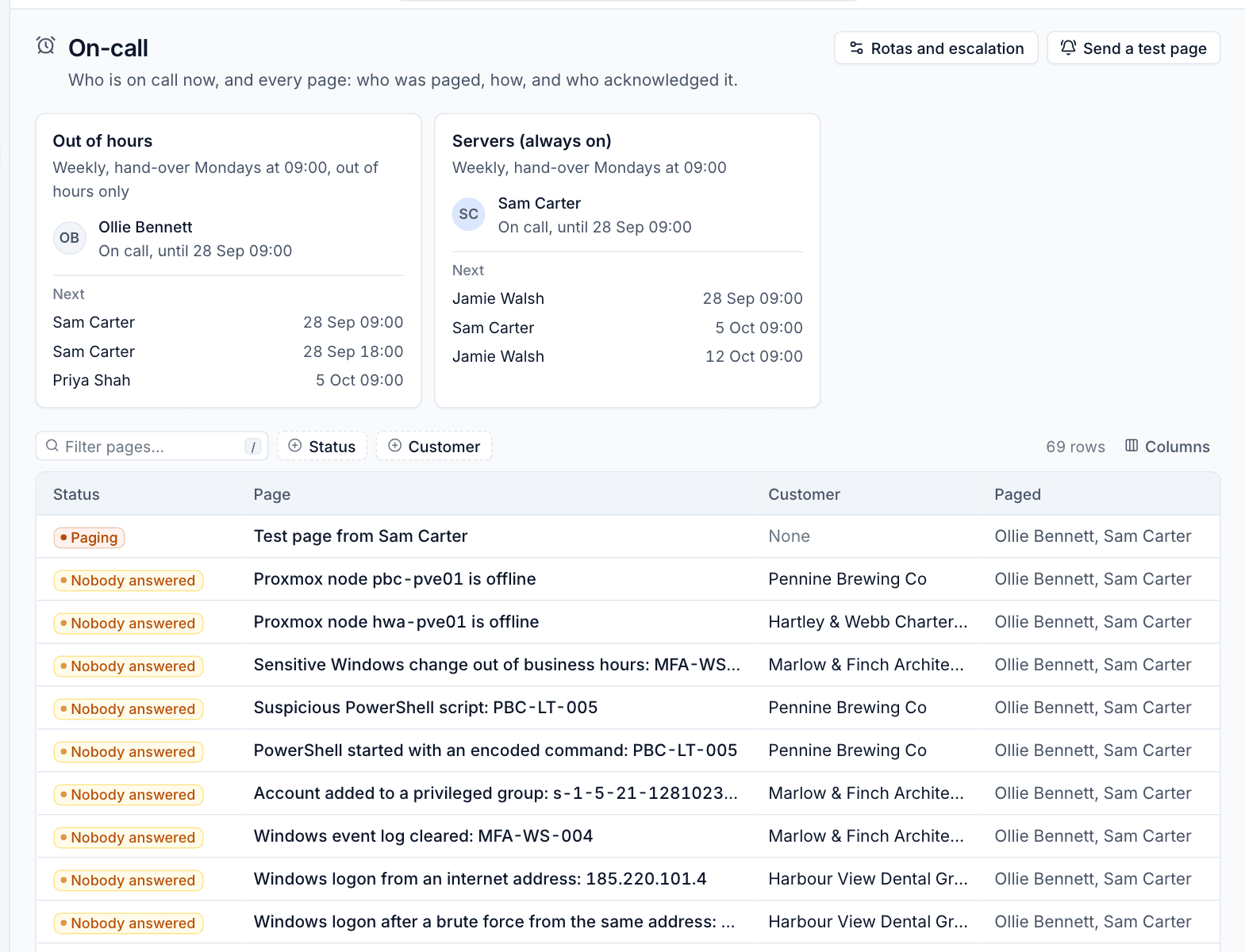
A page's status is Paging while it is escalating, Acknowledged once someone has taken it, or Nobody answered when every level and round passed without an acknowledgement. Click a page to see who was paged how and when. Send a test page pages the current on-call people so they can check their phones. Rotas and escalation opens the settings.
Rotas
Rotas are set up in Settings > Automation > On-call, by anyone who manages automation.
Making a rota
- Click New rota.
- Enter a Name and a Description.
- Under People, in turn, click Add a person for each member, and drag them into order. The first person starts on the start date.
- Choose Turns: A week each or A day each.
- Choose Hand over on (for weekly turns), At (the hand-over time), Starting and the Time zone.
- Choose what it Covers: Day and night, or Out of hours, where nobody is on call during the business hours set in Settings > Tickets.
- Click Add the rota.
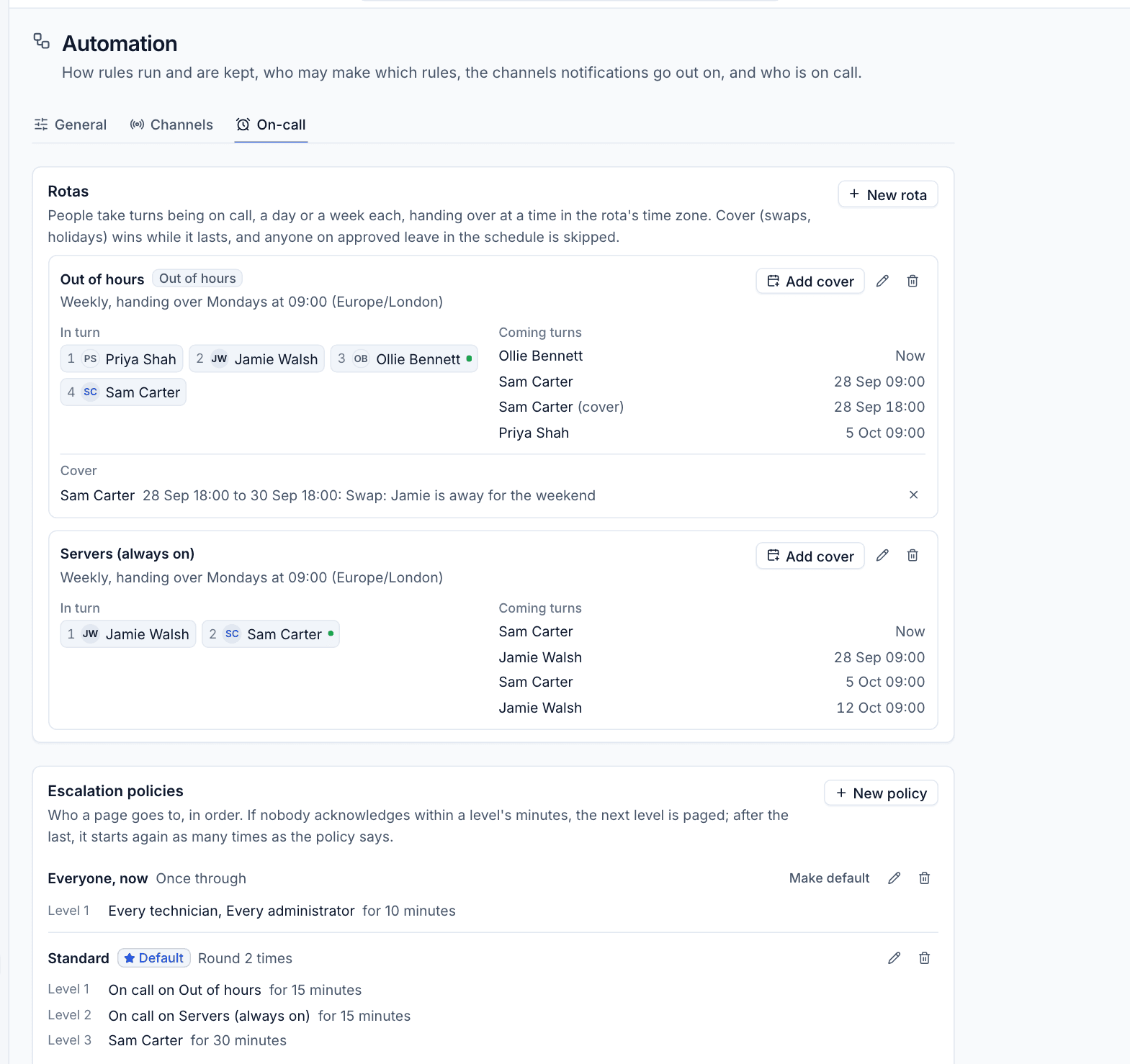
Hand-overs follow local dates and times in the rota's time zone, so the clocks changing never moves a hand-over. The rota card shows In turn (the order, with a dot next to whoever is on call now) and the Coming turns.
Anyone on approved leave on the schedule is skipped automatically, and the next member covers.
Cover
For a swap or a holiday, click Add cover on the rota:
- Choose Who covers.
- Set From and Until.
- Add Why, for example "Swap with Jamie".
- Click Add the cover.
Cover wins over the rota while it lasts, and shows under Cover and in the coming turns. Remove it with its cross.
Escalation policies
A policy is a list of levels. Each level pages rotas (whoever is on call on them), people or roles, then waits a number of minutes for an acknowledgement. If nobody acknowledges, the next level is paged. After the last level, the policy goes round again as many times as it says. If still nobody answers, everyone who was paged and the administrators are told "nobody answered".
Making a policy
- Click New policy.
- Enter a Name and Description.
- For Level 1, choose who to Page and how many minutes to Wait for an acknowledgement.
- Click Add a level for each further level.
- Set Go round: how many times in all to work through the levels.
- Tick The default policy if critical alerts, urgent tickets and rules without a policy of their own should use it.
- Click Add the policy.
A typical setup: level 1 pages the out-of-hours rota for 15 minutes, level 2 pages the servers rota for 15 minutes, level 3 pages the service desk manager for 30 minutes, going round twice. Make default on another policy moves the default to it.
What pages on-call
Without any rule, Settings > Automation > General decides what pages on-call through the default policy:
- Critical alerts page on-call: once per alert, when it opens. Optionally Only out of business hours, and only for Critical alerts on these devices (for example servers and network gear, not laptops). Leave the device list empty for every critical alert.
- Tickets at these priorities page on-call: the most urgent priority until you choose others.
- Default escalation policy: which policy these use.
Rules can page too, with the Page whoever is on call action and their own policy. For example, a rule on "A ticket is created" with the conditions Ticket priority is Critical and Business hours out of hours.
Acknowledging a page
A page reaches people on the channels they chose for On-call pages in their notification settings, and ignores their quiet hours. To acknowledge it:
- click Acknowledge in the inbox, on Home or on the On-call page, or
- use the one-click link in the email, text or Teams or Slack message. It opens a page with an Acknowledge button, so link checkers and message previews never acknowledge by accident. The link expires, and a tampered link is refused.
Acknowledging stops the escalation, and the page shows who acknowledged it and when. Anyone who can view automation can acknowledge a page.
Was this page helpful?
Thanks for the feedback.