The dispatch board
See every ticket that needs a visit, get suggested times from people with the right skills, and drag work onto technicians.
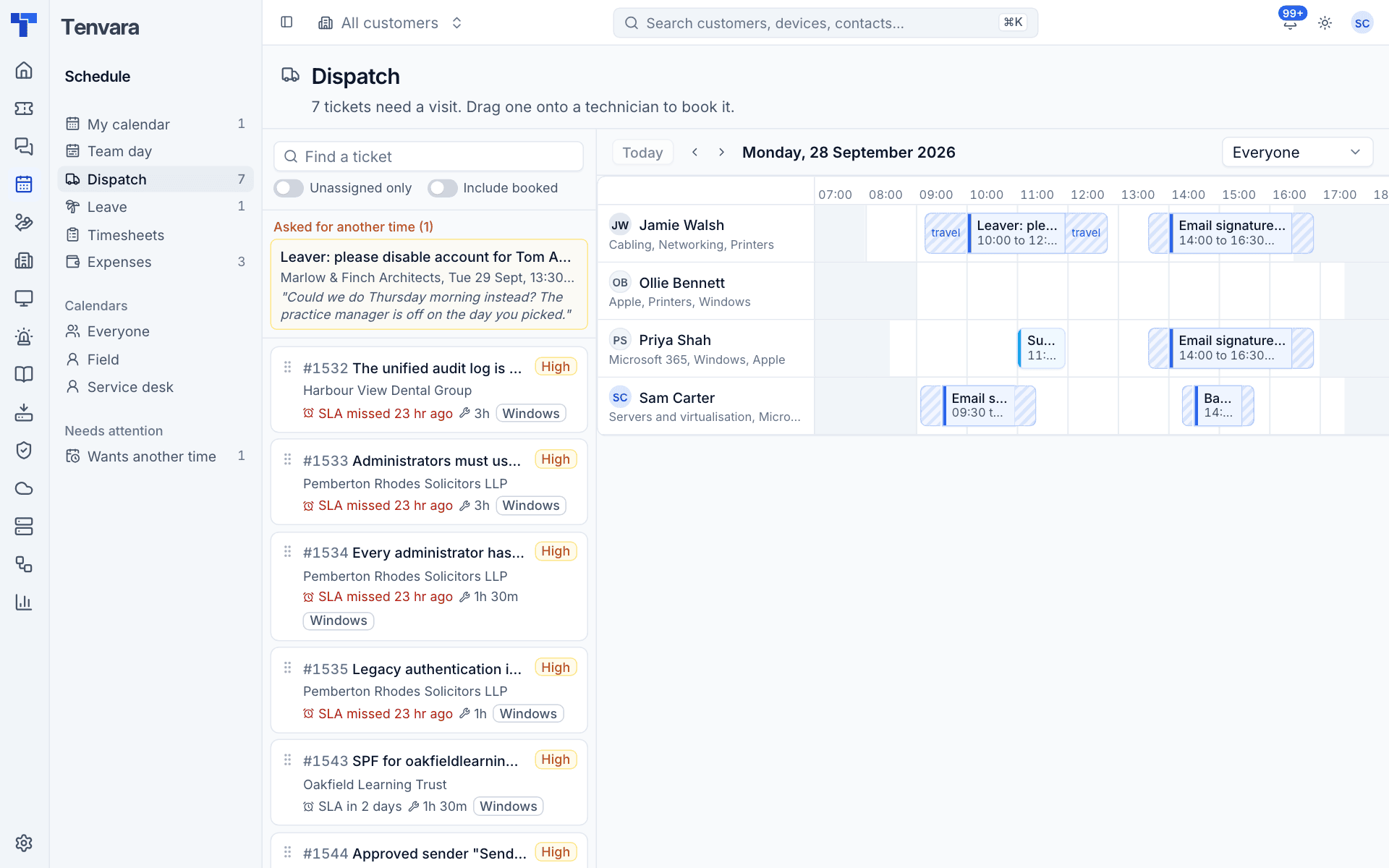
The dispatch board is where a dispatcher turns tickets into visits. On the left is the list of open tickets that need someone onsite and have nothing booked yet; on the right is one day with a row per technician. Drag a ticket onto a row and it is booked.
Open it from Schedule > Dispatch. The count in the sidebar is how many tickets are waiting.
Which tickets are listed
A ticket appears on the board when it is open, has no visit booked and either:
- someone switched on Needs a visit on the ticket, or
- its ticket type or status is one of those named in Settings > Scheduling > Dispatch (for example a type called "Onsite work" or a status called "Needs onsite").
Resolved and closed tickets are never listed.
Each card shows the ticket number and subject, priority, customer, SLA state, how long the visit needs and the skills it needs.
Above the list:
- Find a ticket searches the list.
- Unassigned only hides tickets that already have a technician.
- Include booked also shows tickets that already have a visit.
Flag a ticket as needing a visit
- Open the ticket and find the Visits block.
- Switch on Needs a visit ("Put it on the dispatch board").
- Use the pencil to say How long it needs (for example
2hor90m), the Kind of visit (a booking type, or the default) and the Skills it needs. - Press Save. The ticket appears on the board straight away.
A ticket also needs the skills set for its ticket type. Set those under Settings > Scheduling > People and skills, in Skills each ticket type needs.
Suggested times
Click a ticket card to see suggested slots across the top of the board. Tenvara looks for people who:
- have the skills the ticket needs (best first);
- are free for the length of the visit plus travel either side;
- are inside their working hours;
- are not on leave, and it is not a bank holiday or office closure.
The strip says what it is looking for, for example "3h, 30 minutes travel each way, needs Servers and virtualisation", then lists the slots with the person and time. People with a matching skill are highlighted in the rows below.
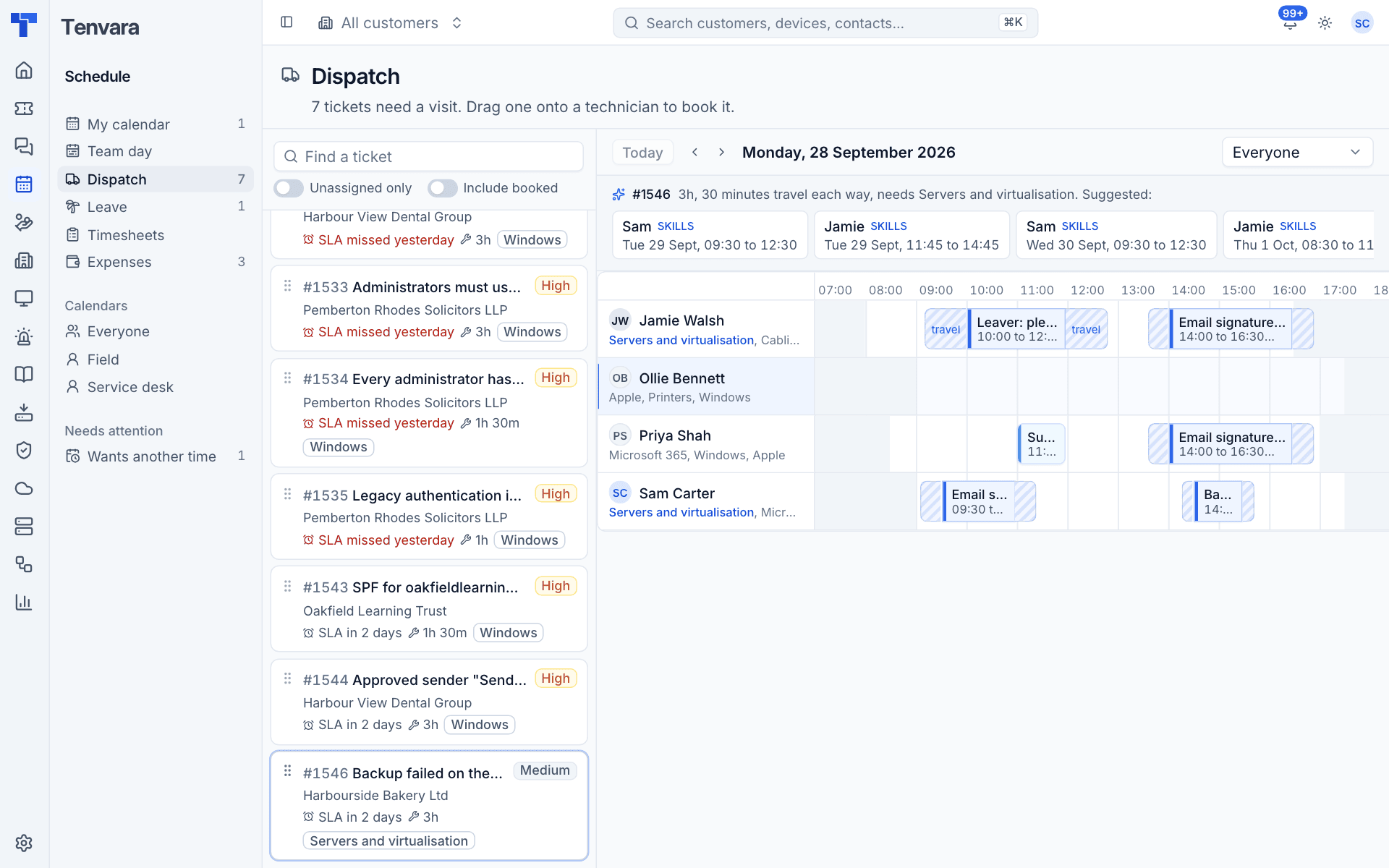
Click a suggested slot to open Book a visit for the ticket, already filled in with that person and time. The dialog lists every suggestion with the reason for it, for example "Has Servers and virtualisation (expert), a long free stretch", and people without the skills at the bottom, so you can switch to another one. Check the site, contact and travel, leave Email the customer to confirm on or off, and press Book.
Or skip the suggestions and drag the ticket onto any row and time you prefer.
Book by dragging
- Use Today and the arrows to get to the right day, and the dropdown to show Everyone or a team.
- Drag the ticket card onto a technician's row at the start time you want.
- Tenvara creates the booking with the ticket's length, the default visit type and travel from the site. If it clashes with something, you are told.
- The ticket leaves the list, the technician is notified and, if Settings say so, the customer is emailed.
To reassign a booking, drag it from one technician's row to another. To change anything else, click it to open the booking panel.
Customers who asked for another time
When a customer uses their confirmation link to ask for another time, the visit goes to the top of the board under Asked for another time, with their note. It is also listed under Needs attention > Wants another time in the sidebar.
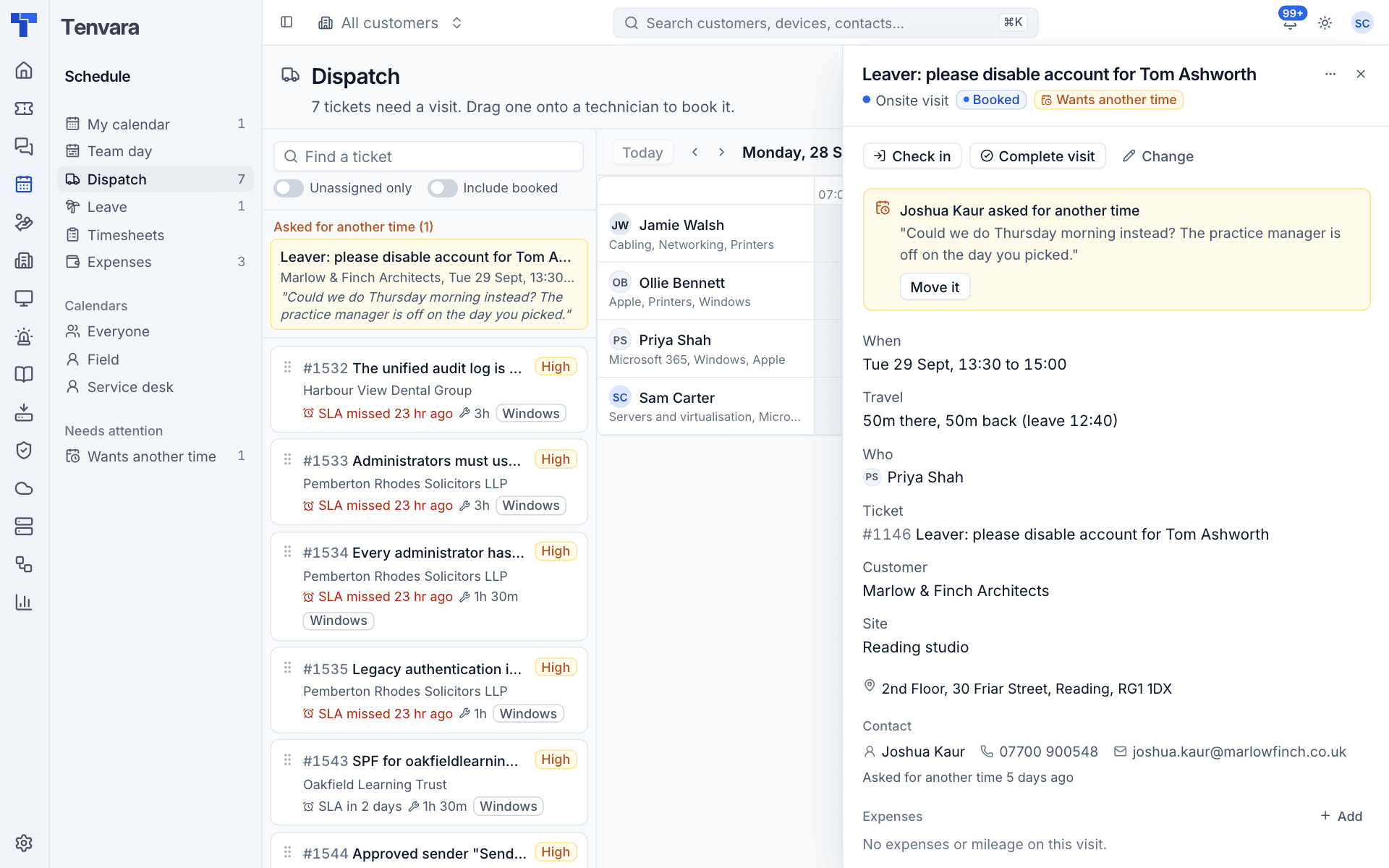
- Click the card to open the booking. The panel shows who asked, when and what they said.
- Press Move it, choose the new time and save. Or drag the booking to a new slot.
- The customer is emailed the new time with an updated calendar invitation, and their earlier answer is cleared.
Dispatch settings
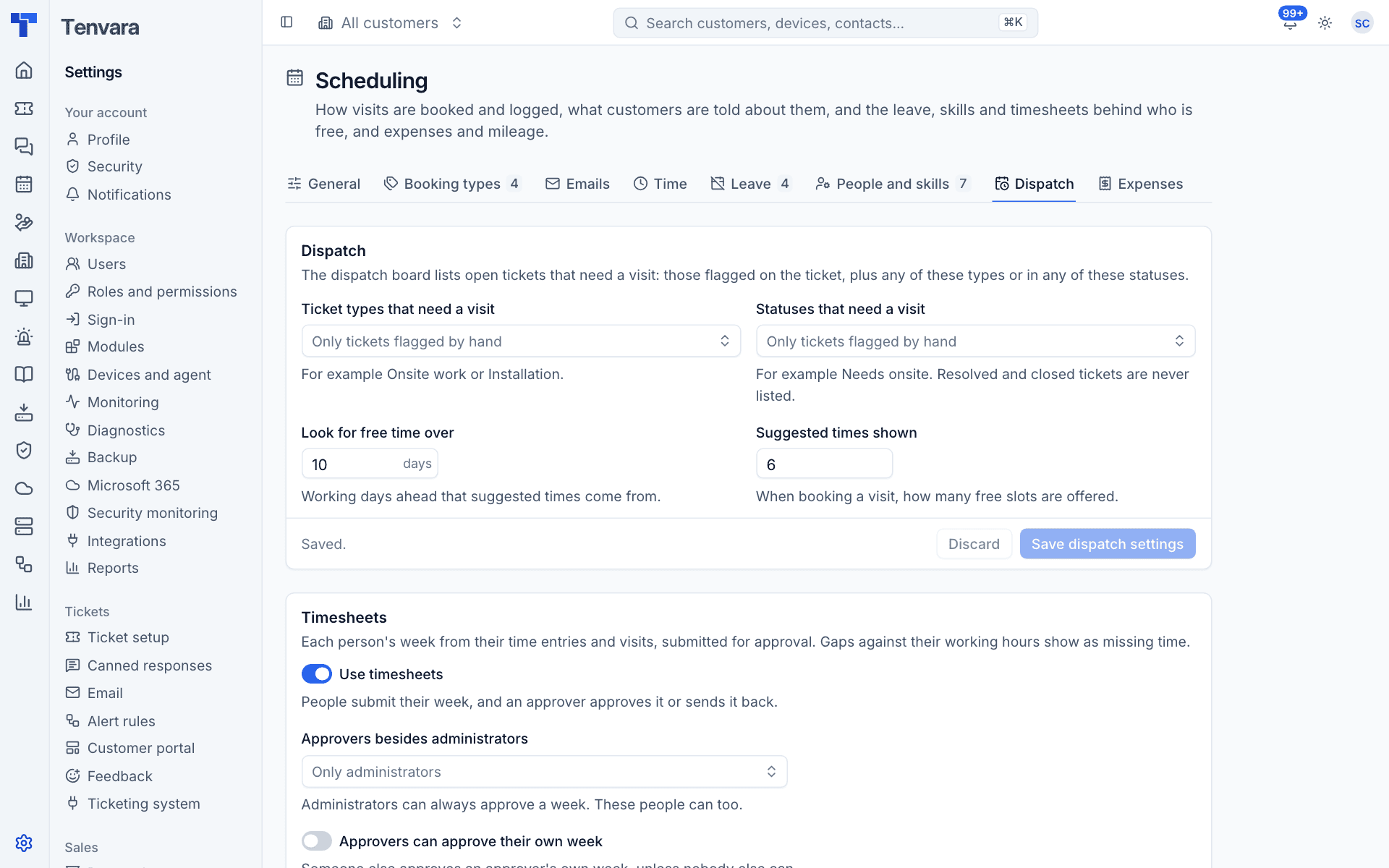
Settings > Scheduling > Dispatch controls the board:
| Setting | What it does |
|---|---|
| Ticket types that need a visit | Tickets of these types are listed without being flagged. Empty means only tickets flagged by hand |
| Statuses that need a visit | Tickets in these statuses are listed too |
| Look for free time over | How many working days ahead suggested times come from |
| Suggested times shown | How many free slots are offered |
The same tab holds the timesheet settings. See Timesheets.
Tip: Customers who told you they want another time are also sent to the technicians on the visit, whoever booked it and anyone named under Also tell in Settings > Scheduling > Emails, so the dispatcher hears about it even when they are not on the board.
Was this page helpful?
Thanks for the feedback.