Scheduling overview
What the Schedule area covers, how to read the calendar in its day, week, month and team views, and who can do what.
Scheduling is where you plan who goes where and when. A booking puts one or more technicians in the diary for a customer (usually against a ticket), with travel either side, and Tenvara takes it from there: the customer gets a confirmation with a calendar invitation, the technician checks in and completes the visit, and the time lands on the ticket through your contract rules.
The same area holds the things that decide who is free: working hours, leave, bank holidays and skills. It also holds the weekly timesheets and the expenses and mileage technicians claim back.
The Schedule sidebar
Open Schedule from the rail. The sidebar has:
- My calendar: your own bookings, leave and working hours.
- Team day: everyone's bookings for one day, a row per person.
- Dispatch: open tickets that need a visit, ready to drag onto a technician. See The dispatch board.
- Leave: ask for time off, answer requests and see who is away.
- Timesheets: your week of logged time against the hours you work.
- Expenses: expenses and mileage to claim back, and approvals.
- Calendars: quick filters for Everyone and for each team you set up (for example Field and Service desk).
- Needs attention: Wants another time lists visits where the customer asked to move.
The numbers next to each entry are what is waiting for you, such as leave requests to answer or expenses to approve.
Reading the calendar
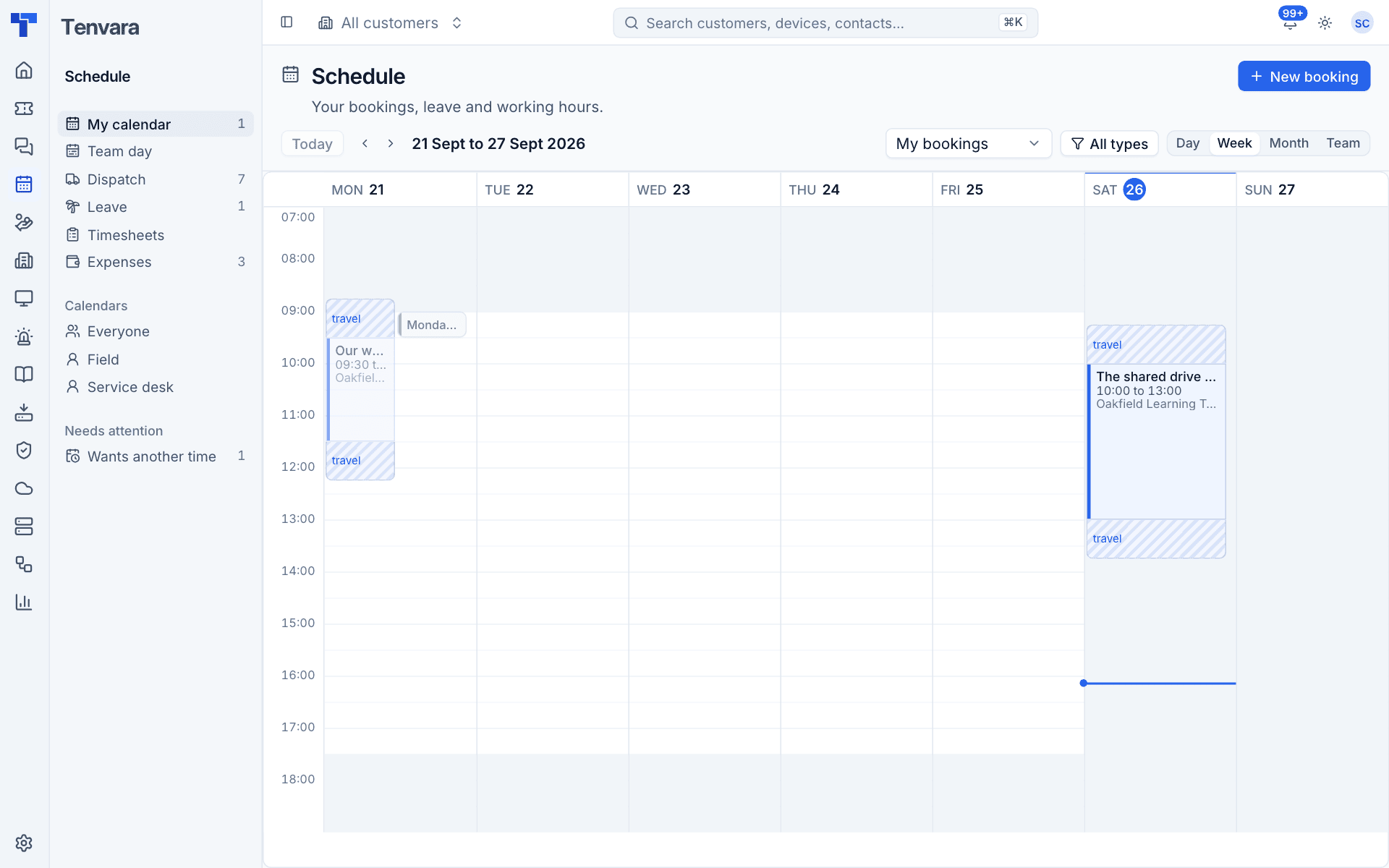
The toolbar across the top of the calendar controls what you see:
| Control | What it does |
|---|---|
| Today and the arrows | Jump to today, or step back and forward a day, week or month |
| My bookings / Everyone / a team | Whose bookings are shown |
| All types | Filter by booking type, for example only onsite visits |
| Day, Week, Month, Team | The layout |
Each booking shows its title, times and customer, in the colour of its booking type. Travel before and after an onsite visit is drawn as a lighter, striped band marked travel, so you can see when the technician actually leaves and gets back. Hours outside working time are shaded, and a line marks the current time.
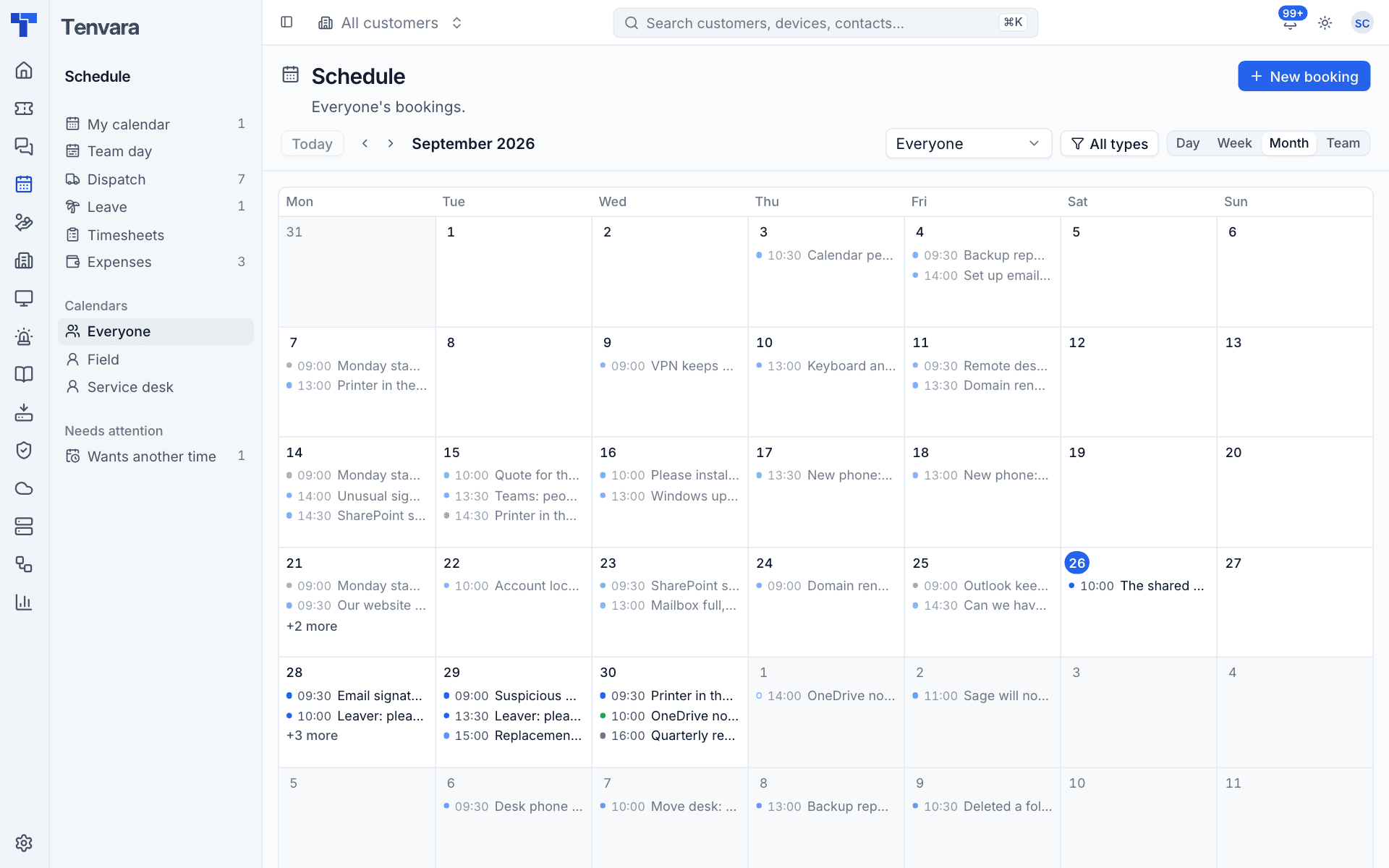
The Month view lists each day's bookings with their start time; a busy day shows the first few and a "+2 more" link.
The Team view is one day with a row per person, their team underneath their name. It is the easiest way to spot gaps and double bookings across the whole team.
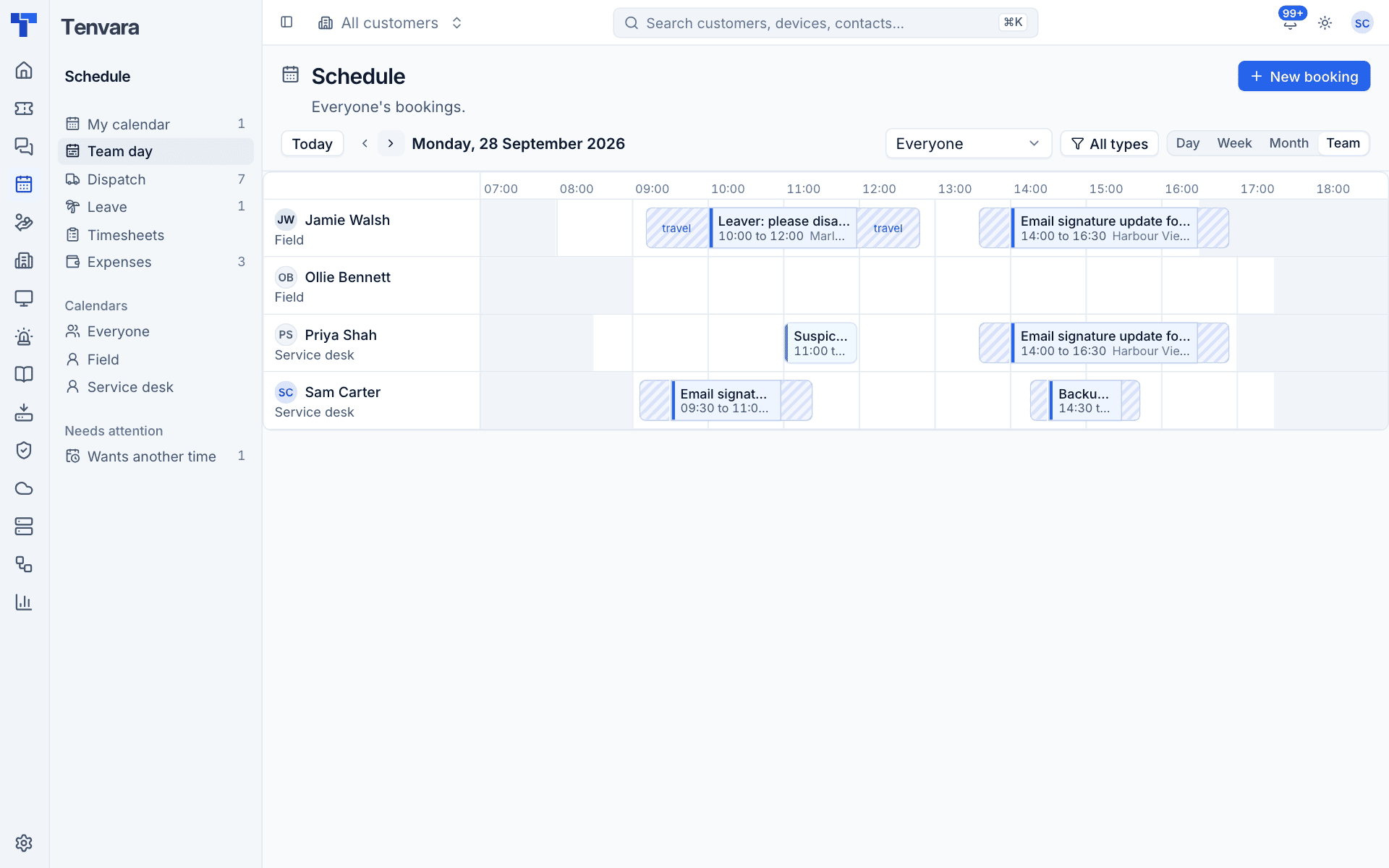
Tip: The hours the calendar shows (07:00 to 19:00 by default) and the step bookings snap to when you drag them are set in Settings > Scheduling > General. Earlier and later hours are a scroll away.
Booking statuses
| Status | Meaning |
|---|---|
| Pencilled in (tentative) | Held provisionally. It still blocks the technician's time |
| Booked | In the diary |
| Confirmed | The customer confirmed the time from their email |
| In progress | The technician has checked in |
| Completed | Done, with the time logged |
| Cancelled | Called off. It no longer holds anyone's time |
| No access | The technician turned up and could not get in |
Pencilled in, booked, confirmed and in progress bookings all hold the technician's time, so nobody else can be booked over them without a clash warning.
Next to the status a second badge shows the customer's answer, for example Customer confirmed or Wants another time.
Keyboard shortcuts
| Key | Where | Action |
|---|---|---|
t |
Calendar and dispatch | Go to today |
| Left and right arrows | Calendar and dispatch | Step back and forward |
n |
Calendar | New booking |
d, w, m, l |
Calendar | Day, week, month and team views |
e |
Booking panel | Change the booking |
Shortcuts only act when you are not typing in a dialog, a dropdown list or a menu.
Where else visits show up
- Tickets: the ticket's Visits block lists its bookings and has Book and the Needs a visit switch. See Booking a visit.
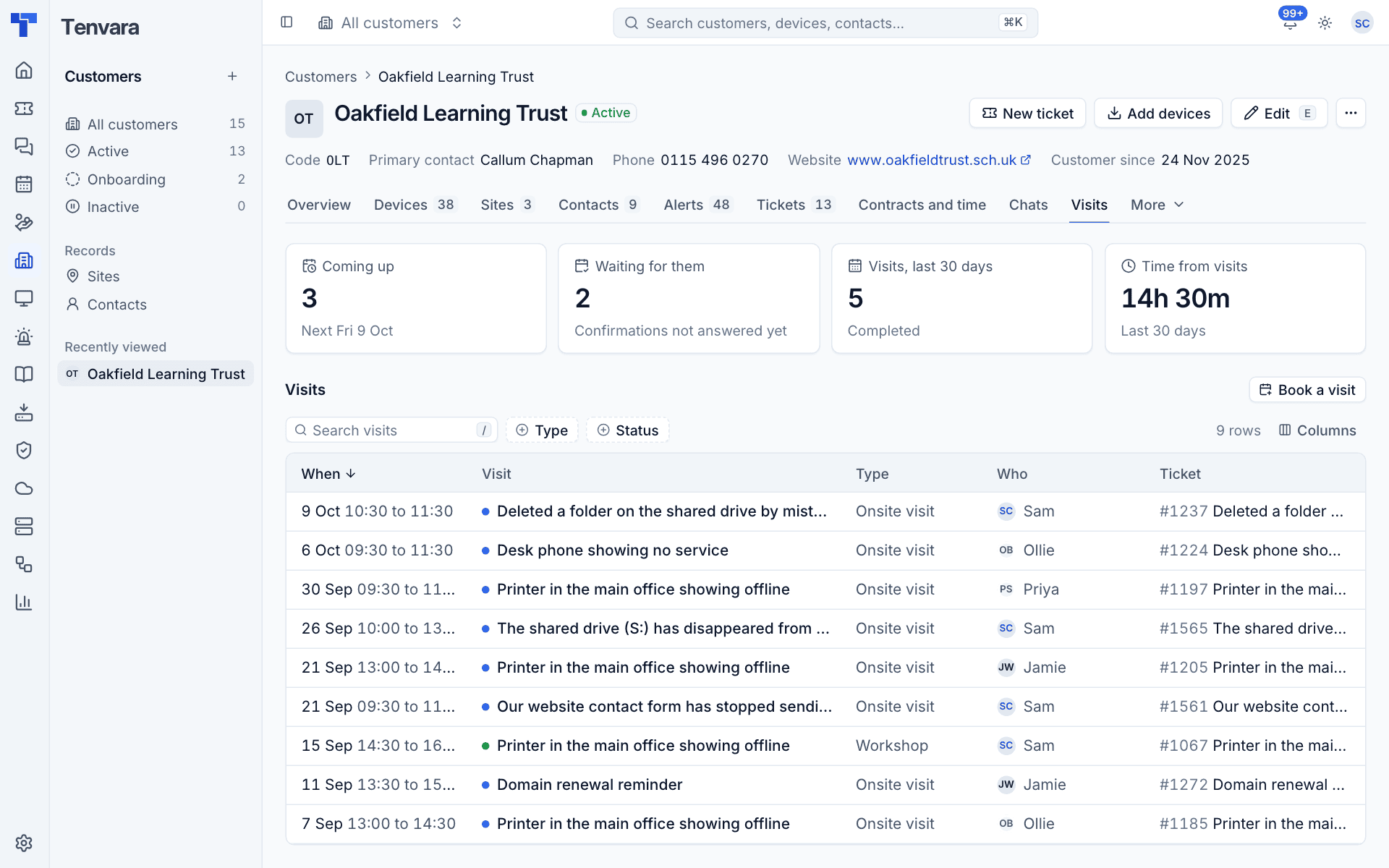
- Customers: the Visits tab lists every visit for the customer, what is coming up, confirmations not yet answered and the time logged from visits.
- Sites: the Visiting card holds travel time, miles from the office and access notes.
- Notifications: you are told when you are booked, moved or taken off a visit, when a visit is cancelled, when a customer confirms or asks for another time, and when a technician marks no access.
What scheduling does not do
There are no repeating (recurring) bookings: book each visit on its own. There is no two-way sync with Outlook or Google calendars; instead customers receive a standard calendar invitation with each confirmation, which updates when the visit moves and is withdrawn when it is cancelled.
Permissions
Scheduling has its own area in Roles and permissions:
| Level | What it allows |
|---|---|
| View | See the calendar, dispatch board, roster and settings |
| Manage | Book, move, reassign and cancel visits, and flag tickets as needing a visit |
Technicians and administrators start with Manage; read only users start with View. Anyone booked on a visit can see it and work it (check in, complete, mark no access) whatever their scheduling access. Everyone can see leave, ask for their own and keep their own timesheet. Scheduling settings are changed by administrators.
If the Scheduling module is switched off in Settings > Modules, the area disappears for everyone.
Was this page helpful?
Thanks for the feedback.