Maintenance windows and mutes
Hold monitoring alerts back during patching nights and planned work, or mute one noisy rule on one device, without losing anything.
Maintenance windows and mutes both stop monitoring alerts being raised for a while. Neither loses anything: the rules keep running the whole time, and when the window or mute ends, anything still wrong is raised within a minute.
| Maintenance window | Mute | |
|---|---|---|
| Covers | Every device a policy reaches, or one device | One rule on one device, or every monitoring alert on it |
| When | Once, every day, or weekly on chosen days | From now until a set time |
| Good for | Patching nights, planned work, reception PCs switched off at night | A known issue someone is working on, a backup job that runs long |
An alert that is already open when a window or mute starts stays open.
Add a maintenance window to a policy
- Open the policy in Settings > Monitoring.
- Under Maintenance windows, click Add window.
- Give it a Name, for example Patching.
- Choose how it Repeats: Once, Every day or Weekly (then tick the days).
- Set when it starts and ends, and the Time zone. Times are on that clock, so a 22:00 window stays at 22:00 when the clocks change.
- Check the summary in words at the bottom, for example Once, 26 Sep 22:00 to 27 Sep 00:00 (Europe/London), and click Add window.
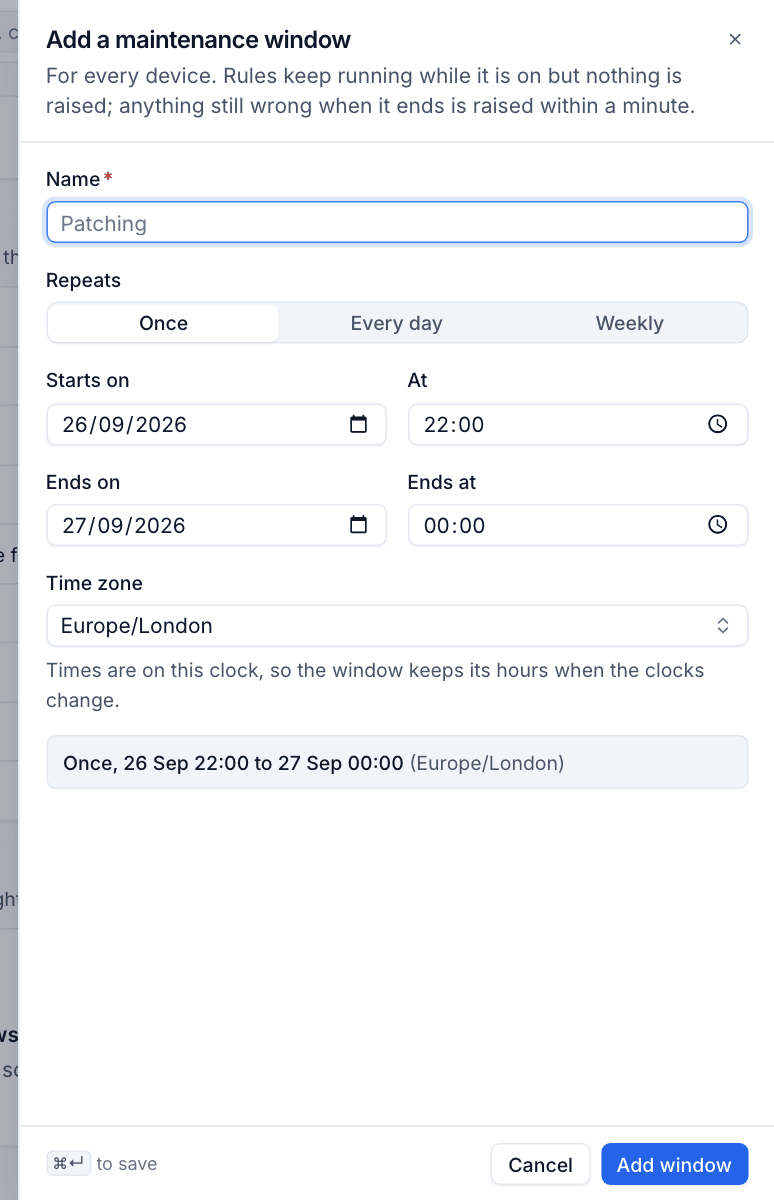
The window applies to every device the policy reaches. In the demo, Hartley & Webb's customer policy has a Sunday patching window, and the Reception PCs group has a nightly one.
Tip: Line your monitoring windows up with the maintenance windows in your patch policies, so restarts after patching do not page anyone.
Add a maintenance window to one device
- Open the device.
- On the Monitoring card in the side column, click Add beside Maintenance windows.
- Fill it in as above.
While a device is in a window, its health shows a maintenance chip and a notice. The Monitoring card shows the next window, or when the current one ends.
Mute an alert
You can mute from three places:
- a monitoring alert: Mute mutes that rule on that device;
- a device page: Mute on the Monitoring card, or press
M; - a check's history: Mute at the top.
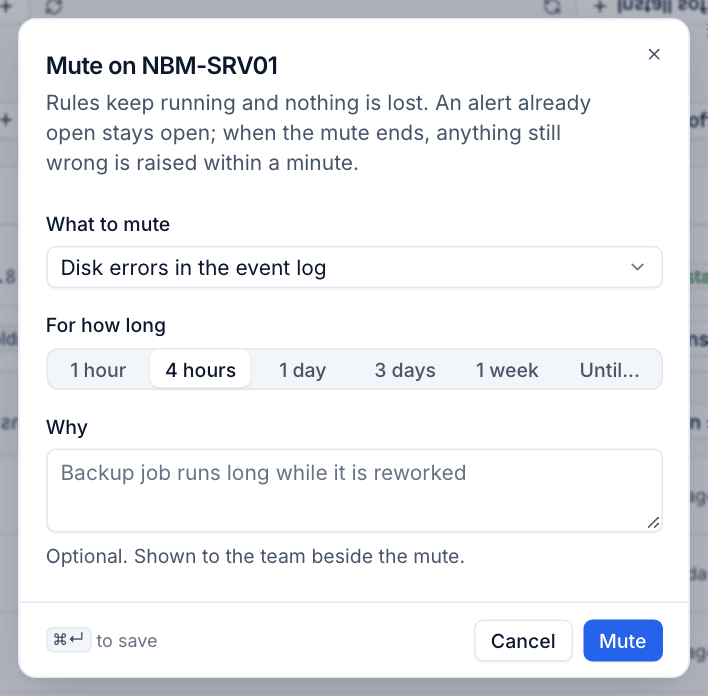
- Under What to mute, pick one check or rule on the device, Offline, or Every monitoring alert on this device.
- Choose For how long: 1 hour, 4 hours, 1 day, 3 days, 1 week, or Until... a date and time.
- Optionally say Why. The reason is shown to the team beside the mute.
- Click Mute.
See and end mutes
Settings > Monitoring lists everything Muted now, with the device, what is muted, until when, who muted it and why.
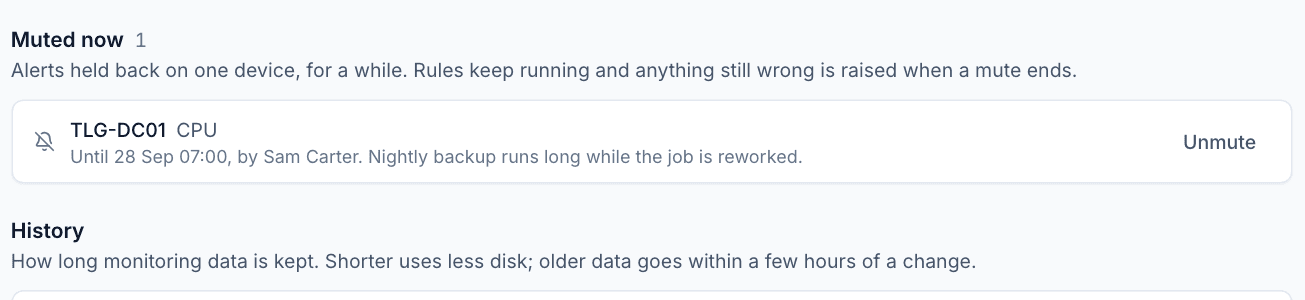
- Click Unmute to end a mute early. Anything still wrong is raised at the next minute.
- A device's Monitoring card lists its own mutes, each with Unmute.
Note: Windows and mutes only hold back monitoring alerts. Alerts from other sources, such as backup or security, are not affected.
Was this page helpful?
Thanks for the feedback.