Connecting licence sources
Add Pax8 or Microsoft Partner Center as a licence source, test it, sync it and read its sync history.
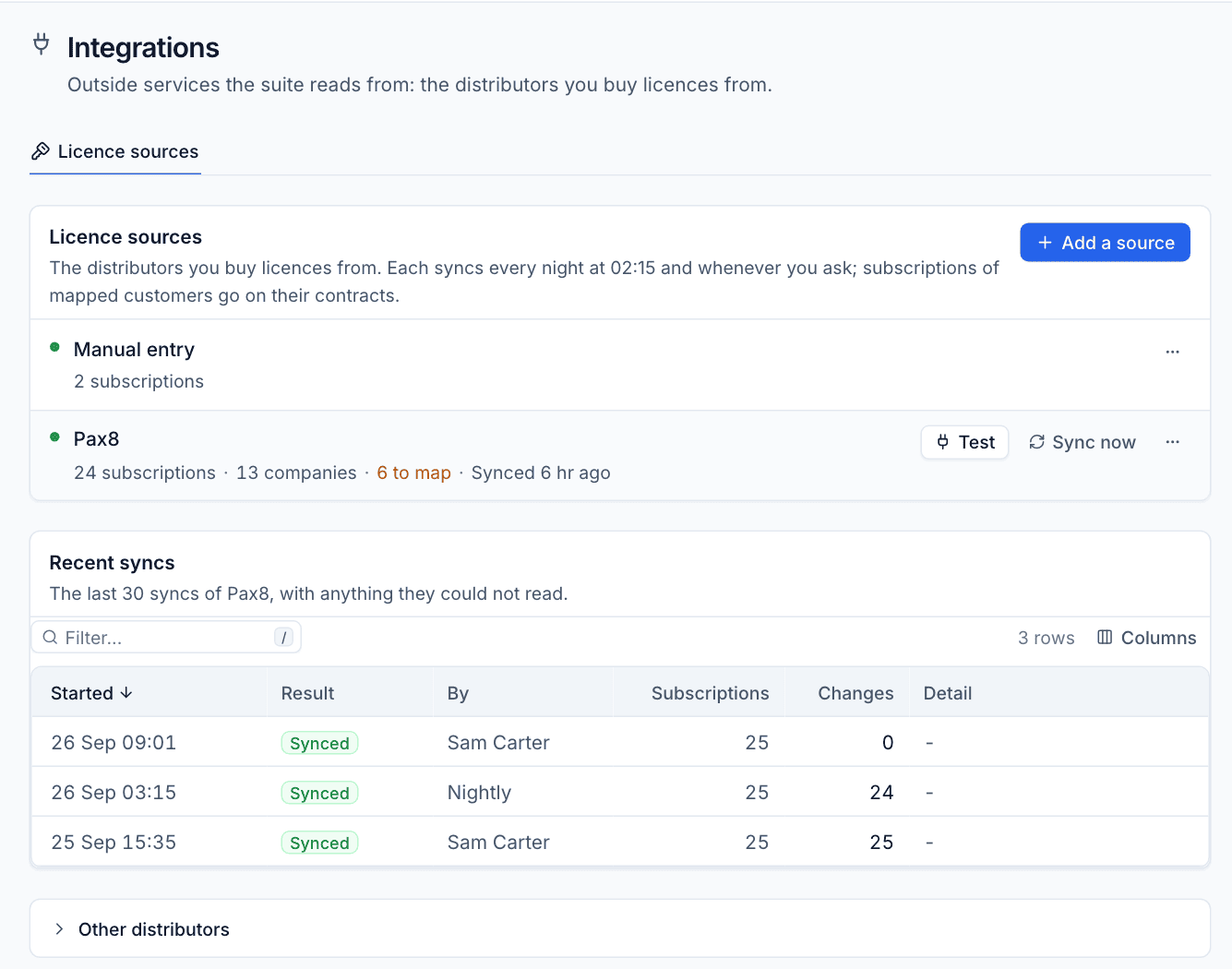
A licence source is a distributor account Tenvara reads subscriptions from. Sources are set up by an administrator in Settings > Integrations, on the Licence sources tab.
Supported sources
| Source | How it works |
|---|---|
| Pax8 | Synced from its API. Reads companies, subscriptions, products, costs and prices. Seat changes you make in Tenvara are sent to Pax8. |
| Microsoft Partner Center | Synced from its API, for subscriptions you buy directly from Microsoft as a CSP partner. Seat changes are sent to Partner Center. Partner Center gives no prices, so cost and price come from the catalogue item each product is mapped to. |
| Manual entry | Subscriptions you type in yourself, for licences bought somewhere Tenvara cannot read. There is at most one manual source, created the first time you add a subscription by hand. |
Under Other distributors at the bottom of the page you will see Giacom and TD SYNNEX. Both are marked Not in this version and cannot be added yet.
Add a Pax8 source
First create an API client in Pax8:
- Sign in to the Pax8 portal.
- Go to Integrations, then API credentials, and create a new API client.
- Copy the client id and the client secret.
Then add it in Tenvara:
- Go to Settings > Integrations.
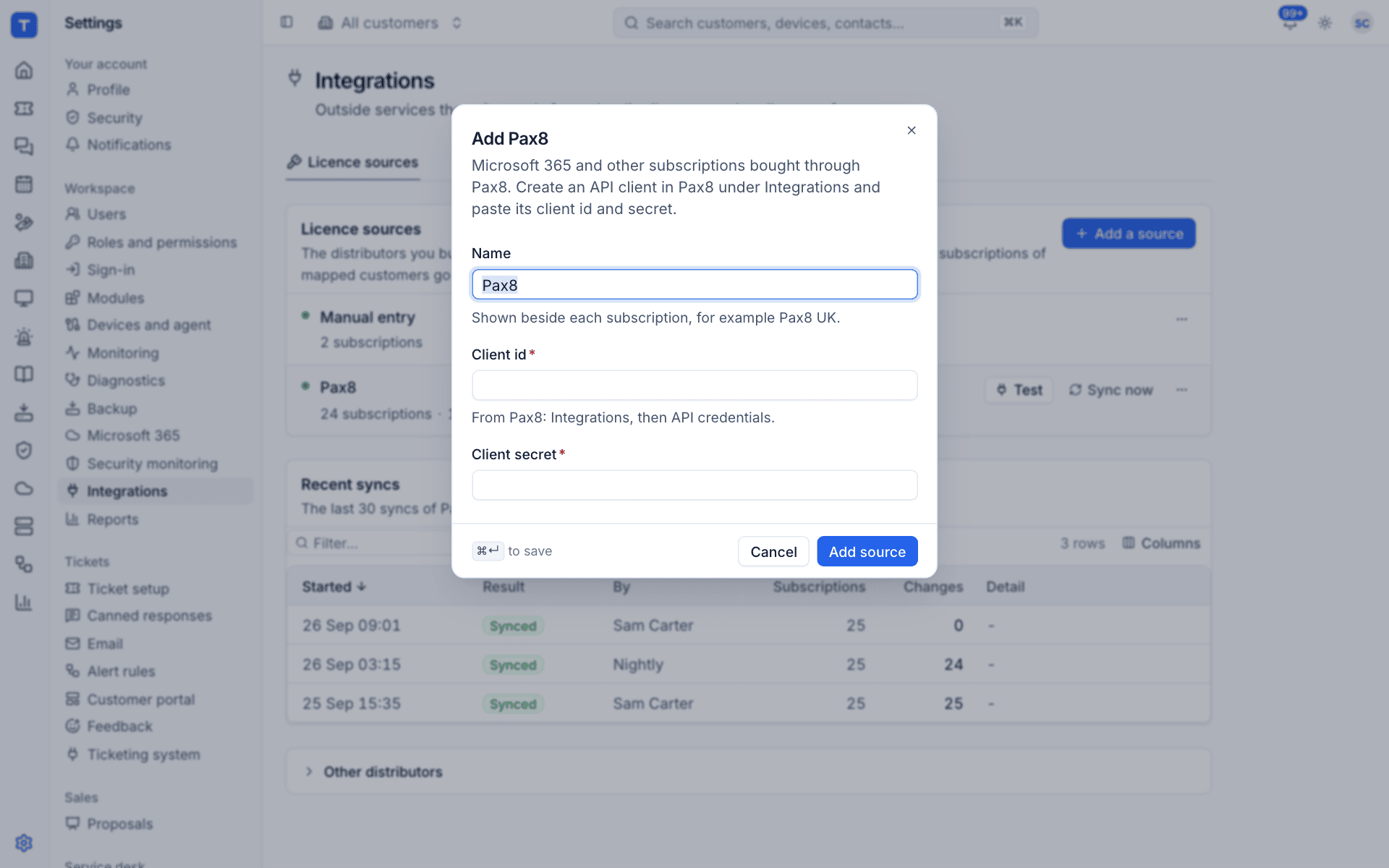
- Select Add a source, then choose Pax8.
- In Name, enter how the source should appear beside each subscription, for example "Pax8 UK". It defaults to "Pax8".
- Paste the Client id and Client secret.
- Select Add source.
Add a Microsoft Partner Center source
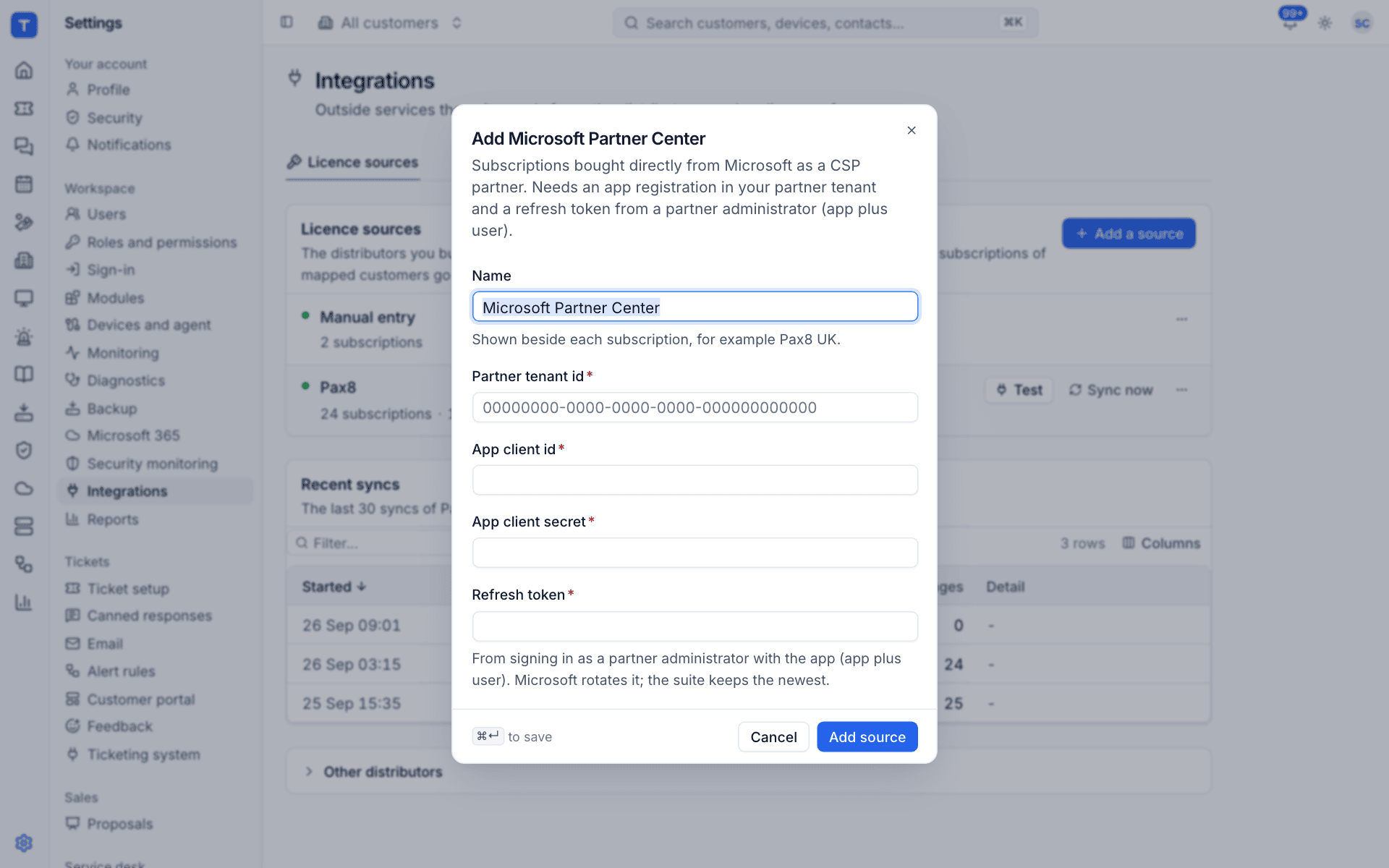
Partner Center uses an app plus user connection. You need:
- your Partner tenant id (the directory id of your partner tenant),
- an app registration in your partner tenant, with its App client id and App client secret,
- a Refresh token from signing in to that app as a partner administrator.
To add it:
- Go to Settings > Integrations.
- Select Add a source, then choose Microsoft Partner Center.
- Enter a Name, then the Partner tenant id, App client id, App client secret and Refresh token.
- Select Add source.
Note: Microsoft rotates the refresh token each time it is used. Tenvara saves the newest one automatically, so you only paste it once. If the partner administrator's sign-in is revoked, edit the source and paste a fresh token.
Test and sync
Each source has two buttons on its row:
- Test checks the credentials and tells you what it found, for example how many companies it can see. Nothing is changed.
- Sync now reads the source straight away instead of waiting for the nightly run.
Under the source name you will see a summary: how many subscriptions and companies it has, how many companies are still to map, and when it last synced.
Every source also syncs automatically each night at 02:15.
Tip: After adding a source, press Sync now and then go to Mapping. Tenvara will already have suggested a customer for most companies, so confirming them is usually a couple of clicks.
Recent syncs
The Recent syncs table lists the last 30 syncs of the source:
| Column | Meaning |
|---|---|
| Started | When the sync began |
| Result | Synced, a partial result, or a failure |
| By | The person who pressed Sync now, or Nightly for the scheduled run |
| Subscriptions | How many subscriptions were read |
| Changes | How many change log entries the sync produced |
| Detail | Anything it could not read, or the error if it failed |
A sync that fails changes nothing: your subscriptions stay as they were and the error is shown here. If a source suddenly returns no companies or no subscriptions where it had some before, Tenvara does not believe it. Nothing is marked as cancelled and the run is recorded as partial with a warning. When Partner Center refuses access to one customer's data, the run is partial and names that customer; the rest of the customers still sync.
Edit, turn off or delete a source
Open the ... menu at the end of a source's row.
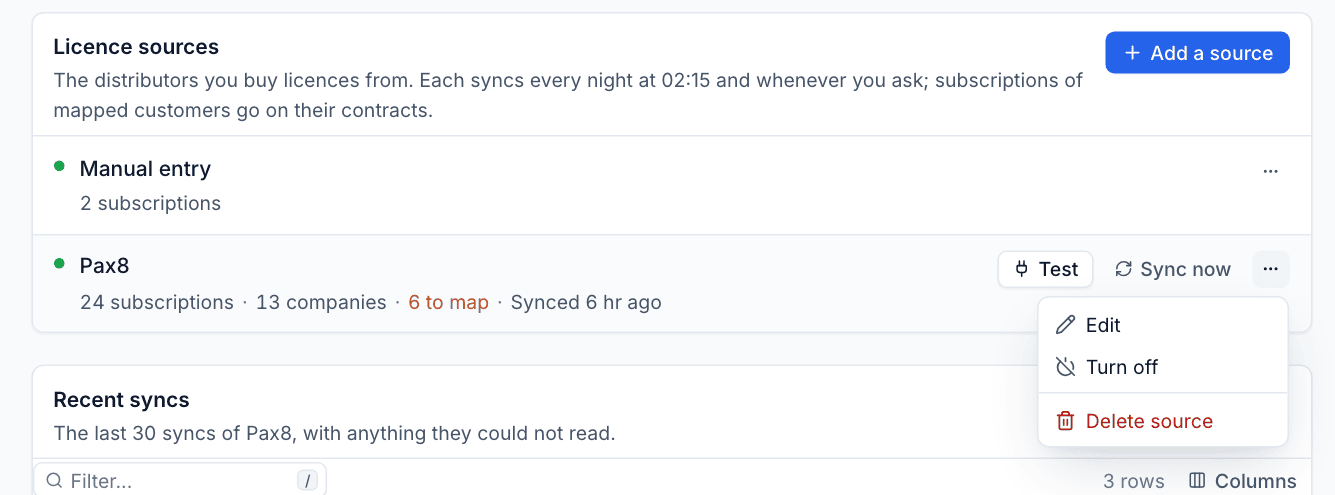
- Edit opens the same form as when you added it. Secret fields show "Stored. Leave empty to keep it, or type a new one." so you can change the name without re-entering secrets.
- Turn off stops the source syncing without removing its data.
- Delete source removes the source.
Warning: Credentials are stored encrypted and are never shown again after you save them. Keep a copy in your own password manager if you need it elsewhere.
Was this page helpful?
Thanks for the feedback.