Patching
Approve operating system updates, install them in maintenance windows by policy, handle restarts, and track compliance across every customer.
Tenvara patches Windows, macOS and Linux through the agent. It scans each device for missing updates, installs the ones that are approved inside the device's maintenance window, and restarts the way the device's policy says. On Windows the agent takes over Windows Update so only approved updates are installed, and only by the agent. On macOS it uses Software Update, and on Linux apt, dnf or yum.
Open Devices > Patches. The tabs across the top are Overview, Updates, Devices, Policies and History.
Overview and compliance
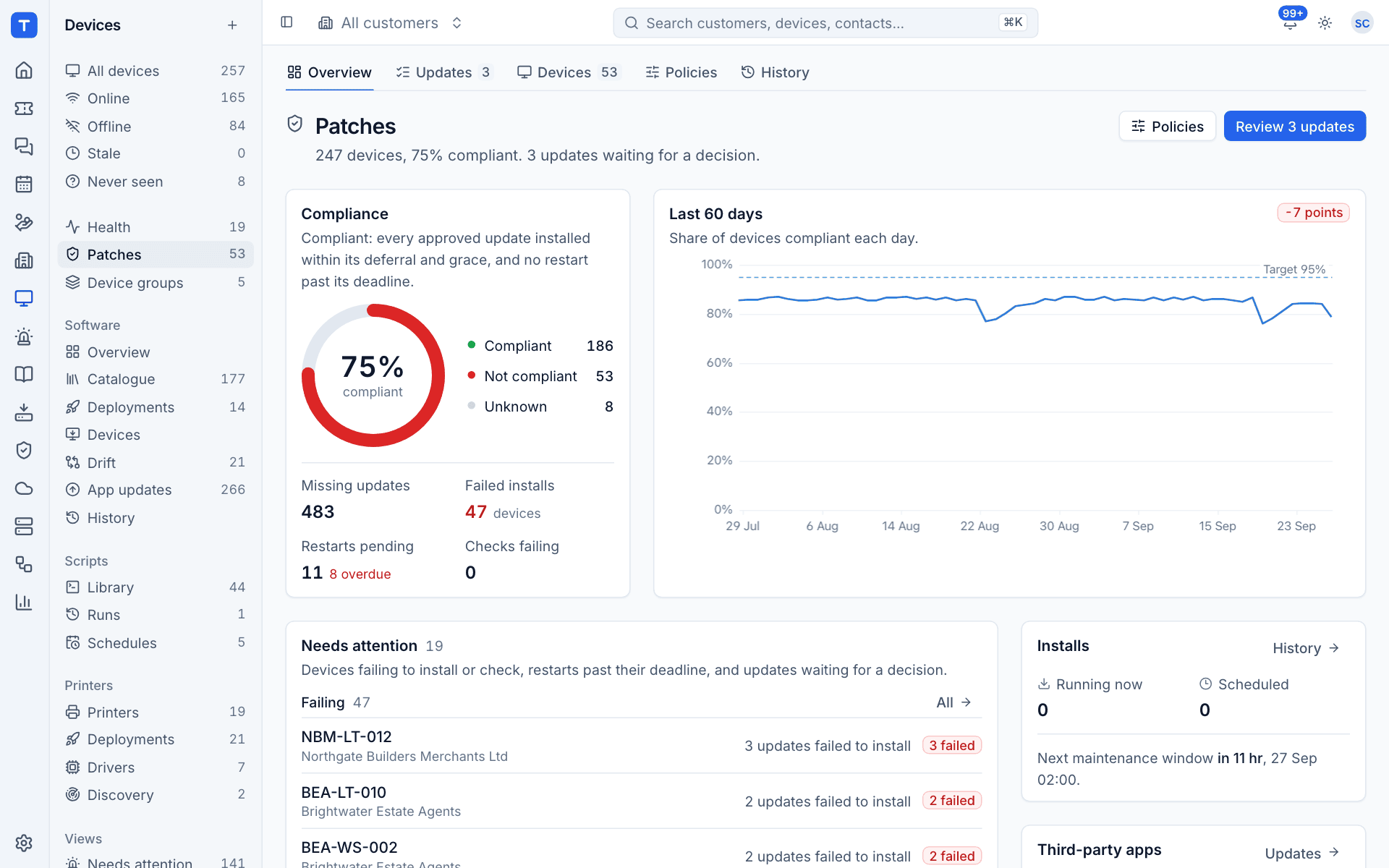
A device is compliant when every approved update is installed within its deferral and grace period, and no restart is past its deadline. The overview shows:
- Compliance: the share of devices compliant, not compliant and unknown, with missing updates, failed installs, restarts pending (and overdue) and checks failing.
- Last 60 days: the share of devices compliant each day, against a 95% target.
- Needs attention: devices failing to install or check, Restarts overdue, and Waiting for a decision, the updates no policy approves on its own. Approve or Decline them here.
- By customer: every customer, least compliant first.
- Installs: what is running now, what is scheduled and when the next maintenance window opens.
- Third-party apps: app updates waiting, linking to Software deployment.
Approving updates
Updates lists every update any device has reported, with its operating system, classification, severity, approval, release date and how many devices have it, are missing it or failed it. Filter by OS, Classification, Severity, Approval, Progress or Source.
Click an update to open it.
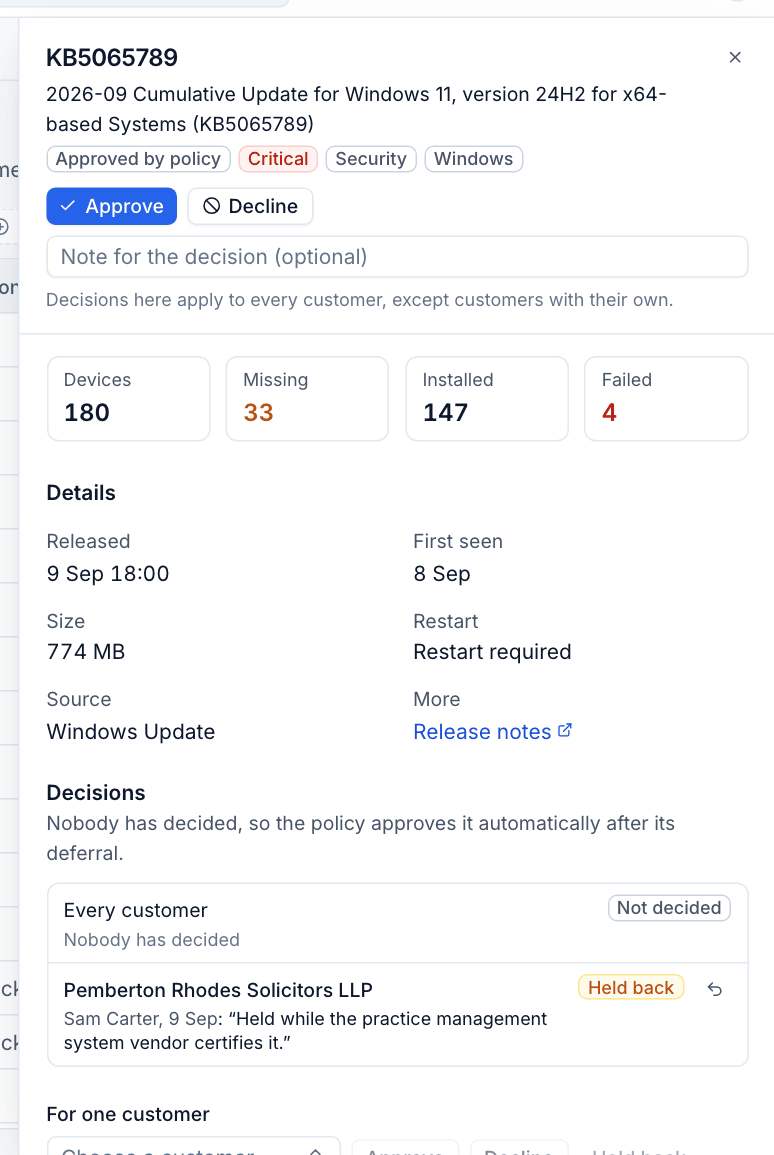
- Click Approve or Decline, and add a note if you like. Decisions here apply to every customer, except customers with a decision of their own.
- To decide for one customer only, pick the customer under For one customer and choose Approve, Decline or Hold back (for example while a software vendor certifies the update).
If nobody decides, the policy approves the update automatically after its deferral when its classification is set to approve automatically. Those show as Approved by policy.
Patch policies
Policies says what gets approved, when it installs and how devices restart. The most specific policy wins, setting by setting.
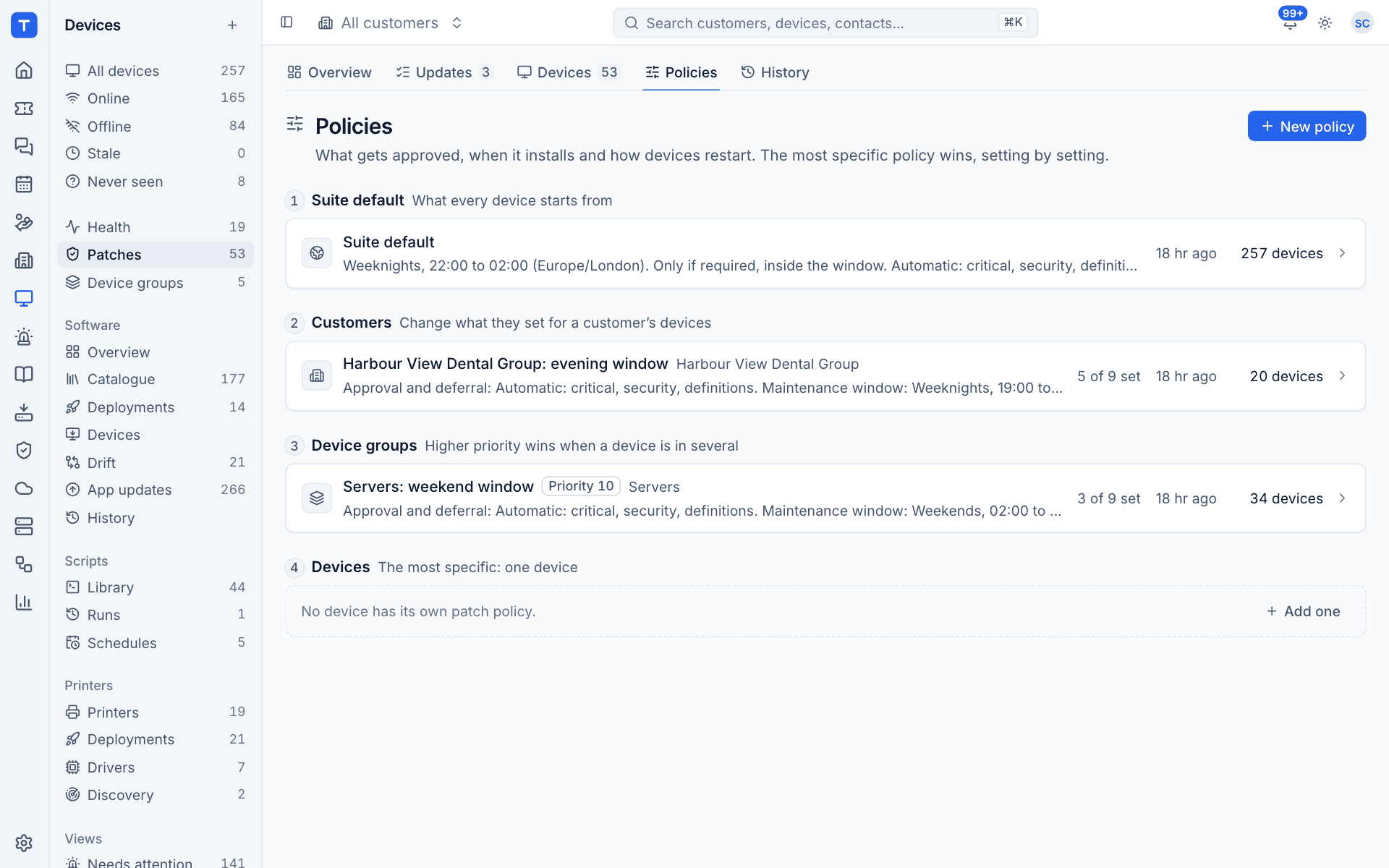
- Suite default: what every device starts from.
- Customers: change what they set for a customer's devices.
- Device groups: when a device is in several groups with policies, the higher Priority wins.
- Devices: one device's own policy, the most specific of all.
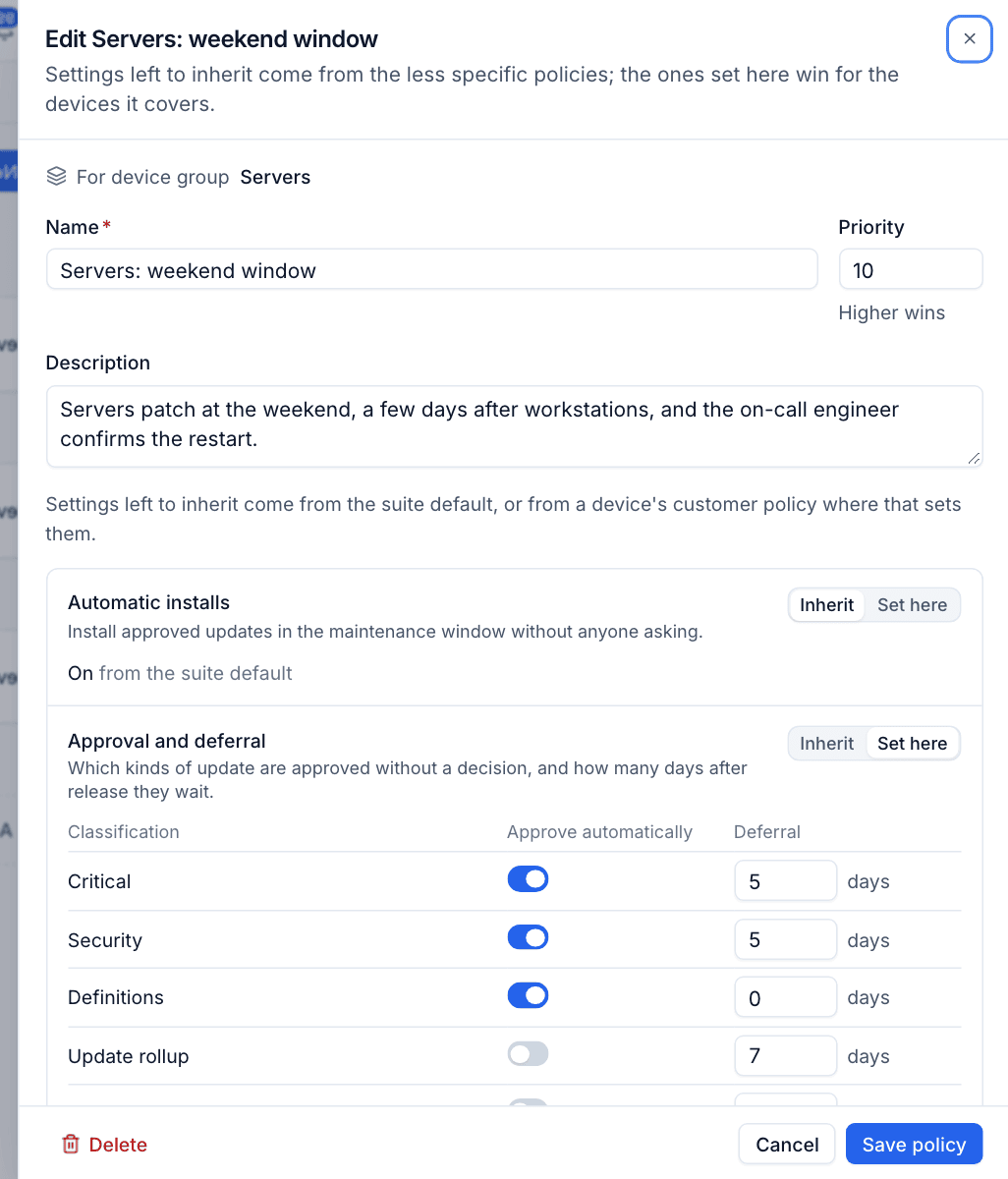
Click New policy, or a policy to edit it. Each setting is either Inherit (from the less specific policies) or Set here.
| Setting | What it controls |
|---|---|
| Automatic installs | Install approved updates in the maintenance window without anyone asking. |
| Approval and deferral | For each classification (Critical, Security, Definitions, Update rollup, Feature pack, Driver, Other): whether it is approved automatically and how many days after release it waits. |
| Maintenance window | The days, start time, length and time zone when scheduled installs and forced restarts may happen. A window that crosses midnight belongs to the day it starts. |
| Restarts | Only if required, inside the window; Prompt the user, with a deadline (the user may snooze by the choices you set until the deadline); Restart when required (a minute after the install, signed in or not); or Never. |
| Exclusions | Updates never approved automatically nor installed, by KB number or title. |
| Compliance | Grace days after an approved update is due before a device missing it counts as not compliant. |
| Checking for updates | How often the agent checks on its own (every 6 hours by default). |
| Third-party apps | Update apps from the software catalogue in the same window. |
| Windows Update | Managed by the agent stops Windows installing updates on its own, so only approved updates are installed. |
The Preview at the bottom shows which devices use the policy and when the next window opens.
Note: With Prompt the user, the person signed in sees a restart prompt from the Tenvara tray icon and can snooze it until the deadline. If nobody is signed in the device restarts straight away, and a prompt left unanswered for 15 minutes counts as agreement.
One device
The Patches section on a device page shows its compliance, when it last checked, the next window, the missing updates with their approval and due date, and recent installs.
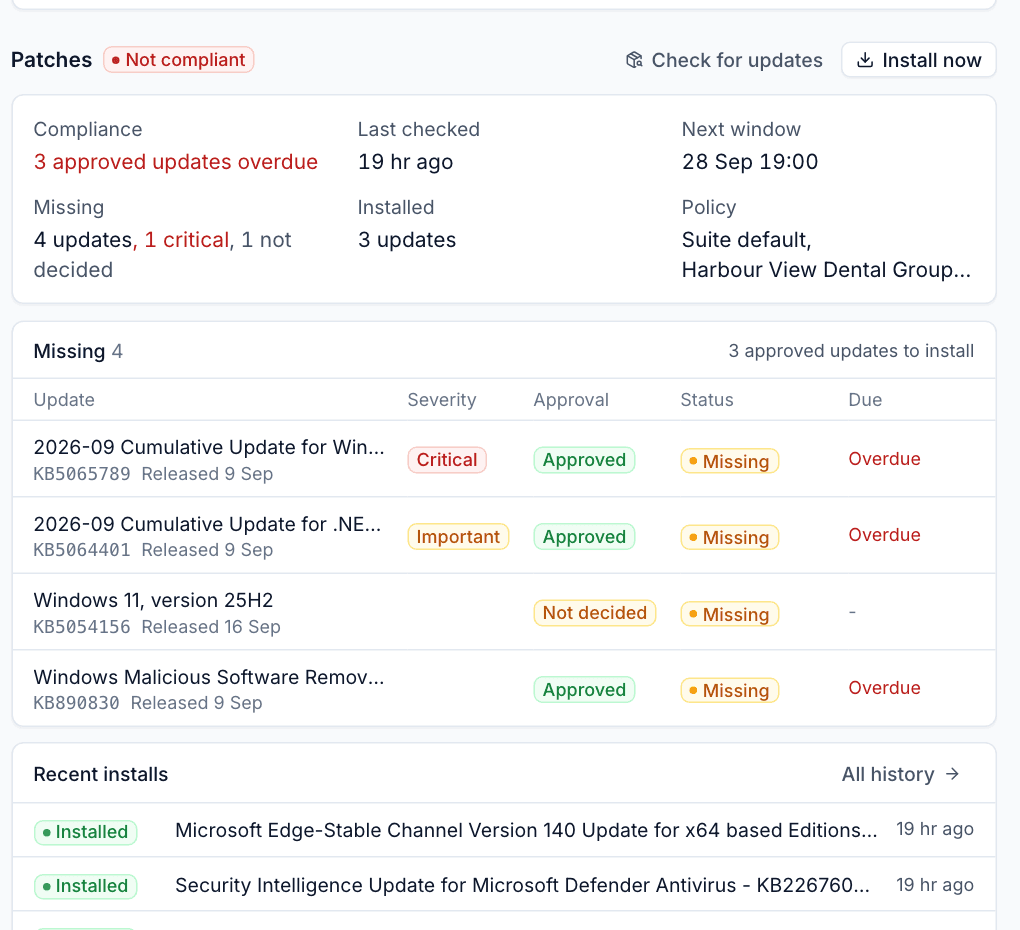
- Check for updates asks the agent to scan now.
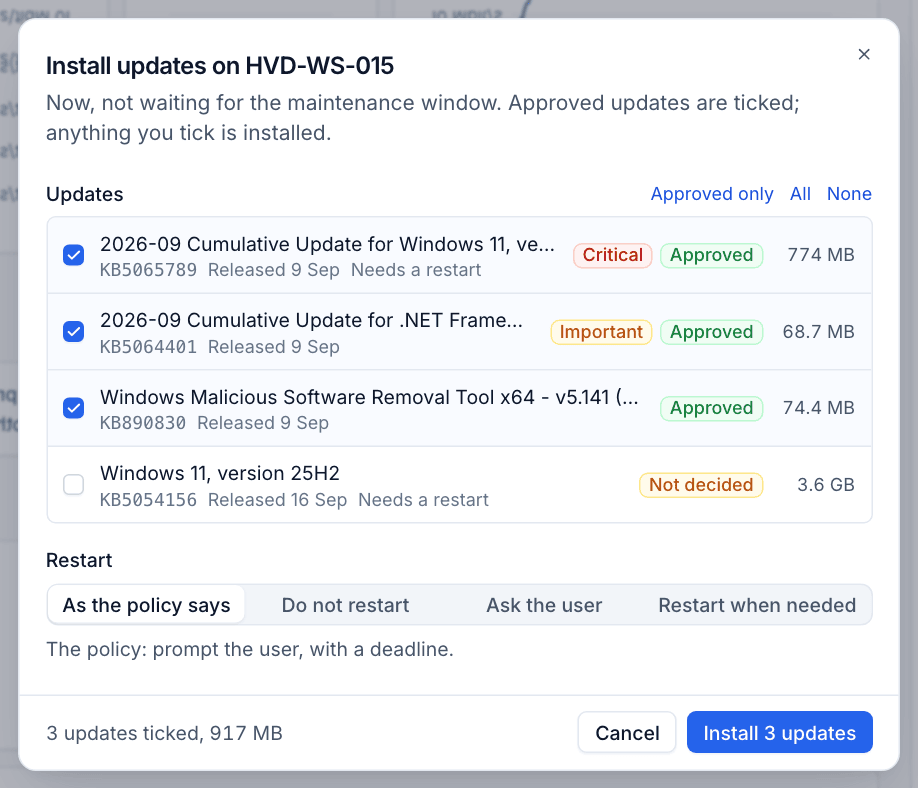
- Install now installs straight away, without waiting for the window. Approved updates are ticked; anything you tick is installed. Choose how to restart: As the policy says, Do not restart, Ask the user or Restart when needed.
Devices and history
- Devices lists every device with the agent, whether it is compliant and why not (for example 3 approved updates overdue or 2 updates failed to install), what is missing, what failed and what is running. Each row has its own actions menu.
- History lists every install attempt on every device, newest first: the update, the result (with the error code when it failed) and what triggered it, such as Maintenance window.
Patch problems also raise alerts with the source Patch management, and the monitoring threshold Critical updates pending for 30 days alerts on devices that fall far behind. See Alerts.
Was this page helpful?
Thanks for the feedback.