Mapping companies and products
Match each distributor company to a customer and each product to a catalogue item, confirm Tenvara's suggestions and add products to the catalogue.
A distributor knows your customers by its own names ("Hartley and Webb Chartered Accountants Limited") and sells products under its own names and SKUs. Mapping links them to your customers and your catalogue, once. Until a company is mapped, its subscriptions are not billed or reconciled.
Go to Sales, then Mapping under Licences. The number beside Mapping in the sidebar is how many companies and products still need a decision.
How suggestions work
After every sync Tenvara suggests a match for anything not yet confirmed. Nothing is mapped on a suggestion alone: a person confirms it once, and it stays mapped from then on (you can change or clear it later).
Companies to customers are suggested by, in order:
| Reason | How it matches |
|---|---|
| Same name | The names are the same once words like Ltd, Limited, LLP, plc, Co, Group and "the", "&" and punctuation are ignored |
| Same domain | The company shares a domain with the customer: its email domains, website, email address or its Microsoft 365 tenants' domains. Free mail domains never count |
| Similar name | Most of the words in the names are the same |
When two customers match equally well, Tenvara makes no suggestion rather than guess.
Products to catalogue items are suggested by:
- Same SKU: the Microsoft part number or the distributor's SKU equals the SKU of a recurring catalogue item.
- The same name once words like NCE, monthly and commitment are ignored.
- Most of the words in the names being the same.
Map companies
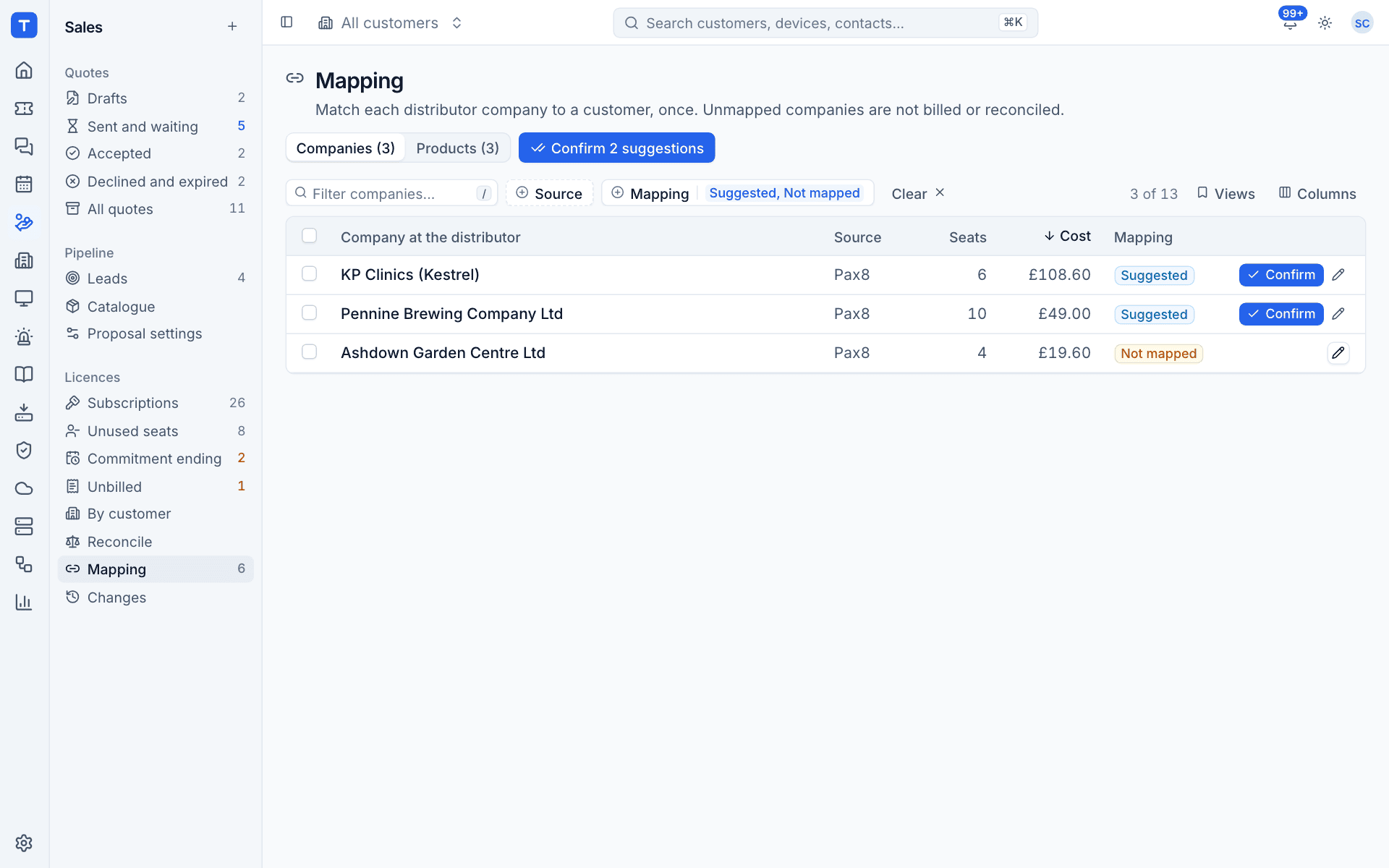
The Companies tab lists each company at the distributor with its Source, Seats, Cost and Mapping state: Suggested, Not mapped, Mapped or Ignored. By default it shows the ones that need mapping, costliest first.
Confirm suggestions
- To confirm one, select Confirm on its row.
- To confirm every suggestion at once, select Confirm N suggestions at the top.
- To confirm some of them, tick their rows and select Confirm suggestions.
Check the suggested customer and its reason before confirming. Hover over a suggestion to see why it was made.
Choose or change the customer
- Select the pencil on the row (or select the row and press
e). - The dialog shows the suggestion and its reason, for example "Suggested: Kestrel Physiotherapy Clinics (same domain (kestrelphysio.co.uk))".
- Choose the Customer.
- Select Map to this customer.
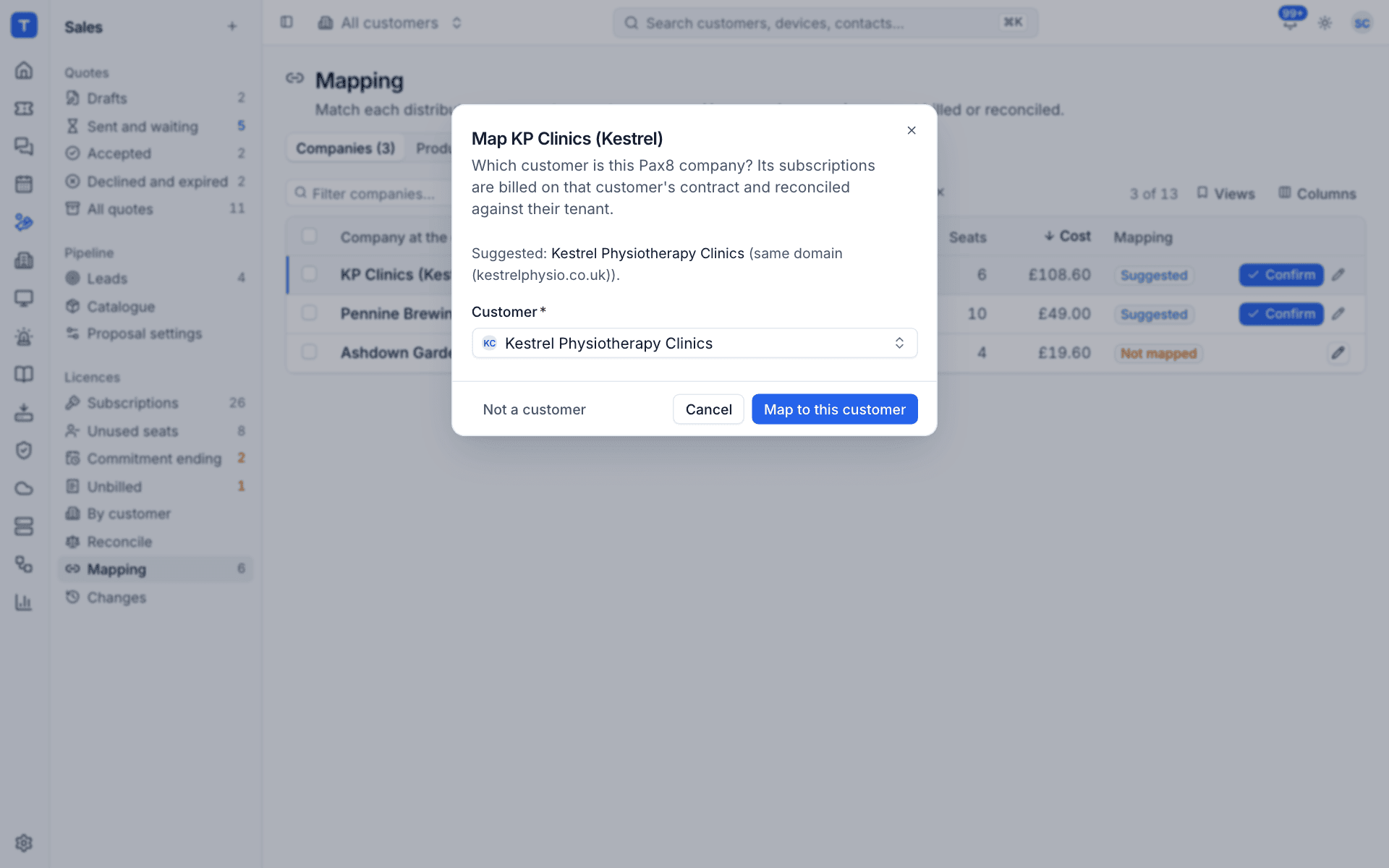
The dialog also has:
- Not a customer, for a company that is not one of your customers, such as your own business or a closed account. Its subscriptions are then ignored.
- Clear, on a company already mapped or ignored, to undo the decision.
What confirming does
Confirming a company:
- Moves all of its subscriptions to the customer.
- Moves their earlier change log entries to the customer too, so the history is complete.
- Brings billing in step, adding or updating the recurring lines on the customer's contract. See Billing licences into contracts.
- Refreshes the licence alerts.
Tip: Map companies straight after adding a source. Until then, the Reconcile page shows the seats as "not mapped" and nothing reaches the contracts.
Views
Views on the Companies tab has Needs mapping, Mapped, Not customers and All companies. Filter by Source or Mapping as well.
Map products
The Products tab lists each product at the distributor with its Part number, Seats, Customers (how many customers have it), Cost a seat at the source and Mapping state.
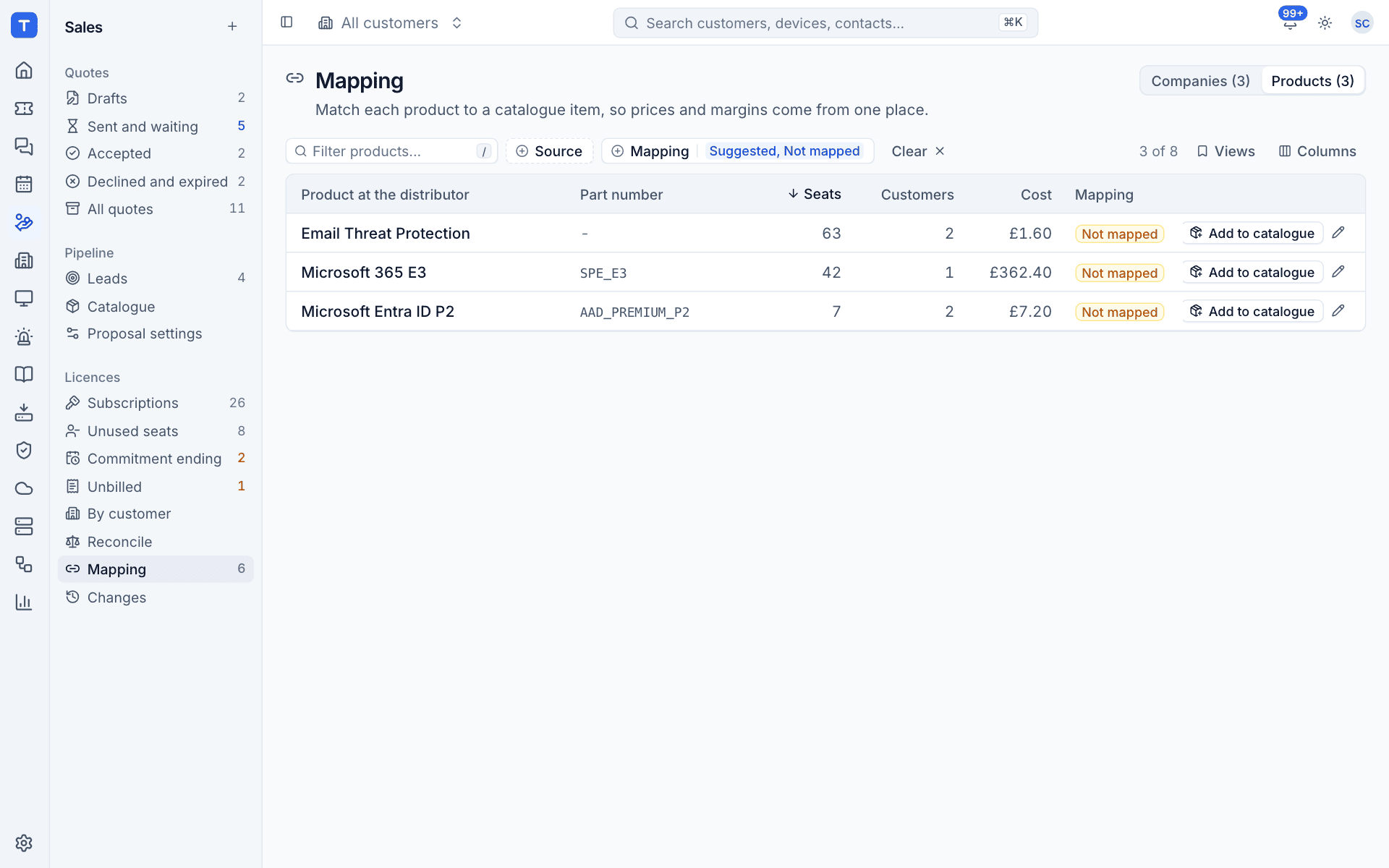
Mapping a product to a catalogue item means:
- the catalogue item's price bills every subscription of that product, so you set a price once, in the catalogue, for every customer;
- the catalogue item's cost is shown where the source gives none (Partner Center gives no prices at all);
- the item's VAT rate and account codes go on the contract lines, and so into the Xero export.
Confirm or choose
- Confirm on a row, or Confirm N suggestions at the top, accepts suggestions just like companies.
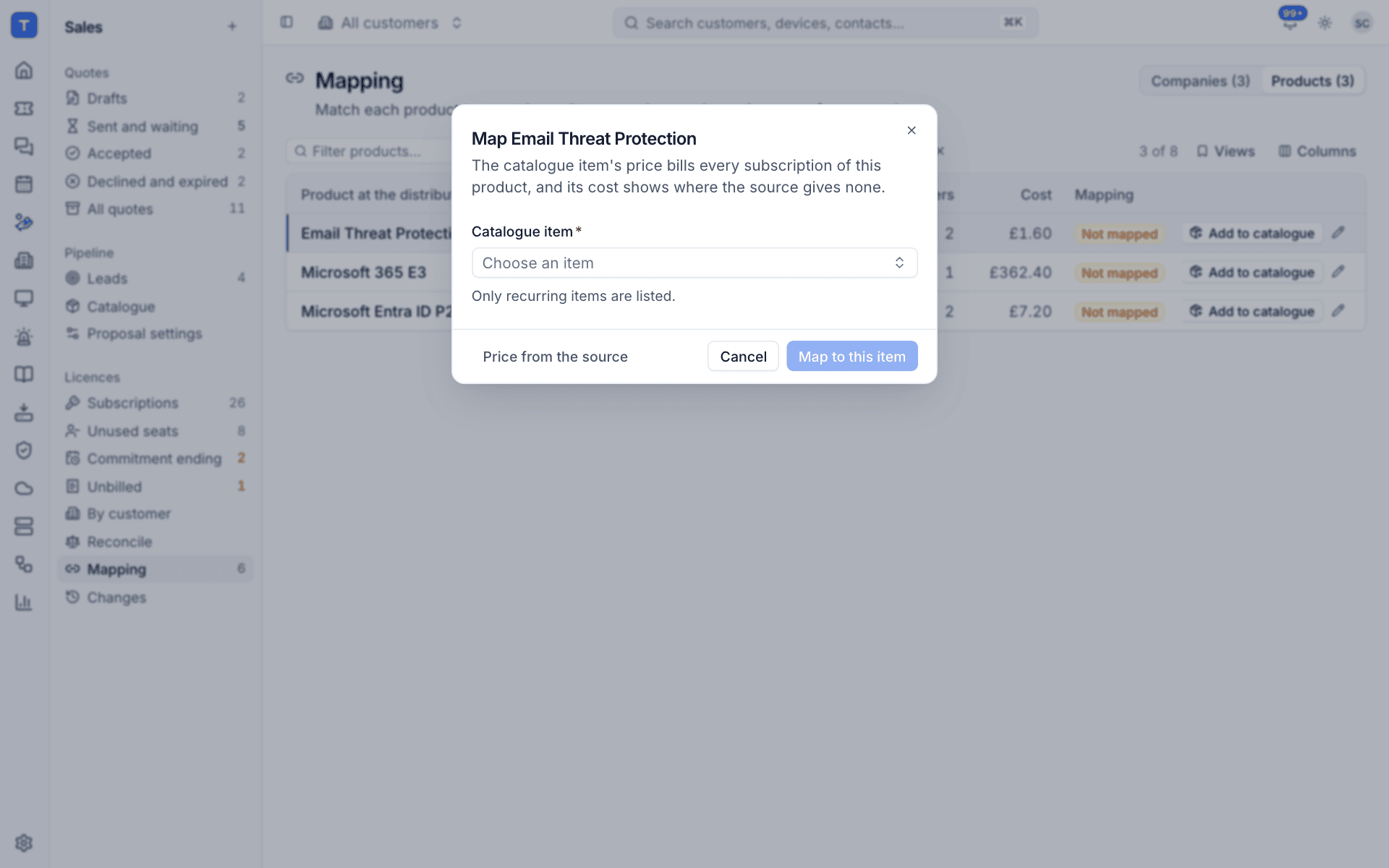
- The pencil opens Map with a Catalogue item picker. Only recurring items are listed. Choose one and select Map to this item.
Add to catalogue
When a product has no catalogue item yet, select Add to catalogue on its row. Tenvara creates a recurring licence item from the product, with the part number as its SKU and the source's cost and price, and maps the product to it in one step. You can then adjust the price in the catalogue.
Price from the source
In the Map dialog, Price from the source leaves the product out of the catalogue and bills it at the price the distributor gives. Its row then says "Priced from the source". Use it for products you are happy to resell at the distributor's recommended price.
Note: Unmapped products still bill when their company is mapped, at the source's price. Mapping the product is what lets you set your own price.
Views
Views on the Products tab has Needs mapping, Mapped and All products.
Who can map
Anyone who can manage licences can confirm and change mappings. People who can only view licences see the tabs but cannot change anything.
Was this page helpful?
Thanks for the feedback.