Costs and caps
See what AI costs by feature, model and customer, set spending caps, and keep model prices up to date.
You pay Anthropic directly for AI assist, per token. Tenvara logs every call with its tokens and cost, shows you where the money goes, and stops (or warns) at the caps you set. Everything is in US dollars, as Anthropic bills; it is not converted to your own currency.
Go to Settings > AI > Costs and usage.
Usage
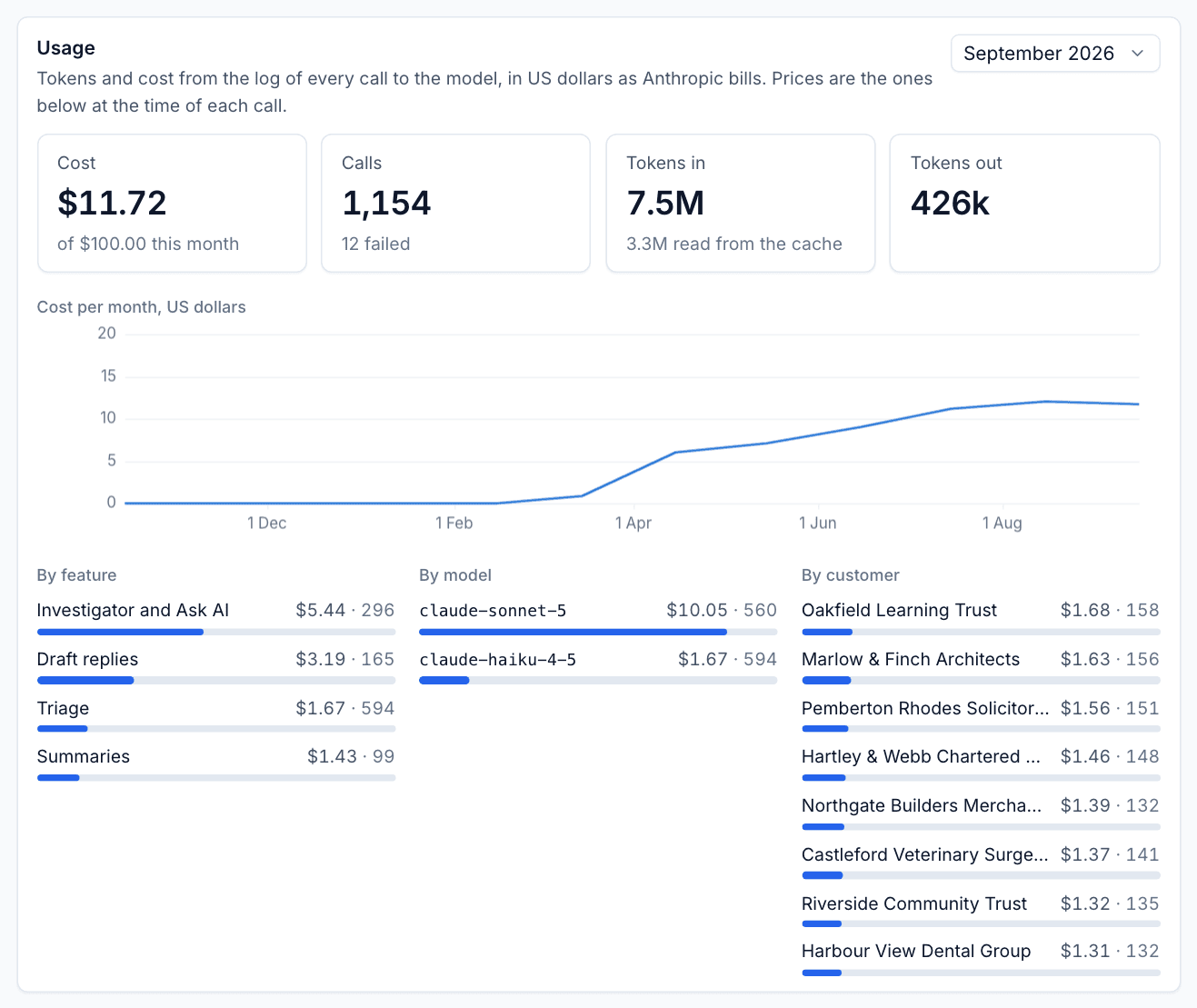
Choose a month at the top right. The card shows:
- Cost: spend this month against the monthly cap.
- Calls: requests to Anthropic, and how many failed.
- Tokens in, with how many were read from the cache, and Tokens out.
- Cost per month: the last year as a line.
- By feature, By model and By customer: cost and number of calls for each.
Each call is priced with the prices set below at the time it was made.
Keeping costs down
- Leave triage on a small, fast model. It is the most frequent call and rarely needs more.
- Use Effort Default or Low unless answers are not good enough.
- Keep Summarise threads from at a sensible number of messages so short threads are not summarised.
- Tenvara caches the fixed parts of each request, so repeated calls pay mostly for what is new. Cache reads cost a tenth of normal input.
- Look at By customer now and then: a customer with a lot of AI spend may be worth a conversation about their contract.
Cost caps
Caps are checked before every call to the model.
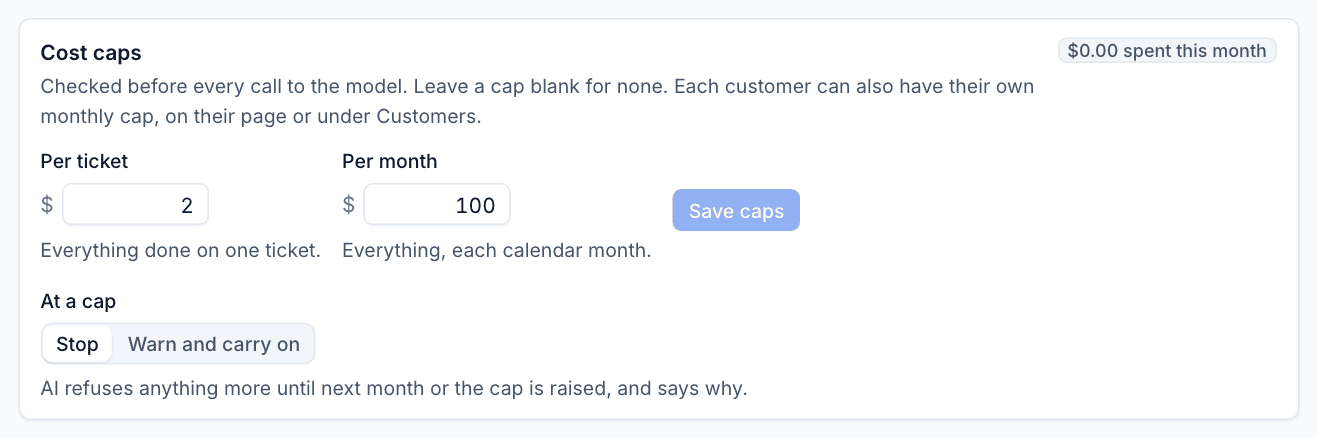
- Set Per ticket: everything done on one ticket (triage, summaries, drafts, investigations). $2 by default.
- Set Per month: everything, each calendar month. $100 by default.
- Leave a cap blank for none.
- Click Save caps.
- Under At a cap, choose what happens:
- Stop: AI refuses anything more until next month or the cap is raised, and says why.
- Warn and carry on: it keeps working past the cap.
Each customer can also have their own monthly cap, on their AI assist card or under Settings > AI > Customers. See Privacy and customer controls.
Note: Caps are Tenvara's own. You can also set spend limits for the key in the Anthropic Console as a second line of defence.
Prices
The Prices table holds US dollars per million tokens for each model: Input, Output, Cache read and Cache write. Tenvara uses them to work out what each call cost.
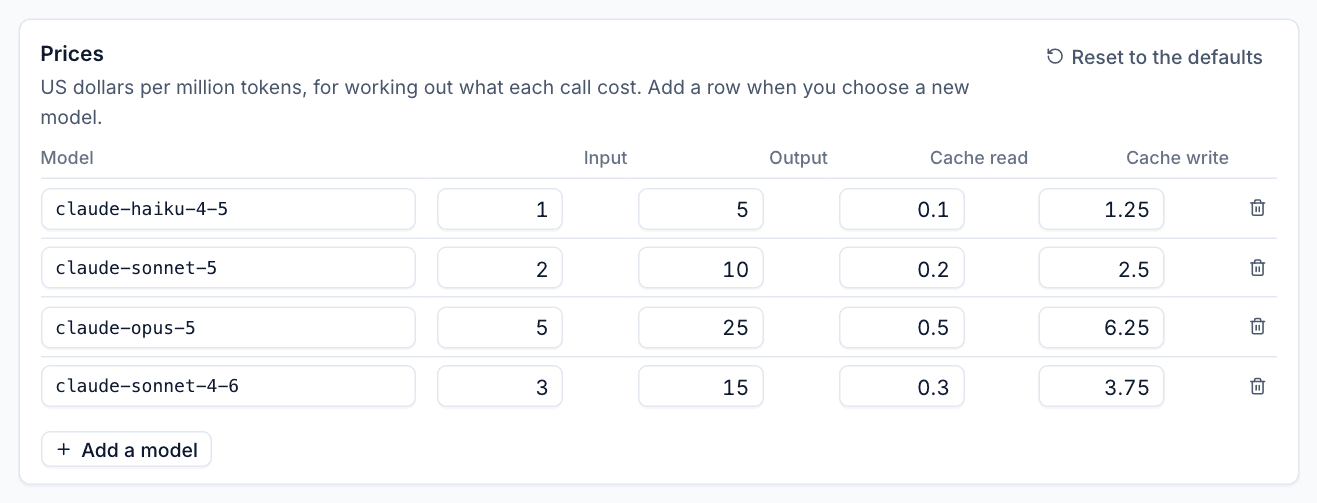
The defaults cover the models Tenvara suggests. When you choose a new model in Features and models:
- Click Add a model.
- Type the model name exactly as in Features and models.
- Enter its prices from Anthropic's pricing page.
Reset to the defaults puts the table back. A model with no price costs nothing in the log, and Settings warns you, because the caps cannot see what it spends.
When a call fails
Failed calls are counted under Calls and show in the activity log with the reason. The ones you are most likely to see:
| Cause | What to do |
|---|---|
| A cap was reached | Raise the cap or wait for next month |
| Rate limited | Anthropic asked Tenvara to slow down for more than 30 seconds. Try again shortly, or raise your Anthropic rate limits |
| Key refused | The key was revoked or the workspace has no credit. Replace the key or top up in the Anthropic Console |
| The model refused | The model declined to answer. Rephrase, or handle it by hand |
Was this page helpful?
Thanks for the feedback.