Single sign-on
Let your team sign in with Microsoft Entra ID, Google Workspace, any OpenID Connect provider or SAML 2.0, with domain limits, automatic accounts and roles from groups.
Single sign-on lets your team sign in to Tenvara with the account they already use every day. It is optional and set up entirely in the app, in Settings > Sign-in, by an administrator. You can add more than one provider.
Four kinds are supported: Microsoft Entra ID, Google Workspace, OpenID Connect (Okta, Auth0, JumpCloud, Keycloak, Authentik, Ping, OneLogin and others) and SAML 2.0. Single sign-on is exempt from the two-factor policy: the identity provider runs its own multi-factor.
Warning: Before you require single sign-on, mark at least one administrator as a break-glass administrator in Users. See Passwords and two-factor.
Add a provider
- Go to Settings > Sign-in and press Add provider.
- Choose the Kind of provider.
- Enter the Button name. People see "Continue with" and this name on the sign-in page, for example "Continue with Microsoft".
- Press Add provider.
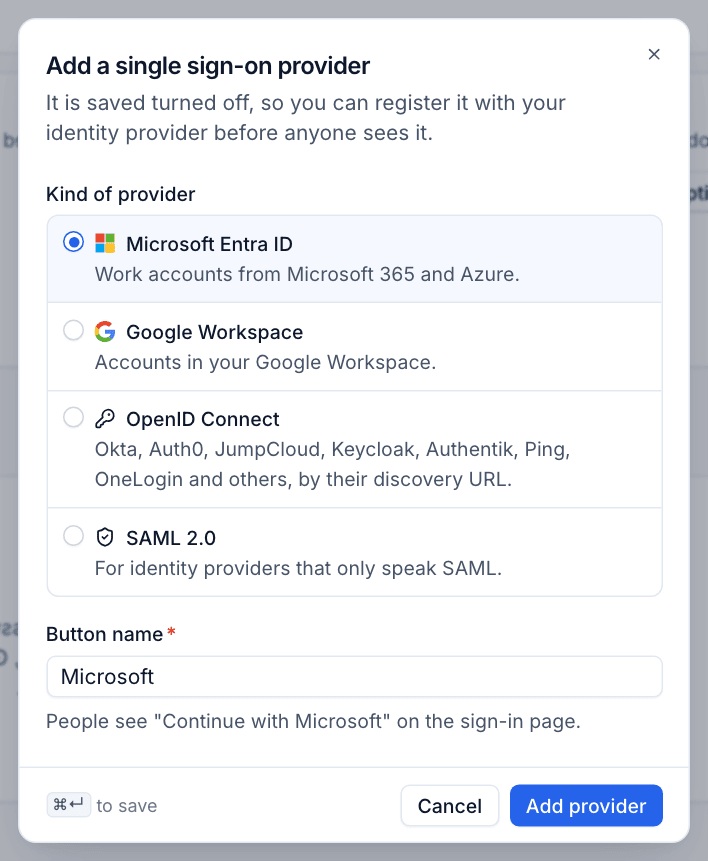
The provider is saved turned off, so you can register it with your identity provider before anyone sees it. It opens straight away so you can finish setting it up.
Set up the provider
The provider's page has the same parts for every kind.
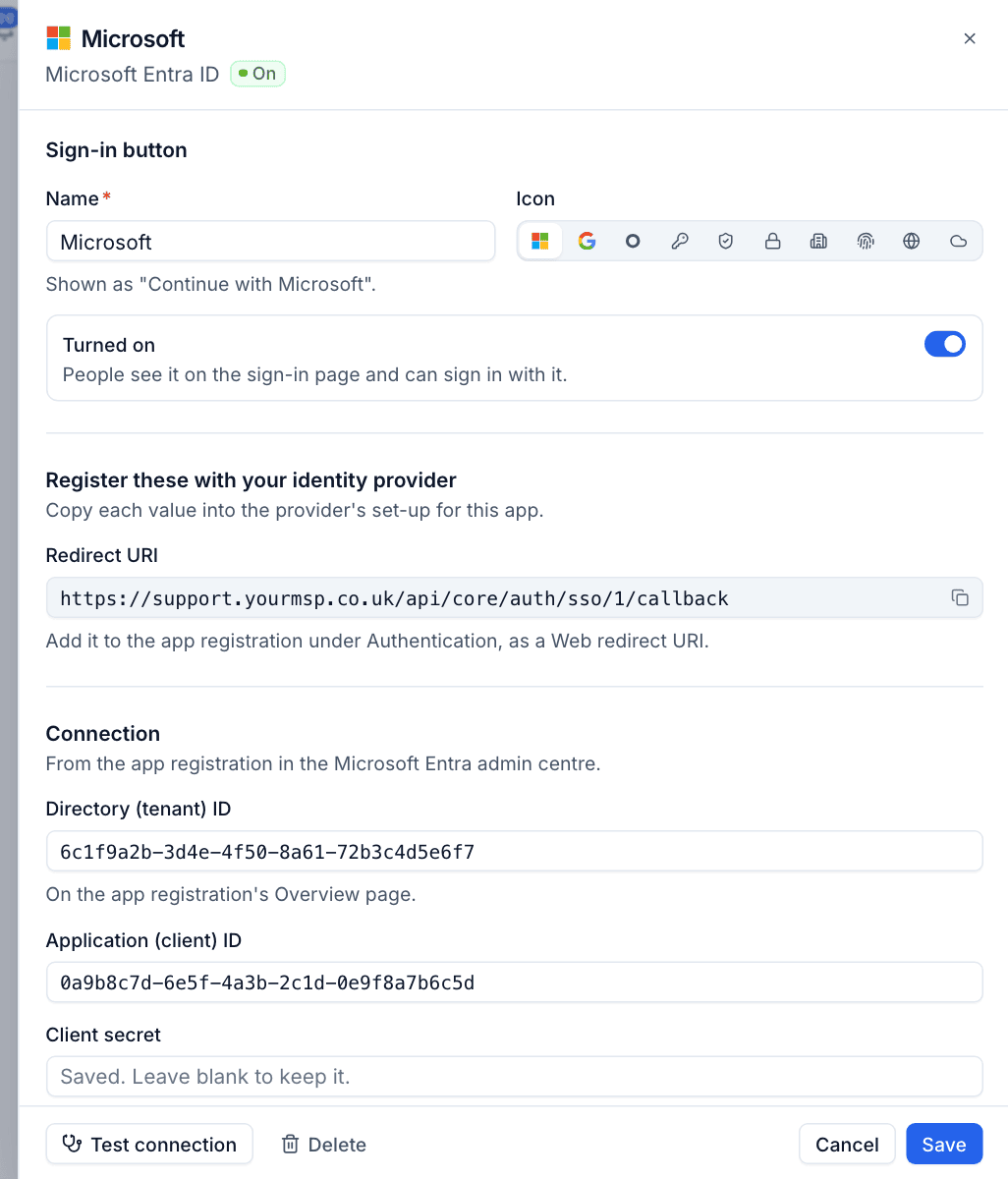
Sign-in button
- Name and Icon for the button on the sign-in page.
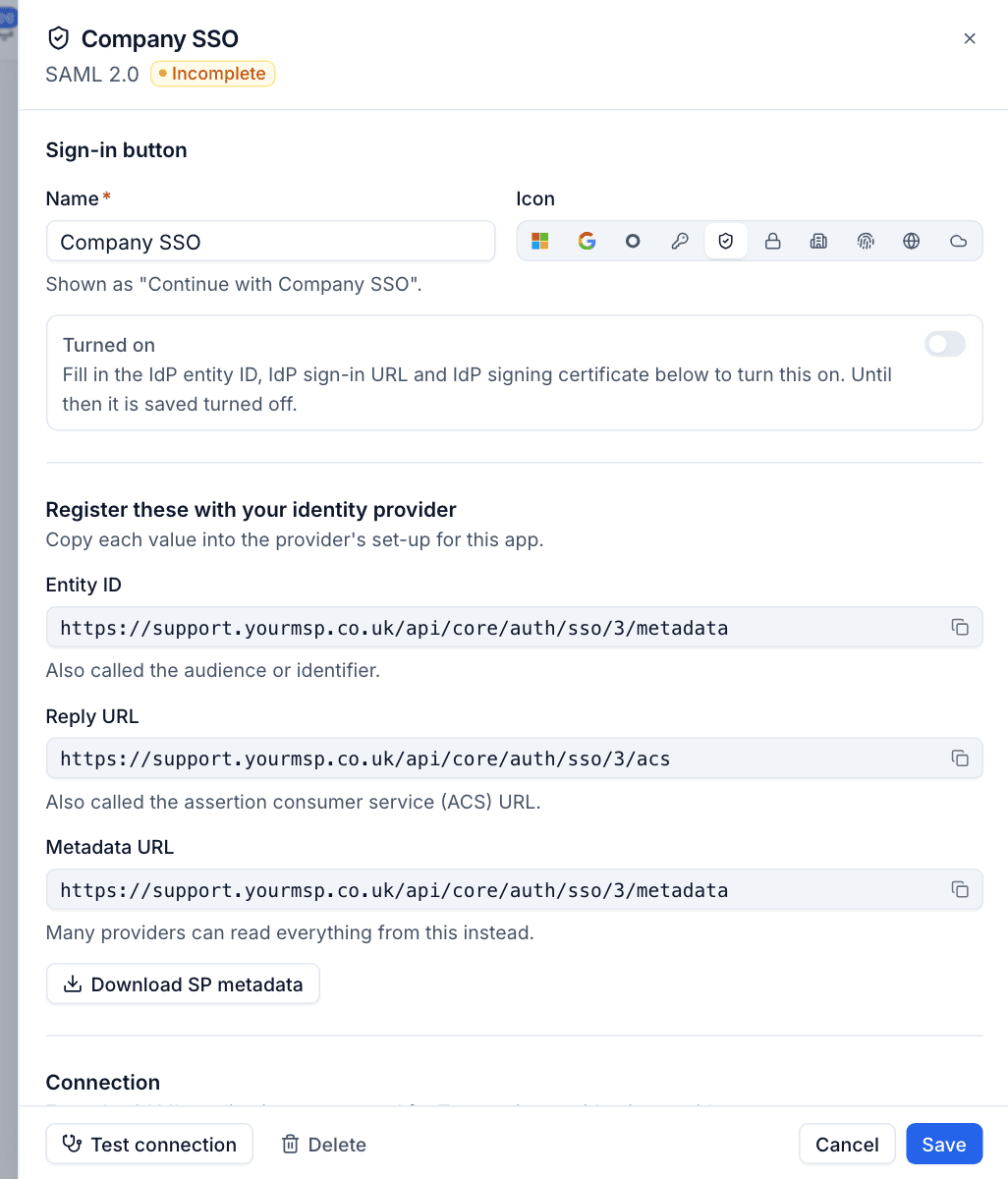
- Turned on: people see it on the sign-in page and can sign in with it. Only providers that are turned on and complete get a button.
Register these with your identity provider
Copy each value into the identity provider's set-up for this app. Each has a copy button.
| Kind | What to register |
|---|---|
| Microsoft Entra ID | The Redirect URI, in the app registration under Authentication, as a Web redirect URI |
| Google Workspace | The Redirect URI, in the OAuth client's Authorised redirect URIs |
| OpenID Connect | The Redirect URI, as a sign-in redirect URI of the application |
| SAML 2.0 | The Entity ID (also called the audience or identifier) and Reply URL (the assertion consumer service or ACS URL). Many providers can read everything from the Metadata URL instead, or use Download SP metadata |
Connection
| Kind | Fields |
|---|---|
| Microsoft Entra ID | Directory (tenant) ID (on the app registration's Overview page), Application (client) ID and Client secret |
| Google Workspace | Client ID, Client secret, and optionally the Workspace domain: only accounts from that Google Workspace can sign in |
| OpenID Connect | Discovery URL (the issuer's /.well-known/openid-configuration address), Client ID, Client secret, Scopes (space separated; openid is always included) and Client authentication (HTTP Basic or In the request body; most providers accept either) |
| SAML 2.0 | Import from IdP metadata, or fill in the IdP entity ID (the issuer), IdP sign-in URL (for the redirect binding) and IdP signing certificate (PEM, with the BEGIN and END lines). Optionally the Email attribute (blank uses the NameID) and Sign requests, if your identity provider requires signed requests |
Client secrets are stored encrypted and never shown again: the field says "Saved. Leave blank to keep it." Type a new one only to replace it.
A SAML provider stays Incomplete and turned off until the IdP entity ID, sign-in URL and signing certificate are filled in.
Who can sign in
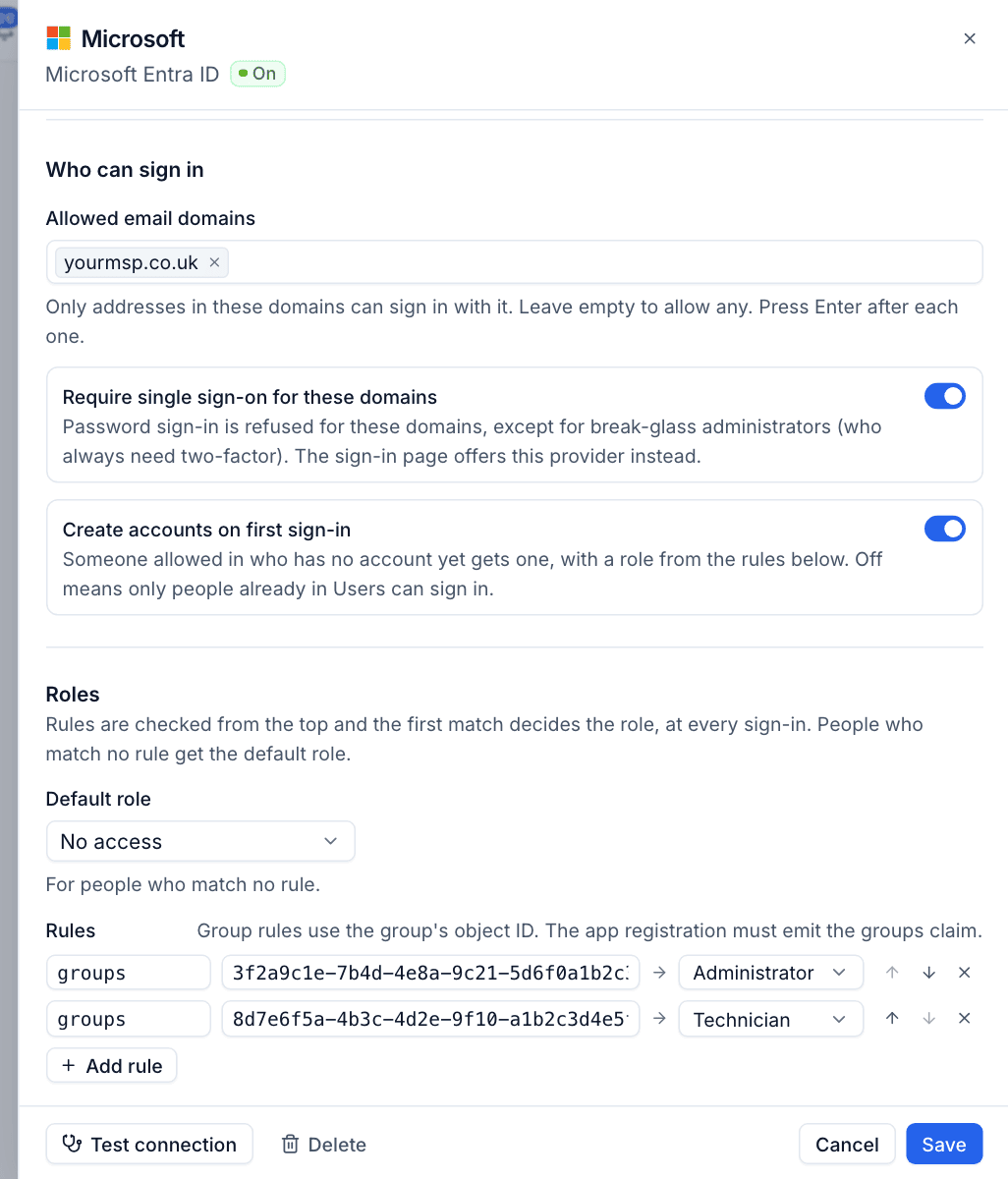
- Allowed email domains: only addresses in these domains can sign in with this provider. Leave it empty to allow any address the provider vouches for. Press
Enterafter each domain. - Require single sign-on for these domains: password sign-in is refused for these domains, except for break-glass administrators (who always need two-factor). Once the sign-in page recognises an address in these domains, it hides the password box and offers this provider instead. Password reset links are refused for them too.
- Create accounts on first sign-in: someone allowed in who has no account yet gets one, with a role from the rules below. Off means only people already in Users can sign in. Google and OpenID Connect need a domain limit first (the Workspace domain or allowed email domains); Entra is already pinned to your tenant, and SAML to your IdP.
- The IdP vouches for addresses in these domains (SAML only): turn on only if people cannot choose their own address at the IdP. See Linking existing accounts.
Roles
Role rules give people a role from their groups or other claims, at every sign-in, so a change at the identity provider takes effect in Tenvara the next time they sign in.
- Choose the Default role for people who match no rule: Administrator, Technician, Read only, or No access to refuse them.
- Press Add rule.
- Enter the claim (or SAML attribute), for example
groups, and the value to match. For Entra, group rules use the group's object ID, and the app registration must emit the groups claim. - Choose the role it gives.
- Add more rules and order them with the arrows. Rules are checked from the top and the first match wins, so put administrators first.
Test and save
Press Test connection to check the set-up without signing anyone in. For Entra and OpenID Connect it checks discovery, the signing keys, PKCE and client authentication; for SAML it checks the details and certificate. Saving checks them too. Then press Save, turn the provider on, and try it from a private browser window before you tell the team.
Note: Tenvara fetches the discovery documents, signing keys and SAML metadata itself, so those addresses must be reachable on the public internet. An address on your internal network is refused and reads as unreachable.
The provider list
Back on Settings > Sign-in, each provider shows whether it is On or Off, Required when it requires single sign-on for its domains, Incomplete when it is missing details, its kind and domains, how many people are linked to it and when it was last used. To stop using a provider, switch off Turned on or press Delete; sessions it no longer allows end within 15 minutes.
Linking existing accounts
A provider account is linked to a Tenvara account once, then found by the provider's own ID at every sign-in. The first time, Tenvara links an existing account with the same email address on its own only when all of these hold:
- The provider proves the address: verified for OpenID Connect; verified and in the matching Workspace for Google; the user principal name of a member (not a guest) of your tenant for Entra; and for SAML, only with The IdP vouches for addresses in these domains on.
- The address is in the provider's Allowed email domains.
- The account is not an administrator, and has no password and no two-factor.
Anything else needs an explicit link, so a look-alike account at the provider can never take over an account that already has its own way in:
- The person links it themselves: in Settings > Security, the Single sign-on card lists the providers, and Link goes to the provider and back. The provider account's email must match their Tenvara email, be in the allowed domains and not be linked to anyone else.
- An administrator allows it: Allow single sign-on link on the person's row in Settings > Users. For seven days, their next single sign-on with their email address links to their account. This is the way in for an administrator in a domain that requires single sign-on who has no link yet.
When a sign-in cannot link, the sign-in page says sign-in with that provider is not set up for the address and how to link it. It reads the same whether or not an account exists.
Was this page helpful?
Thanks for the feedback.