Starters and leavers
Make a new starter's account with everything they need, or lock a leaver out and keep their mail, now or at a time you choose.
Microsoft 365 > Starters and leavers runs the two jobs every MSP does week in, week out. Each run is a list of ordinary changes, so every step is in the change log with its before and after, and the whole run can be undone.
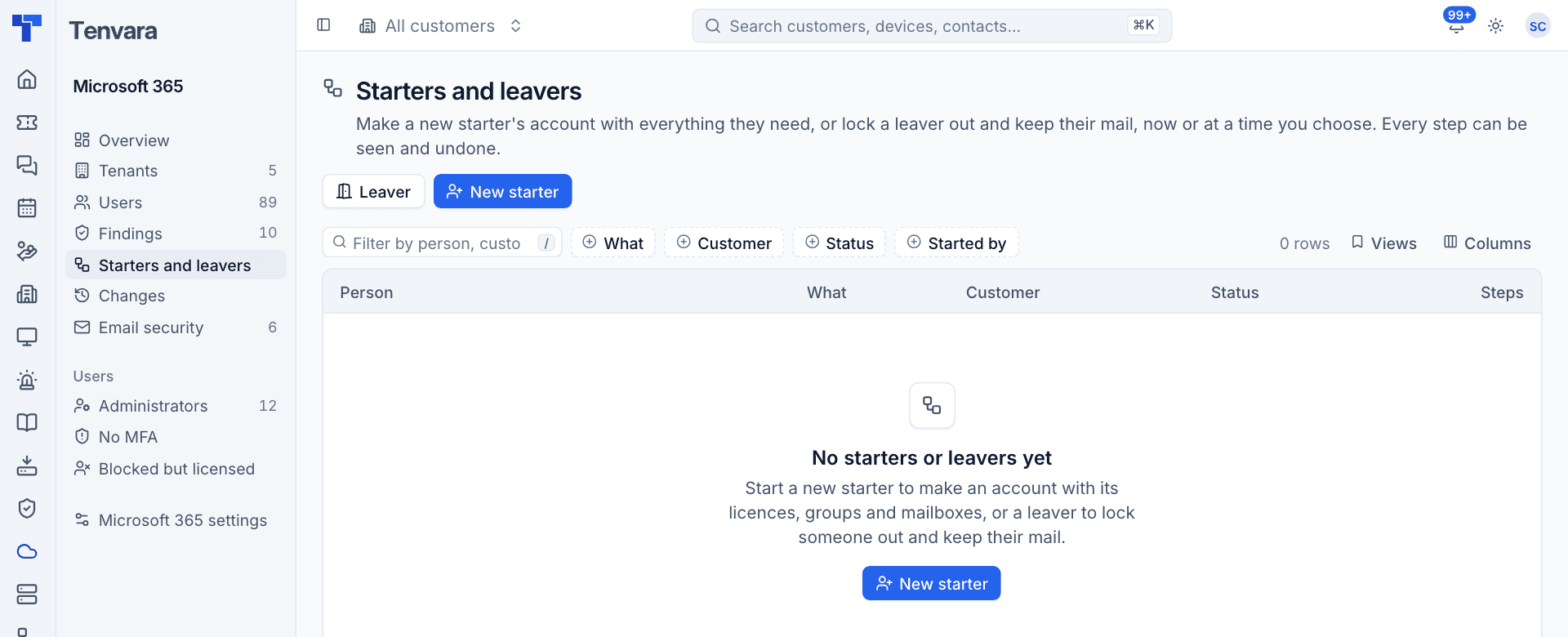
The list shows every run with the Person, What (starter or leaver), Customer, Status, Steps and When. You can also start a leaver from a user's Actions menu (Leaver...) and either from Search (Cmd+K).
Running a leaver
- Press Leaver.
- Under Who is leaving, choose the Tenant, then the Person.
- Review the Steps. They are listed in the order they run, and steps that cannot be done for this person are left out (for example mailbox steps for someone without a mailbox).
- Tick or untick steps. Steps that need details (the automatic reply text, where to forward, who gets access) ask for them when ticked.
- Under When, choose Now or Later and pick a date and time (for example 17:30 on their last day).
- Optionally Link a ticket. When the run finishes, an internal note on the ticket lists each step and its result.
- Type the person's sign-in address to confirm, and press Start leaver.
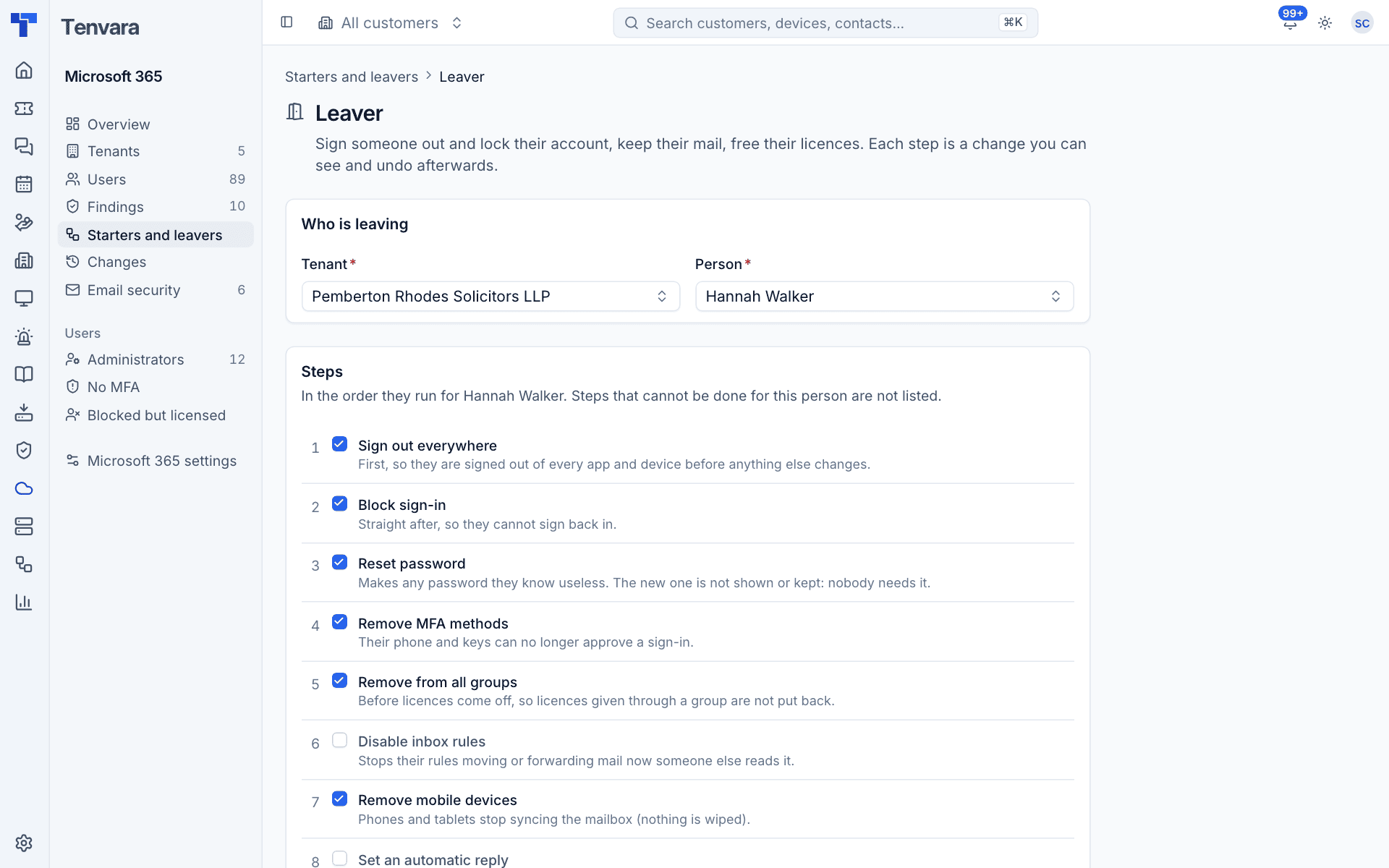
The leaver steps
| # | Step | On by default | Why it is here |
|---|---|---|---|
| 1 | Sign out everywhere | Yes | First, so they are signed out of every app and device before anything else changes |
| 2 | Block sign-in | Yes | Straight after, so they cannot sign back in |
| 3 | Reset password | Yes | Any password they know stops working. The new one is not shown or kept |
| 4 | Remove MFA methods | Yes | Their phone and keys can no longer approve a sign-in |
| 5 | Remove from all groups | Yes | Before licences come off, so group-based licences are not put back |
| 6 | Disable inbox rules | No | Stops their rules moving or forwarding mail |
| 7 | Remove mobile devices | Yes | Phones and tablets stop syncing the mailbox (nothing is wiped) |
| 8 | Set an automatic reply | No | Tells people they have left and who to contact |
| 9 | Forward their mail | No | Someone keeps receiving what is sent to them |
| 10 | Give someone access to the mailbox | No | Their manager or replacement can read it |
| 11 | Convert the mailbox to shared | Yes | Before the licence comes off: an unlicensed user mailbox is deleted after 30 days, a shared one is kept |
| 12 | Hide from the address book | Yes | They stop appearing when people type their name |
| 13 | Remove licences | Yes | After groups and the shared mailbox, so the seats are freed and nothing is lost |
| 14 | Delete the account | No | Last. Most MSPs keep a leaver blocked for a while; a deleted account can be restored for 30 days |
Steps depend on each other: licences only come off once the groups are gone and the mailbox is shared, and delete waits for the shared mailbox. If a step fails, the ones that depend on it are held back rather than run, so you never lose a mailbox.
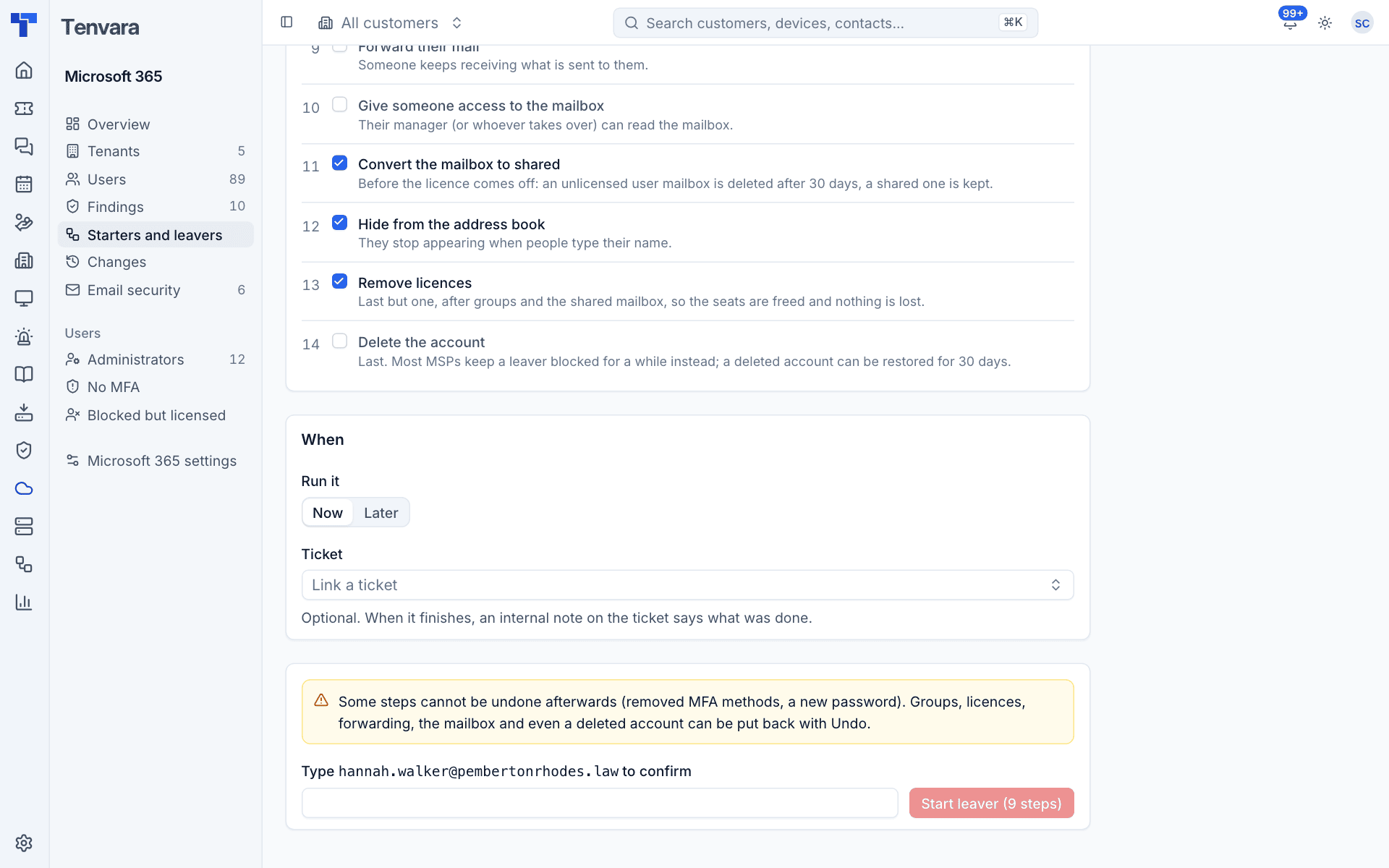
Note: Some steps cannot be undone afterwards (removed MFA methods, a new password). Groups, licences, forwarding, the mailbox and even a deleted account can be put back with undo.
Making a new starter
- Press New starter.
- Under Where, choose the Tenant.
- Fill in The account: first name, surname, Display name, Sign-in address (with the domain chosen from the tenant's domains), job title, department, office, mobile, Manager and Usage location (two letters such as GB; Microsoft needs it for licences).
- Under What they get, choose Licences (free seats are from the last sync), Groups (dynamic groups add people by their own rules, so they are not listed) and Shared mailboxes (they get full access, and the mailbox appears in their Outlook).
- Under Signing in, choose A password or A password and a Temporary Access Pass, and whether to Ask them to choose their own password when they first sign in.
- Choose Now or Later, optionally Link a ticket, and press Make the account.
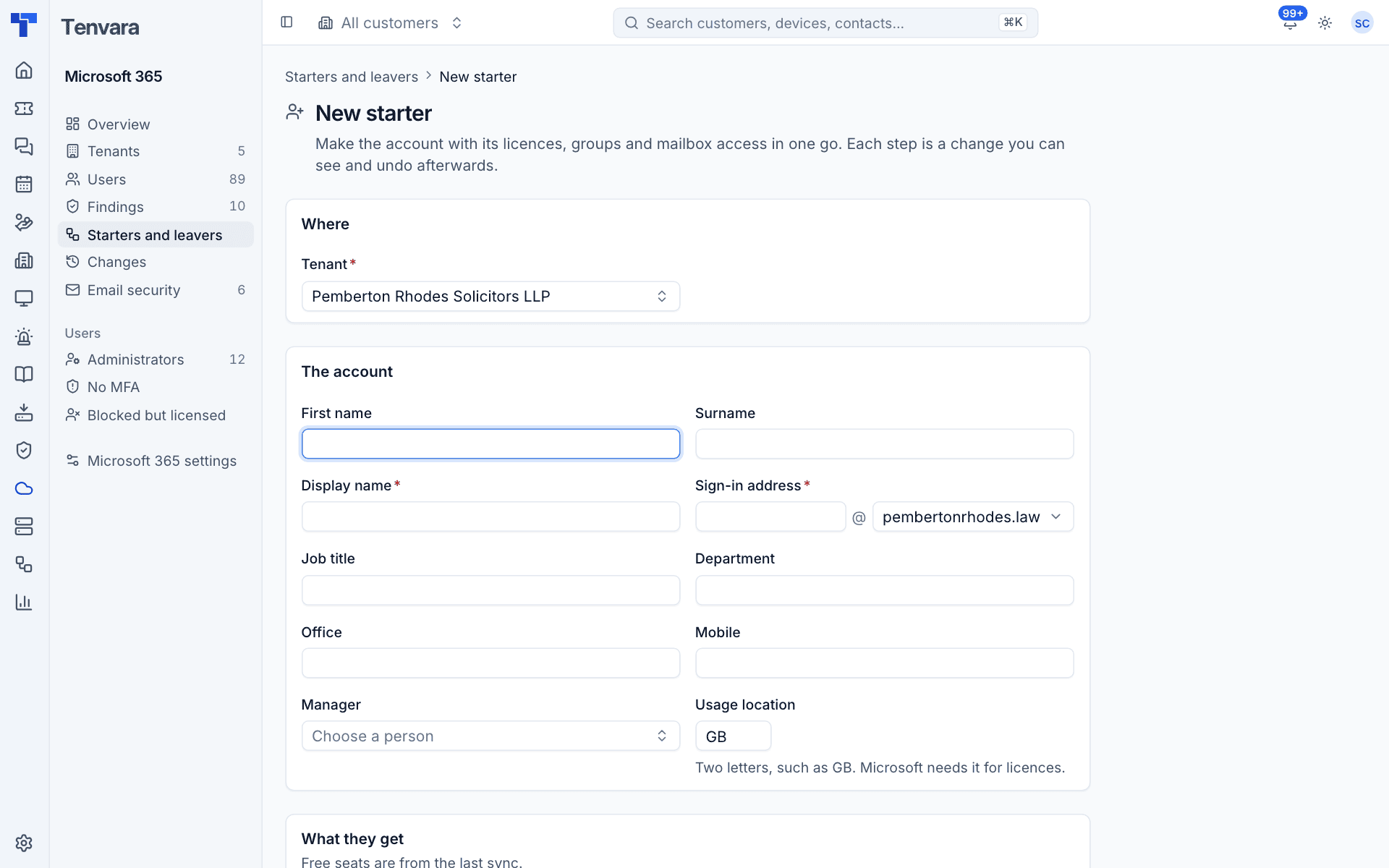
Tenvara checks the account before the run is made: the domain belongs to the tenant, the address is not in use, there is a usage location if licences are chosen, and no dynamic group is chosen.
What runs
Each part is its own step: make the account, set the manager, assign licences, add to each group, give access to each shared mailbox (last, and tried again after 30 seconds because Exchange is slow to know a new account), and issue a Temporary Access Pass (8 hours, usable more than once) if chosen.
The password
The new password (and pass) is shown to you, and only you, on the run's page until you dismiss it, for 24 hours at most. Other people, administrators included, only see that credentials exist. It is never put in the ticket note, the change log or activity.
Warning: A starter whose groups include one that can hold administrator roles can only be run by an administrator.
Following a run
Open a run from the list to see each step with its result and Microsoft's words for any failure. A failing step does not stop the run; it ends completed, partial, failed or cancelled.
- Cancelling stops a scheduled run at once, or a running one before its next step.
- Running it again runs the failed, held back and cancelled steps again. Steps already done are not repeated.
- Undoing it reverts every reversible step, newest first, and marks the run reverted when all of them went back. Undoing destructive steps needs an administrator.
A scheduled run for a tenant that is excluded or disconnected by then fails with the reason rather than being skipped silently.
Templates
Settings > Microsoft 365 > Starters and leavers holds templates, so starters get the usual licences and groups and leavers the usual steps without picking them each time. Press New template and choose:
- Whether it is for starters or leavers.
- What it applies to: every tenant, one customer's tenants, or one tenant.
- For starters: licences, groups, shared mailboxes, usage location, domain, job title, department and how they sign in.
- For leavers: which steps are on, the automatic reply (
{name}becomes the leaver's name), whether forwarding keeps a copy, and whether mailbox access is added to Outlook.
A new run starts from the most specific default template: the tenant's own, then its customer's, then the one for every tenant. Without any, a leaver starts from the recommended steps above and a starter from nothing. Whoever starts a run can still change anything.
Was this page helpful?
Thanks for the feedback.