Signing in
Signing in with a password or single sign-on, two-factor, recovery codes, forgotten passwords and why you might be asked to sign in again.
Your team signs in to Tenvara at your instance's address, for example https://yourmsp.tenvara.app or your own domain if you host it yourself. How you sign in depends on what your administrator has set up in Passwords and two-factor and Single sign-on.
With an email and password
When no single sign-on is set up, the sign-in page asks for your email and password together.
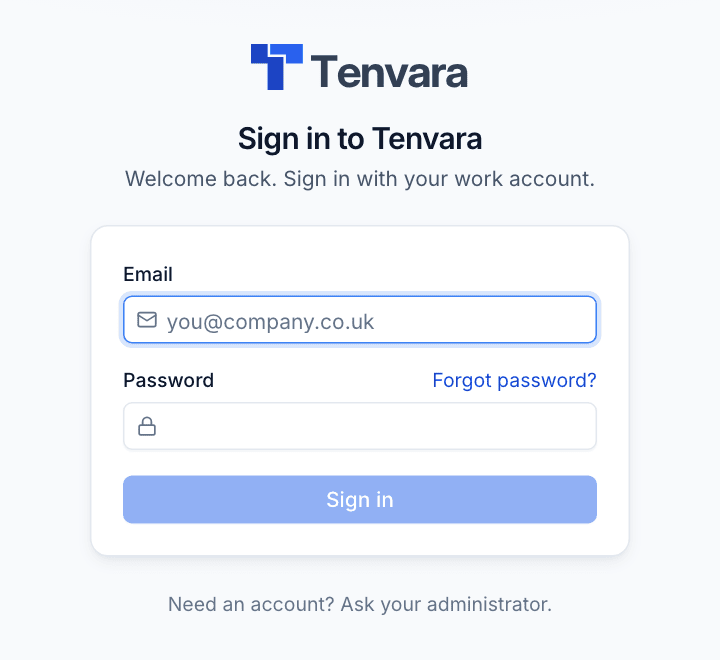
- Enter your Email and Password.
- Press Sign in.
- If two-factor is on for your account, enter the six-digit code from your authenticator app.
Passwords are at least 12 characters. A short sentence works well.
With single sign-on
When your administrator has added a provider, the sign-in page shows a button for it, such as Continue with Microsoft or Continue with Google, above the email box.
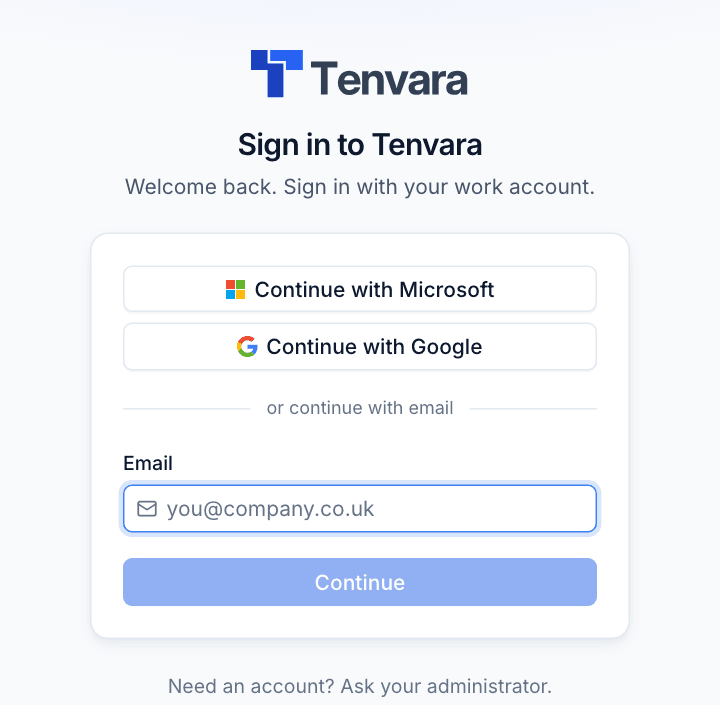
- Press the provider's button, sign in there as usual (your provider runs its own multi-factor), and you come back to Tenvara signed in.
- Or type your email and press Continue. If your email domain must use single sign-on, the password box does not appear and Tenvara offers your provider instead. Otherwise you are asked for your password.
If the page says sign-in with that provider is not set up for your address, your account is not linked to the provider yet. Ask an administrator to use Allow single sign-on link on your user, then sign in with the provider again within seven days. See Single sign-on.
Two-factor
Two-factor adds a code from an authenticator app (Microsoft Authenticator, Google Authenticator, 1Password and so on) to your password. It applies to password sign-in only; single sign-on is exempt because your identity provider runs its own.
Turn it on yourself
- Open the account menu and choose Password and two-factor (or go to Settings > Security).
- Under Two-factor authentication, press Set up two-factor.
- Scan the QR code with your authenticator app, or type the key into it.
- Enter the code the app shows to confirm.
- Save the ten recovery codes somewhere safe, such as your password manager. Each works once, in place of a code, if you lose your phone. They are only shown once.
An email goes to your address whenever two-factor is turned on for your account. If you did not do it, tell an administrator straight away.
When two-factor is required
If your administrator requires two-factor for your role and you have not set it up, a correct password does not sign you in on its own. The sign-in page walks you through setting it up there and then (QR code or key, then a code), shows your recovery codes once, and then signs you in. You cannot turn off two-factor that the policy requires.
Lost your phone?
Sign in with one of your recovery codes instead of a code, then set two-factor up again on your new phone. If you have no recovery codes left, ask an administrator to reset two-factor for you from Settings > Users. An email tells you when they do.
Forgotten your password
- On the sign-in page, press Forgot password?
- Enter your email address.
- Open the link in the email. It works once, within 60 minutes.
- Choose a new password.
Setting a new password signs you out everywhere else. The page answers the same way for every address, so it never reveals whether an account exists. If your domain must use single sign-on, no reset link is sent: sign in with your provider instead.
An administrator can also send you a reset link from Settings > Users.
Changing your password
- Open the account menu and choose Password and two-factor.
- Enter your Current password, then the New password twice.
- Press Change password.
Changing it signs you out everywhere else.
Why you might be asked to sign in again
Tenvara checks every few minutes that the way you signed in is still allowed. You are asked to sign in again (within 15 minutes) when an administrator:
- requires two-factor for your role and you signed in without a code. You set it up at the next sign-in;
- requires single sign-on for your email domain and you signed in with a password;
- changes, turns off or deletes the single sign-on provider you used, so it no longer allows you;
- deactivates your account, which signs you out everywhere straight away.
Nothing else signs you out, and signing in again works as usual.
No account yet?
The sign-in page says "Need an account? Ask your administrator." Accounts are created by an administrator in Settings > Users, or automatically the first time you use single sign-on if your administrator has turned that on.
Customers' contacts do not sign in here: they use the customer portal. See The customer portal.
Was this page helpful?
Thanks for the feedback.