Cyber Essentials readiness
See how ready each customer is for Cyber Essentials, what to fix first, their certificates, and export a readiness report for the customer or an assessor.
Security > Cyber Essentials assesses each customer against the current Cyber Essentials requirements for IT infrastructure (v3.3), using what Tenvara already knows: device protection reports, patch management, software updates, network device logs and Microsoft 365. Nothing needs filling in by hand.
The customer list
The top of the page counts customers that are Ready (every check passes), At risk (only warnings or unknowns), Not ready (something fails), Certified (with a certificate in date), Expiring soon and Expired. Click a figure to open the matching view.
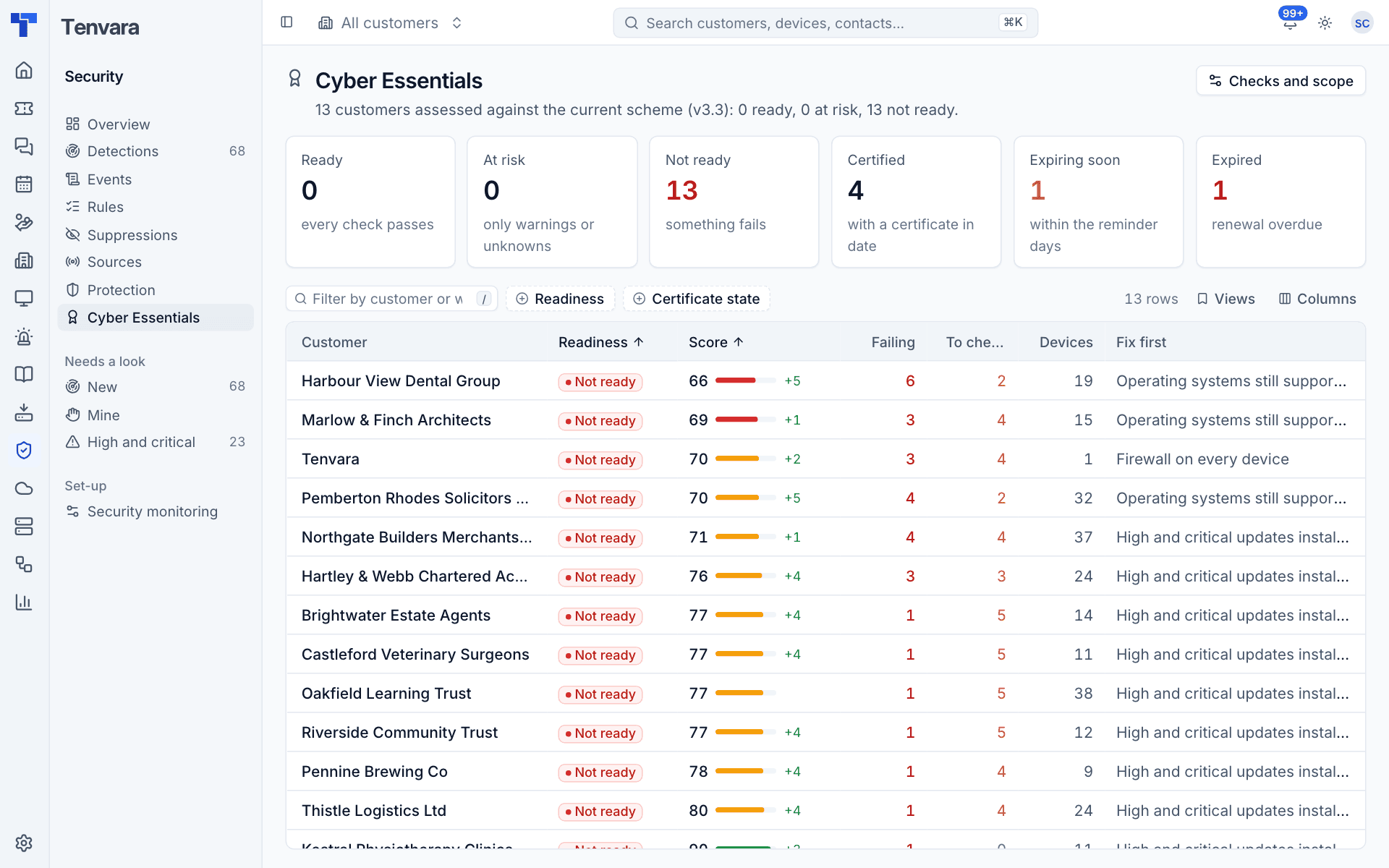
Each customer shows its Readiness, Score out of 100 with its change over the last week, how many checks are Failing and how many are To check, Devices in scope, and what to Fix first. Filter by readiness and certificate state. Checks and scope opens the settings.
A customer's assessment
Click a customer to open their assessment. The header shows readiness, the score and how many devices are in scope, with Export PDF. Below:
- What to fix first: automatic fails under the scheme first, then the checks that count most and cover the most devices or accounts.
- The five controls, each with every check, its result and the devices or users behind it with the reason. Users link to their Microsoft 365 account.
- Readiness: the score, counts of failing, to check and passing, and a 90-day trend.
- Certificate: the current certificate and its history.
- Scope: devices in scope, how many report protection, the kinds of device, and the Microsoft 365 accounts and tenants covered.
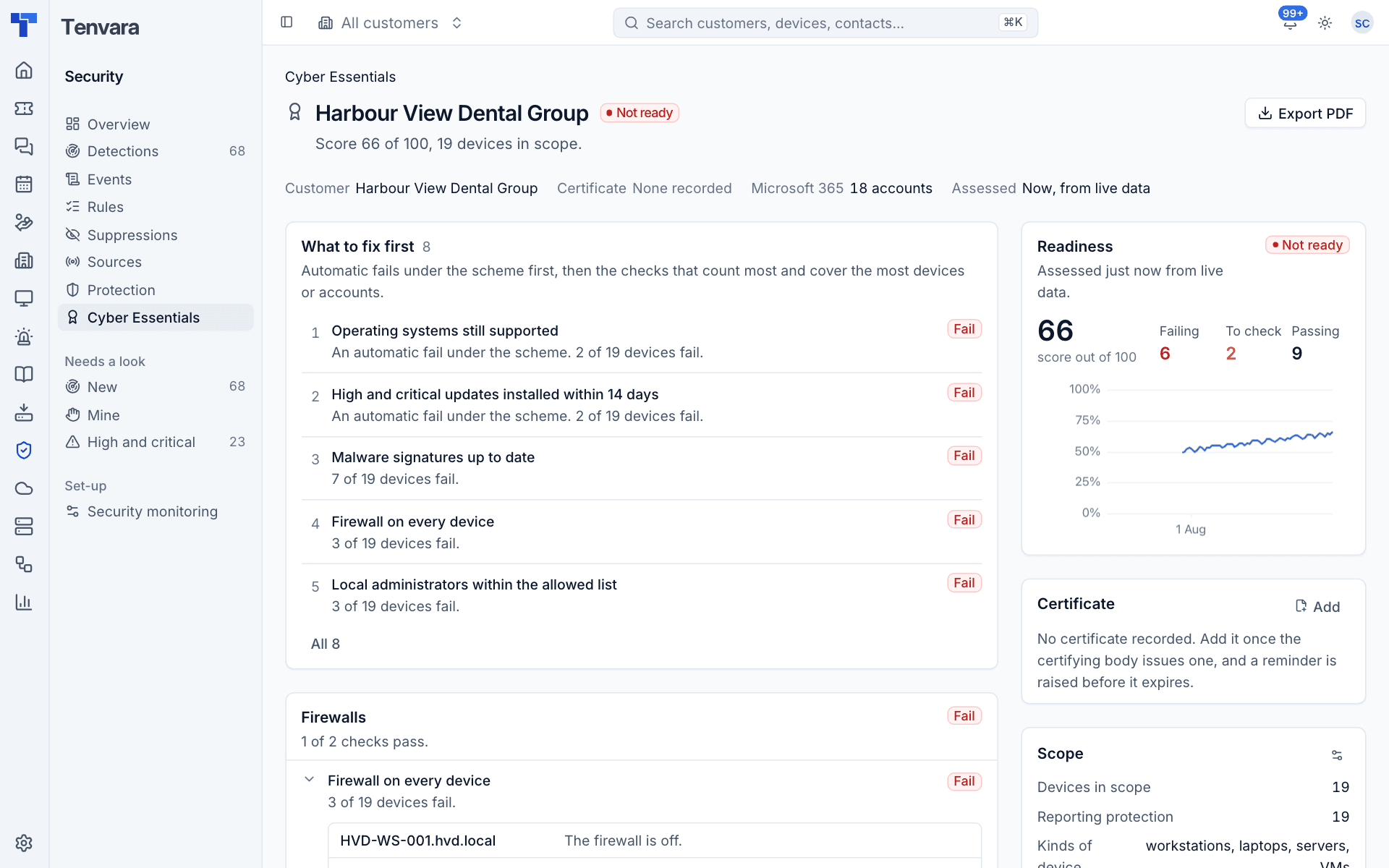
The assessment is worked out live when you open it, and once a day for the trend. The same summary appears on the customer page's Cyber Essentials tab.
The checks
| Control | Checks |
|---|---|
| Firewalls | Firewall on every device; network devices' admin pages not reachable from the internet (from the network sources' logs) |
| Secure configuration | Guest accounts disabled; default administrator accounts disabled or renamed; AutoRun disabled; SMB version 1 off; screens lock when left (15 minutes); device passwords and lockout |
| Security update management | Operating systems still supported (automatic fail); high and critical updates installed within 14 days (automatic fail); applications updated within 14 days; automatic updates on |
| User access control | MFA on every Microsoft 365 account (automatic fail); administrators use separate accounts; local administrators within the allowed list |
| Malware protection | Antivirus or EDR on every device; malware signatures up to date |
Each check is Pass, Fail, Warning (passes, with something to act on soon, such as an operating system leaving support within 60 days), Not known or off. A control fails if any check fails. A customer is Not ready if anything fails, At risk if there are only warnings or unknowns, and Ready otherwise.
Note: MFA on Microsoft 365 accounts is Not known when the customer has no connected tenant or the tenant has no Entra ID P1, because Microsoft does not report MFA registration then. Cloud services cannot be scoped out of Cyber Essentials, so connect the tenant: see Connecting a tenant.
Certificates
Record each certificate once the certifying body issues it:
- Open the customer's assessment and find Certificate.
- Press Add and enter the level (Cyber Essentials or Plus), the certificate number, the certifying body, the issue and expiry dates, and any notes.
The current certificate is the one that expires last. Tenvara raises a reminder alert 30 days before it expires (critical once it has expired), cleared when a newer certificate is added.
Exporting a report
Press Export PDF and choose:
- For the customer: a readiness report in your branding, with what to fix.
- For an assessor, with every item: every check, device and account, and the scope.
Settings
Settings > Security monitoring > Cyber Essentials (administrators) lists every check, grouped by the five controls. For each you can switch it on or off, set its Weight (1 to 5; automatic fails count three by default) and its limits, such as the screen lock time, minimum password length and lockout, how many days before end of support to warn, and how many days updates may wait.
The same page sets the kinds of device in scope (servers, desktops, laptops and VMs), the list of supported operating systems, and how many days before expiry to remind you. Per customer you can choose whether they are followed at all, their device kinds, devices excluded by agreement, checks switched off (for example the Microsoft 365 check for a Google Workspace customer), and a note shown with the assessment and in the PDF.
Was this page helpful?
Thanks for the feedback.