Security overview
What the Security area covers, where its events come from, and how to read the security overview page.
The Security area is Tenvara's security monitoring. It collects security events from your customers' devices, Microsoft 365 tenants, network devices and security consoles into one searchable store, runs detection rules over them, and turns what they find into detections your technicians work through. It also shows each device's protection (antivirus, EDR, firewall, encryption, local administrators) and each customer's Cyber Essentials readiness.
Where events come from
| Source | How it arrives |
|---|---|
| Windows | The Tenvara agent reads the Security, System, Defender, PowerShell, Remote Desktop, Firewall and (where installed) Sysmon event logs |
| macOS | The agent reads the unified log: sign-ins, SSH, sudo, account changes, XProtect, Gatekeeper, privacy permissions, profiles and the firewall |
| Linux | The agent reads journald: SSH, sudo and su, accounts, services and the firewall |
| Microsoft 365 | Tenvara reads each connected tenant's sign-ins, directory audit log, risk detections and unified audit log |
| Network devices | Firewalls and gateways send syslog (UniFi, FortiGate, pfSense and OPNsense, SonicWall, WatchGuard, DrayTek and standard syslog) |
| Integrations | Alerts from Microsoft Defender XDR, SentinelOne and Huntress |
| Tenvara itself | Tenvara's own security activity: sign-ins and failed sign-ins, remote sessions, credentials revealed, scripts run, two-factor resets and role changes |
Every event is stored with the same fields (who, which device, what action, the outcome, addresses, process, file and so on), so one search or rule can look across all of them. The agent's security collection is set per device, group or customer: see Event sources and collection.
The Security sidebar
Open Security from the rail. The sidebar has:
- Overview: the page described below.
- Detections: what the rules and integrations found. See Working detections.
- Events: search every security event. See Searching security events.
- Rules and Suppressions: what is looked for and what is held back. See Detection rules and suppressions.
- Sources: whether every device, tenant and network device is sending.
- Protection: each device's antivirus, EDR, firewall and encryption. See Device protection.
- Cyber Essentials: each customer's readiness. See Cyber Essentials readiness.
- Needs a look: quick views for New, Mine and High and critical detections.
- Security monitoring: the settings.
Reading the overview
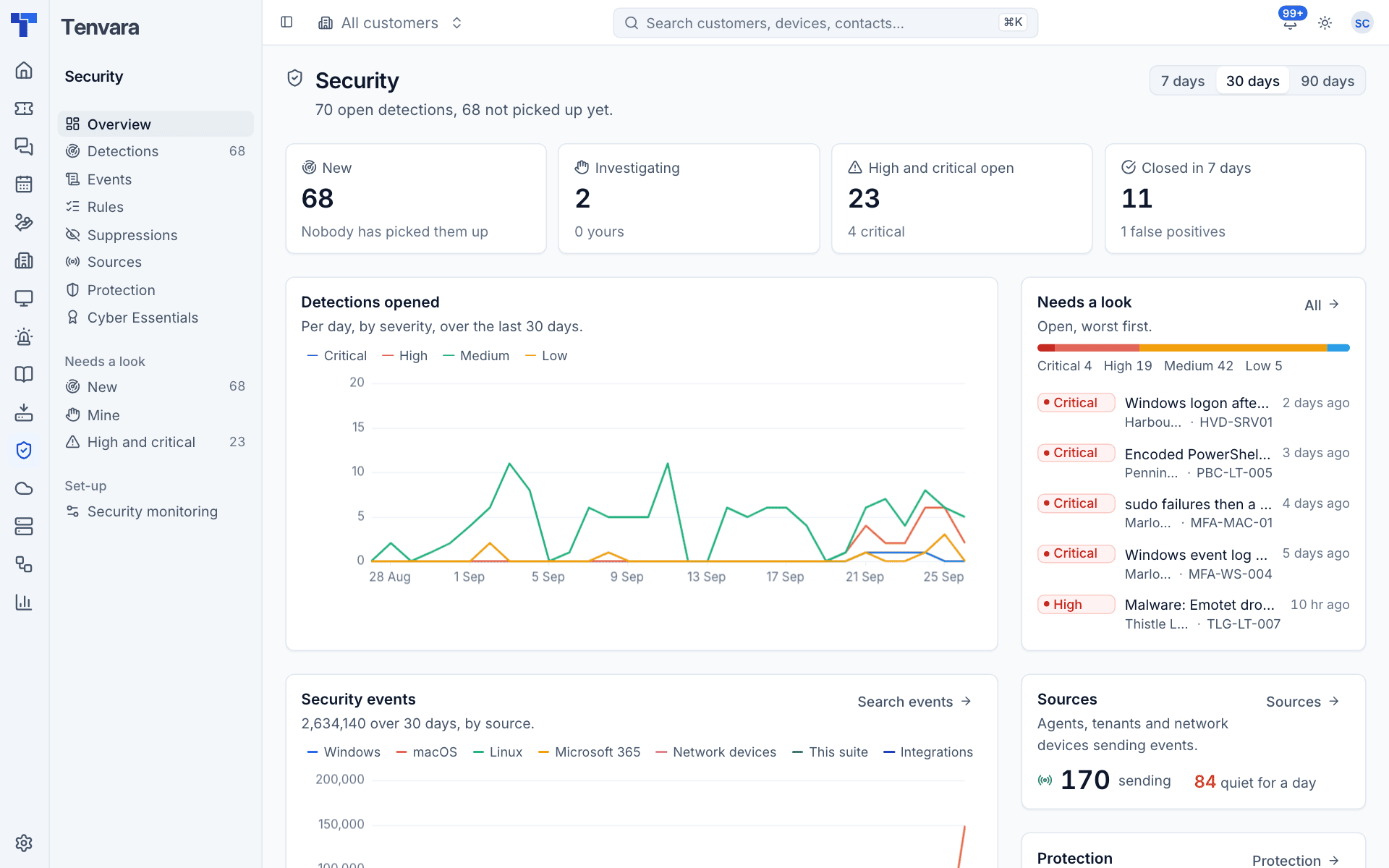
Choose 7 days, 30 days or 90 days at the top right. The page follows the customer switcher, so you can look at one customer or all of them.
- New: detections nobody has picked up yet.
- Investigating: detections being worked, with how many are yours.
- High and critical open, with the number of critical ones.
- Closed in 7 days, with how many were false positives.
- Detections opened: a chart per day by severity.
- Needs a look: open detections, worst first, with a bar of how many are critical, high, medium and low.
- Security events: how many events arrived, by source, over the period, with Search events.
- Sources: how many are sending and how many have been quiet for a day.
- Protection: devices with antivirus off, the firewall off, no encryption where it is required, and extra local administrators.
- Busiest rules and Customers with the most open detections.
When nothing is set up yet (no rules, no events, or rules failing), the overview says what to do next.
Where else security shows up
- Device page: a Security block with open detections, notable events in the last 24 hours and a link to search the device's events, and a Protection block.
- Customer page: a Security tab and a Cyber Essentials tab.
- Home: a Security block.
- Alerts and tickets: detections at or above a set severity raise alerts, which your alert rules can turn into tickets. See Integrations and alerting.
- AI: the assistant can search security events and read detections for the customer in scope.
Permissions
Security has its own permission area in Roles and permissions:
| Level | What it allows |
|---|---|
| View | Search events and see detections, rules, sources, protection and Cyber Essentials |
| Manage | Work detections, change rules and suppressions, add network sources and connect integrations |
| Administrator role | Settings > Security monitoring |
If the Security module is switched off in Modules, the area disappears and agents are told to stop collecting.
Was this page helpful?
Thanks for the feedback.