Proposal wording and templates
Write the introduction, scope and terms for a quote, preview exactly what the customer will see, and set up branded proposal templates, quote settings and VAT rates.
A quote reaches the customer as a proposal: a branded document with a cover, your introduction, the scope of work, the pricing with any optional extras, the totals and your terms, ending in a signature block. The branding and starting wording come from a template; each quote can then change its own wording.
The Proposal tab
Open a quote and choose Proposal.
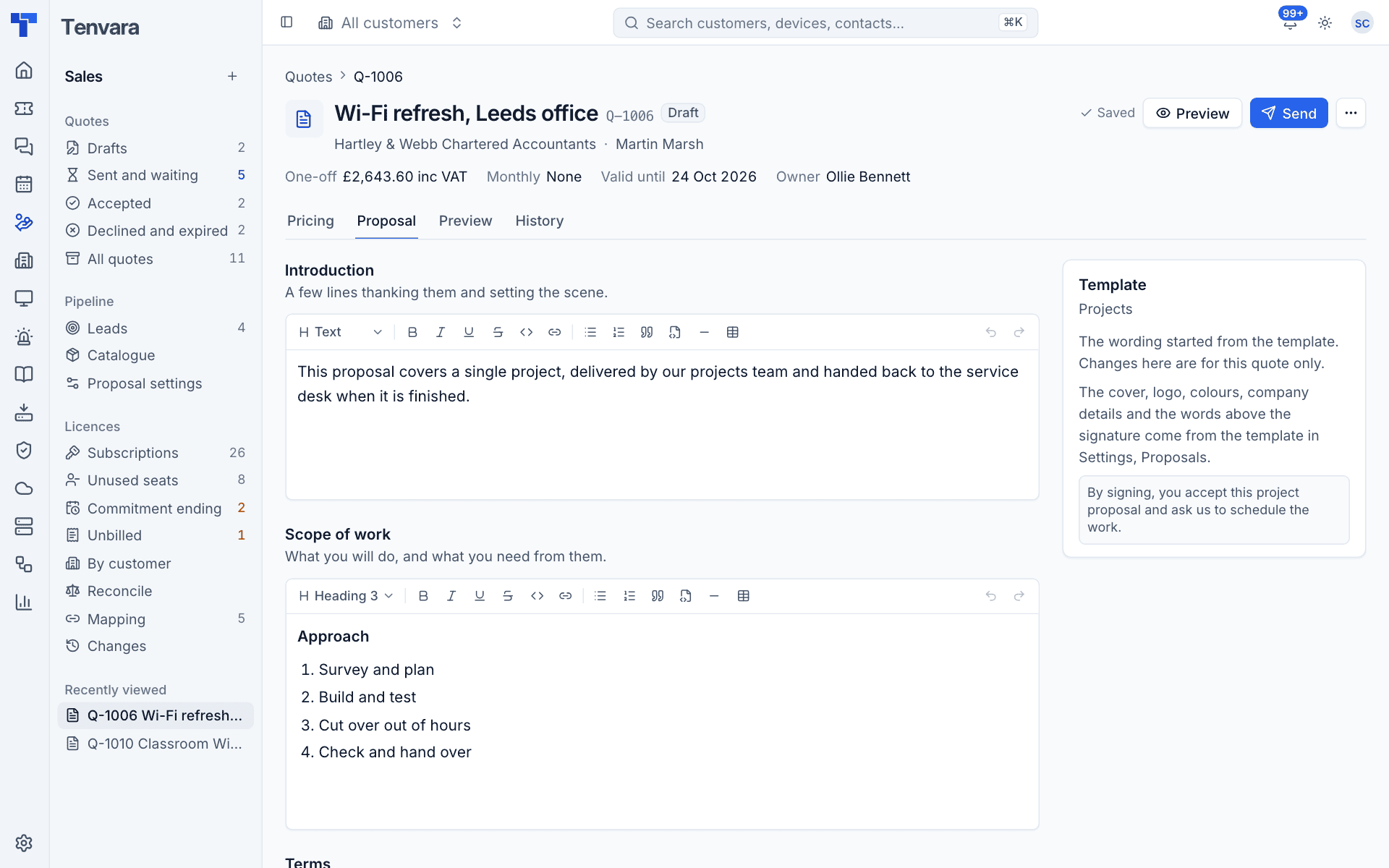
There are three rich text boxes, each started from the quote's template:
- Introduction: a few lines thanking them and setting the scene.
- Scope of work: what you will do, and what you need from them.
- Terms: payment, notice, warranties: what they agree to by signing.
Use the toolbar for headings, bold, lists, quotes, links and tables. Changes save by themselves and apply to this quote only.
The Template card on the right says which template the quote uses and shows the words above the signature. The cover, logo, colours, company details and those closing words come from the template in Settings > Proposals. To switch template, use Edit details in the quote's ... menu.
Preview what the customer sees
The Preview tab (or Preview at the top of the quote) shows the proposal exactly as the customer will see it, for example "What Martin Marsh sees".
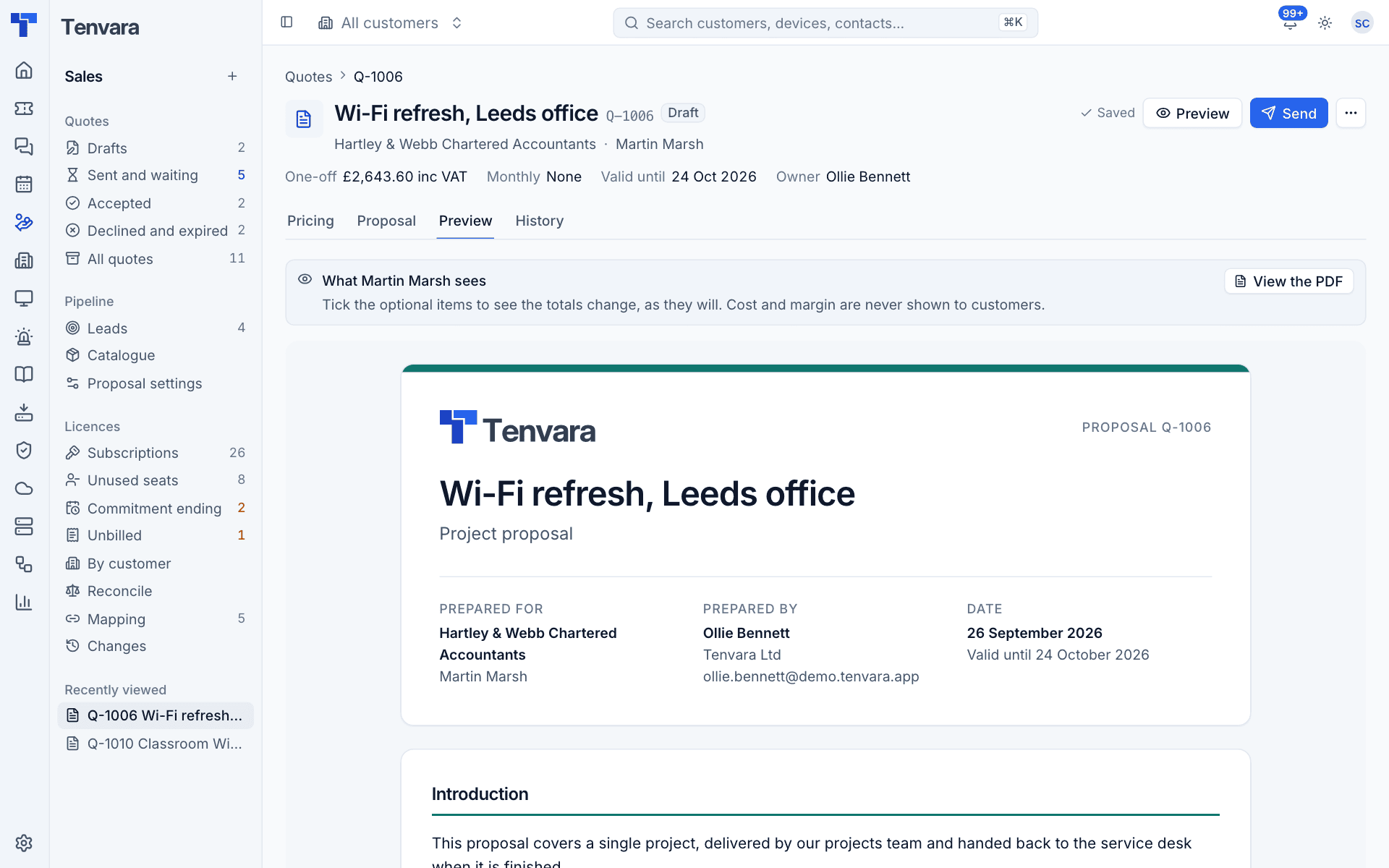
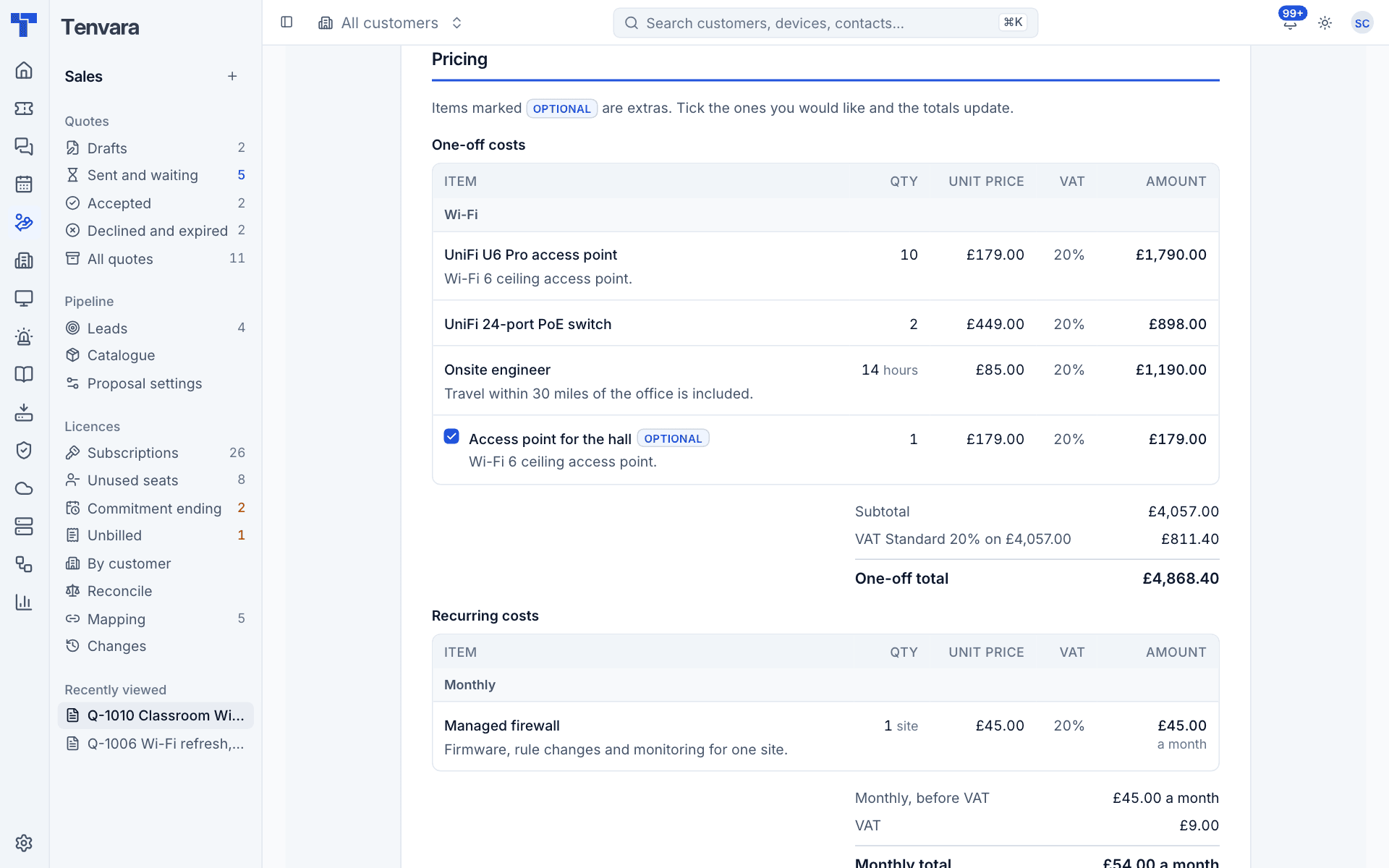
- Tick the optional items to watch the totals change, as they will for the customer.
- Press View the PDF for the A4 version.
- Cost and margin are never shown.
The pricing groups lines by section, split into One-off costs and Recurring costs, with each line's quantity, unit price, VAT and amount, and optional items marked Optional with a tick box.
The PDF
The PDF is A4, with a cover page, a running header and page numbers after the cover, price tables that repeat their headings and never split a line across pages, the totals, a summary, the terms and a signature block. Once the quote is signed, the signature block becomes the acceptance record: who signed, their job title, when, which version, the options chosen, the totals agreed and the signature.
The PDF from ... > PDF on the quote is the staff copy. It also shows the signer's IP address and email, which never appear on the customer's copy.
Templates
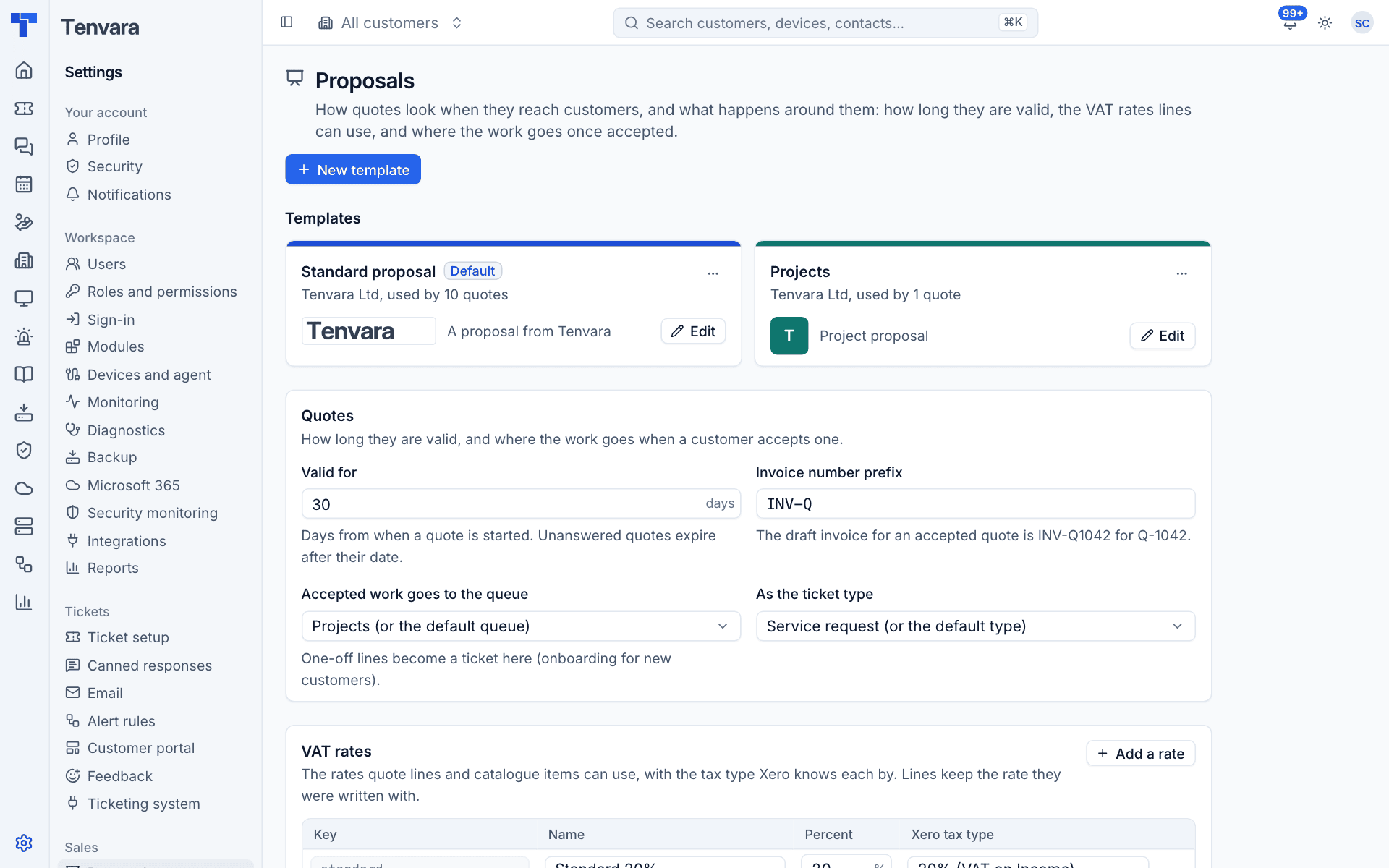
Templates live in Settings > Proposals (administrators). Each card shows the template's logo, company name, cover subtitle and how many quotes use it. One template is the Default for new quotes.
Create or edit a template
- Press New template, or Edit on an existing one.
- Enter the Template name, and turn on Use for new quotes (the default) if it should be the default.
- Upload a Logo: PNG, JPEG, GIF or WebP, 1 MB at most. It goes on the cover and in the header.
- Pick an Accent colour from the swatches or type a hex value. It is used for rules, marks and the button in the email; text stays in the theme's colours.
- Fill in the Company name and Company details (address, phone, company and VAT numbers, a line each). They go on the cover and at the foot.
- Set the Cover title (blank uses the quote's title) and Cover subtitle.
- Write the starting Introduction, Scope of work and Terms, and the words Above the signature.
- Watch the Live preview, with a sample quote on the right, or press Sample PDF to see the PDF.
- Press Save template.
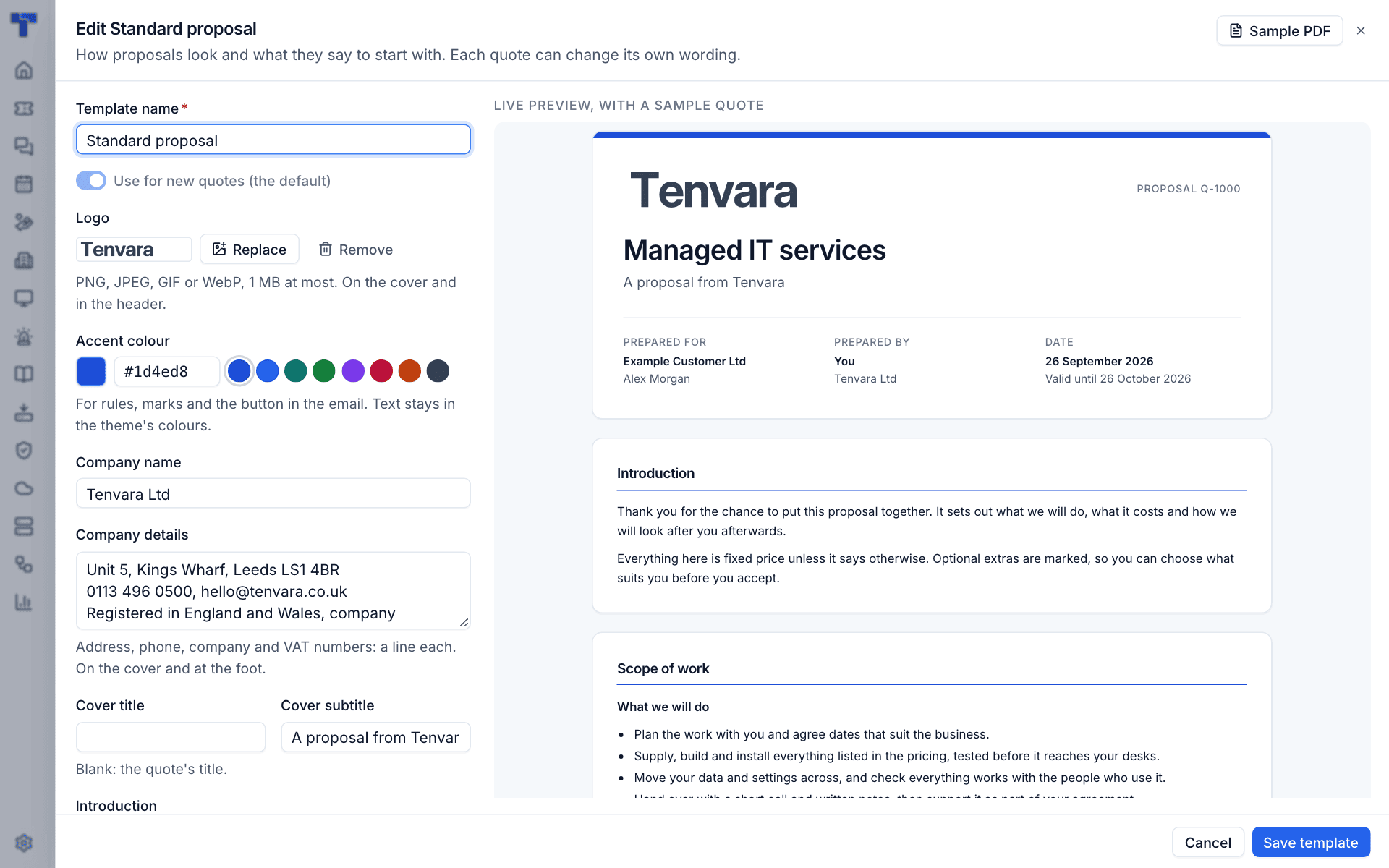
The sample quote in the preview is made up on the spot; nothing is saved. Changing a template's wording affects new quotes only: quotes already started keep the wording they have.
Tip: Keep one template per kind of work. The demo has a default "Standard proposal" and a green "Projects" template with project-style scope and terms.
Quote settings
The Quotes card on the same page sets:
| Setting | What it does |
|---|---|
| Valid for | Days from when a quote is started until it expires. Unanswered quotes expire after their date |
| Invoice number prefix | The draft invoice for an accepted quote is numbered with this, for example INV-Q1042 for Q-1042 |
| Accepted work goes to the queue | Where one-off work becomes a ticket when a quote is accepted |
| As the ticket type | The ticket type for that work |
VAT rates
The VAT rates card lists the rates quote lines and catalogue items can use: a key, a name, the percentage and the Xero tax type each is known by. Standard 20%, Reduced 5%, Zero rated and Exempt come set up. Press Add a rate for another.
Lines keep the rate they were written with. A new version of a quote picks up the current rates.
Was this page helpful?
Thanks for the feedback.