Modules
Choose which parts of Tenvara your team uses, and what happens when a module is switched off.
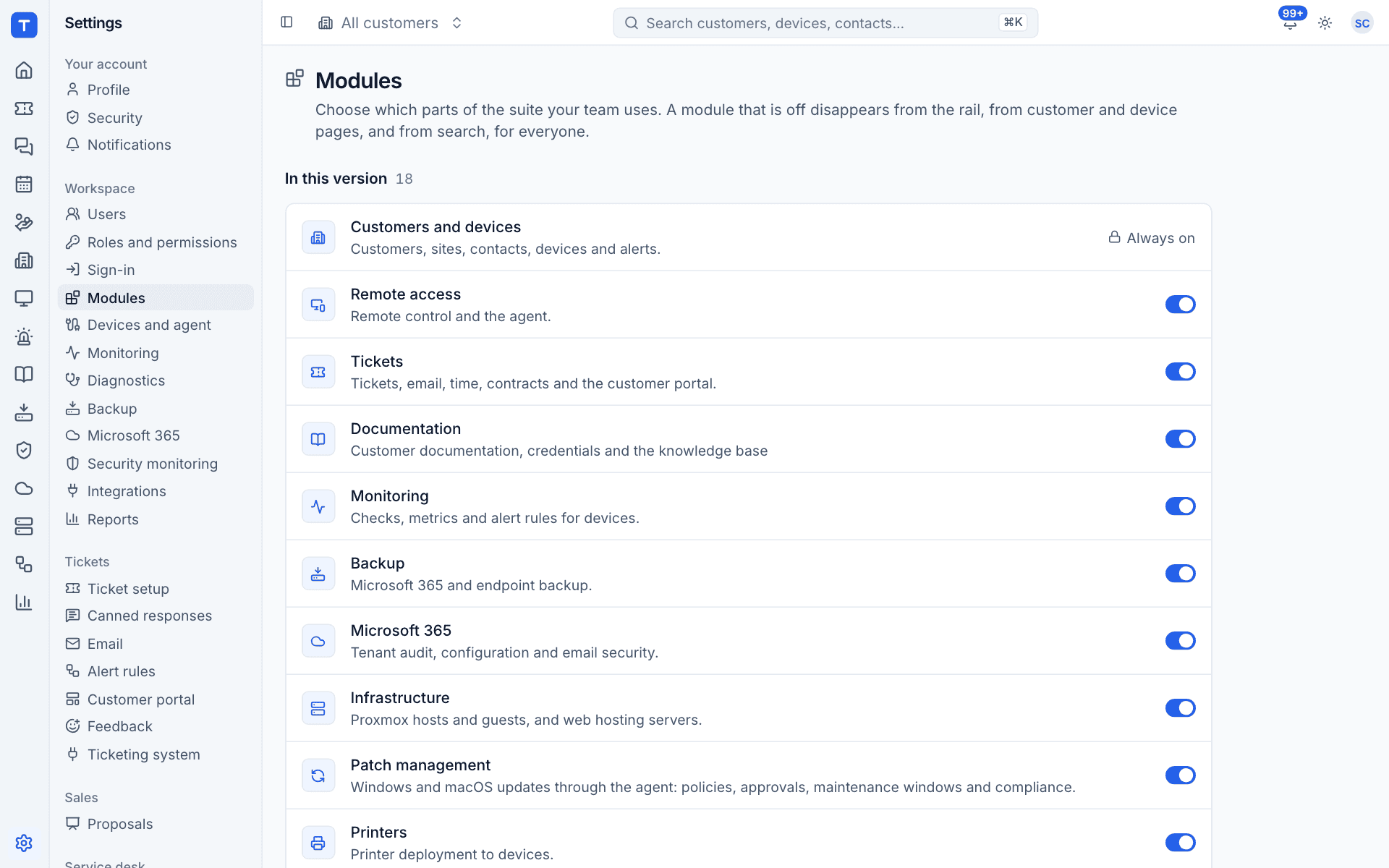
Tenvara is one app, but you do not have to use all of it on day one. Settings > Modules lists every part of the product and lets an administrator switch each one on or off for the whole team.
What switching a module off does
A module that is off disappears for everyone:
- from the rail, so its area is gone;
- from customer and device pages, so its tabs and cards are gone;
- from search and the command palette;
- from the home page and the customer portal, where it had a part there.
Nothing is deleted. Switch it back on and everything is where you left it.
Note: Switching a module off in Tenvara is not the same as stopping the agent doing that job on devices. To stop, for example, patching on devices, switch off the agent's Patch management module in Devices and agent as well.
The modules
The page says how many modules are In this version (18 at the moment).
| Module | What it covers |
|---|---|
| Customers and devices | Customers, sites, contacts, devices and alerts. Always on: everything else hangs off it |
| Remote access | Remote control and the agent |
| Tickets | Tickets, email, time, contracts and the customer portal |
| Documentation | Customer documentation, credentials and the knowledge base |
| Monitoring | Checks, metrics and alert rules for devices |
| Backup | Microsoft 365 and endpoint backup |
| Microsoft 365 | Tenant audit, configuration and email security |
| Infrastructure | Proxmox hosts and guests, and web hosting servers |
| Patch management | Windows and macOS updates through the agent: policies, approvals, maintenance windows and compliance |
| Printers | Printer deployment to devices |
| Scripts | A script library run on devices through the agent, now or on a schedule |
| Software | The software catalogue, deployments to devices and third-party app updates |
| AI assist | Ticket triage, summaries, draft replies and device investigations with your own Anthropic key |
| Automation | "When this happens, do that" rules across tickets, alerts and devices, with a run log and dry runs |
| Chat | Live chat from the website widget, the portal and the agent tray, with chats that become tickets |
| Scheduling | The technician calendar, visits booked against tickets, the dispatch board and customer confirmations |
| Reports | Monthly customer reports, internal dashboards and the report builder |
| Security | Security events from devices, Microsoft 365 and network devices, detection rules, detections, security integrations and Cyber Essentials readiness |
Switch a module on or off
- Go to Settings > Modules.
- Use the switch next to the module.
The change applies to everyone. People who have the area open see it go (or appear) the next time their session refreshes, within a few minutes.
Modules and permissions
Modules and permissions work together:
- A module that is off is hidden for everyone, whatever their permissions.
- A module that is on is shown to each person according to their level in Roles and permissions: None hides it, View shows it, Manage lets them change things.
So to hide an area from one group of people, leave the module on and set their level to None. To hide it from everyone, switch the module off.
Choosing where to start
A common way to start is with Customers and devices, Remote access, Tickets and Monitoring, and add the rest as you move each job across from your old tools. Switching a module on later is instant, and nothing has to be reinstalled on devices: the agent already carries every module, and Devices and agent decides which of them run.
Tip: Switch off the modules you have not set up yet, even if you plan to use them soon. Your team then only sees areas that are ready, and nobody wonders why a page is empty.
Was this page helpful?
Thanks for the feedback.