Device protection
See each device's antivirus, EDR, firewall, disk encryption and local administrators, the findings against your limits, and the alerts when protection is lost.
The Tenvara agent reports each device's protection every few hours. Security > Protection judges every report against your limits and lists what needs fixing, fleet-wide or for one customer.
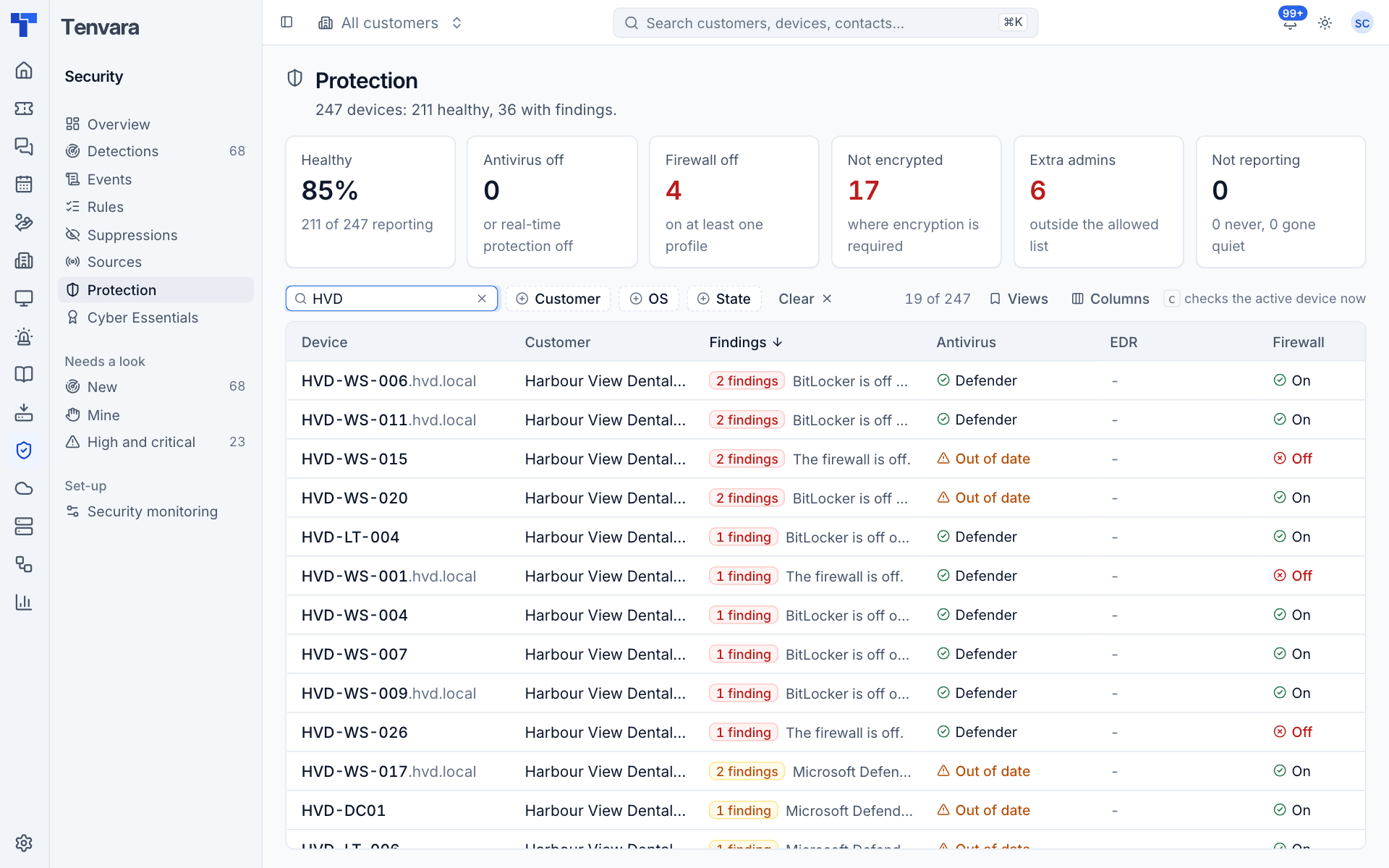
The protection list
The top of the page sums up every device that reports:
- Healthy: the share of devices with no findings.
- Antivirus off: no antivirus running, or real-time protection off.
- Firewall off: on at least one profile.
- Not encrypted: where encryption is required.
- Extra admins: local administrators outside the allowed list.
- Not reporting: devices that are online but have not reported for too long.
Click a figure to open the matching view. The list shows each device with its Customer, Findings (with the worst one spelled out), Antivirus, EDR, Firewall and Encryption, devices with findings first. Filter by customer, OS and state, or use the views Issues, Antivirus off, No encryption, Firewall off, Extra admins, EDR problems and Not reporting.
One device's protection
Click a device to open its protection in a side panel:
- The OS and version, the number of findings, and when it last reported.
- Antivirus, EDR, Firewall, Encryption and Local admins at a glance.
- Findings, each with its severity.
- The full report: every antivirus product and its state and signature age, each firewall profile, each encrypted volume, local administrators, and the rest of the configuration checked.
- A timeline of changes: findings that appeared or went, administrators added or removed, the OS changing, EDR sensors found or gone.
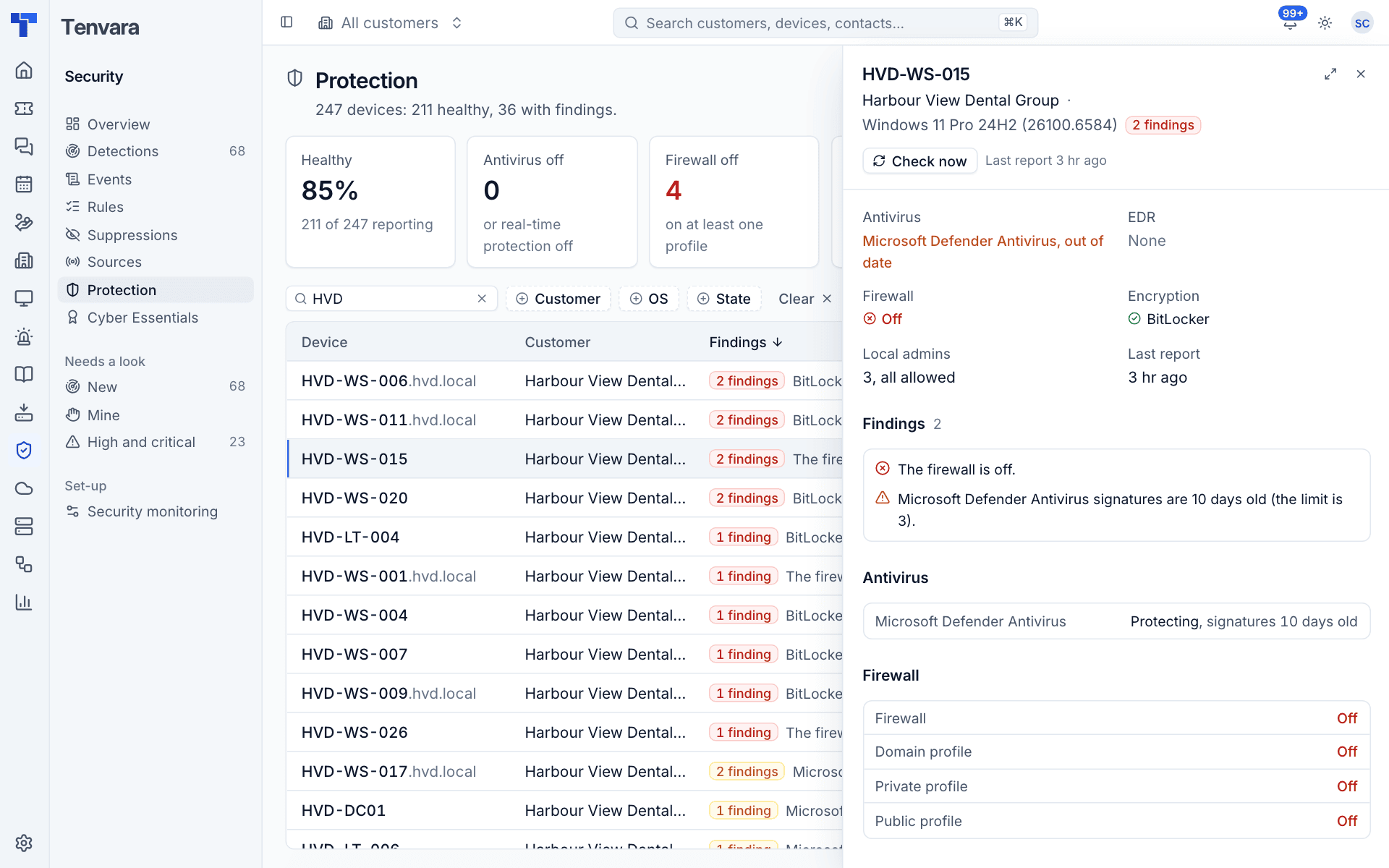
Press Check now (or c on the list) to ask the agent for a fresh report straight away. The same information appears in the Protection block on the device's own page.
What is checked
Always checked:
- Antivirus: none installed, switched off, real-time protection off, or signatures older than the limit (shown as Out of date).
- Firewall: off, or any profile off.
- Encryption: the system volume not encrypted (BitLocker, FileVault, LUKS) where encryption is required. By default that is laptops only.
- Local administrators: accounts outside the allowed list. Names match without the domain or machine in front, whatever the case.
- EDR: a sensor that is not healthy, or missing on a device of a customer covered by SentinelOne or Huntress.
- Not reporting: online, but no report for longer than the limit.
Also checked, and each can be switched off: Defender tamper protection off, the built-in Administrator enabled with its default name, the guest account enabled, the screen never locking or locking too late, short passwords or no account lockout, SMB version 1, AutoRun, Remote Desktop without Network Level Authentication, automatic updates off, Secure Boot off (information only), and SSH allowing root to sign in directly.
Settings
Go to Settings > Security monitoring > Protection (administrators).
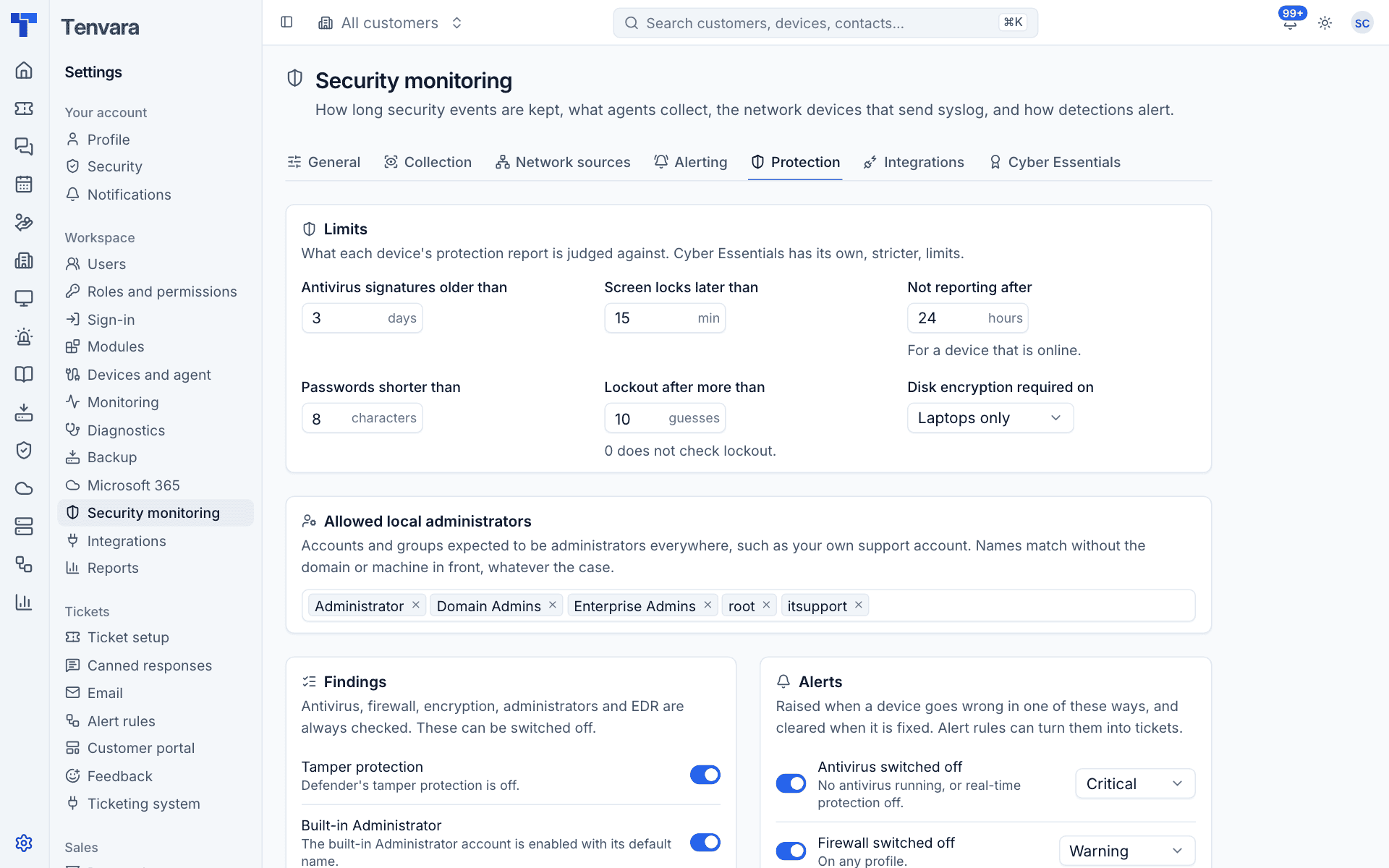
- Under Limits, set how old antivirus signatures may be, how late the screen may lock, when a device counts as not reporting, the minimum password length, the lockout threshold, and where Disk encryption required on applies (Laptops only, Every device or Nowhere).
- Under Allowed local administrators, list the accounts and groups expected to be administrators everywhere, such as your own support account. Customers can have their own additions.
- Under Findings, switch off any optional check you do not want.
- Under Alerts, choose which changes raise an alert and at what severity.
- Save. Every stored report is judged again straight away.
Customers can have their own allowed administrators, encryption requirement, screen lock and signature limits.
Alerts
These alerts are raised when a device goes wrong, not on every report, and clear when it is fixed:
| Alert | When |
|---|---|
| Antivirus switched off | No antivirus running, or real-time protection off |
| Firewall switched off | On any profile |
| Encryption lost | The disk was encrypted in the last report and is not now |
| New local administrator | An account outside the allowed list became an administrator |
| EDR unhealthy | A sensor is stopped, offline, infected or disabled |
| Not reporting | Off by default |
Resolving an alert while the problem is still there does not page you again. Your alert rules can turn these into tickets.
Tip: Protection feeds Cyber Essentials: firewalls, malware protection, secure configuration and local administrators all come from these reports. See Cyber Essentials readiness.
Was this page helpful?
Thanks for the feedback.