Knowledge base articles
Organise the knowledge base in folders, write and edit articles, link them to tickets and devices, and use version history.
The knowledge base is your team's own library of how-tos, checklists and processes. Articles in it are for the whole team and are not tied to one customer. (Articles about a single customer live with that customer: see Customer documentation and records.)
Folders
Folders organise the knowledge base, and they can go inside each other, for example Exchange Online inside Microsoft 365.
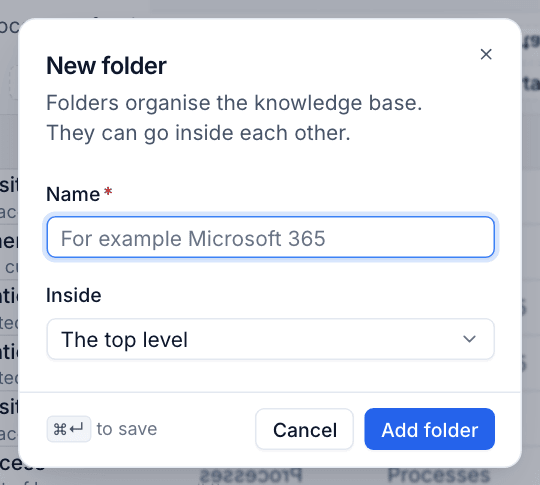
To add a folder:
- Open Docs and choose All articles.
- Press New folder.
- Enter a Name.
- Under Inside, choose The top level or the folder it belongs in.
- Press Add folder (or Cmd+Enter).
Click a folder in the sidebar to see only its articles. The number beside each folder is how many articles it holds.
Writing an article
- Press New article on the knowledge base (or choose a folder first, and the new article goes into it).
- Type the Title at the top.
- Write the body in the editor. The toolbar has headings, bold, italic, underline, strikethrough, inline code, links, bulleted and numbered lists, quotes, code blocks, a divider, tables, images and attachments. You can paste screenshots straight in.
- Fill in the panel on the right (below).
- Press Save article, or Cmd+S.
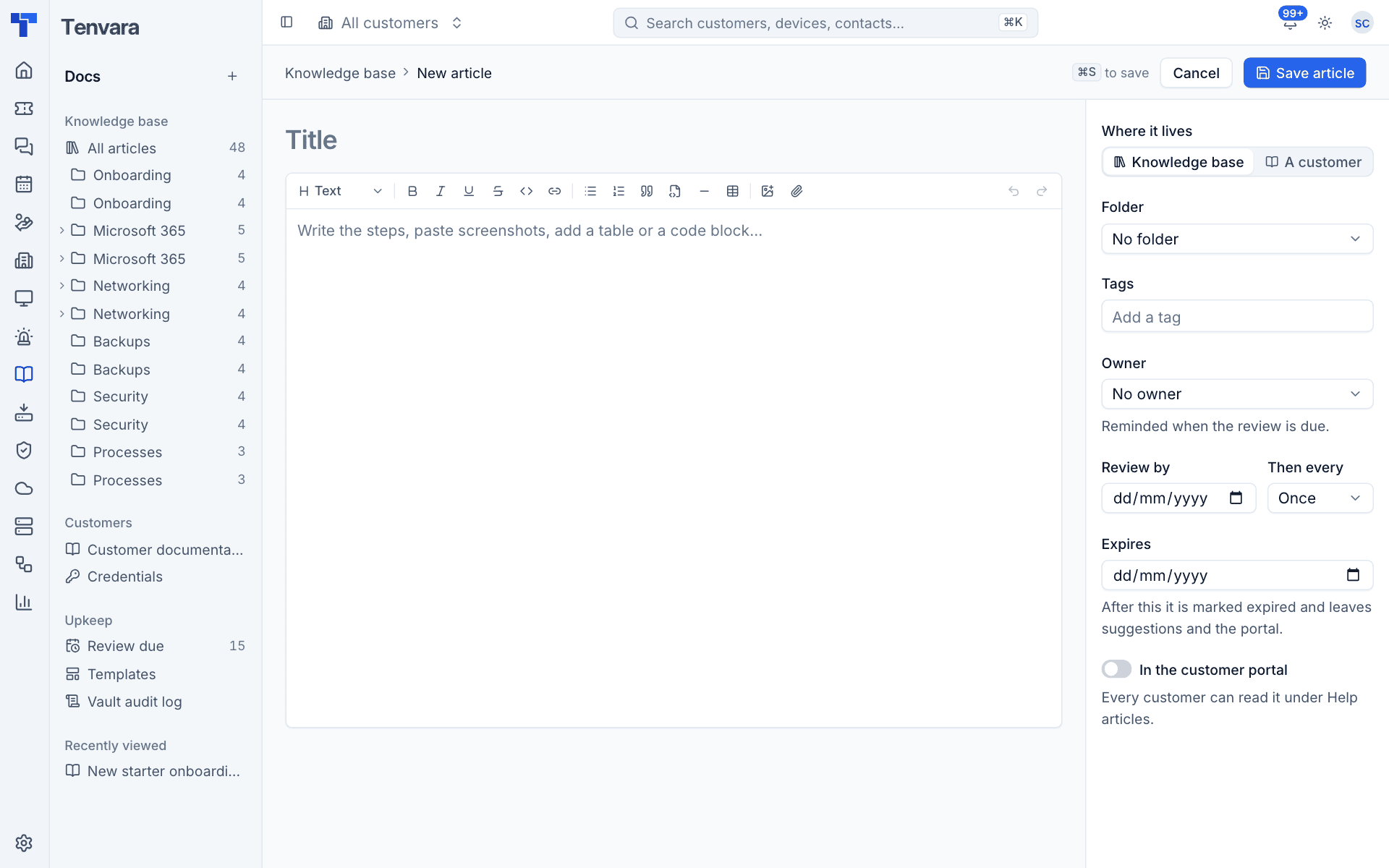
The side panel
| Setting | What it does |
|---|---|
| Where it lives | Knowledge base for your own articles, or A customer to make it a customer article (you then choose the customer and, optionally, a site) |
| Folder | Which knowledge base folder it goes in, or No folder |
| Tags | Words to group and find articles by. Tags are searched with the text |
| Owner | The person responsible for keeping it right. They are reminded when the review is due |
| Review by and Then every | The date of the next review, and whether it repeats (Once, or every so many months) |
| Expires | After this date the article is marked expired and leaves suggestions and the portal. It stays readable for staff |
| In the customer portal | For a knowledge base article, publishes it to every customer under Help articles |
Images and attachments are limited to 25 MB each, the same as ticket attachments.
Tip: Leaving the editor with unsaved changes asks you first, so you will not lose work by clicking away.
When two people edit at once
If someone else saves the article while you are editing, your save does not overwrite theirs silently. The editor tells you, and you can either reload to see their version or keep your text and save it over theirs. Their version stays in the history either way.
Reading an article
Click an article to open it. The header shows its folder, owner, when it was last updated and by whom, and its version number.
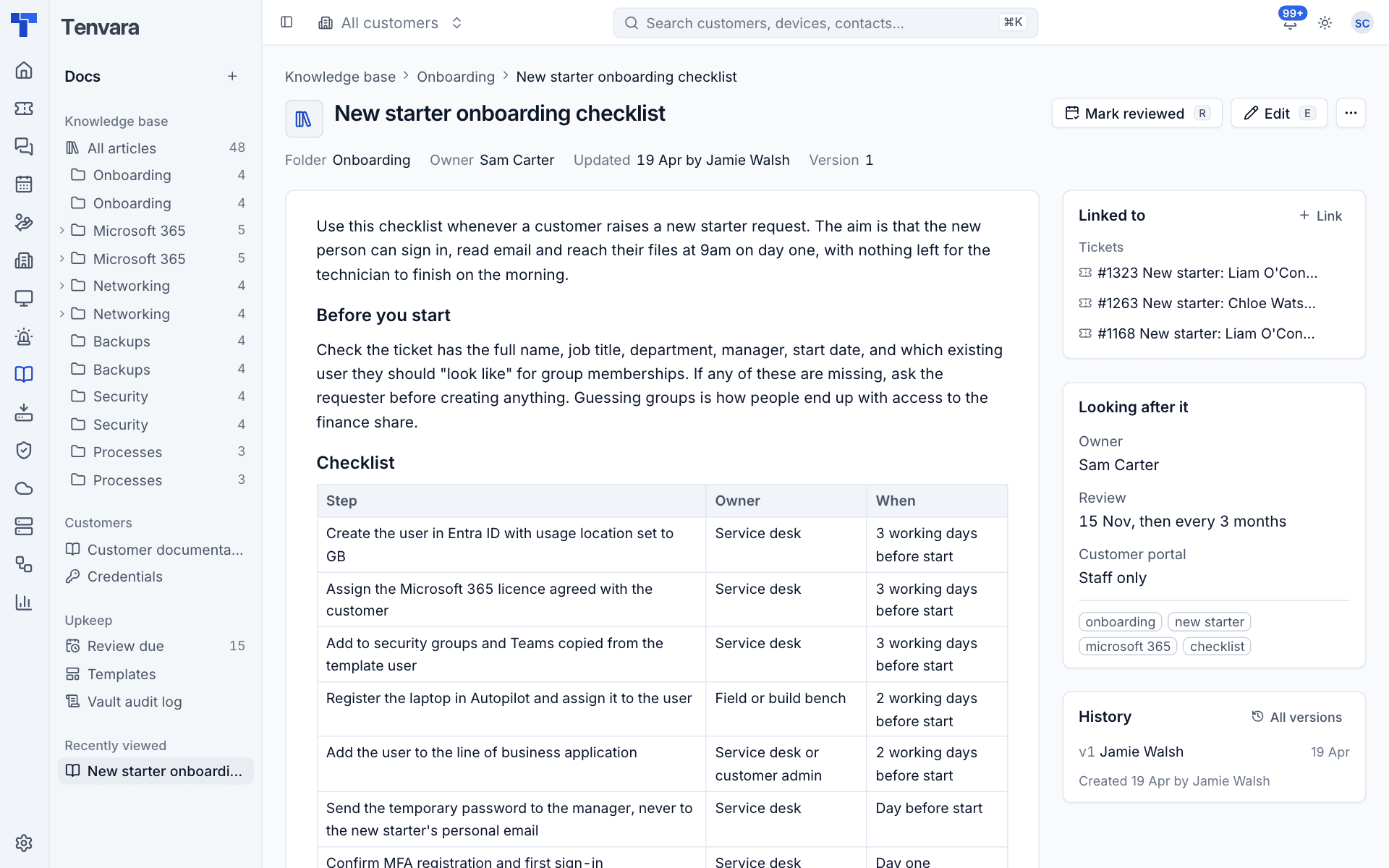
The panels on the right show:
- Linked to: the tickets, devices, contacts and sites the article is linked to. Press Link to add one. Linked articles show on those pages, and on a ticket they are suggested first.
- Looking after it: the owner, the review schedule, whether it is in the customer portal (Staff only or published) and its tags.
- History: the latest versions, with All versions to open the full history.
Keyboard shortcuts
| Key | Action |
|---|---|
E |
Edit the article |
R |
Mark it reviewed |
H |
Open its history |
| Cmd+S | Save, while editing |
More actions
The ... menu on an article has:
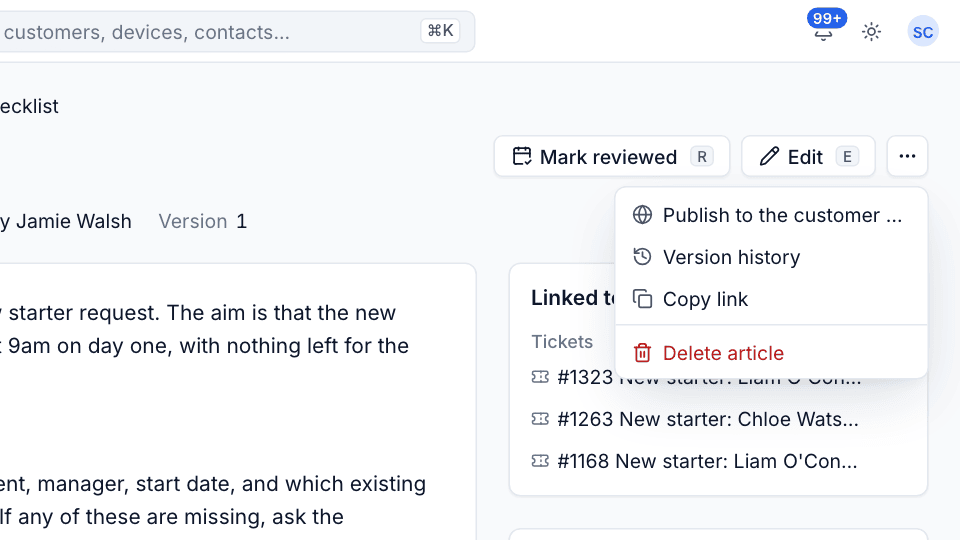
- Publish to the customer portal (or take it off the portal).
- Version history.
- Copy link, to paste the article's address into a chat or ticket.
- Delete article.
Version history
Every save that changes the title or the text keeps a version. Changes to tags, owner or dates do not make new versions.
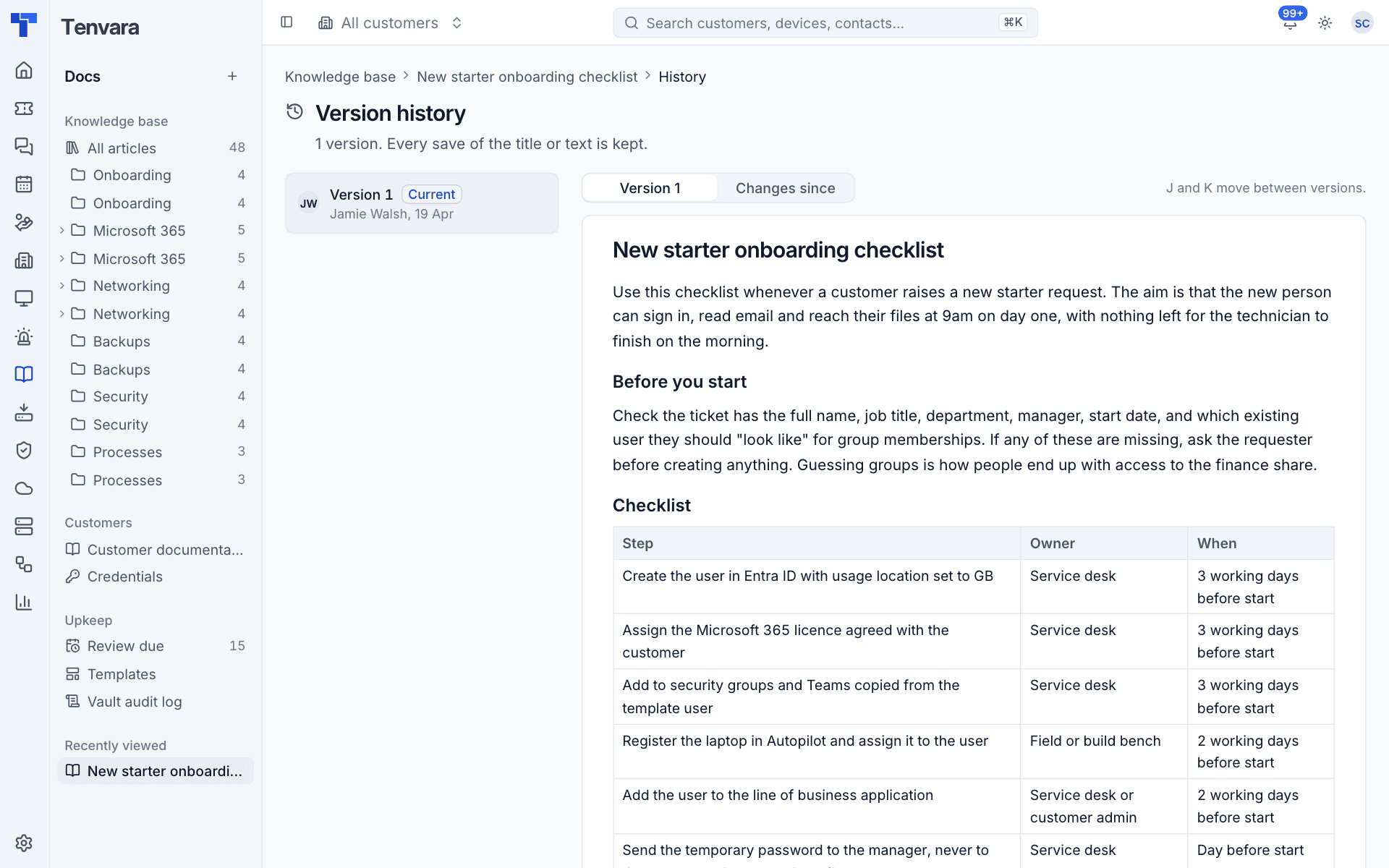
- Open the article and press
H, or choose All versions. - Pick a version on the left. J and K move between versions.
- Choose Version N to read it as it was, or Changes since to compare it with the current version line by line. Unchanged stretches are folded away.
- To go back to an older version, restore it. Restoring saves it as a new version, so nothing is lost.
Marking an article reviewed
When you have checked an article is still right, press Mark reviewed (or R). If the article repeats its review, the next review date moves on by the interval you set. See Reviews and the vault audit log for the list of articles due.
Moving articles
To move an article to another folder, edit it and change Folder. You can also turn a knowledge base article into a customer article, or the other way round, by changing Where it lives.
Note: Moving an article to another customer, or into the knowledge base, takes it off the customer portal unless the same change publishes it again. This stops one customer's article appearing to another.
Was this page helpful?
Thanks for the feedback.