Leads
Track prospects before they are customers, log what happened, quote them, and convert them into customers by hand or when they accept.
A lead is a prospect: a company you are talking to that is not a customer yet. You can quote a lead just like a customer. When they accept, the lead becomes a customer automatically, with their contact and quotes moved across.
Open Sales > Leads. The line under the title shows how many leads are open and roughly what they are worth.
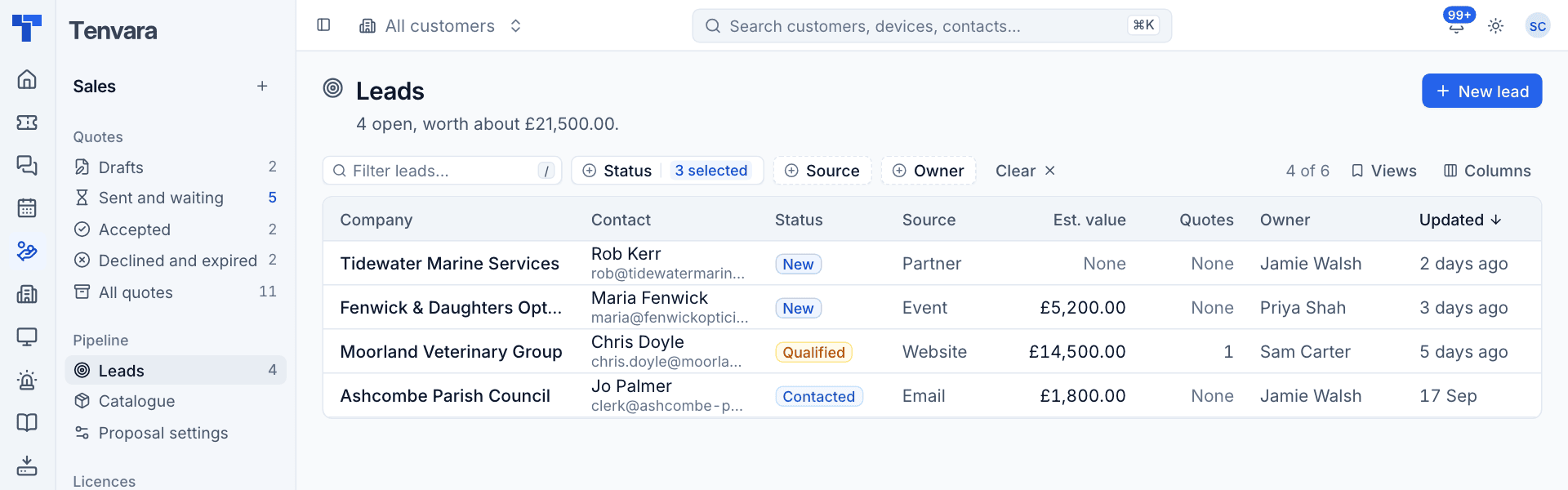
The list shows each lead's Company, Contact (with their email), Status, Source, Est. value, number of Quotes, Owner and when it was Updated. It shows open leads to start with; use the Status filter to see won and lost ones too. Filter by source and owner, and save views.
Lead statuses
| Status | Meaning |
|---|---|
| New | Just added |
| Contacted | You have been in touch |
| Qualified | A real opportunity. Sending a lead a quote sets this for you |
| Won | Converted to a customer, by hand or by accepting a quote |
| Lost | Not going ahead |
You cannot set Won by hand: it comes from converting the lead or a quote being accepted.
Add a lead
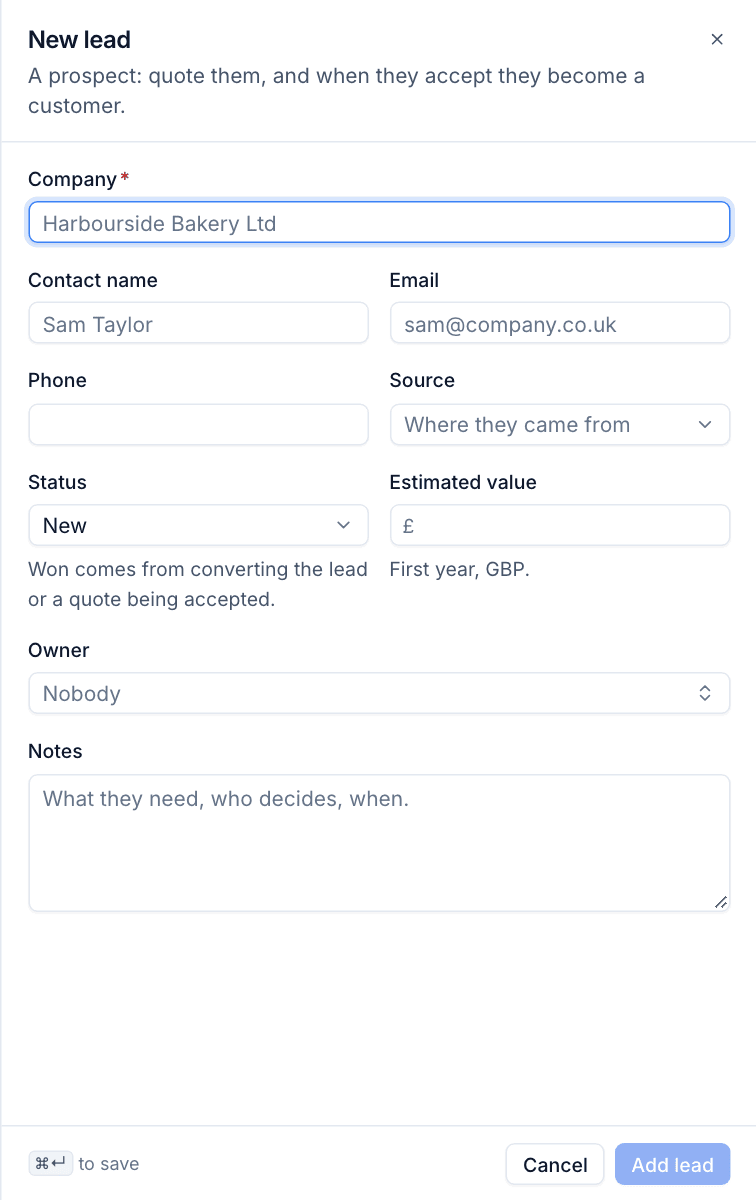
- Press New lead.
- Enter the Company, and the Contact name, Email and Phone. The email matters: when the lead accepts a quote, its domain decides whether they join an existing customer.
- Choose the Source: Website, Referral, Phone, Email, Event, Partner or Other.
- Set the Status (usually New).
- Enter the Estimated value: the first year, in pounds.
- Choose the Owner, and add Notes: what they need, who decides, when.
- Press Add lead.
The lead page
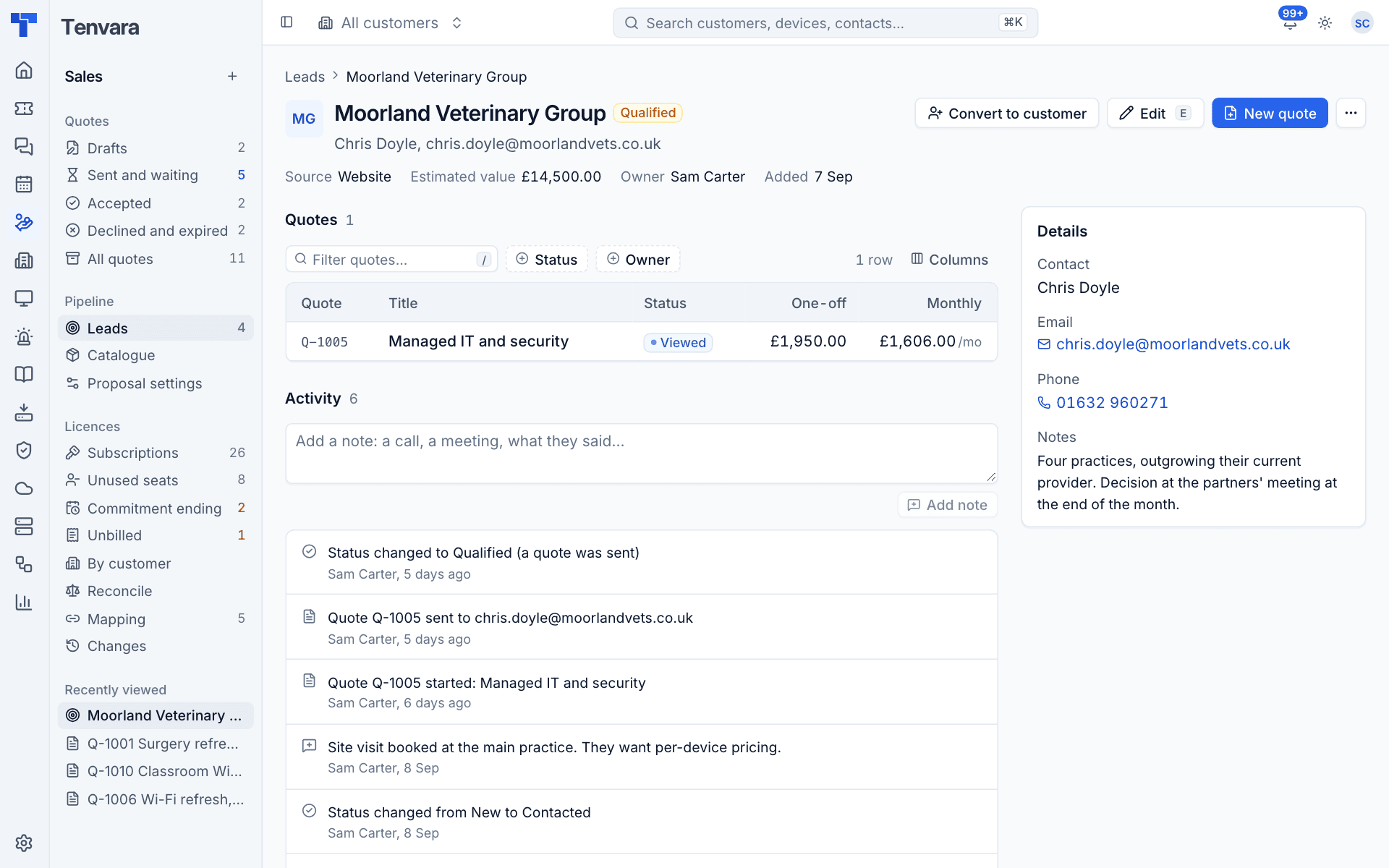
The header shows the company, status and contact, with the Source, Estimated value, Owner and when it was Added. From here:
- Convert to customer (see below).
- Edit (
e) to change the details. - New quote to quote them. The quote is for the lead, and its proposal goes to the lead's contact.
- The ... menu: Mark contacted, Mark lost... (with a reason) and Delete lead.
Quotes lists the lead's quotes with their status and totals.
Activity is the lead's log. Add a note about a call, a meeting or what they said, and press Add note. Tenvara adds its own entries too: status changes, quotes started and sent.
Details on the right holds the contact, email, phone and notes.
Convert a lead to a customer
Accepting a quote converts the lead on its own. To convert one by hand, for example when they sign up without a quote:
- On the lead's page, press Convert to customer.
- Choose A new customer (created with the lead's company name, set to onboarding) or An existing customer and pick it.
- Press Convert.
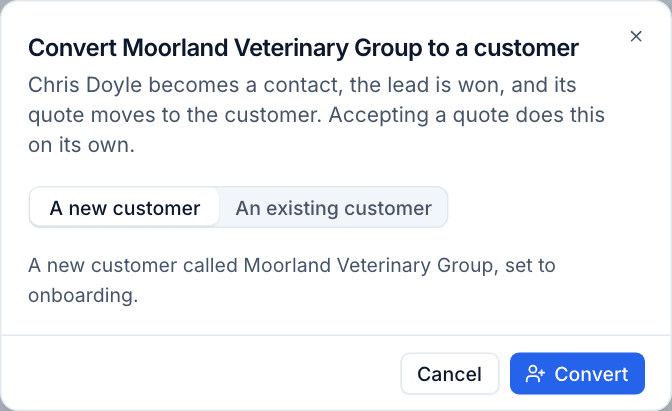
The contact becomes a contact on the customer, the lead is marked Won, and its quotes move to the customer.
When a quote converts it
When a lead accepts a quote, Tenvara looks at the lead's email domain:
- If exactly one customer has that email domain, the lead joins that customer.
- Otherwise a new customer is created. That includes free-mail addresses such as gmail.com or btinternet.com, domains no customer has, and domains more than one customer has.
The contact is added to the customer (or matched to an existing contact with the same email), and the lead's quotes move across. See Acceptance and what happens next.
Tip: Ask for a work email address when you add a lead. A lead with a personal address (gmail.com and the like) always becomes a new customer when they accept, even if they work for one you already look after; convert those by hand to An existing customer instead.
Leads also appear in search (Cmd+K).
Was this page helpful?
Thanks for the feedback.