Infrastructure overview
What the Infrastructure area covers, how hosts are found by the agent, and how to read the overview page.
The Infrastructure area looks after the servers that run other things: Proxmox VE hypervisors (clusters, nodes, virtual machines and containers) and web servers (Linux machines running nginx or Apache, the sites on them, their certificates, databases and backups). Both are handled by the same Tenvara agent you already install on devices, so there is nothing extra to deploy, no API tokens to create on Proxmox and no control panel to install on the web server.
How hosts are found
Every agent carries two roles that are switched on by default:
| Role | Where it does something | What it reports |
|---|---|---|
| Hypervisor role | A Proxmox VE node (Linux, with /etc/pve and pvesh present) |
The cluster, its nodes, guests, storage, backup jobs, recent tasks and backups |
| Web server role | A Linux machine running nginx or Apache | Services, runtimes, sites, TLS certificates, databases, disks and HTTPS checks |
On any other machine the roles stay idle and quietly report "not a Proxmox VE host" or "not a web server". You can see and change which roles run in Settings > Devices and agent, and a single device can override that from its own page.
Note: A host that reports in is only detected. Tenvara shows its figures straight away, but it will not run any action on it and raises no alerts for it until someone adopts it. See Proxmox clusters and nodes and Web servers.
The Infrastructure sidebar
Open Infrastructure from the rail. The sidebar has:
- Overview: the page described below.
- Hypervisors: every Proxmox cluster and standalone node, with its health.
- Guests: every virtual machine and container across every host.
- Tasks: what Proxmox did and every action started from Tenvara.
- Web servers: machines serving websites.
- Sites: every website on those servers.
- Certificates: every TLS certificate served, soonest to expire first.
- Needs attention: quick views for Detected hosts waiting to be adopted, Failed backups and Stopped guests.
Reading the overview
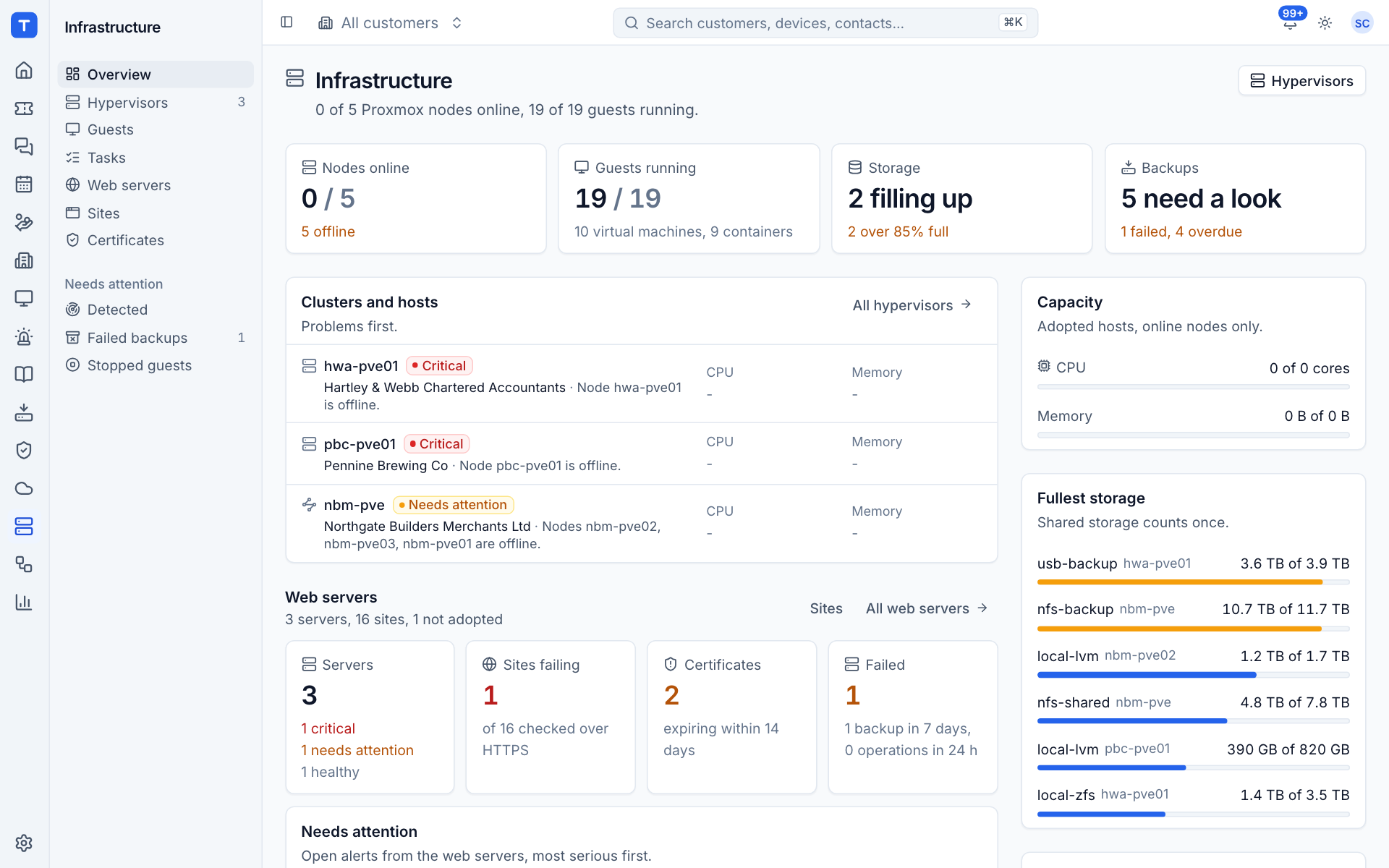
The top row sums up your adopted Proxmox hosts:
- Nodes online: how many nodes are reporting, with the number offline underneath.
- Guests running: running guests out of the total, split into virtual machines and containers.
- Storage: how many storage pools are filling up (over 85% full).
- Backups: guests whose last backup failed or is overdue.
Below that:
- Clusters and hosts lists your clusters and standalone nodes with problems first, each with its customer, the reason for its health and current CPU and memory.
- Web servers gives server health, Sites failing their HTTPS check, Certificates expiring within 14 days and Failed backups and operations. Needs attention lists the open web server alerts, most serious first.
- Recent tasks shows what Proxmox did and the actions started from Tenvara, newest first.
- Capacity adds up CPU cores and memory on adopted hosts, counting online nodes only.
- Fullest storage lists storage pools by how full they are. Shared storage counts once, not once per node.
- Backups that need a look and Open alerts list the guests and alerts that want attention.
Figures cover adopted hosts. Detected hosts get a callout of their own until someone adopts or removes them.
Where else infrastructure shows up
- Device page: a Proxmox node's device shows a Hypervisor block; a guest that runs the agent shows which host it runs on; a web server's device shows a Web server block.
- Customer page: an Infrastructure tab lists that customer's clusters, guests, web servers and sites.
- Home: one line sums up infrastructure problems.
- Search (Cmd+K): jump to hypervisors, guests and tasks, find guests and nodes by name, and start or shut down a guest.
Permissions
Infrastructure has its own permission area in Roles and permissions:
| Level | What it allows |
|---|---|
| View | See every Infrastructure screen |
| Manage | Adopt and remove Proxmox hosts, run guest actions, refresh, and run site operations on web servers |
| Administrator role | Adopt or release a web server, delete a server or site, drop a database, and switch on or use the break-glass Run a command |
If the Infrastructure module is switched off in Modules, the area disappears for everyone.
Was this page helpful?
Thanks for the feedback.