Starting a free trial
Start a free Tenvara trial on your own hosted instance, choose your address, follow it until it is ready and see what happens at the end.
The free trial gives you the full Tenvara product on your own hosted instance at yourname.tenvara.app, run by us, free for 30 days. You don't need a card. This page covers starting the trial, what happens while your instance is set up, and what happens when the trial ends.
Note: Tenvara is in beta. The trial is the full product, and as a beta user you have a direct line to the team building it. What you tell us helps decide what comes next.
Before you start
You need:
- A work email address. Your trial is tied to an account at www.tenvara.io, which the trial form creates for you.
- The address you want your team to use, for example
yourmsp.tenvara.app. Short and usually your company name.
There is one trial per company. If you already have an account at www.tenvara.io, sign in first or use its password on the form.
Start your trial
- Go to www.tenvara.io and press Start free trial. It is in the top bar, the menu and at the end of most pages.
- Fill in Your name, Work email, Company and a Password for your www.tenvara.io account (at least 10 characters). If you are already signed in, only Company is asked for.
- Under Your address, type the name you want in front of
.tenvara.app. As you type your company name, a suggestion appears. The form checks the address as you go and tells you whether it is available. - Choose your Country. Technicians and Endpoints managed are optional, but they help us set up your instance.
- Tick I agree to the terms of service and press Start free trial.
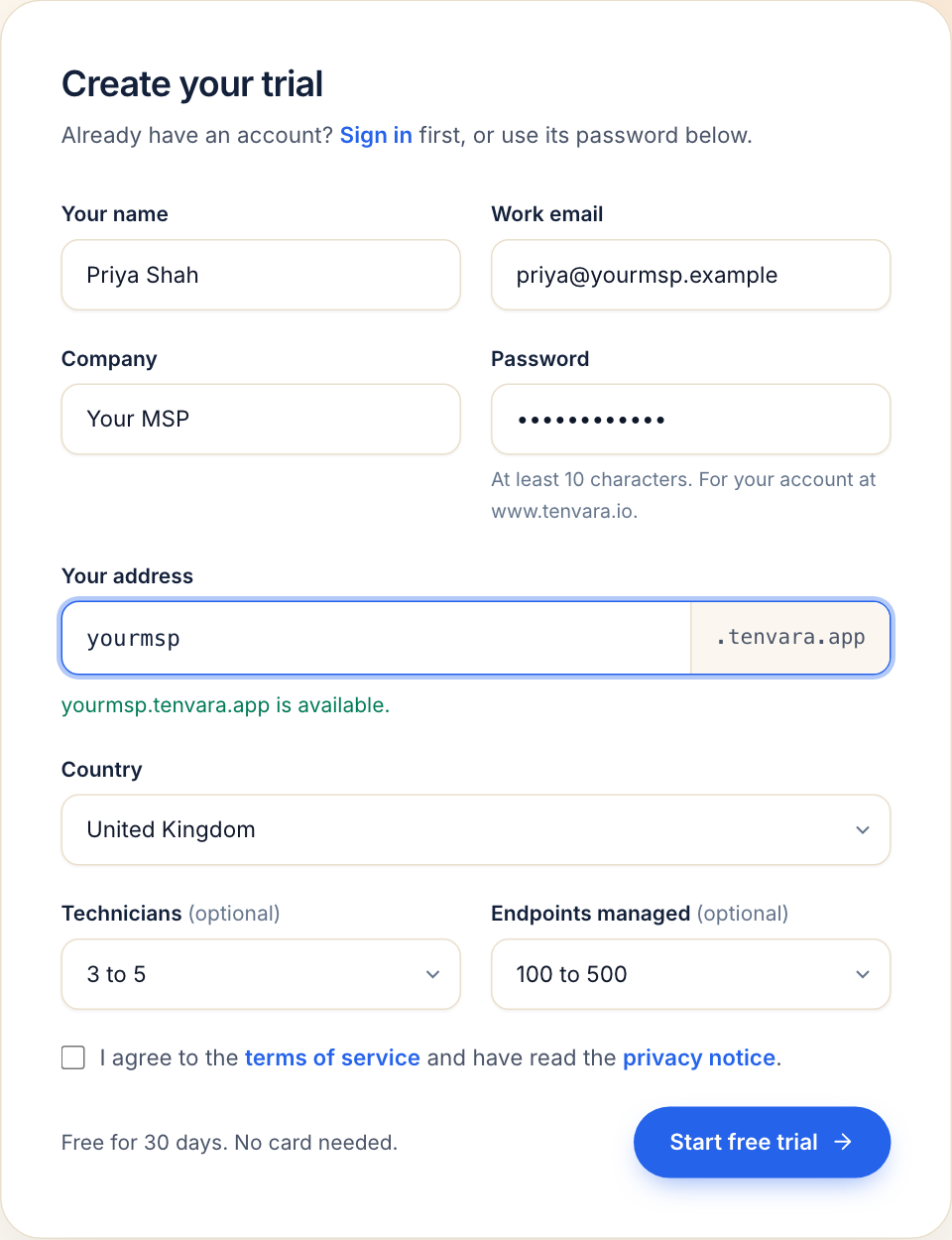
Choosing an address
- Use lower case letters, numbers and hyphens, 3 to 40 characters, starting and ending with a letter or number.
- If it says "That address is taken", try another.
- Some names are reserved, such as
www,admin,api,app,demo,staging,statusandmail. The form tells you if you pick one.
Your address is reserved for you the moment you start the trial, and it stays the same when you move to a paid plan.
While your instance is set up
After you press Start free trial you see a You're in page, and we email you a welcome to your trial. Our team then sets up your own instance, with its own database. You don't need to do anything in the meantime.
Follow it under Hosted instances in your account at www.tenvara.io. Your trial shows a Trial label, its address and its status:
| Status | What it means |
|---|---|
| Pending | We have reserved your address and are setting up your instance. |
| Provisioning | Your instance is being built now. |
| Active | Your instance is live. The trial is running, and Days left counts down. |
| Trial ended | The trial is over and access is paused. See below. |
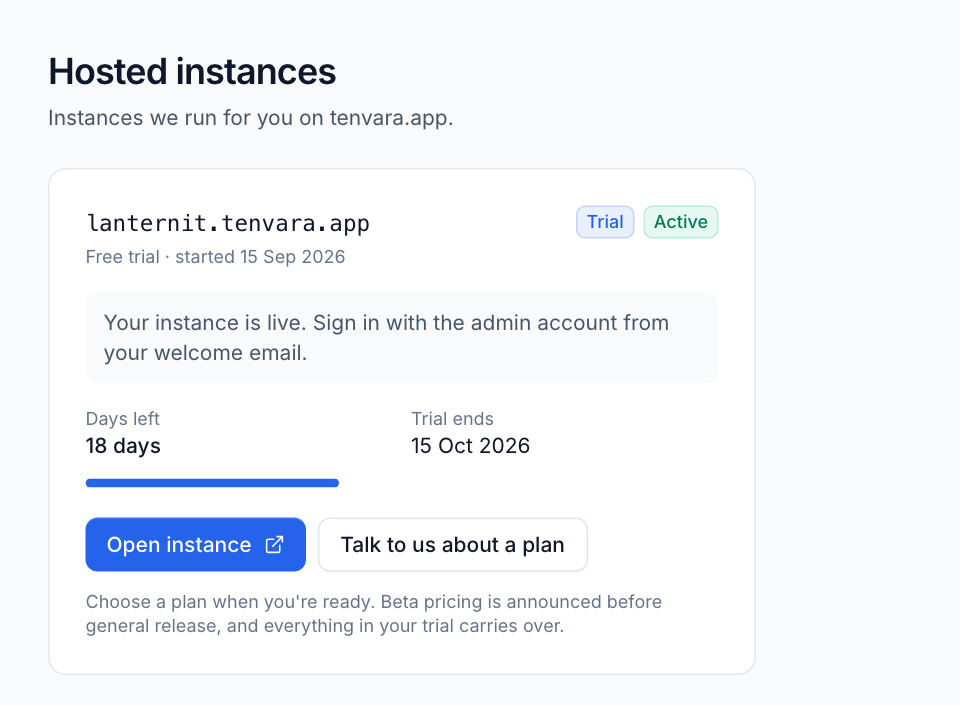
When it is ready
We email you when your instance is ready, with how to sign in for the first time. Your 30 days start on that day, not the day you signed up, so you never lose trial days waiting.
- Open
https://yourname.tenvara.app, or press Open instance in the client area. - Sign in with the administrator account we send you, and set up two-factor straight away. See Signing in.
- Carry on with First steps: add a customer, invite your team and install the agent.
Tip: Run Tenvara side by side with the tools you use today during the trial. Start with one customer or one job, such as the service desk or backup, and move more over as you go.
At the end of the trial
When your trial ends, the status changes to Trial ended and access to the instance is paused. Everything you set up is kept.
- To carry on, press Talk to us about a plan on your trial in the client area, or reply to any of our emails. We move you to a paid plan and switch the instance back on with everything as you left it: same address, same data, same settings.
- If you need more time, ask us. We can extend a trial.
Plans are on the pricing page at www.tenvara.io. While Tenvara is in beta, prices are announced before general release, so you know where you stand before you commit.
Next steps
- Hosted onboarding covers hosted instances in more detail, including ordering a paid plan.
- First steps takes you through your first hour in the app.
Was this page helpful?
Thanks for the feedback.