Archiving and legal hold
Keep a customer's mail for a set number of years and search it, put a customer or mailbox on legal hold so nothing is pruned or deleted, and run eDiscovery cases with PST or EML exports and a chain of custody.
Mail backups already hold years of a customer's email. Archiving turns them into a searchable archive kept for as long as the customer must keep it, legal holds stop anything a matter needs from being pruned or deleted, and eDiscovery cases search, export and record every step for a solicitor or regulator.
Everything here works from the mail Tenvara already backs up for Microsoft 365 and Google Workspace. Open Backup and find Archiving in the sidebar: eDiscovery, Legal holds and Email archiving.
Email archiving
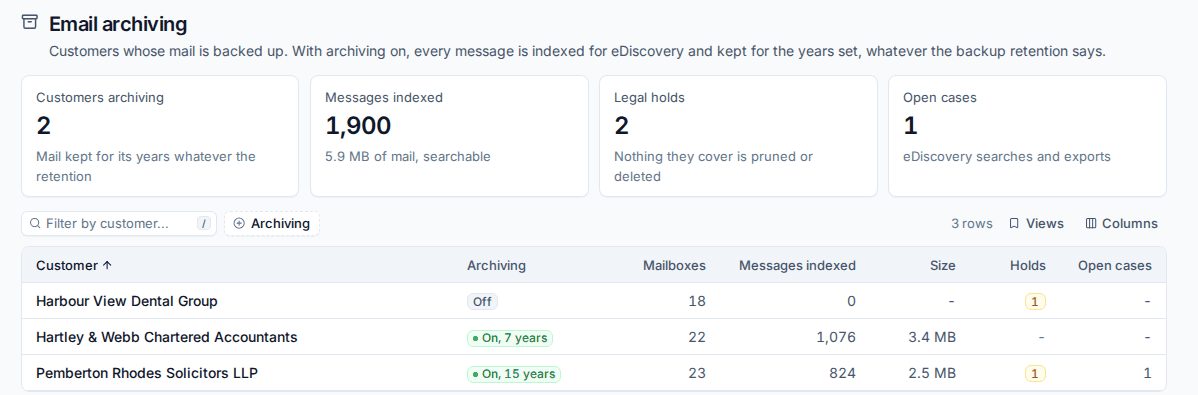
With archiving on for a customer, every backed up message in their mailboxes is indexed for full-text search, and mail is kept for the number of years you set whatever the backup retention says. Retention skips mail recovery points younger than that.
Backup > Email archiving lists every customer whose mail is backed up, with whether archiving is on and for how many years, how many mailboxes and messages are indexed, the size, and any holds and open cases.
Turning archiving on
- In Backup > Email archiving, click the customer.
- Turn on Archive this customer's mail.
- Set Keep archived mail for (1 to 100 years; seven is common for financial records, ten for legal ones) and press Save.
Turning archiving off later lets mail follow the normal retention again. Nothing is deleted at once.
Messages already backed up are indexed from the backups themselves, so the archive covers everything you hold, not only new mail.
Legal holds
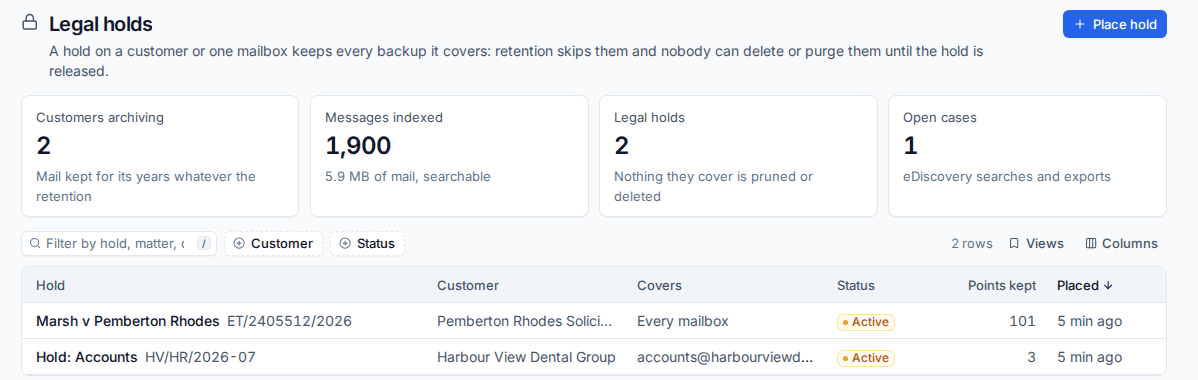
A legal hold covers a whole customer or one mailbox. While it is active, nothing it covers is thinned by retention, deleted by a person, purged from the recovery window, or removed with a repository. It stays exactly as it is until the hold is released.
Placing a hold
- Open Backup > Legal holds and press Place hold.
- Choose the Customer.
- Under Covers, choose Every mailbox, or One mailbox and pick the Mailbox (Microsoft 365 or Google Workspace).
- Enter a Name, the Matter or reference, and Why the hold is needed.
- Press Place hold.
The list shows each hold with its customer, what it covers, its status and how many recovery points it keeps.
Releasing a hold
Open the hold and release it. Releasing needs a reason, which goes in the activity log and in the custody log of any case it belongs to. Normal retention then applies again.
eDiscovery cases
A case searches every mailbox of a customer for a legal matter or investigation, keeps the searches and exports together, and records every action in a tamper-evident custody log.
Opening a case
- Open Backup > eDiscovery and press New case.
- Choose the Customer and enter a Name.
- Enter the Matter or reference (the solicitor's or court reference, printed on every report) and a Description.
- Leave Place a legal hold on every mailbox of the customer on while the matter lasts.
- Press Open case.
Searching
- In the case, press New search.
- Enter words or phrases. Use quotes for a phrase,
orbetween alternatives, and-wordto leave messages out. - Narrow it with the filters: mailbox, sender, participant, subject, folder, dates, and whether it has attachments.
- Run the search.
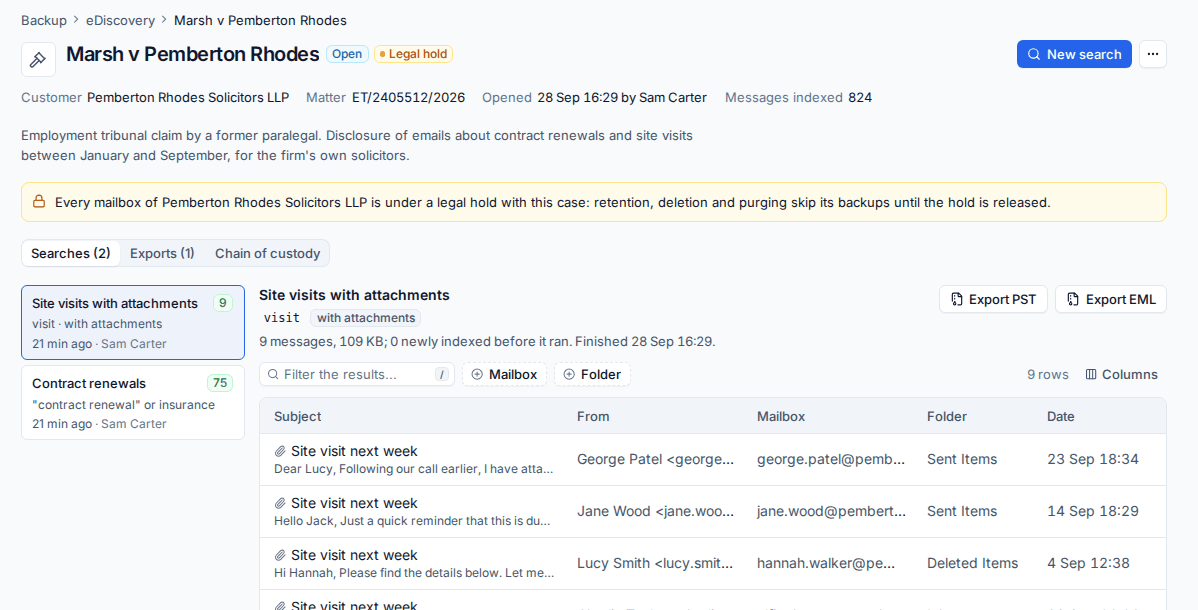
Each search is kept in the case with how many messages it found. Click a message to read it, straight from the backup, in a side panel.
Exporting
From a search, press Export PST or Export EML. The export comes with a manifest of SHA-256 hashes for every message and a chain of custody report, so the recipient can show nothing changed. Exports are listed under the case's Exports tab for download.
The chain of custody
The Chain of custody tab lists every action on the case (opened, searched, exported, downloaded, closed) with who did it and when. The log is hash-chained and checked each time it is shown, so any tampering would be visible.
When the matter is over, close the case and release its holds.
Tip: Give eDiscovery to a small number of people. Who can see and use backup is set in Roles and permissions.
Related
Was this page helpful?
Thanks for the feedback.