File transfer, recording and background tools
Work on a device without taking over its screen: a terminal, files both ways, processes, services, event logs and the registry, plus recorded sessions you can play back.
Not every job needs the user's screen. Background tools let you work on a device while the person at it carries on undisturbed: open a terminal, move files both ways, end a process, restart a service, read the event logs or edit the registry. Everything you do is logged against your name. Screen sessions and terminals can also be recorded on the device and played back later.
You need the remote access permission with full access to the device (see Wake-on-LAN and remote access rules), and the device needs an online agent with the Background tools module on. It is on by default.
Opening the tools
- Open the device.
- Click ... and choose Background tools.
The Tools page opens with the device's connection state and who is signed in, and these tabs: Terminal, Files, Processes, Services, Event logs, Registry (Windows only) and Activity.
Terminal
- Pick a shell under Default shell: PowerShell, cmd, bash, zsh or sh, whichever the device has.
- Choose who it runs as: As SYSTEM (root on macOS and Linux) or as the signed-in user.
- Click New terminal.
Nobody at the computer sees it. You can have up to four terminals open on a device at once. A terminal that sits idle for 30 minutes is closed.
Files
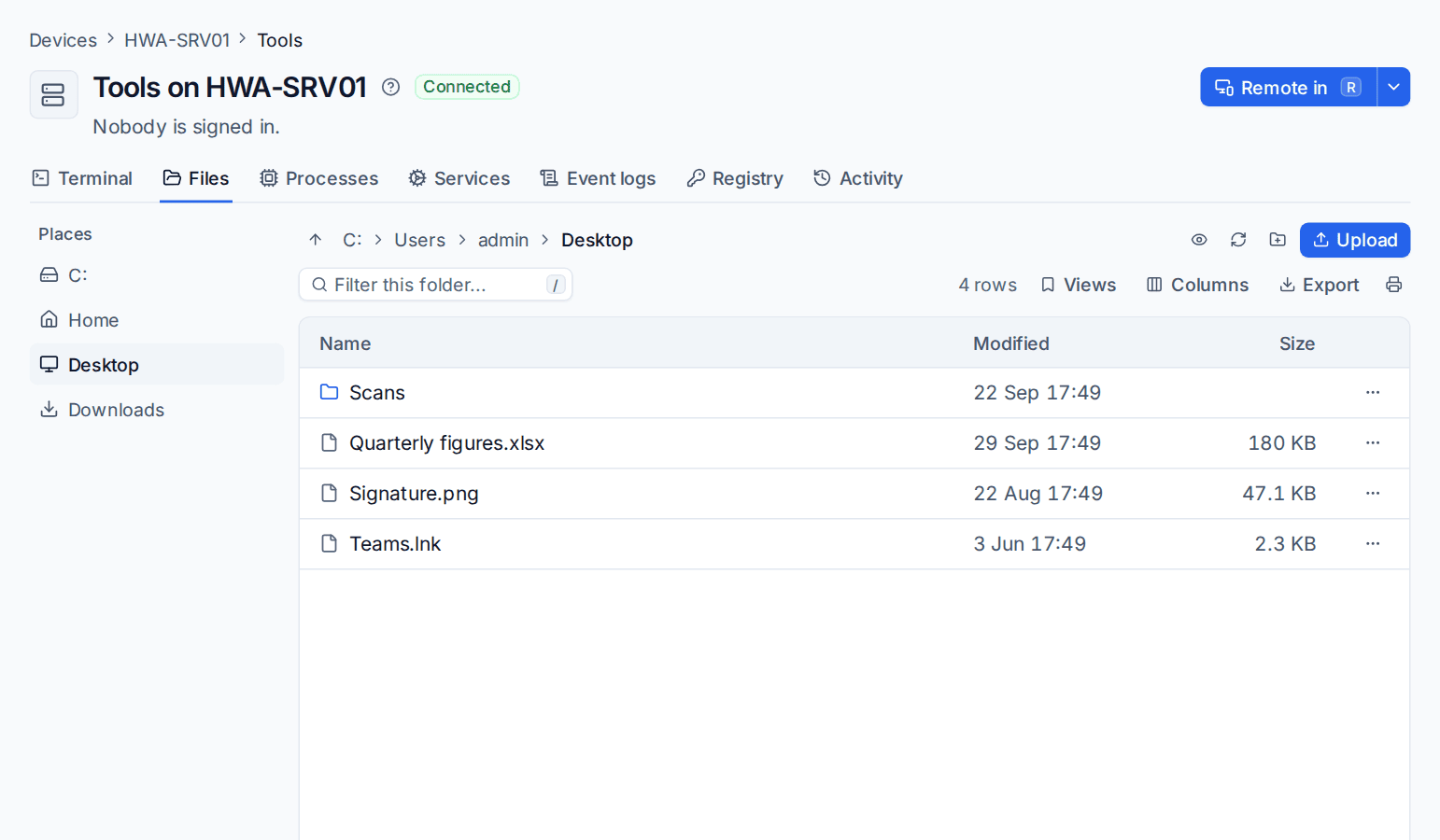
Places on the left lists the drives and the signed-in user's Home, Desktop and Downloads. Browse into folders, then:
- Upload (or drop files on the list) to send files to the device. Large uploads show their progress and pick up where they left off if the connection drops.
- Click ... on a file and choose Download. For a folder, choose Download as ZIP.
- Use New folder, Rename or delete as you would on the machine.
Every file is checked against its SHA-256 hash when it arrives, and every upload and download is written to the device's activity with who, the path, the size and the hash. Files up to 2,048 MB can be moved by default; the session policy sets the limit.
Processes, services and event logs
- Processes: the live process list with CPU, memory and who runs each one. Choose End process or End process and its children, or change a process's priority.
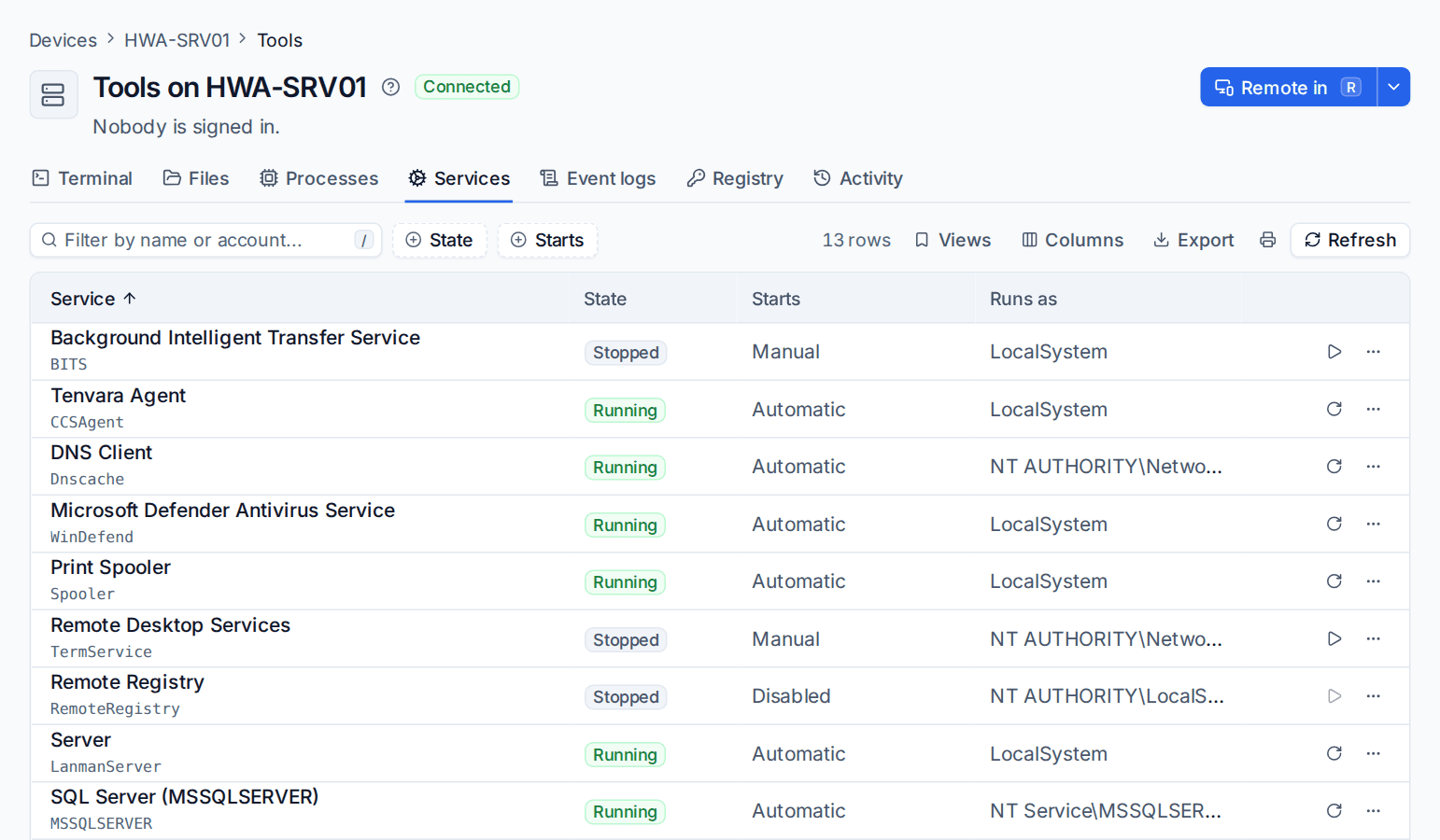
- Services: every service (Windows services, systemd units, launchd daemons) with its state, how it starts and the account it runs as. Start, stop or restart it, or change how it starts.
- Event logs: the Windows logs (Application, System, Security, Setup and others), the journal on Linux and the unified log on macOS. Filter by level, time, text, source and event ID.
Registry
On Windows, browse the keys under HKLM, HKCU (the signed-in user), HKU, HKCR and HKCC, and add, edit or delete values and keys.
Activity
Every change made from the tools (ending a process, changing a service, editing the registry, moving files) is listed here and on the device's timeline.
Files during a remote session
Inside a remote control session, open Files in the viewer to browse the device and send or fetch files. You can also drop files straight onto the remote screen: they are sent to the signed-in user's Desktop.
Session recording
Recordings are made on the device itself, from the same picture the viewer receives, so a technician cannot leave anything out or edit them afterwards. They are stored encrypted on your server, or in S3-compatible storage if you set that up.
Recording is set by the session policy under Settings > Remote access (see below):
| Record sessions | What happens |
|---|---|
| Off | Nothing is recorded. |
| When the technician chooses | The viewer has Record this session and Stop recording. |
| Always | Every screen session and terminal is recorded from the start, and the technician cannot stop it. |
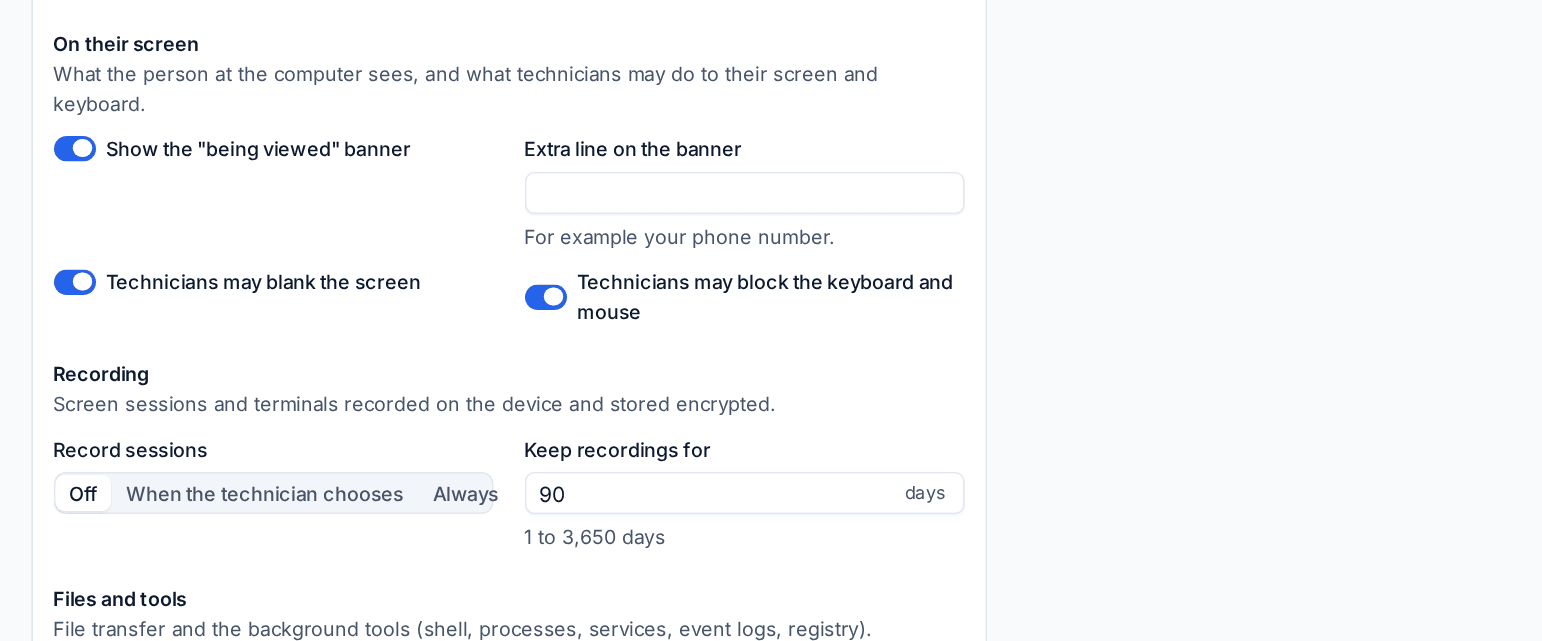
When a session is recorded, the banner on the user's screen says so. Keep recordings for sets how many days recordings are kept (90 by default); they are deleted after that, except for customers on legal hold.
Watching a recording
Go to Devices > Recordings. Filter by Kind (screen or terminal), Who, Device, Customer or Status, and click a recording to play it.
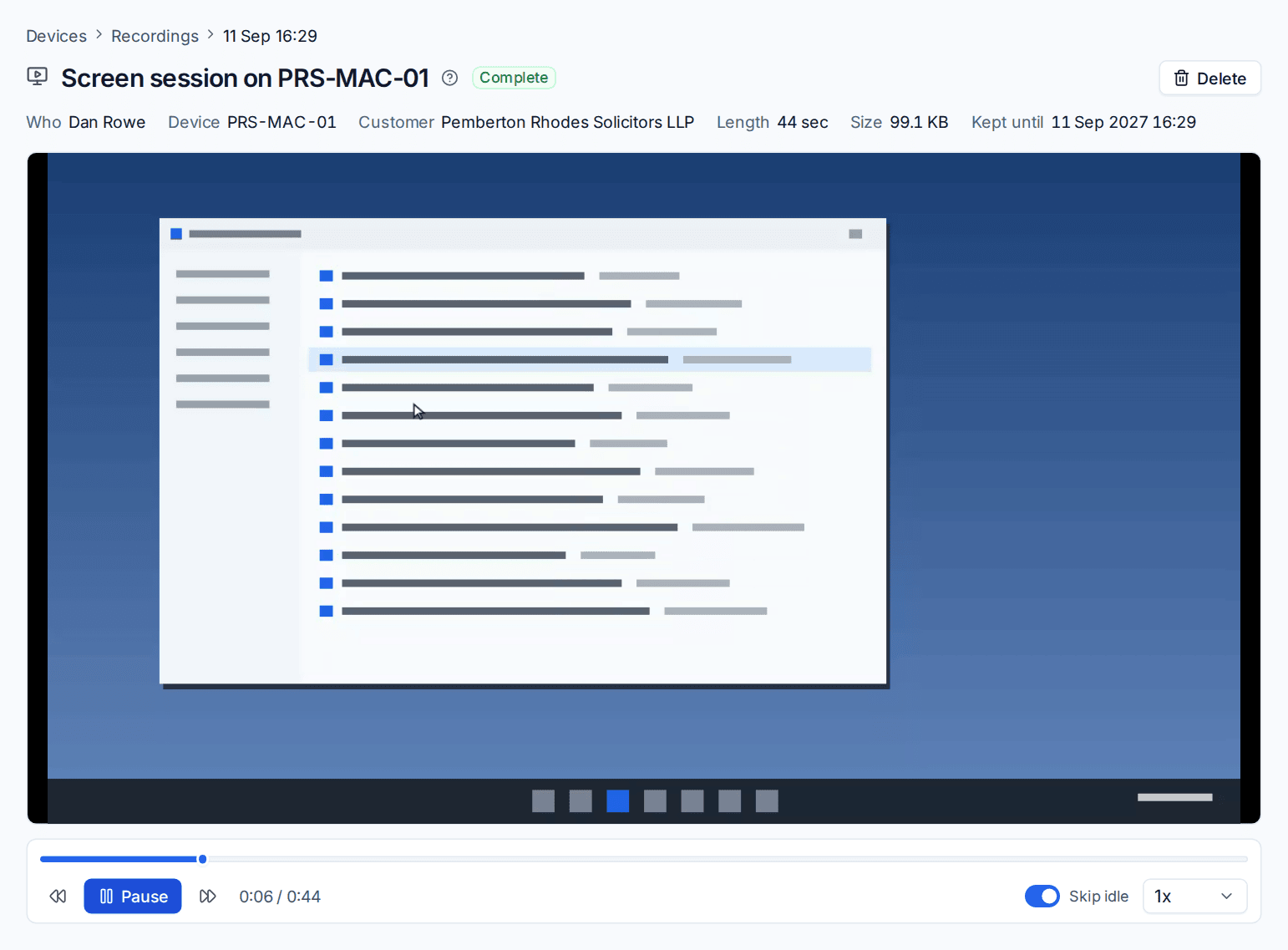
The player has play and pause, a scrub bar, speeds from 0.5x to 16x and Skip idle. Terminal recordings replay into a terminal. Watching a recording is itself logged. Administrators can delete a recording early with a reason.
The session policy
Settings > Remote access > Session policy decides how remote sessions and tools behave for every device. Under Customers, device groups and devices you can give a customer or a device group stricter or looser values; where a device is in several groups, the strictest value wins.
- Consent: Unattended or Attended access; whether the user is asked, told or neither; how long the prompt waits; what happens if nobody answers or nobody is signed in.
- On their screen: show the "being viewed" banner, add an extra line to it (your phone number, for example), and whether technicians may blank the screen or block the keyboard and mouse.
- Recording: as above.
- Files and tools: File transfer on or off, Largest file, and Background tools on or off.
- Allowed hours: when sessions and tools may start, in the customer's time zone. Outside them Tenvara either refuses, or lets an administrator carry on with a reason that is recorded.
Tip: For a customer with strict rules, such as a law firm, create a customer policy with Always recording and Attended access instead of changing the policy for everyone.
Related
Was this page helpful?
Thanks for the feedback.