Stock locations and vans
Keep stock in the office, in engineers' vans and at customers' sites, with reorder points, counts, moves, units given to customers and low stock alerts.
Stock is the hardware you keep: laptops on the shelf, docks in a van, a spare access point in a customer's comms cupboard. Tenvara tracks what is on hand at each location, what is reserved for someone, and what is available to use, and every change is kept in the item's history.
Stock locations
Set up where stock is kept in Settings > Procurement, under Stock locations:
- Press Add location.
- Name it and choose its kind: a store (your office or warehouse), a van (choose the engineer it belongs to) or a customer site (choose the customer's site, for stock kept there).
- Save.
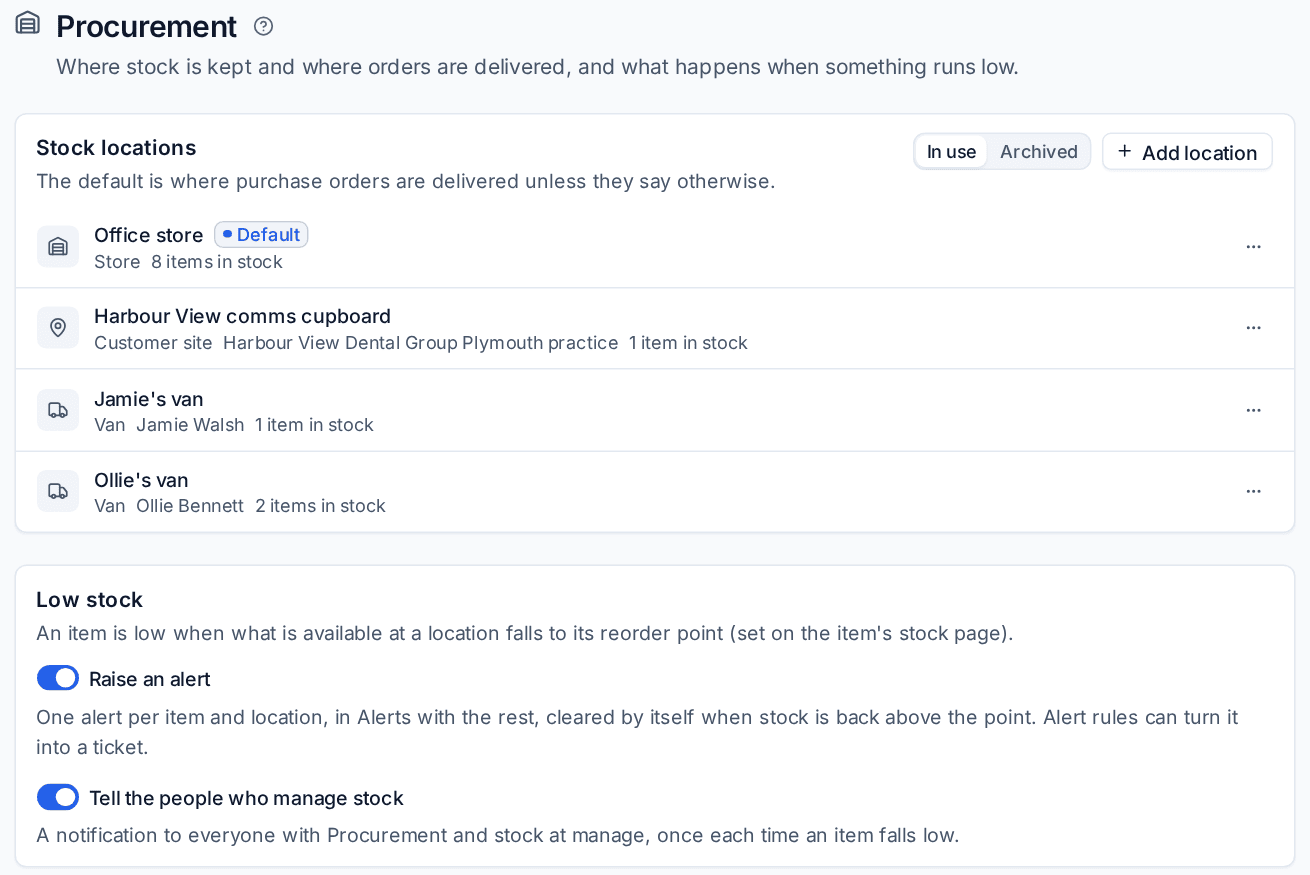
One location is the Default: purchase orders are delivered there unless they say otherwise. To change it, make another location the default from its menu. A location with stock in it cannot be archived, and one with any history is archived rather than deleted.
Items that track stock
Stock is tracked for catalogue items that say so. On the catalogue item, turn on tracking stock, and serial numbers if each unit has one (laptops, docks, access points). Add the manufacturer, part number, preferred supplier and warranty in months while you are there: the part number is how distributor feeds find the item, and the warranty is set on each unit when it goes to a customer.
Once an item has stock history, tracking cannot be turned off and it cannot be deleted; archive it instead.
The stock list
Stock shows every item that tracks stock with its supplier, where it is, what is on hand and available, its value at cost and its status. The cards at the top give the total on hand, the Value at cost and how many items are Low or out of stock. Use Every location to look at one location, such as a single van.
An item's stock page
Open an item to see its Locations, its Units (for serialised items) and its History.
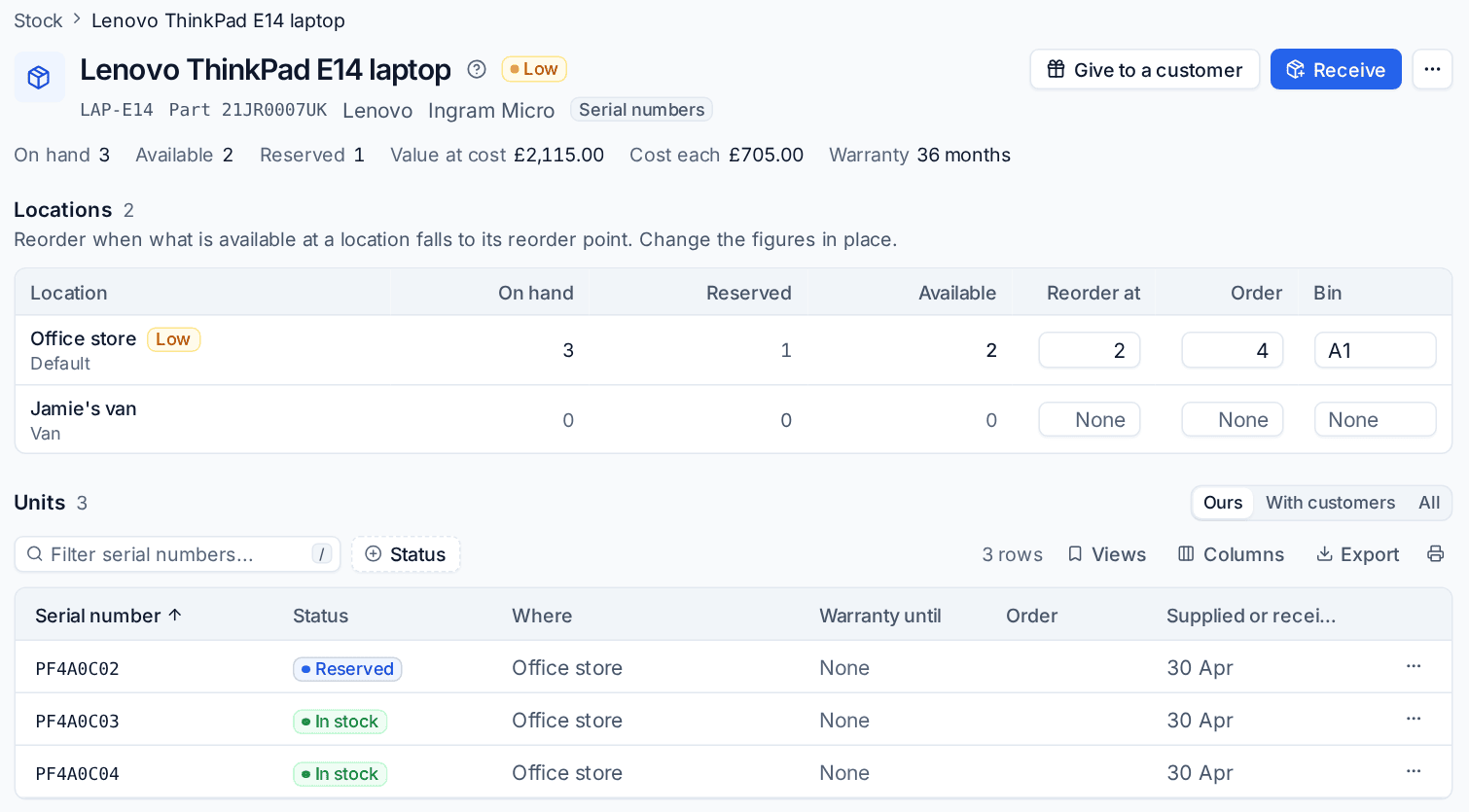
In the Locations table you can change the Reorder at point, the Order quantity and the Bin in place. From the header:
- Receive books stock in without a purchase order, for example a laptop returned by a leaver.
- Give to a customer takes stock out and gives it to a customer, and to one of their devices or a ticket if you choose. Each serialised unit records the customer and device and starts its warranty.
- From the More actions menu: Move stock between locations (into a van, say), Stock count to correct the quantity at a location (with a reason), and Write off.
On each unit, Return... brings it back from a customer (in good order, or faulty), Mark faulty... keeps a faulty unit where it is without counting it as available, and Write off... removes it. Serialised items are counted unit by unit: write off a missing one, or receive one that turned up.
Nothing can take stock below zero, and two people moving the same stock at once never double count it.
Serial numbers
Serial numbers lists every unit with a serial, wherever it is: in stock, with a customer, faulty or written off, with its warranty and when it was supplied or received. Search by serial, item, customer or device, or type a serial into the global search (three characters or more). Click a unit to see its history.
What a customer has
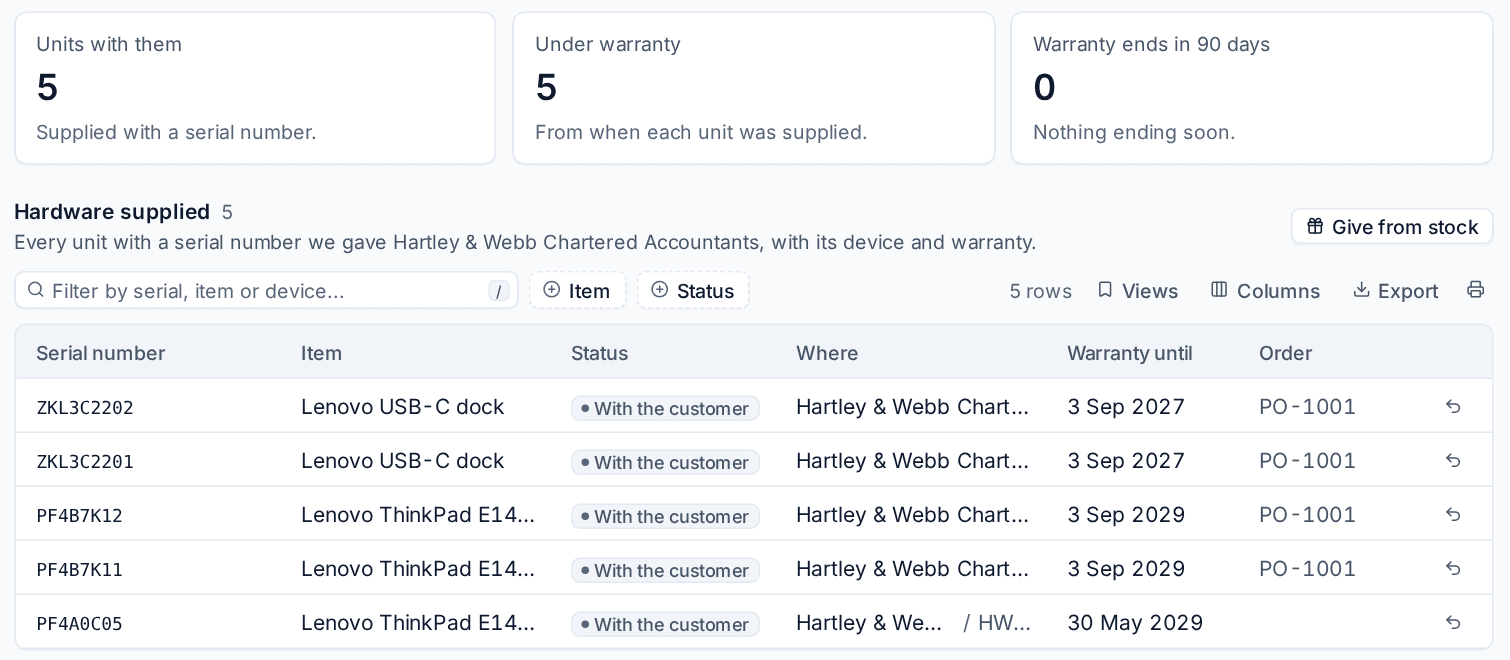
Each customer has a Hardware tab: Hardware supplied lists every unit with a serial number you gave them, with its device, warranty and the order it came on, and Other items supplied lists things without serials and how many they still hold. Give from stock and the return button on each row work from here too. The device page shows the units supplied for that device and their warranty.
Reorder points and low stock
An item is low when what is available at a location falls to its reorder point. In Settings > Procurement, under Low stock:
- Raise an alert: one alert per item and location, with your other alerts, cleared by itself when stock is back above the point. Alert rules can turn it into a ticket.
- Tell the people who manage stock: a notification each time an item falls low.
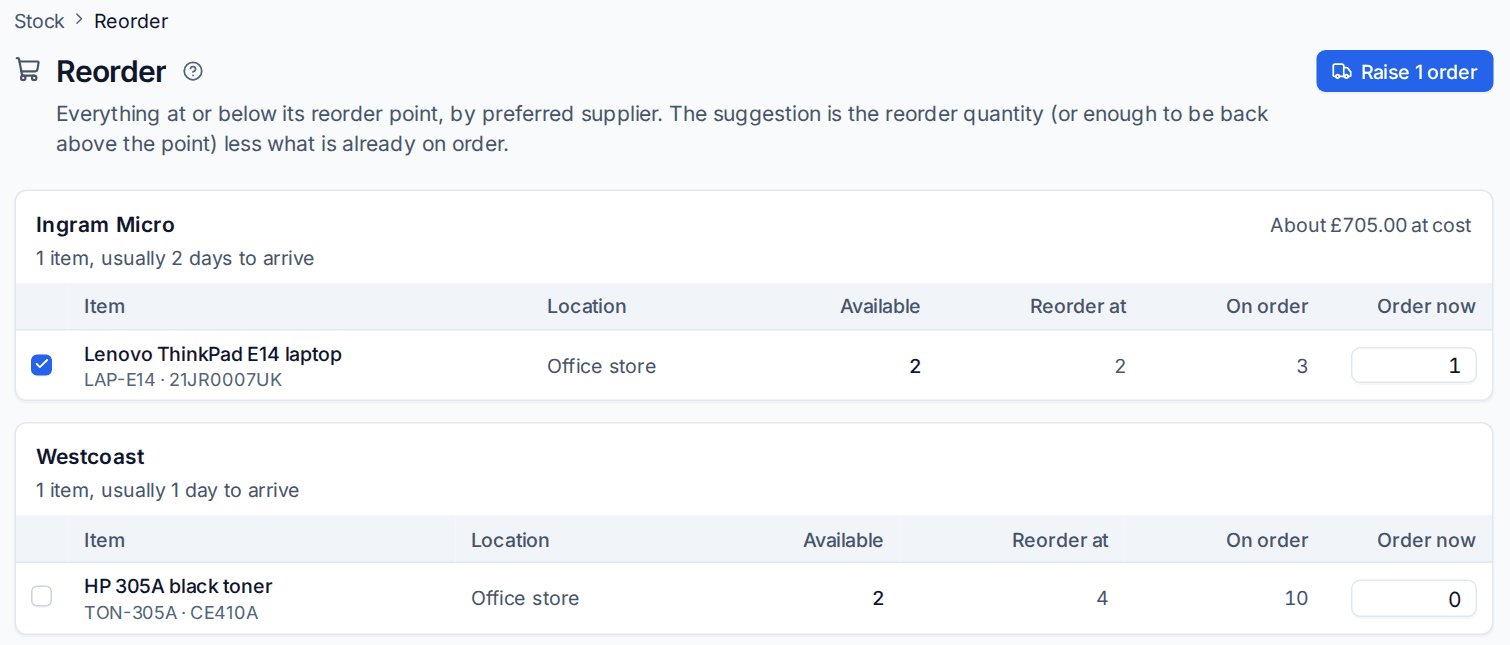
Reorder lists everything at or below its reorder point, grouped by preferred supplier. The suggested quantity is the item's reorder quantity (or enough to be back above the point) less what is already on order. Tick the lines, change the quantities and press Raise orders for one draft order per supplier.
Related
Was this page helpful?
Thanks for the feedback.