Remote control from your phone
See and control a device's screen from the Tenvara app: starting a session, consent, trackpad and touch modes, the key row, the keyboard and ending the session.
The app has a full remote viewer, so you can get onto a customer's machine from your phone or tablet: to check something before you drive over, to help someone while you are out, or to restart a stuck service from the car park. It works the same way as Remote control on the web, with the same permissions, consent rules and session log.
You need the remote access permission, and the device needs an online agent with the Remote control module on.
Start a session
- Open the device (from Devices, a ticket, an alert or search).
- Press Remote in.
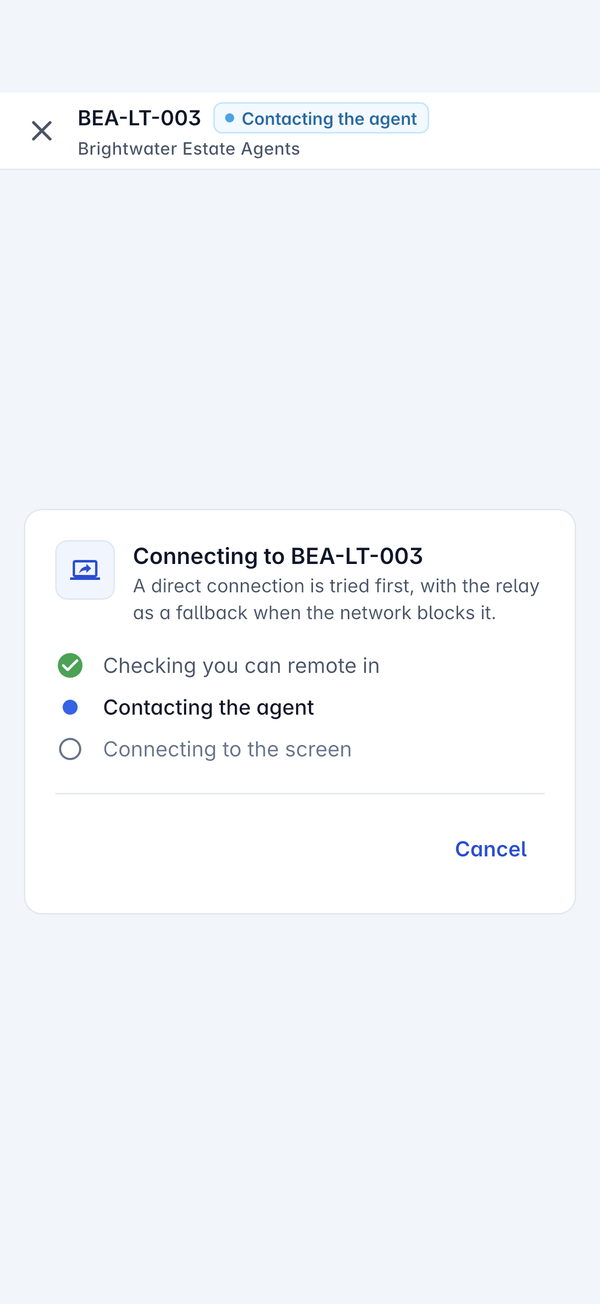
The viewer shows where it has got to:
- Checking you can remote in
- Contacting the agent
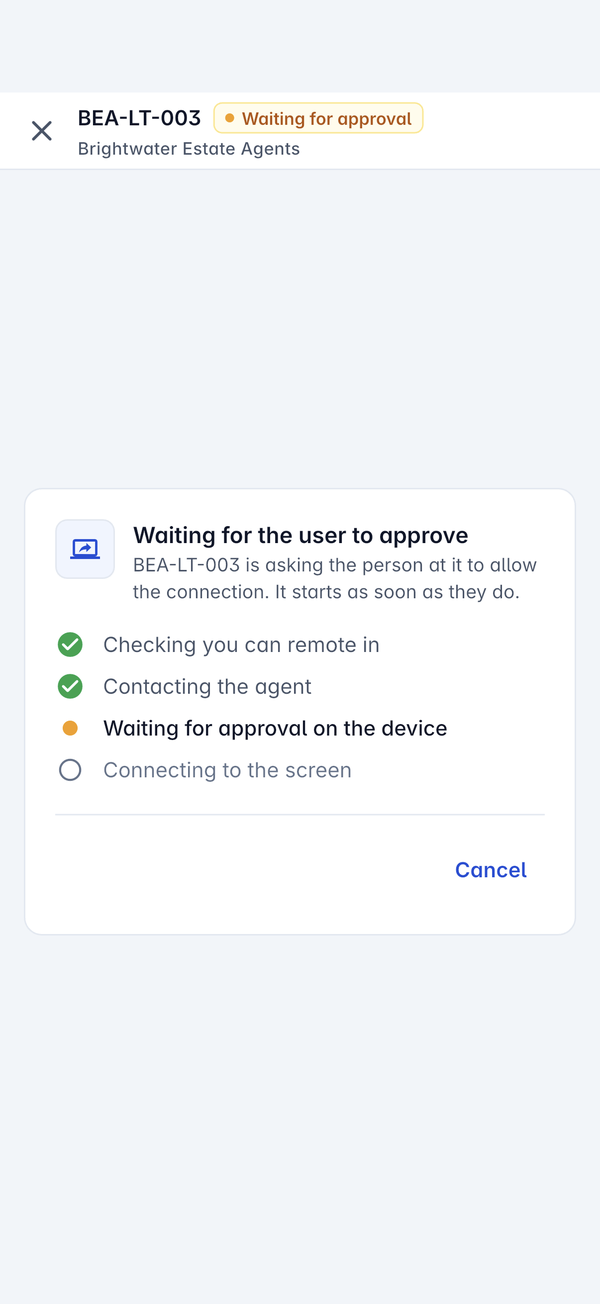
- Waiting for approval on the device, when the person at the device must approve
- Connecting to the screen
A direct connection is tried first, with the relay as a fallback when the network blocks it. Press Cancel at any point to stop, or the cross at the top left to close the viewer.
When the user must approve
How the person at the device is asked is set for the whole workspace under Settings > Devices and agent > Remote session consent on the web, and the app follows it. With Ask the user first, the viewer says Waiting for the user to approve and the session starts as soon as they allow it. If they decline or do not answer, it does not start.
In the viewer
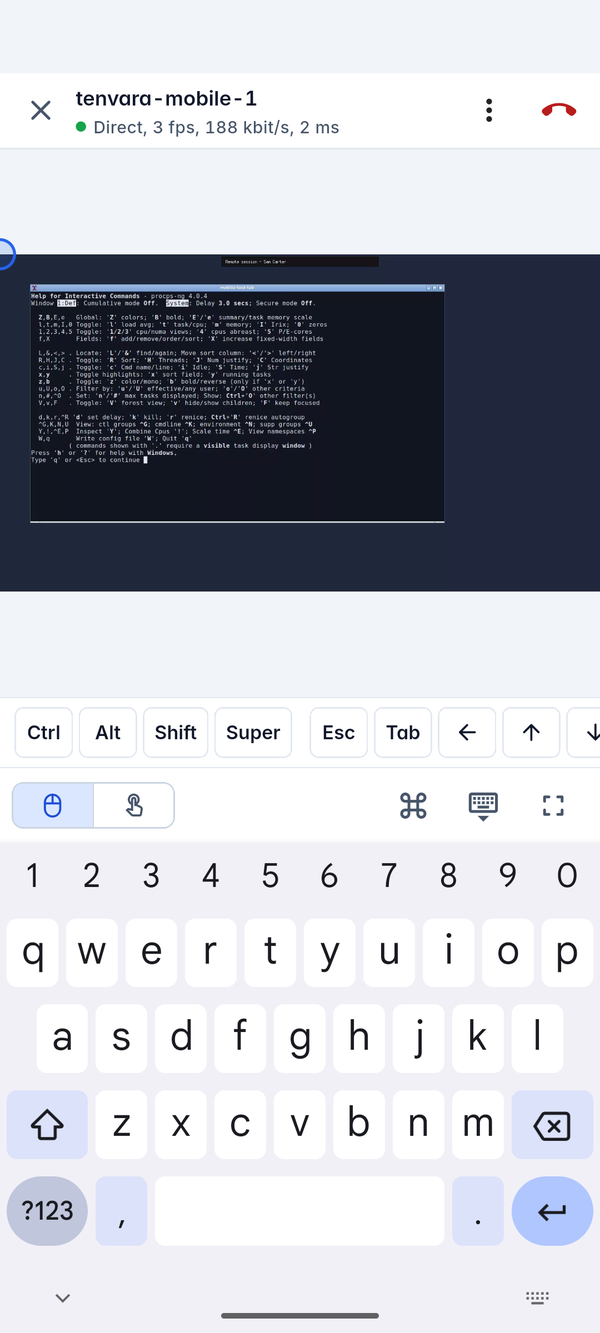
Once the session is live, the device's screen fills the middle of your phone. The top bar shows the hostname and the connection, for example Direct, 3 fps, 188 kbit/s, 2 ms, with the menu and the red End session button on the right.
Along the bottom:
- Trackpad and touch modes, on the left. In trackpad mode your finger moves the pointer like a laptop's trackpad, which is best for small targets. In touch mode you tap where you want to click.
- The key row: Ctrl, Alt, Shift, Super, Esc, Tab and the arrow keys, for the keys your phone's keyboard does not have. Swipe it for the rest.
- Key combinations, the keyboard and full screen, on the right. Open the keyboard to type on the device: what you type goes straight to it.
On a device with more than one screen, pick the display to show from the menu at the top.
Ending the session
Press the red End session button. The session closes on the device straight away and is logged in Devices > Remote sessions on the web, like one started from a browser.
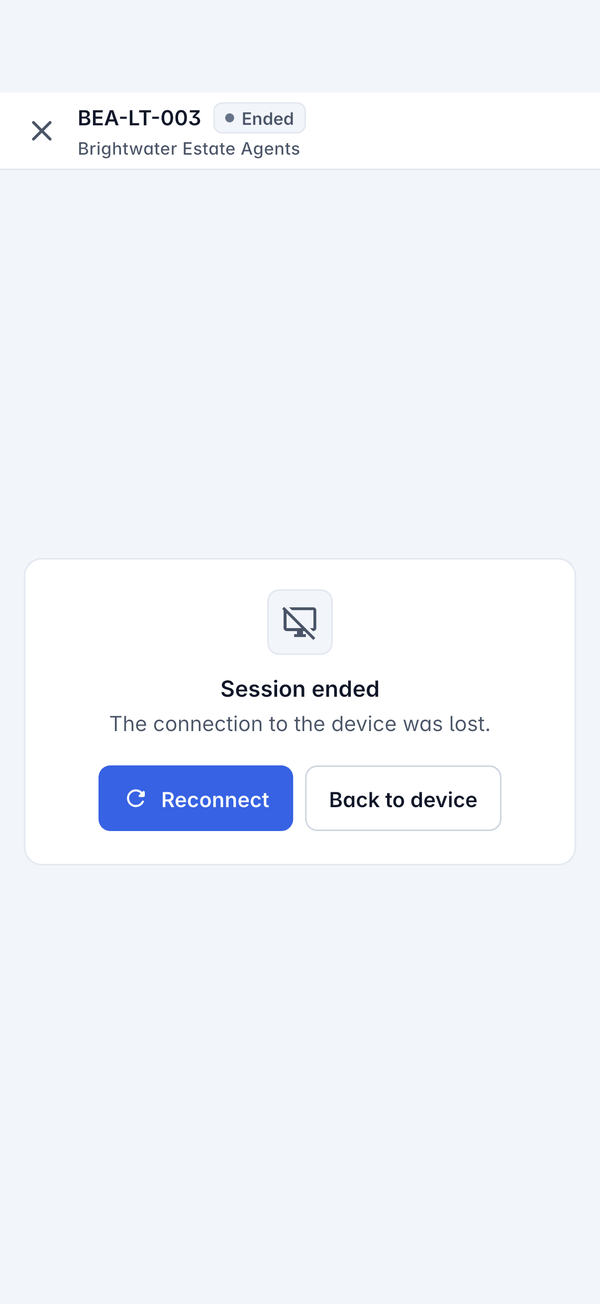
If the connection drops, for example when you lose signal, the viewer says Session ended with the reason. Press Reconnect to start again, or Back to device to return to the device's page.
When a session will not start
The viewer says why and offers Try again and Back to device. Common reasons are the same as on the web: the device is offline or has no agent, its Remote control module is off, the user declined, two sessions are already live, or nobody is signed in to the device.
Remote control always needs a connection: it cannot be queued for later like a reply.
Was this page helpful?
Thanks for the feedback.